SIPLACE Line Computer UNIX.pdf - 第77页
User Manual Line Computer UNIX 3 Desktop (Root Window) Software Version 502.xx 10/2000 Issue 3.1 Introduction 75 I t I I - Bottom section fea turing th e Line selec tion button an d the view area The Line select ion butt…
3 Desktop (Root Window) User Manual Line Computer UNIX
3.1 Introduction Software Version 502.xx 10/2000 Issue
74
I
t I I
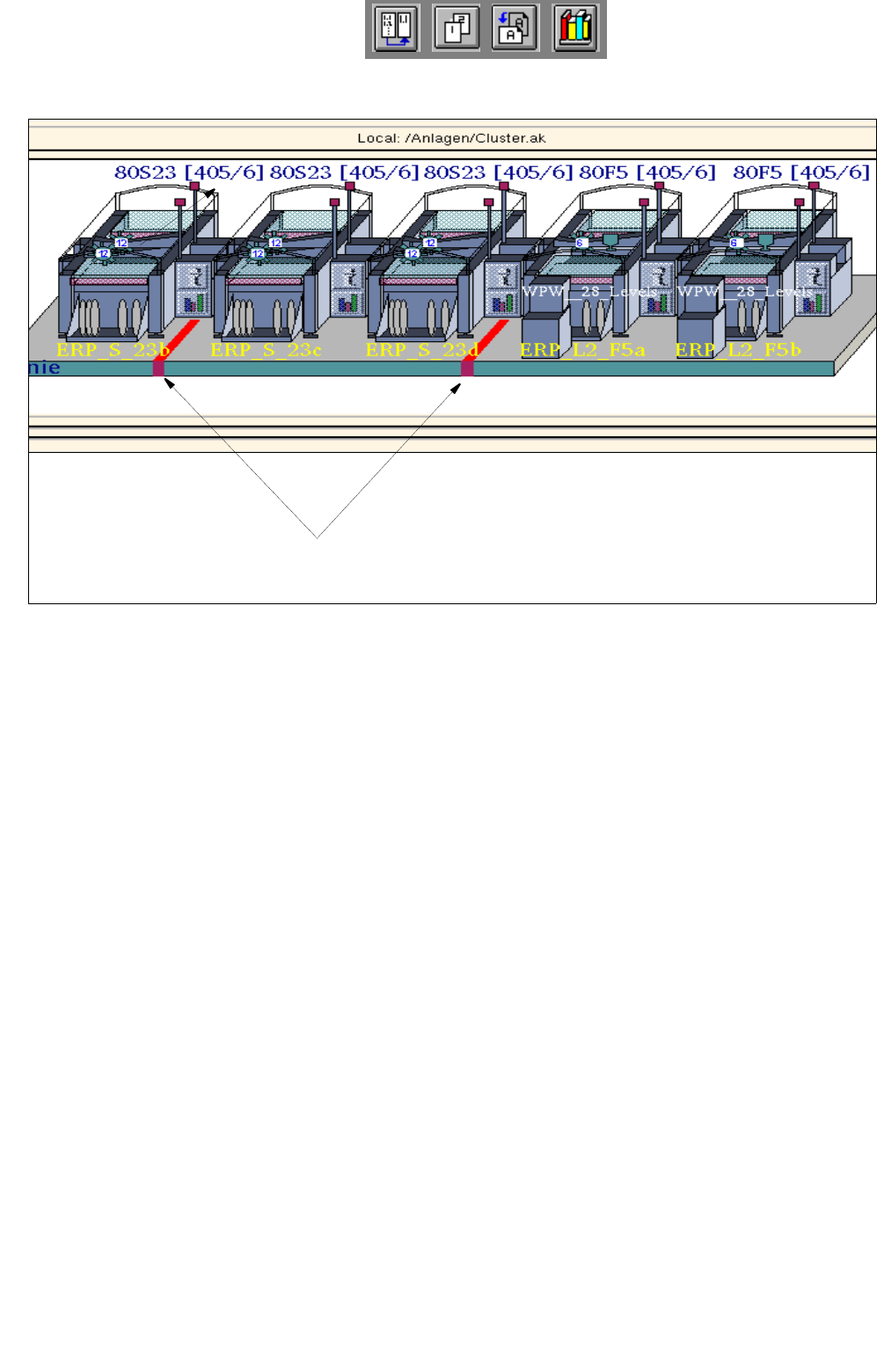
Fig. 3.1.5 Example of Cluster Limits Identified in the Line Configuration Display
The desktop is subdivided into the three sections described below:
- Upper area containing the desktop menu bar
The menu bar contains the following menus:
FILE
OPTIONS
SERVICES
PRODUCT (only available in the control mode)
PRODUCTION TOOLS (only available in the control mode)
- Middle area containing the main groups
Product (only available in the programming mode)
Production Tools (only available in the programming mode)
Control
Each of these main groups contains the modules of the LC software. These modules are the LC pro-
grams which are displayed in the respective main group as icons when they have been logged on to the
desktop.
Marking of cluster limits
User Manual Line Computer UNIX 3 Desktop (Root Window)
Software Version 502.xx 10/2000 Issue 3.1 Introduction
75
I
t I I
- Bottom section featuring the Line selection button and the view area
The Line selection button displays the pathname of the current line. The type of data storage ("local" or
"central") currently accessed is indicated in front of the pathname as an additional piece of information.
- If the overall line was defined as a production line in the Line Editor, the entry [production line]
is displayed behind the path name (see
Fig. 3.1.4).
- If the "with barcode" option was activated for the overall line, the entry [barcode mode] is
displayed behind the path name (see
Fig. 3.1.4).
The FSB enabling the selection of a different line can be opened by clicking on the button.
The view area contains a display symbolizing the current line configuration including all stations
existing in the line.
NOTE
The meaning and functions of all elements of the desktop in the programming and control modes are
described in section 3.2.
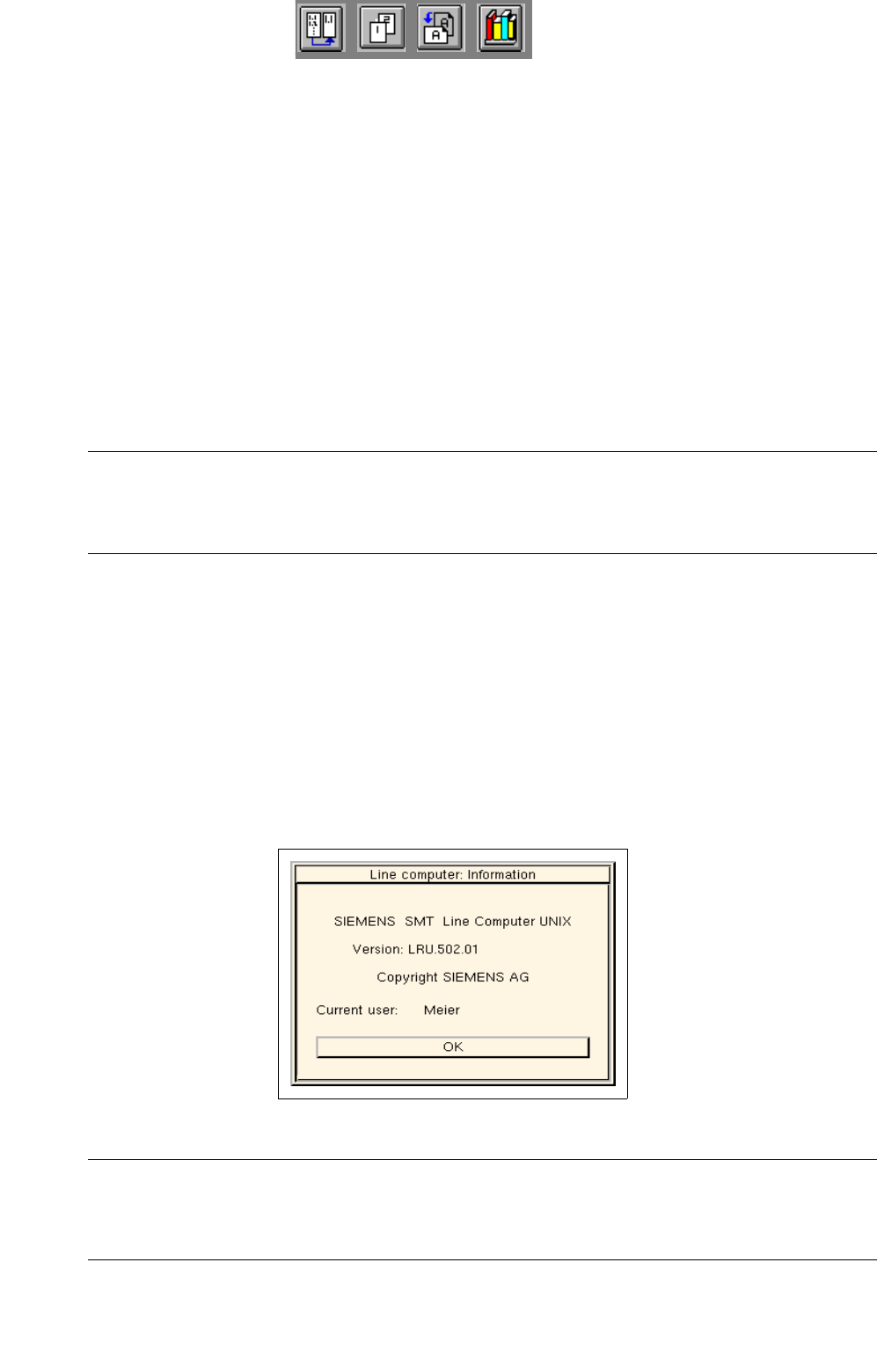
In addition to the main groups, the desktop contains the SMD symbol for the display of the currently used LC
version:
● Click on the SMD symbol.
A menu with the entries "Index" and "Version" is opened.
● Select entry Version.
The current version of the LC software and the name of the current user are displayed in an info
box (see example below).
NOTE
If the Index entry is clicked on, the help window containing a listing of all available Help topics is
opened (see chapt. 2, chapt. 2.5.3.1).