SIPLACE Line Computer UNIX.pdf - 第220页
6 Product / Package Form User Manual Line Computer UNIX 6.1 Package Form Ed itor Software Version 5 02.xx 10 /2000 Issue 218 I t I I - Number of pins number of pins - Spacing [mm] distance between pi n centers - Pin angl…
User Manual Line Computer UNIX 6 Product / Package Form
Software Version 502.xx 10/2000 Issue 6.1 Package Form Editor
217
I
t I I
Creating a pin group
Procedure:
● Click on Create in the command area of the "Model description" field (see Fig. 6.1.1).
The window for editing the data for the new pin group is opened (see
Fig. 6.1.20).
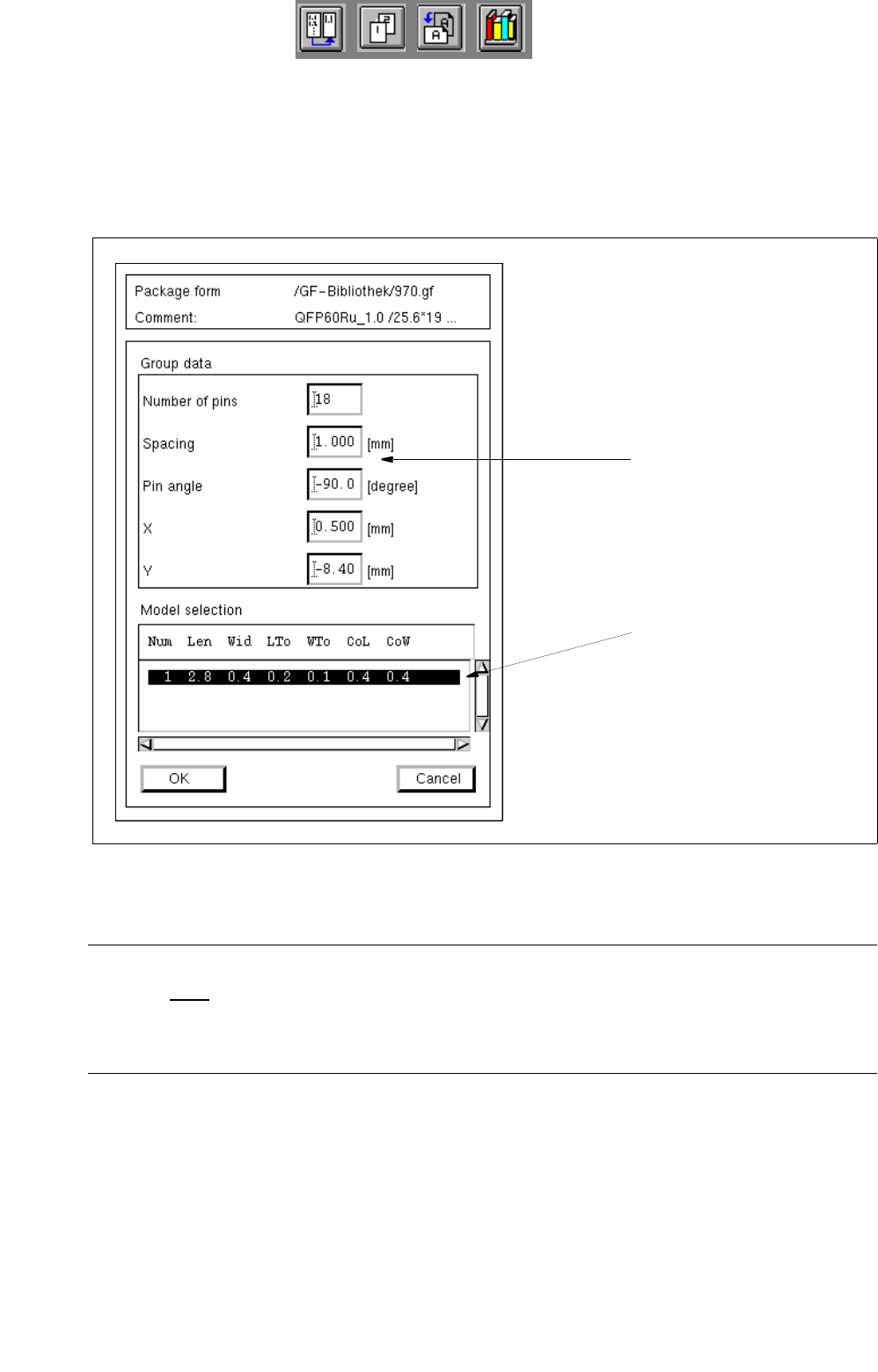
Fig. 6.1.20 Window "Group Description"
NOTE
Upon the initial opening of the "Group description" window no entries are contained in the "Models"
selection field yet. Only after one or several pin models have been defined (see page 6 - 219) will the
data of the defined pin models be displayed in the selection field when the window is opened.
In the following, the meaning of the individual editing fields for the pin groups is explained (see also
Fig. 6.1.18 and Fig. 6.1.19).
The entries for the offset values "X" and "Y" and the "Pin angle" must contain the correct signs!
selection field
editing fields
"Models"
6 Product / Package Form User Manual Line Computer UNIX
6.1 Package Form Editor Software Version 502.xx 10/2000 Issue
218
I
t I I
- Number of pins number of pins
- Spacing [mm] distance between pin centers
- Pin angle [degree] positional angle of pins
(for component side: top 90°, bottom -90°, right 0°, left 180°)
- X [mm] distance between component center and center of
pin group in x-direction
- Y [mm] distance between component center and center of
pin group in y-direction
Procedure to be followed for editing:
● Click on the individual editing fields and enter the values.
NOTE
Every time the RETURN key is pressed following an entry in one of the editing fields, the graphical
representation of the package form in the view area is automatically updated.
● Confirm completion of the entries by clicking on OK .
The window is closed. The new group is displayed in the view area of the main window.
NOTE
If invalid values (e.g. excessive value for the number of pins) or characters (e.g. letters, or a comma as
decimal point), a dialog box containing an appropriate error message is displayed (see page 6 - 193).
The fields containing the invalid values are surrounded by a red frame.
The dialog box must be acknowledged by clicking on OK first. Thereafter, the entries can be correc-
ted and confirmed by clicking on OK.
The edited values are retained when the window is closed. If, however, no
saving procedure is car-
ried out upon exiting the Package Form Editor, the edited data will be lost.
Changing a pin group
● Click on any pin of the desired group in the view area.
The group is identified by a rectangle surrounding it.
● Once again select the pin by double-clicking.
The window for editing the pin group is opened (see
Fig. 6.1.20).
● Click on the editing field containing the value to be changed (cursor to be positioned in front of the
value).
● Delete the value using the DELETE key and enter new value.
● After all the required changes have been completed, click on OK.
If the values entered are valid, the window will be closed.
The pin group is displayed in the view area with the modified dimensions.
User Manual Line Computer UNIX 6 Product / Package Form
Software Version 502.xx 10/2000 Issue 6.1 Package Form Editor
219
I
t I I
Allocating the new pin model to the current pin group
IIf several pin models were already defined, the data of the models are displayed in the "Models" selection
field (see Fig. 6.1.20) and can thus be allocated to the current pin group.
The entry for a pin model comprises the following data:
Num = Number of the pin model
Len = Length of the pin model
Wid = Width of the pin model
LTo = Length tolerance of the pin model
WTo = Width tolerance of the pin model
CoL = Contact length
CoW = Contact width
Procedure:
● Select the data of the desired pin model from the "Models" selection field.
● Click on OK.
The window is closed. The pin group is displayed in the view area with the dimensions of the
selected pin model.
Defining a new pin model
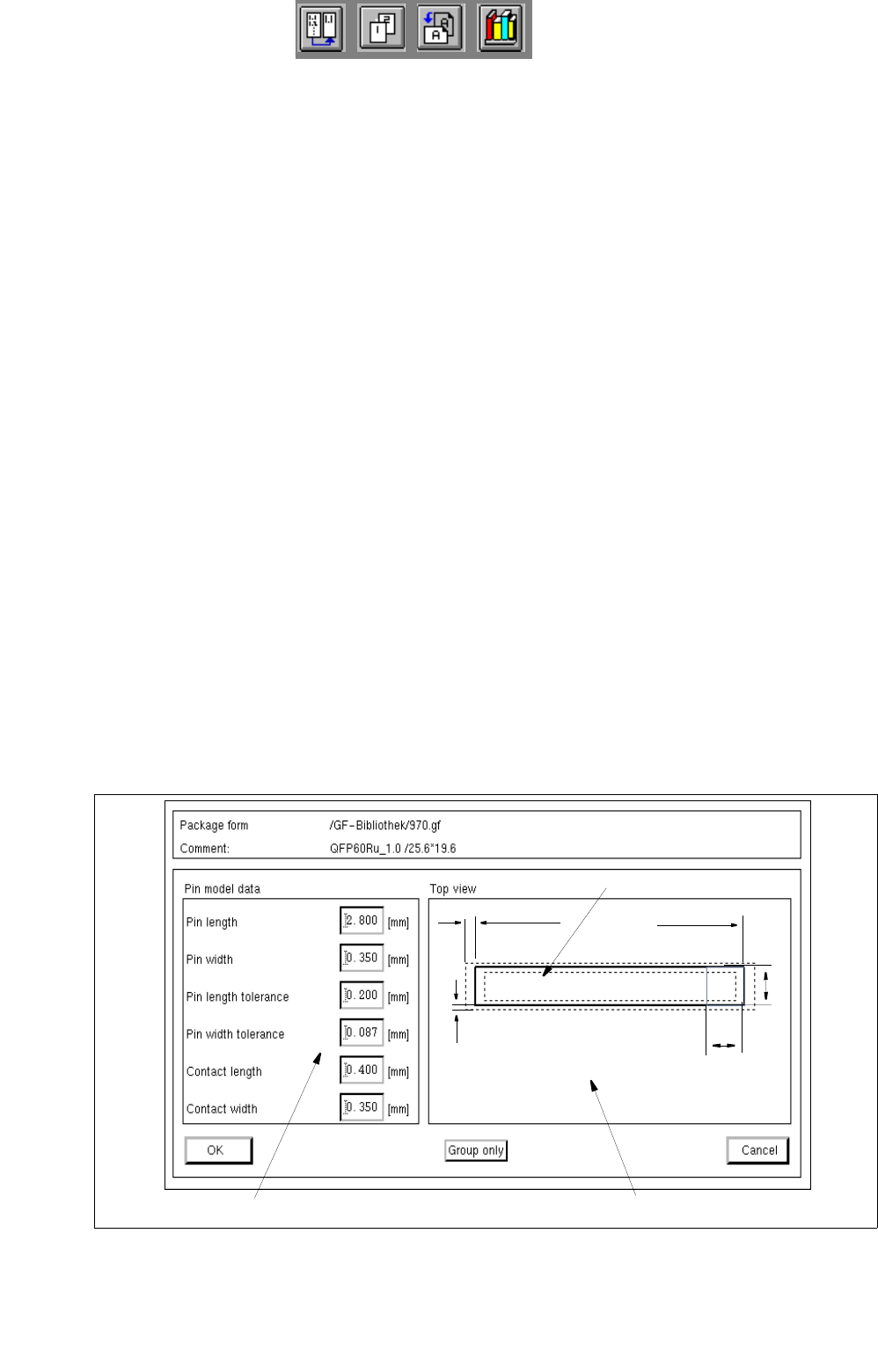
● From the view area select any pin of the newly created group by double-clicking. The window for
editing the data for the pin model is opened (see
Fig. 6.1.21).
Fig. 6.1.21 Window "Model Description"
view area
editing fields
pin model
Len
LTol
CoL
WTol
Wid / CoW