SIPLACE Line Computer UNIX.pdf - 第573页
User Manual Line Computer UNIX 17 Practical Tips on Using the LC UNIX Software Version 502.xx 10/2000 Issue 17.4 Set-Up Generation 571 I t I I To adapt the vibration time and the pick-up angle, proceed as follows: 24. Ac…
17 Practical Tips on Using the LC UNIX User Manual Line Computer UNIX
17.4 Set-Up Generation Software Version 502.xx 10/2000 Issue
570
I
t I I
FILE
Save
FILE
Quit
continued from page 17-56
Allocating waffle-pack
tray to Waffle-Pack
Changer
Saving set-up
Opening Set-Up Editor/
WPC Editor
Adjusting vibration time
and pick-up angle
continued on page 17-60
Setting up feeders
Setting up waffle-pack trays
Defining waffle-pack
tray
User Manual Line Computer UNIX 17 Practical Tips on Using the LC UNIX
Software Version 502.xx 10/2000 Issue 17.4 Set-Up Generation
571
I
t I I
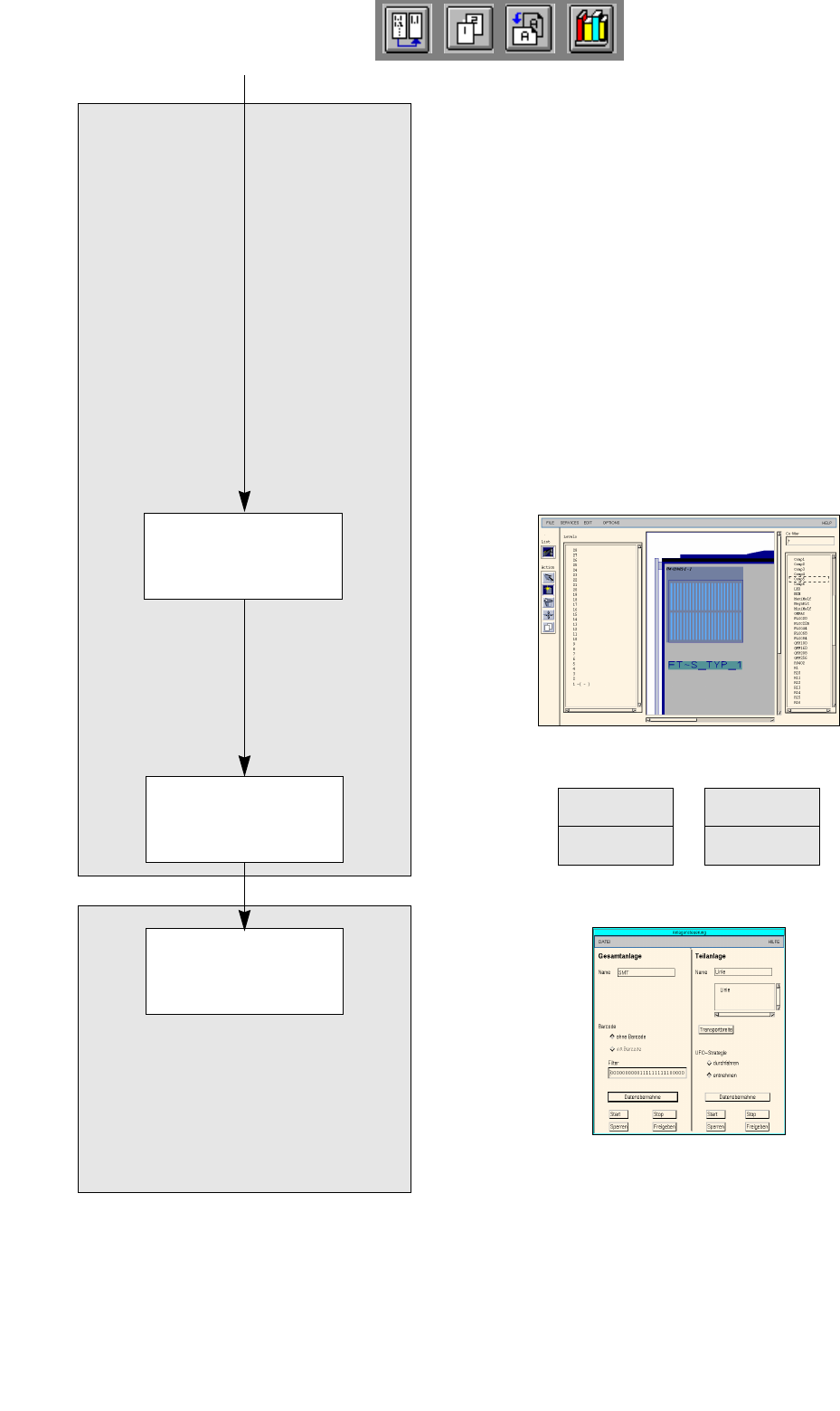
To adapt the vibration time and the pick-up angle, proceed as follows:
24. Activate the Select icon.
25. Click on a compartment of a feeder.
26. Click on the Packaging box option on the SERVICES menu.
The Packaging Editor is opened.
27. Click on the Pick-up ang. editing field and enter the new pick-up angle, here: 90 degrees.
28. Click on the Vibrat. time editing field and enter the new vibration time, here: 600 ms.
29. Click on the Quit option on the FILE menu.
The Packaging Editor is closed.
To save the set-up, proceed as follows:
30. Click on the Save option on the FILE menu.
The data are saved.
31. Click on the Quit option on the FILE menu.
The Set-Up Editor/Feeder Part Editor is closed.
To open the Set-Up Editor/WPC Editor, proceed as follows:
32. On the desktop click on the Waffle-Pack Changer.
The file selector box for the set-up selection is opened.
33. Click on the set-up, here: Examples01.ar and click on the OK button.
The Set-Up EditorWPC Editor is opened.
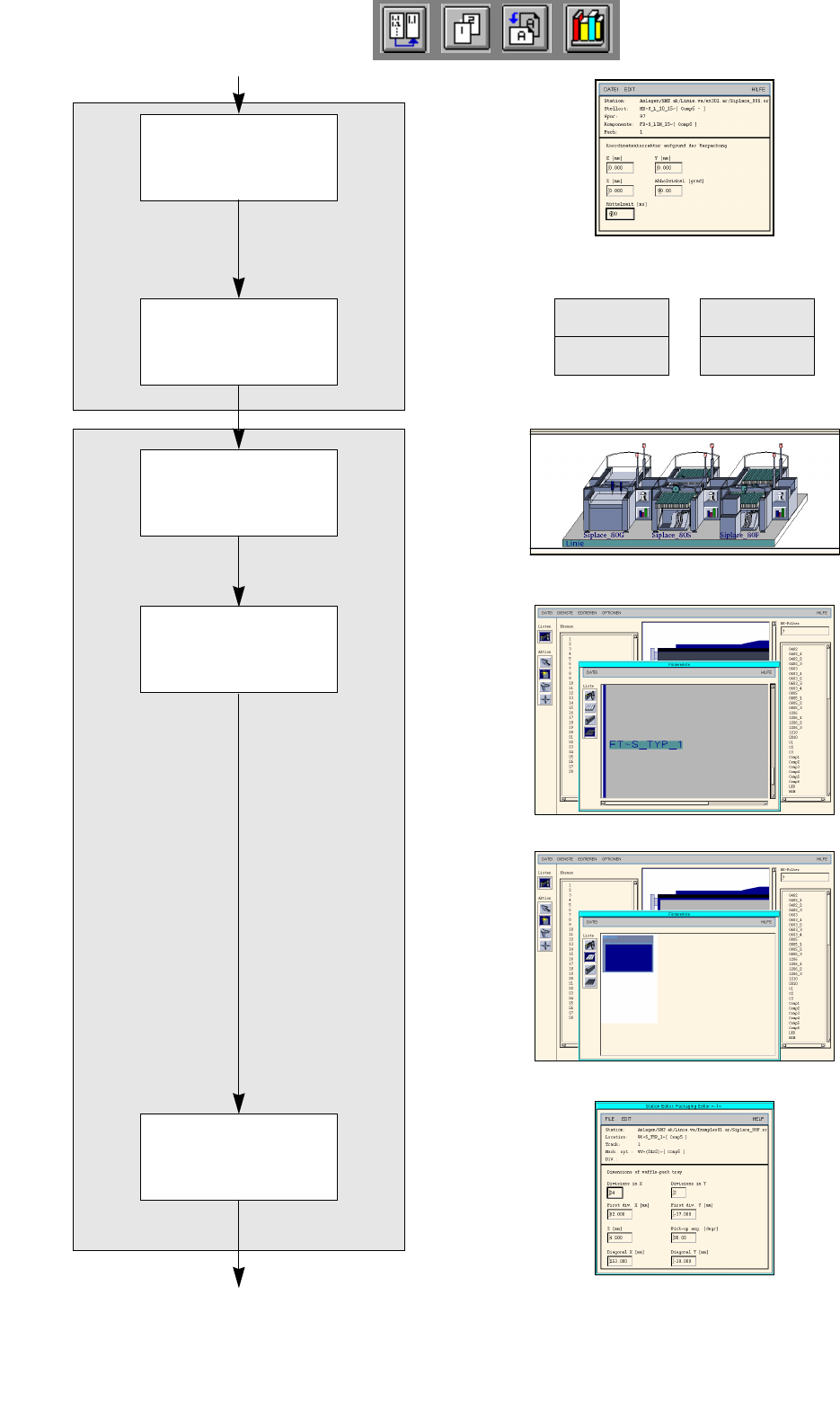
To allocate a waffle-pack tray to a level of the Waffle-Pack Changer:
34. Activate the Create icon.
35. In the Levels display area click on a level, here: Level1.
36. Click on the °Feeder list option on the SERVICES menu.
The feeder list is opened.
37. Activate the waffle-pack tray carrier icon.
A list with all waffle-pack tray carriers is opened.
38. Click on a waffle-pack tray carrier, here: WC~S_TYP_1.
39. Click on the symbol of the Waffle-Pack Changer.
The waffle-pack tray carrier is set up at the appropriate level.
40. Click on the °Feeder list on the SERVICES menu.
The feeder list is opened.
41. On the feeder list activate the Waffle-pack tray icon.
A window containing a waffle-pack tray with the spacing 1x1 is opened.
42. Click on the waffle-pack tray on the text line.
43. Click on the waffle-pack tray carrier in the display.
The waffle-pack tray is set up on the waffle-pack tray carrier.
To define a waffle-pack tray, proceed as follows:
44. Click on the blue pick-up area of the waffle-pack tray.
45. Click on the Packaging box option on the SERVICES menu.
The Packaging Editor is opened.
46. Enter the dimensions of the waffle-pack tray in the editing fields, see Fig. 17.4.1 on
page 17-573.