SIPLACE Line Computer UNIX.pdf - 第471页
User Manual Line Computer UNIX 14 Control / Control Modules Software Vers ion 502.xx 10/2000 Issue 14.5 Set-Up M odification Generator 469 I t I I Menu bar The me nu bar conta ins the m enus "FILE ", "SER …
14 Control / Control Modules User Manual Line Computer UNIX
14.5 Set-Up Modification Generator Software Version 502.xx 10/2000 Issue
468
I
t I I
● Confirm dialog box with Ok.
● Exit from the Set-Up Modification Generator via the menu by selecting Quit.
The Set-Up Modification Generator opened by the operator is closed and only the Set-Up
Modification Generator opened by the station controller is displayed as the topmost window.
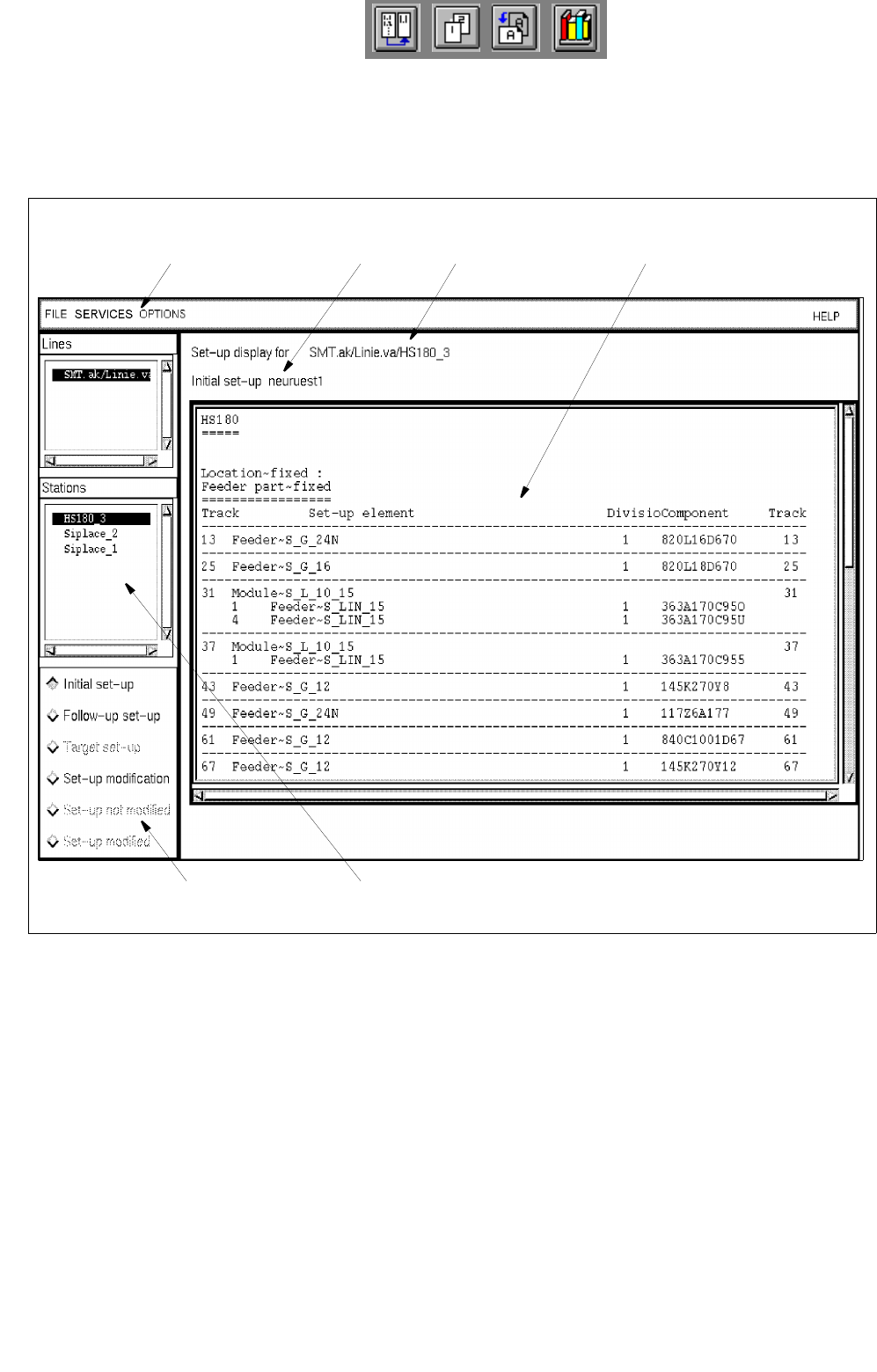
Fig. 14.5.2 Main Window of the Set-Up Modification Generator
In the following, the different areas of the main window of the Set-Up Modification Generator and their functions
are explained.
The main window is subdivided as follows:
- Menu bar
- Message and status line
- Selection fields "Sublines" and "Stations"
- Command area
- Display area
selection field "Stations" command area
menu bar message line status line display area
User Manual Line Computer UNIX 14 Control / Control Modules
Software Version 502.xx 10/2000 Issue 14.5 Set-Up Modification Generator
469
I
t I I
Menu bar
The menu bar contains the menus "FILE", "SERVICES", "OPTIONS" and "HELP".
The "FILE" menu is described in section 14.5.4.1.
The first menu item of the "OPTIONS" menu is described in section 14.5.3.1.
NOTE
Since the functions and the operation of the menus "SERVICES", "OPTIONS" and "HELP" are similar to those
in other application programs of the line computer, they are described comprehensively in chapt. 2.
Status line
The status line displays the subline and station selected from the corresponding selection fields and which the
current set-up applies to.
Message line
The message line always displays the type of set-up and the name of the set-up shown, or, in the case of
changeover instructions, the name of the inital and folllow-up set-ups.
Selection field "Sublines"
In this field the subline is selected that comprises the stations required for a set-up changeover or for which the
display of a given set-up type is desired.
Selection field "Stations"
In this field all stations that are part of the selected line are listed.
From the list a station is selected for which a given set-up type is to be displayed, or for which set-up changeover
instructions are to be generated and displayed.
Command Area
In the command area the set-up type which is to be displayed in the display area can be selected.
It is possible to initiate the generation and display of instructions for the changeover from an initial set-up to a
follow-up set-up.
Moreover, when a changeover request has been received from a station controller, the operator can indicate
whether he has performed the physical set-up changeover on a station or not by clicking on the appropriate
button. Function and execution of the various commands are described in
section 14.5.4.3.
Display area
This area serves to display the type of set-up for a selected station that was selected in the command area, or
the changeover instructions generated for this station.
14 Control / Control Modules User Manual Line Computer UNIX
14.5 Set-Up Modification Generator Software Version 502.xx 10/2000 Issue
470
I
t I I
14.5.4.1 FILE Menu
- Saving the created follow-up set-up.
NOTE
This menu item can only be selected if a PCB-specific follow-up set-up has been created by the
Set-Up Modification Generator.
● Click on FILE --> Save.
The data are stored in the master data storage.
- Printing the set-up for the stations selected in the selection area "Stations" (corresponds to the
current display) or the set-up for all stations of the line
As a further option, the data of the current line configuration, or the setup modification instructions,
may be written to a file.
● Select FILE --> Print --> Print station or FILE --> Print --> Print line.
The data are output to the connected printer.
Or else:
● FILE --> Print --> Output to file
The data are written to a file. The latter is saved to the directory "/Anlagen/xx.ak/xx.va/" with the
name of the current setup and the ending ".urg" or ".dif" (".urg" for a printout of the setup data of
the entire line, and ".dif" for a printout of the setup modification instructions).
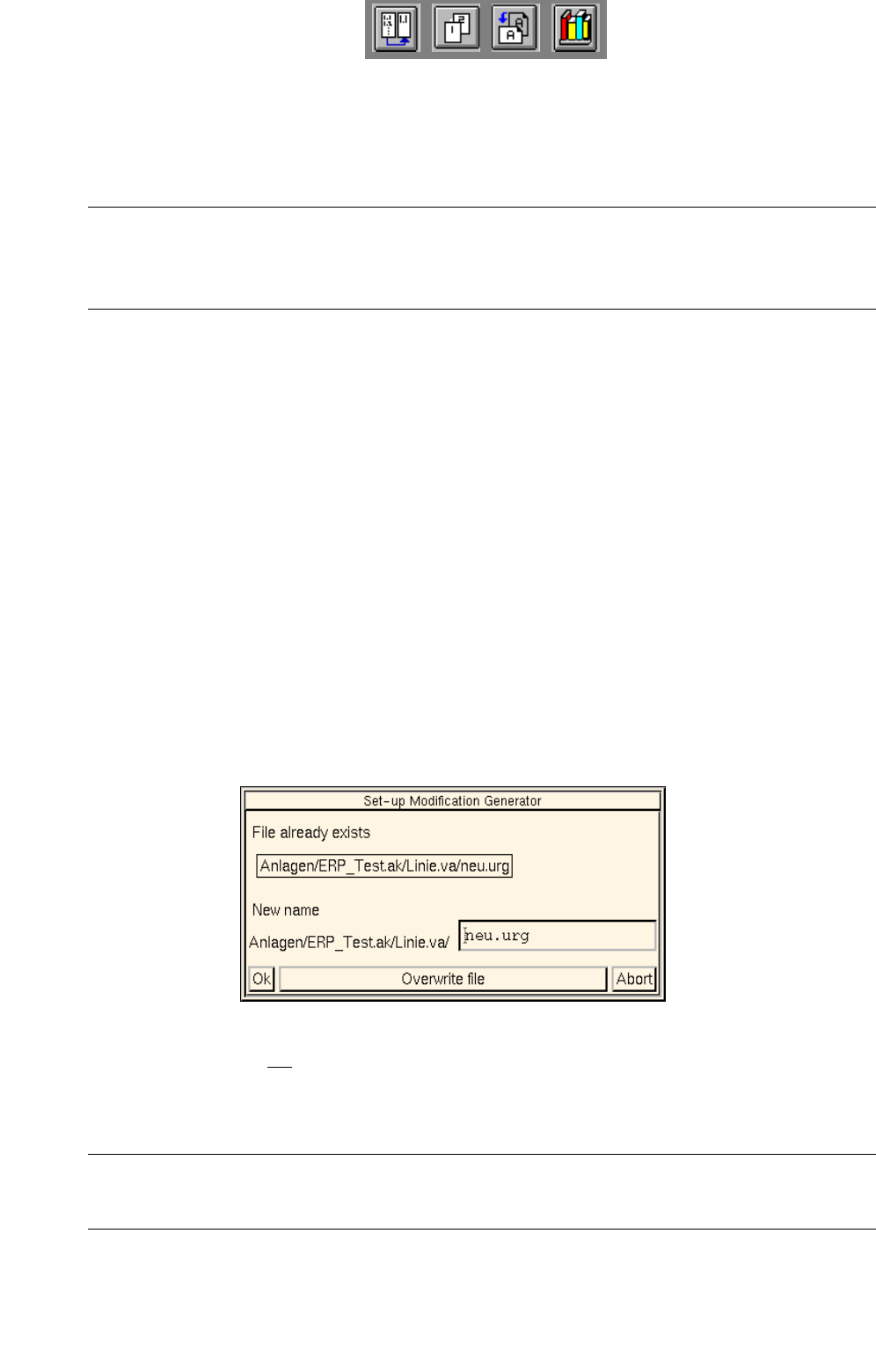
If the file already exists, the dialog box below is displayed.
● If you wish the file not to be overwritten, enter a new name in the editing field and confirm by
clicking on Ok.
● If you wish the file to be overwritten, click on Overwrite file and confirm by clicking on Ok.
NOTE
The files with the ending ".urg" or ".dif" may be opened via the file display function (see chapt. 4).