SIPLACE Line Computer UNIX.pdf - 第364页
12 Production Tools / Station and Line Con figuration User Manual Line Compu ter UNIX 12.1 Configuration Ed itor Software Version 502.xx 10 /2000 Issue 362 I t I I 12.1.3 Machine Options Editor For each of the m achine o…

User Manual Line Computer UNIX 12 Production Tools / Station and Line Configuration
Software Version 502.xx 10/2000 Issue 12.1 Configuration Editor
361
I
t I I
12.1.2.5 SERVICES Menu
- Invoking the Set-up (Feeder Part) Editor for the feeder part of the "station"
● Select feeder part in the display area (see Fig. 12.1.1) with a mouse click.
● Select SERVICES --> Feeder Part Editor.
The window of the Feeder Part Editor is opened (see Fig. 13.1.2).
- Invoking the Machine Options Editor
● Select machine option in the display area (see Fig. 12.1.1) with a mouse-click.
● Select SERVICES --> Machine Opt. Editor.
The window of the Machine Options Editor for the selected machine option is opened (see, for
example,
Fig. 12.1.3 ).
NOTE
The menu item "Machine Opt. Editor" can only be selected if a machine option was previously
selected for which a machine option editor is available.
Machine option editors are available for the machine options Station, Station Extension, Head and
Nozzle Changer.
12.1.2.6 OPTIONS Menu
-
Define the feeder part as a Changeover table
This option is required exclusively for setup clustering (see chapt. 11).
● Select desired feeder part in the view area (see Fig. 12.1.1) by clicking on it.
● Select the OPTIONS --> ° Component changeover table menu option.
The marking (°) preceding the option now changes (
¤).
° means that the option is deactivated. (The feeder part is considered a fixed setup).
¤ means that the option is active. (The feeder part is treated as a changeover table for setup
clustering purposes).
NOTE
The "°Component changeover table" option can only be selected if the selected feeder part can actually be
defined as changeover table. If this option is activated (¤), the respective feeder area will be displayed in
pink in the graphical display of the station.
12 Production Tools / Station and Line Configuration User Manual Line Computer UNIX
12.1 Configuration Editor Software Version 502.xx 10/2000 Issue
362
I
t I I
12.1.3 Machine Options Editor
For each of the machine options "Station and Station Extension", "Head", "Adapter Changer" and "Nozzle
Changer" a separate Machine Options Editor can be opened. All component-specific data are entered in these
editors.
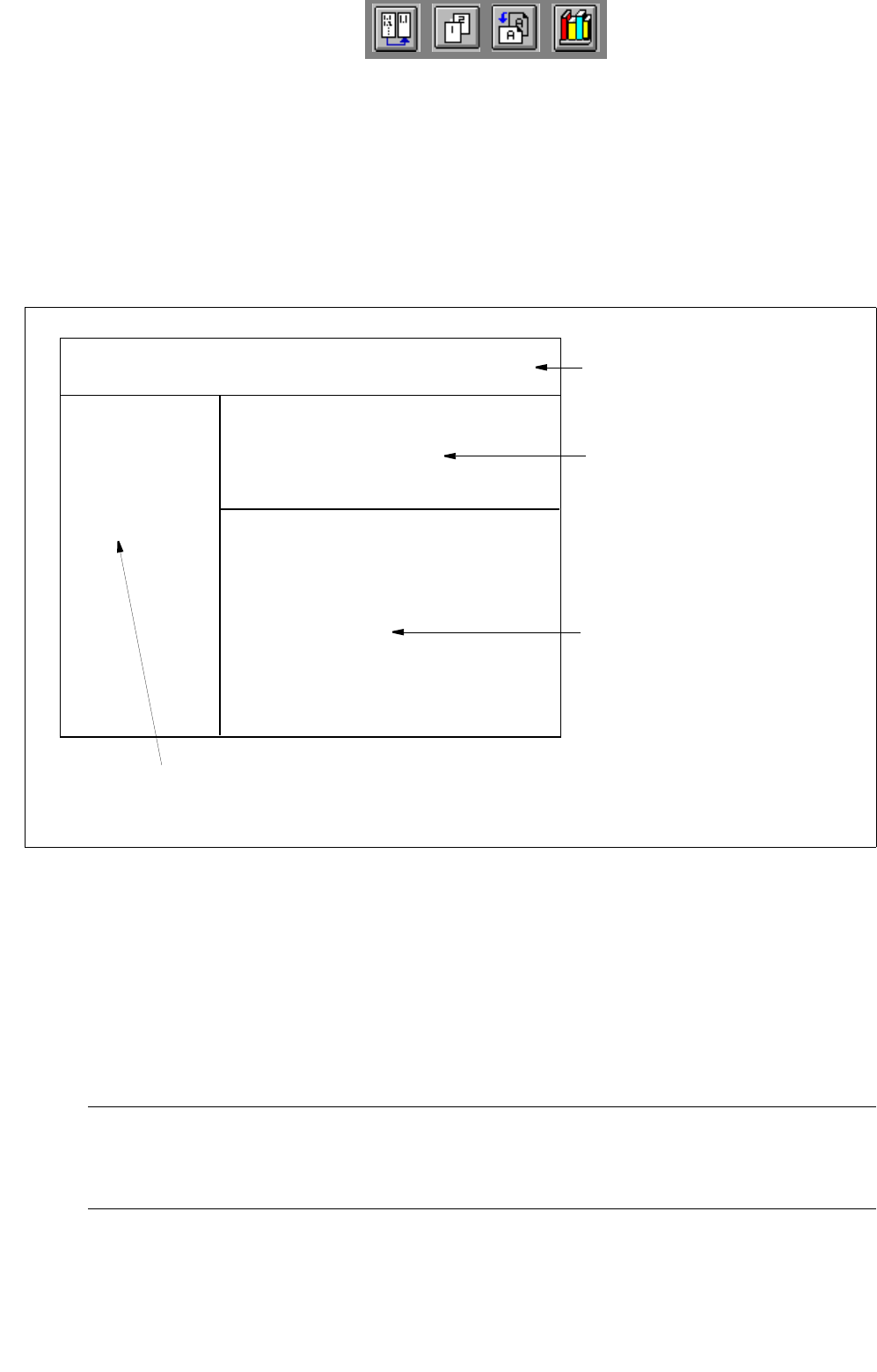
12.1.3.1 Window Layout of the Machine Options Editor
Fig. 12.1.2 Window Layout "Machine Options Editor"
The window of the Machine Options Editor is structured as follows:
- Menu bar
The menu bar contains the "FILE", "EDIT" and "HELP" menus.
A description of the "EDIT" menu is contained in section 12.1.3.2
NOTE
Since the functions and operation of the "OPTIONS" and "HELP" menus are similar to those in other
application programs of the line computer, they are described comprehensively in chapt. 2.
FILE EDIT HELP
menu bar
identification field
setting area
by Machine Options Editor for
"Station, StationExtension" and
"Head"
command area
(only by Machine Options Editor "Nozzle Changer")
or
selection fields
by Machine Options Editor for
machine option "Nozzle Changer"
Station:
Mach. Opt.:
Location:

User Manual Line Computer UNIX 12 Production Tools / Station and Line Configuration
Software Version 502.xx 10/2000 Issue 12.1 Configuration Editor
363
I
t I I
- Identification field
This field contains the following data:
Station: name of the station containing the component
Mach. Opt.: component name
Location: location of the component within the station
(no entry is contained on this line if the component is not set up).
- Setting area (depending on the type of machine option, see Fig. 12.1.3 to Fig. 12.1.5)
In this area the settings required for the respective machine option are selected.
● A setting is activated or deactivated by clicking on the appropriate button.
- Selection fields (see Fig. 12.1.6)
These fields are only available in the Machine Options Editor for the Adapter or Nozzle Changer.
In the left field the divisions of the changer are displayed, and in the right field the factory-defined
nozzle types are listed.
12.1.3.2 EDIT Menu
The menu only contains the "Reset" function. This function enables you to reset any settings you may have
selected to their initial state.
● Click on EDIT --> Reset.
The settings are reset to their factory-defined values.