SIPLACE Line Computer UNIX.pdf - 第72页
2 General Information on Using the Progr am User Manual Line Compu ter UNIX 2.5 Menu Bar in the Application Window Software Version 5 02.xx 10 /2000 Issue 70 I t I I - History Every Help topic y ou have p reviously displ…
User Manual Line Computer UNIX 2 General Information on Using the Program
Software Version 502.xx 10/2000 Issue 2.5 Menu Bar in the Application Window
69
I
t I I
Using the bookmarks:
● Click on the menu Bookmark --> <Bookmark name>.
The help text about the topic defined by the bookmark is displayed.
Deleting a bookmark:
● Select the menu Bookmark --> Define...
● Select the bookmark you want to delete from the list of defined bookmarks.
● Click on the Delete button.
The dialog box is closed, and the name of the bookmark is removed from the "Bookmark" menu.
Command Line
The command line contains buttons by means of which the user can navigate through the Help Index.
● Click on the desired button.
The selected action is executed.
- Contents
An overview of the Help topics is displayed.
- Search
The window for entering or selecting a search word is opened.
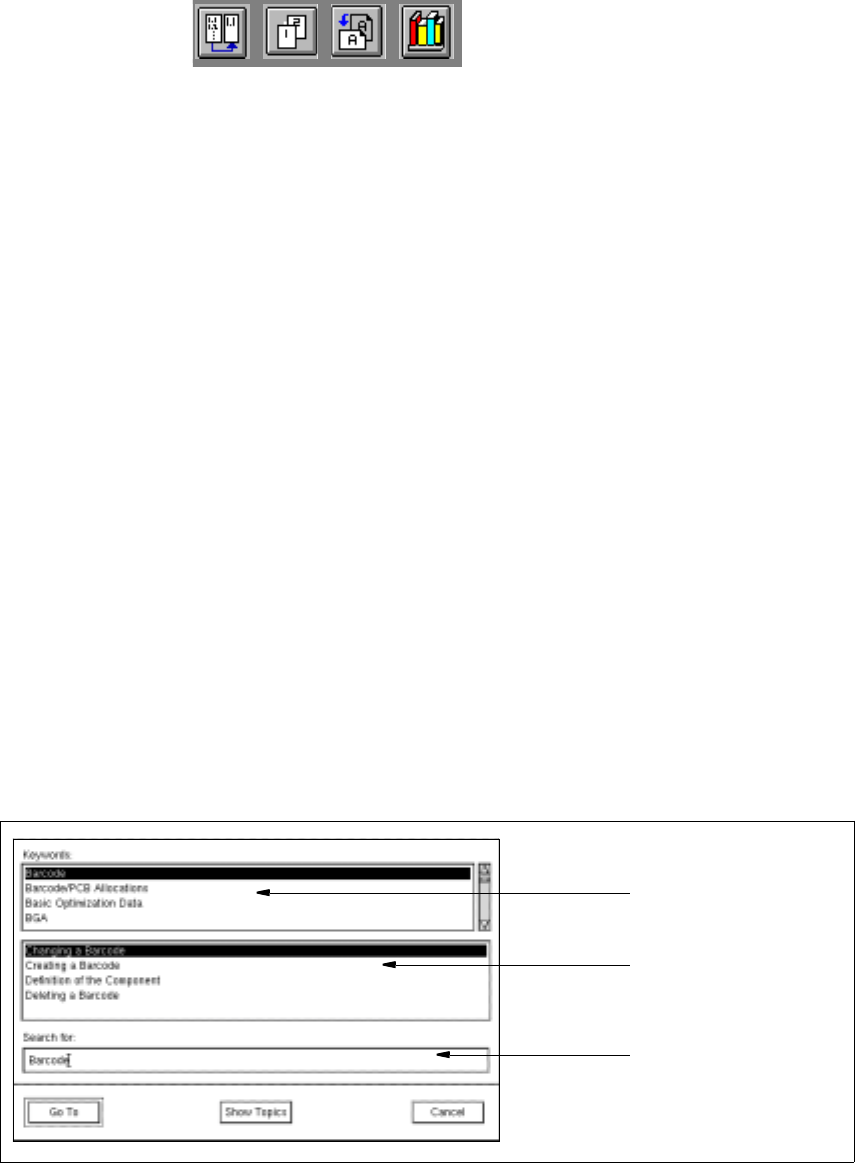
● Click on the Search button.
The following window is opened.
● Enter search word (keyword) in the editing field, or select a term from the "Keyword" selection list.
The term is displayed in the editing field.
● Click on the Show Topics button.
All topics related to the selected term are now listed in the "Topics" selection list.
● Select the desired topic.
● Click on the Go To button.
The window is closed. The help window now contains the information about the selected topic.
selection list
selection list
editing field
"Keywords"
"Topics"
2 General Information on Using the Program User Manual Line Computer UNIX
2.5 Menu Bar in the Application Window Software Version 502.xx 10/2000 Issue
70
I
t I I
- History
Every Help topic you have previously displayed is listed in a box.
- Back
The Help topic you saw most recently is displayed.
- <<
Lets you scroll the Help Index in upward direction.
- >>
Lets you scroll the Help Index in downward direction.
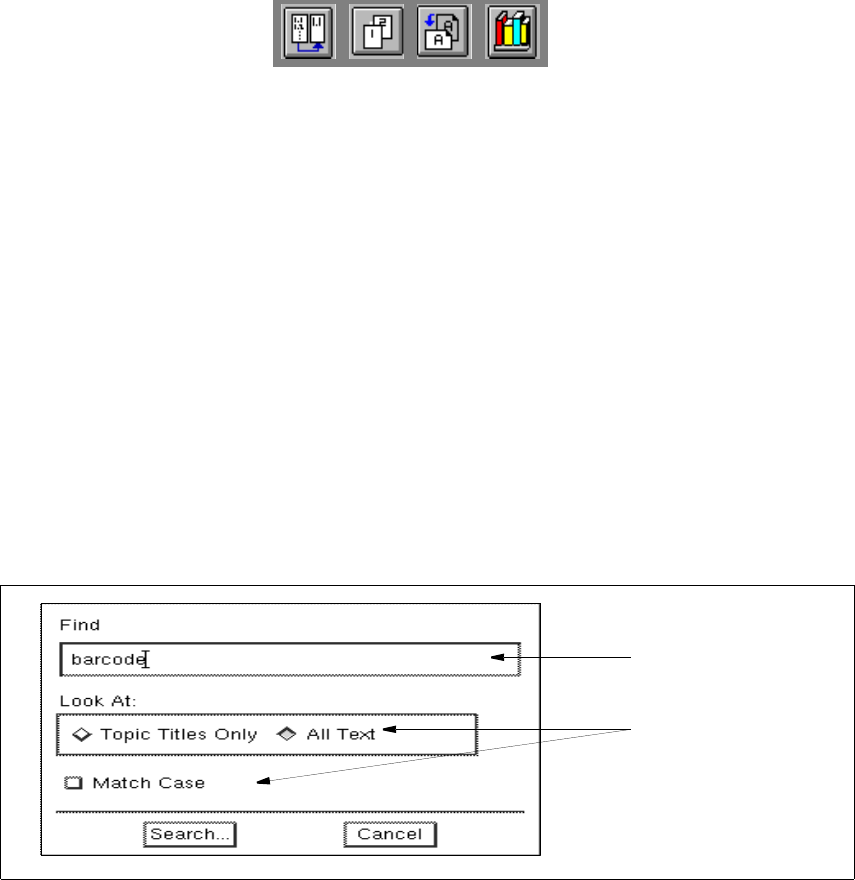
- Text Search
The window for entering a search text is opened.
● Click on the Text Search button.
The following window is opened.
● Enter the search text in the editing field.
● Activate the button(s) for the search criterion by clicking on it.
The window is closed.
● Click on the Search... button.
The number of matches found are added up and displayed in a box.
Once the search is complete, the box is closed and all topics containing the search text are listed
in a separate window.
If no match of the search text has been found, a message box will be displayed informing you of
this.
editing field
search criteria

User Manual Line Computer UNIX 3 Desktop (Root Window)
Software Version 502.xx 10/2000 Issue 3.1 Introduction
71
I
t I I
3 Desktop (Root Window)
3.1 Introduction
This chapter of the User’s Manual provides the user with information on the layout, function and operation of
the desktop (root window). The desktop is the user interface of the entire LC system and is displayed after the
LC software has been started up (see chapt. 2, section 2.1.1).
3.1.1 Layout of the Desktop
The desktop fills the entire screen and cannot be changed in size. The appearance of the desktop depends on
whether the LC program is started in the user mode Programming mode or Control mode. Even though the
appropriate mode was already set upon the installation of the LC software (see
chapt. 1), it can be changed by
means of the OPTIONS menu (see section 3.2.1.2). Depending on the user mode selected, the tools on the
desktop can be used to fulfill varying tasks.
- In the programming mode the desktop provides the user with all tools required to completely define a
product and to control its production.
- In the control mode the desktop provides the user only with those tools in the form of icons that are
required for the production (control). The other tools can be activated via the menu options of the
"PRODUCT" and "PRODUCTION TOOLS" menus (see section 3.2.1.4 and section 3.2.1.5).