SIPLACE Line Computer UNIX.pdf - 第44页
2 General Information on Using the Progr am User Manual Line Compu ter UNIX 2.1 Basics Software Version 5 02.xx 10 /2000 Issue 42 I t I I Triggering immediate action If a spec ific actio n has bee n assigned to double- c…
User Manual Line Computer UNIX 2 General Information on Using the Program
Software Version 502.xx 10/2000 Issue 2.1 Basics
41
I
t I I
2.1.1.1 Working With the Mouse
The mouse is used to move the mouse cursor around the screen. The individual elements are selected or
executed by pressing the appropriate mouse button.
- The mouse has three mouse buttons. To operate the Line Computer program mainly the left button is
used. The right mouse button serves to select several entries or icons whereas the middle button is
pressed when entries are to be copied.
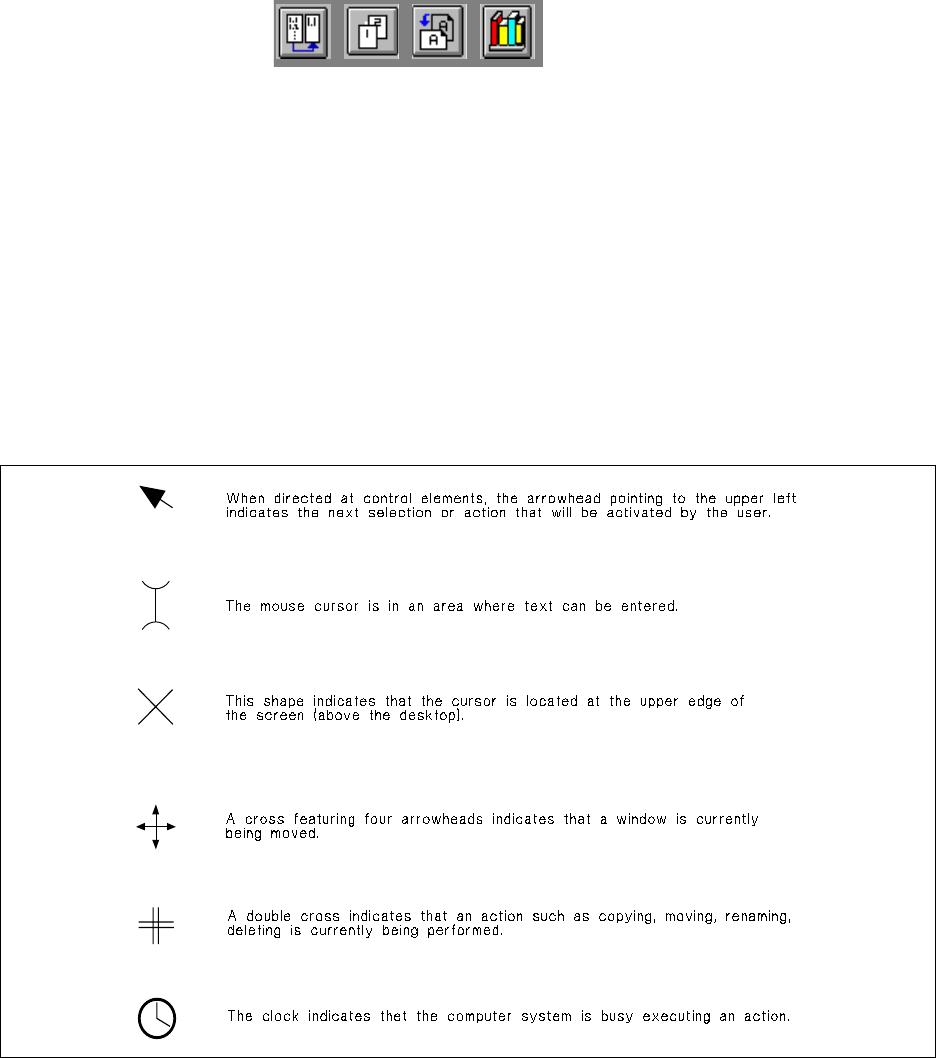
- The cursor’s shape depends on its location on the screen. The shape of the mouse cursor indicates
what kind of function is being executed.
In the following, the mouse cursor shapes most frequently used are shown.
Fig. 2.1.2 Mouse Cursor Shapes
Selecting object (clicking on object):
To be able to perform actions in an object it must first be selected .
● Using the mouse, position the mouse cursor over the specified object (no mouse button to be
pressed).
● Click left mouse button (press and release button one time). The object is selected and displayed
in reverse video.
● (Perform desired action).
2 General Information on Using the Program User Manual Line Computer UNIX
2.1 Basics Software Version 502.xx 10/2000 Issue
42
I
t I I
Triggering immediate action
If a specific action has been assigned to double-clicking (e.g. copying, see Chapt. 4), it can be executed
by double-clicking on the desired icon.
● Select object.
● Double-click left mouse button (press and release button twice in quick succession).
● Specified action for the selected object is immediately executed.
Entering text
In some windows text must be entered from the keyboard. In most of the cases, the cursor will jump to the
appropriate location. In some windows, however, the cursor must be positioned.
● Using the mouse move mouse pointer to the desired location inside the window (e.g. editing
field).
● Click left mouse button. Mouse pointer is positioned at the input position.
● Enter the text from the keyboard.
Copying text (entries)
In some windows entries can be copied within the same window or to a different window that may be open,
using the mouse.
● Hold down the left mouse button and move the mouse cursor over the entries to be copied (exactly
to the end of the last character) and then release the mouse button. The respective characters
darken.
● Position cursor to the insertion point and click middle mouse button one time.
The copied entries are now displayed.
2.1.1.2 Icons (meaningful symbols)
Icons are small visual representations of files, directories, programs and functions on the screen. An icon
consists of a symbol and a name.
There are three different types of icons:
- Application program icons (see Fig. 2.1.1)
- File and directory icons (see Fig. 2.2.2)
- Icons for the different functions available in an application program (e.g. for the command "Create").
Icons of application programs as well as file or directory icons consist of a symbol and a name. Icons representing
functions contain only the symbol of the particuar function.
User Manual Line Computer UNIX 2 General Information on Using the Program
Software Version 502.xx 10/2000 Issue 2.1 Basics
43
I
t I I
Selecting an icon
To be able to perform an action by means of an icon, it must be selected first.
● Select desired icon.
● If subsequently a different icon is selected in the same window, this icon appears in reverse
video. The previous icon is no longer selected.
NOTE
If the icon of an application program is selected, the selected program is started immediately.
The main window of the program is opened on the screen (see, for example, chapt. 5, Component
Editor).
Selecting several icons
If the same action is to be performed for several files, this can be performed in one procedure. Select first
icon by clicking the right mouse button instead of the left one.
● All desired icons are to be selected in this way. All of them will be displayed in reverse video.
● If subsequently you click on a selected icon again by pressing the right mouse button, only this
icon will be deselected.
● Perform desired action. This action will be executed on all selected icons.
2.1.1.3 Message Window (Dialog Box)
Message windows are, for example, displayed if wrong entries are made, illegal actions are started or whenever
additional information about a selected object is requested.
● Read message.
● Click on OK field in the information window. The information window disappears.