SIPLACE Line Computer UNIX.pdf - 第435页
User Manual Line Computer UNIX 14 Control / Control Modules Software Version 502.xx 10/2000 Issue 14.2 Job Control 433 I t I I - Deleting barcode all ocations ● A ctivate the ico n. ● S elect the al locations to be delet…
14 Control / Control Modules User Manual Line Computer UNIX
14.2 Job Control Software Version 502.xx 10/2000 Issue
432
I
t I I
The following options can be selected from:
Top: The barcode is read from the top of the PCB (identifier "O").
Bottom: The barcode is read from the bottom of the PCB (identifier "U").
No info: The PCB side from which the barcode is read is unknown (identifier "X").
No information about the position of the barcode is transmitted from the station.
NOTE
The identifier "X" does not mean that it is unimportant from which side the barcode is read, but rather
is it necessary to specify a correct allocation on the line computer. If no such allocation exists, the
PCB will be handled according to the preset UFO strategy.
The information transmitted from the station to the line computer about the position of the read-in bar-
code for the relevant PCB type may be viewed in the error messaging system (icon "Messages") (see
chapt. 15).
● Click on OK in the command area.
The new allocation is inserted into the list.
Or:
● Select an entry from the allocation list as preset value using the right mouse button.
The data are transferred to the editing fields.
● Edit the data as required and add them to the list by selecting OK.
- Changing barcode allocations
● Click on the icon.
● In the list, click on the allocation that is to be changed using the right mouse button.
The data are transferred to the editing fields.
● Change the data as required and add them to the list by selecting OK.
User Manual Line Computer UNIX 14 Control / Control Modules
Software Version 502.xx 10/2000 Issue 14.2 Job Control
433
I
t I I
- Deleting barcode allocations
● Activate the icon.
● Select the allocations to be deleted from the list.
The allocations will be deleted immediately if the option "Delete without confirm." is selected in
the main window.
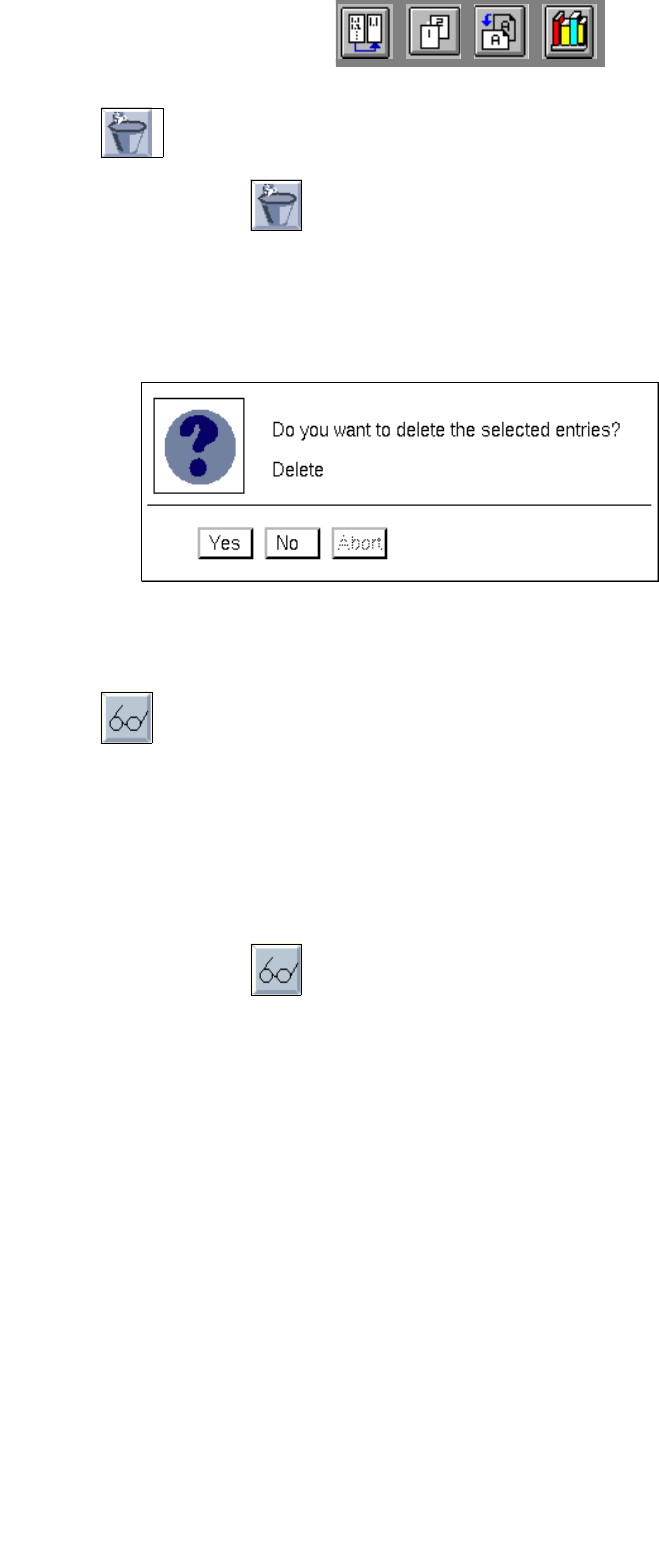
The following dialog box is displayed if the option "Delete with confirm." is selected in the main
window.
● Click on Yes.
The dialog box closes, and the selected allocations are taken off the display.
- Search
With the aid of this command it is possible, for information purposes, to search for or to select specific
entries which may be deleted subsequently, if desired.
There are two search criteria in the search window enabling the search to be conducted either for the
"Start of barcode range" or the "PCB type". Making use of a search window, the procedure is the
same for all search operations (see also
page 14 - 444).
● Deactivate all icons in the command area.
● Click on the icon.
The "Search words - barcode allocation" dialog window opens.
● Click on the search criterion Start barcode or PCB type.
● Enter the search word.
● Select Search or Search additively.
The window closes, and the data found are highlighted in the matching data are highlighted in the
selection area.
● Click on Abort if the search operation is to be abandoned.
- Printing the barcode type allocation list
● Click on FILE --> Print on the menu bar.
The dialog box for the printer selection opens.
● Select the printer and confirm with OK.
A printout of the barcode type allocation list is output on the selected printer.
14 Control / Control Modules User Manual Line Computer UNIX
14.2 Job Control Software Version 502.xx 10/2000 Issue
434
I
t I I
- Closing the "Barcode type allocation list" window
The window of the barcode type allocation list can be closed without saving the changes performed.
● Click on FILE --> Quit on the menu bar.
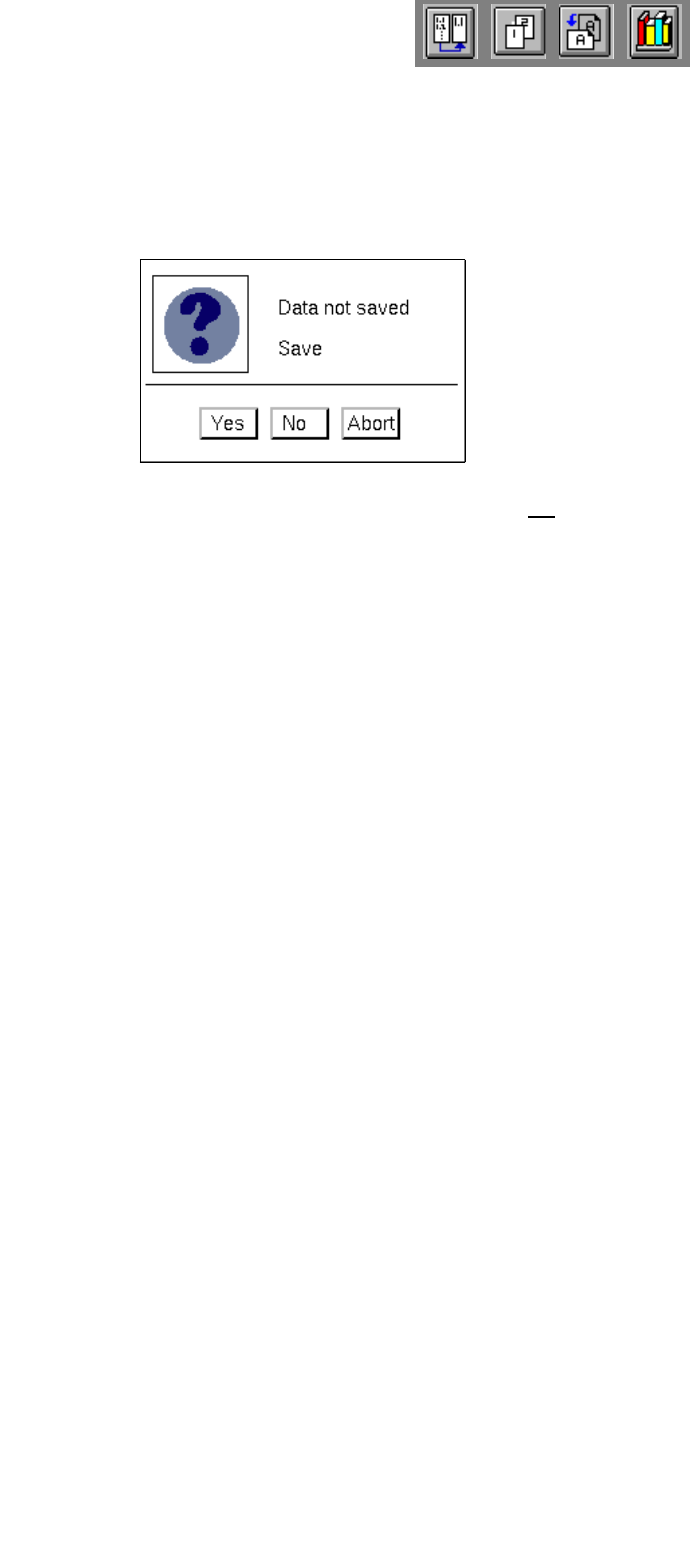
If no data were edited, the window closes. Otherwise, the following dialog box opens.
● Click on No in the dialog box if the data are not to be saved.
The window closes and the data in the barcode type allocation list are restored to their previous
state (prior to editing).
Or:
● Click on Yes in the dialog box if the data are to be saved.
The dialog box and the window are closed. The modified barcode type allocation list is saved.