SIPLACE Line Computer UNIX.pdf - 第292页
9 Production Tools / Feeders User Manual Line Compu ter UNIX 9.1 Feeder Edit or Software Version 5 02.xx 10 /2000 Issue 290 I t I I - (Maximum number of feeders) When this icon is a ctive, th e maximu m number of feeders…
User Manual Line Computer UNIX 9 Production Tools / Feeders
Software Version 502.xx 10/2000 Issue 9.1 Feeder Editor
289
I
t I I
9.1.3.4 Command Area
The commands are symbolized by means of icons. They determine the mode (selection mode, allocation mode
or deletion mode) in which the Feeder Editor is to operate.
NOTE
Upon opening, the Feeder Editor is initially in the selection mode.
- (Select)
When this icon is active (displayed in reverse video, with arrow pointing from the lower left to the upper
right), the editor is in the selection mode. It is possible to select machine types or individual elements
from the display area, and feeding units from the selection fields, by clicking the left mouse button.
● Click on icon in the command area.
(The arrow in the icon now points to the upper right).
● Click on machine element (feeder part) in the display area (see Fig. 9.1.2).
The selected element is highlighted in green.
In the selection field "Placeable feeders" all feeders or waffle pack trays are displayed that can be
set up on the selected element.
NOTE
Double-clicking on an entry in the selection field "Placeable feeders" causes the window for
editing the feeder or waffle pack tray data to be opened (see section 9.1.4).
- (Allocate)
When this icon is active, the editor is in the allocation mode.
● Click on icon in the command area.
● Click on, for example, the Line button in the setting area to allocate the subsequently selected
feeding unit without any restrictions (see
section 9.1.3.3). All machine types are now highlighted
in green.
● Select the feeder or waffle pack tray from the selection field "Placeable feeders" .
The selected unit is displayed in the "Feeder" selection field.
NOTE
Further allocation possibilities are described in section 9.1.4.
Double-clicking on an entry in the selection field "Placeable feeders" causes the window for
editing the feeder of waffle pack tray data to be opened (see section 9.1.4).
9 Production Tools / Feeders User Manual Line Computer UNIX
9.1 Feeder Editor Software Version 502.xx 10/2000 Issue
290
I
t I I
- (Maximum number of feeders)
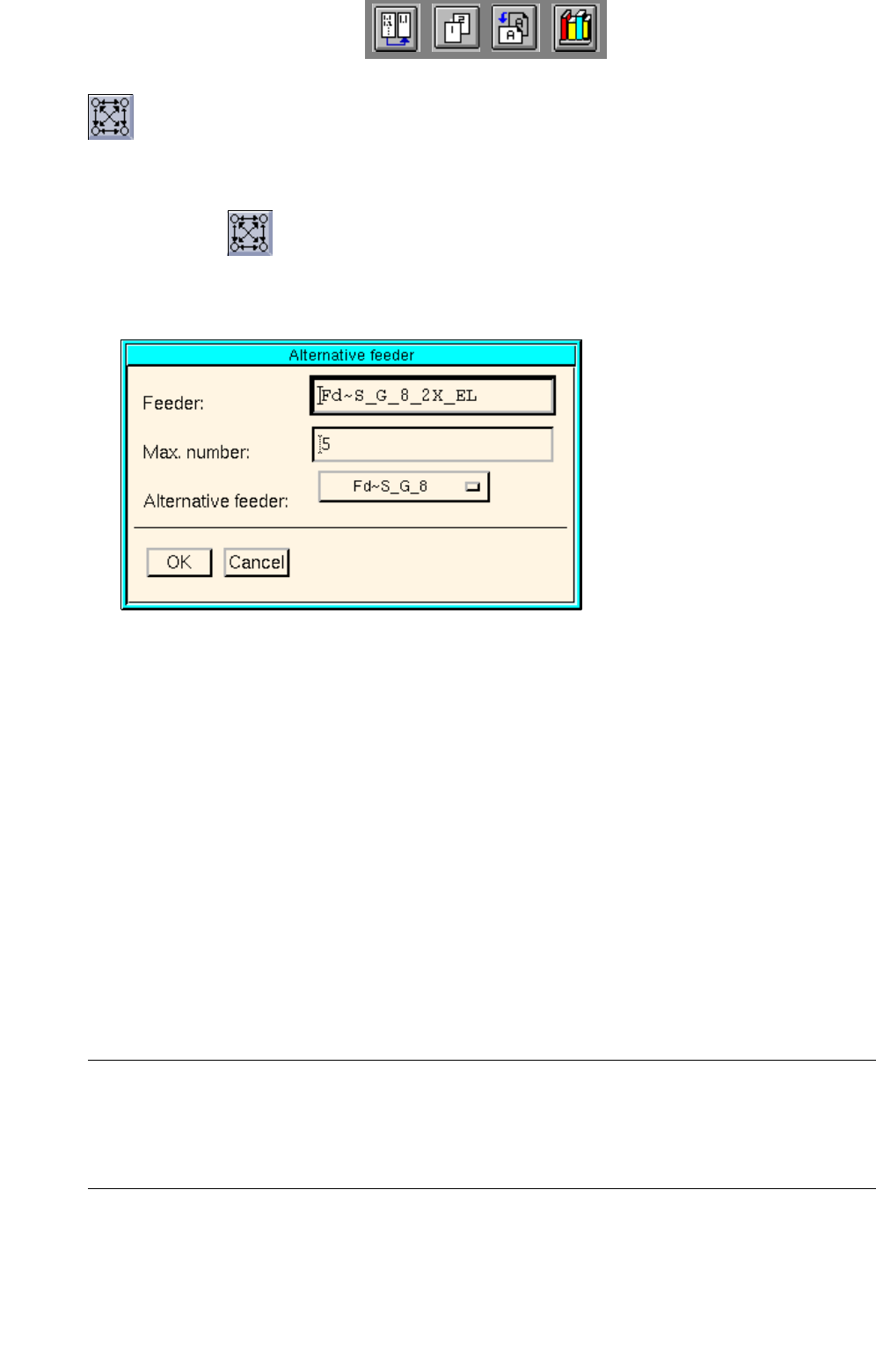
When this icon is active, the maximum number of feeders of the selected feeder type and an alterna-
tive feeder may be specified.
● Click on icon in the command area.
● Select feeders in the selection box "placeable feeders".
The window below opens.
Meaning of the boxes
- Feeder:
Name of the default feeder
- Max. number:
Maximum number of the feeders of the selected feeder type
- Alternative feeder:
Name of the alternative feeder
● Enter the maximum number in the "Max. number:" editing box.
● Click on the button in the "Alternative feeder:" box.
A list of feeders of the same category as the default feeder opens.
NOTE
An alternative feeder may also be selected for a feeder that itself was already designated as an alter-
native feeder, but the feeder for which it served as an alternative cannot be selected. This feeder is
therefore not included on the selection list of alternative feeders.
User Manual Line Computer UNIX 9 Production Tools / Feeders
Software Version 502.xx 10/2000 Issue 9.1 Feeder Editor
291
I
t I I
● Click on the desired alternative feeder in the list with the alternative feeder names.
The list box closes, and the name of the feeder is displayed in the "Alternative feeder:" box.
● Click on OK to accept the entries.
In the selection box "placeable feeders" the respective number will be displayed after the entry of
the feeder whose number was limited. In the case of a company-specific type, the number
appears in brackets.
- (Delete)
When this icon is active, the editor is in the deletion mode. In this mode it is possible to delete allocati-
ons and "customer-specific types" from the selection fields.
NOTE
In the selection field "Placeable feeders" only created "customer-specific types" (see ) can be deleted.
If an attempt is made to delete a SIEMENS-defined type (feeder or waffle pack tray), a
corresponding error message is displayed.
● Click on icon in the command area.
● Select the allocation to be deleted in the selection field "Feeder", or the entry of a customer-speci-
fic type from the selection field "Placeable feeders". The selected entry is deleted from the se-lec-
tion field.
NOTE
If the customer-specific type in the ".ri"-file is still being used (i.e. it is still allocated to other compon-
ents or package forms), a message contained in a dialog box appears to inform the operator of this
fact. If the operator deletes the customer-specific type nevertheless, all allocations to the customer-
specific type will be lost.