SIPLACE Line Computer UNIX.pdf - 第383页
User Manual Line Computer UNIX 12 Production Tools / Station and Li ne Conf iguration Software Version 502.xx 10/2000 Issue 12.2 Line E ditor 381 I t I I Saving the configuration: ● On t he menu bar select th e option Fi…
12 Production Tools / Station and Line Configuration User Manual Line Computer UNIX
12.2 Line Editor Software Version 502.xx 10/2000 Issue
380
I
t I I
● Select subline "xx.va" and confirm by clicking on OK (or select subline directly by double-clicking on
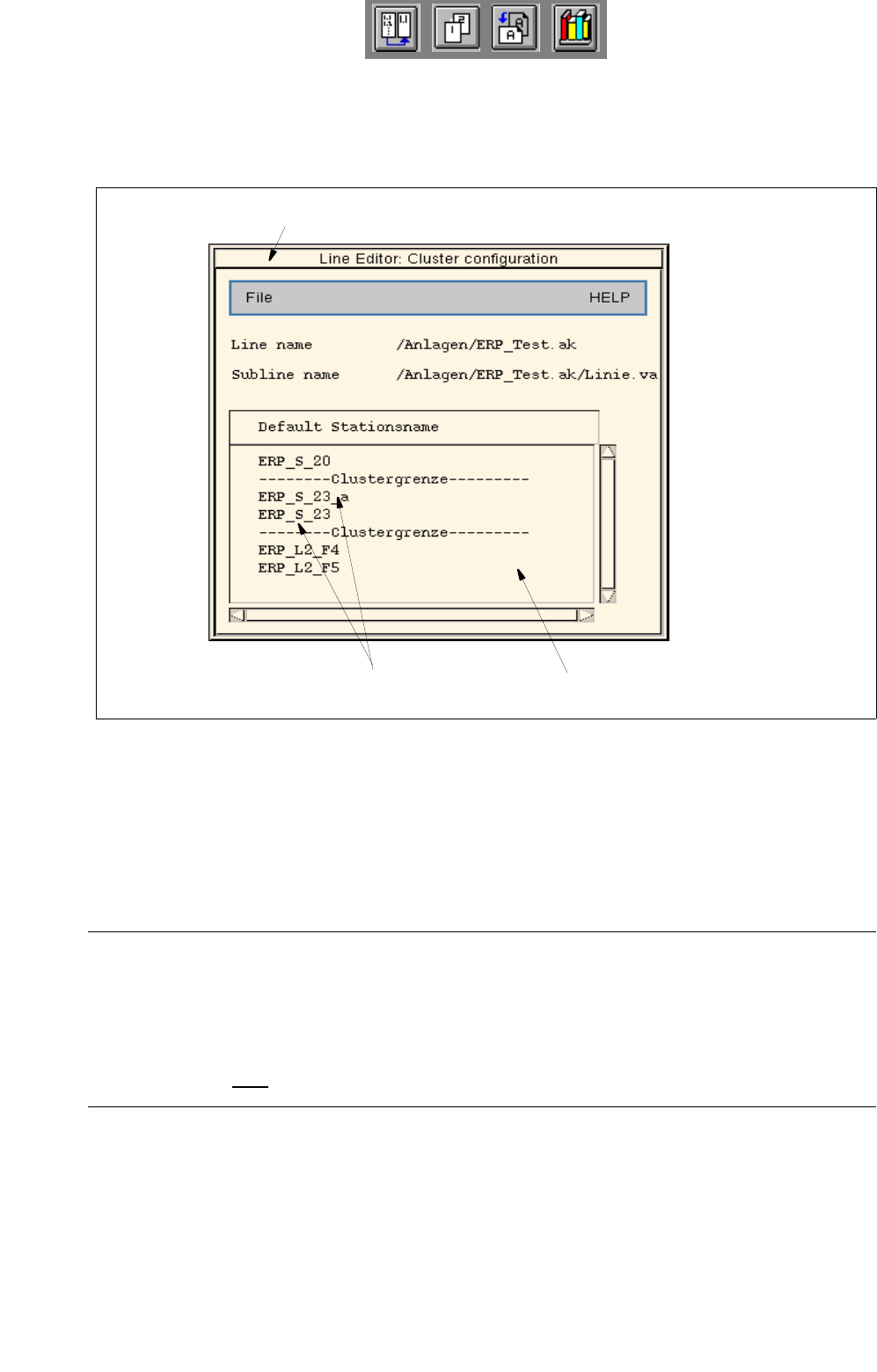
its entry). The "Cluster configuration" window opens (see
Fig. 12.2.3).
All names of the stations configured in the subline are listed in the display area.
If clusters were already defined, the cluster limits are represented as broken lines in the list.
Fig. 12.2.3 "Cluster Configuration" Window
Defining one or more cluster limits:
● Select the name entry of the desired station by double-clicking on it.
The marking of the cluster limit is displayed below the name entry of the selected station.
● Repeat the procedure, if required.
NOTES
If only one cluster limit within the subline is created, the cluster will start with the first station of the
subline and ends with the station after which the cluster limit was defined.
If the last stations of the subline are to form a cluster, a cluster limit must be created to define the start
of the cluster and after the last station to define the end of the cluster.
Removing one or more cluster limits:
● Select the name entry of a station after which a cluster limit was defined by double-clicking on it.
The marking of the cluster limit is no longer displayed.
● Repeat the procedure, if required.
Menu bar
Stations within the cluster
Display area
User Manual Line Computer UNIX 12 Production Tools / Station and Line Configuration
Software Version 502.xx 10/2000 Issue 12.2 Line Editor
381
I
t I I
Saving the configuration:
● On the menu bar select the option File --> Save.
The cluster configuration will be saved.
● On the menu bar select the option File --> Exit.
The "Cluster configuration" window closes.
In the display area of the desktop the defined cluster limits are identified by red lines in the graphi-
cal display of the relevant line configuration (see
chapt. 3, Fig. 3.1.5) .
12.2.4 Selecting the Production Line
The line computer can only control one line at a time. This overall line is referred to as production line. If several
lines are configured, the possibility exists to switch to a different production line. To do this, all stations must
be reset, the line computer must be shut down and restarted.
To select a new production line:
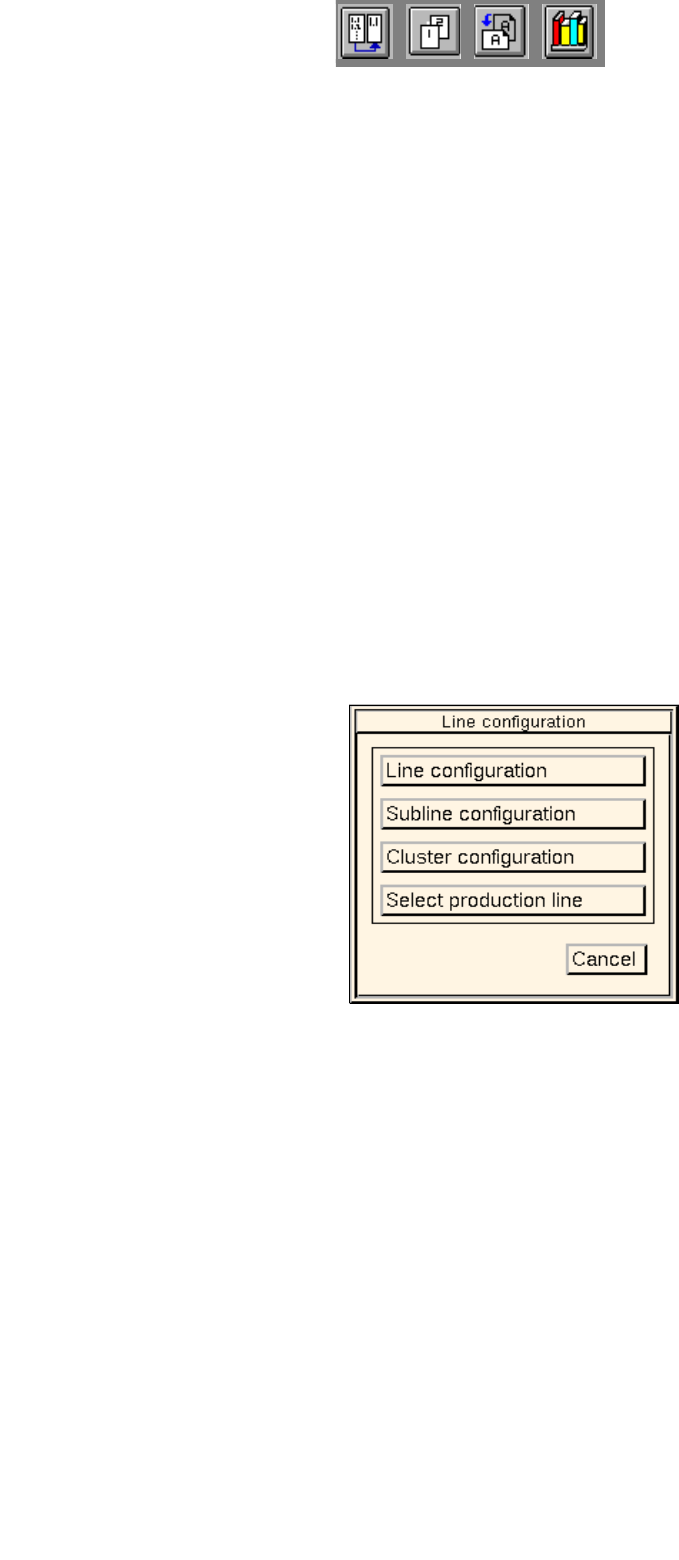
● On the menu bar on the desktop click on SERVICES --> Line configuration.
The
"Line configuration" selection window opens.
● Click on the Select production line button.
The FSB containing the "Master data: Anlagen" directory opens.
All configured lines are displayed in the selection list.
● Select the desired line "xx.ak" by double-clicking.
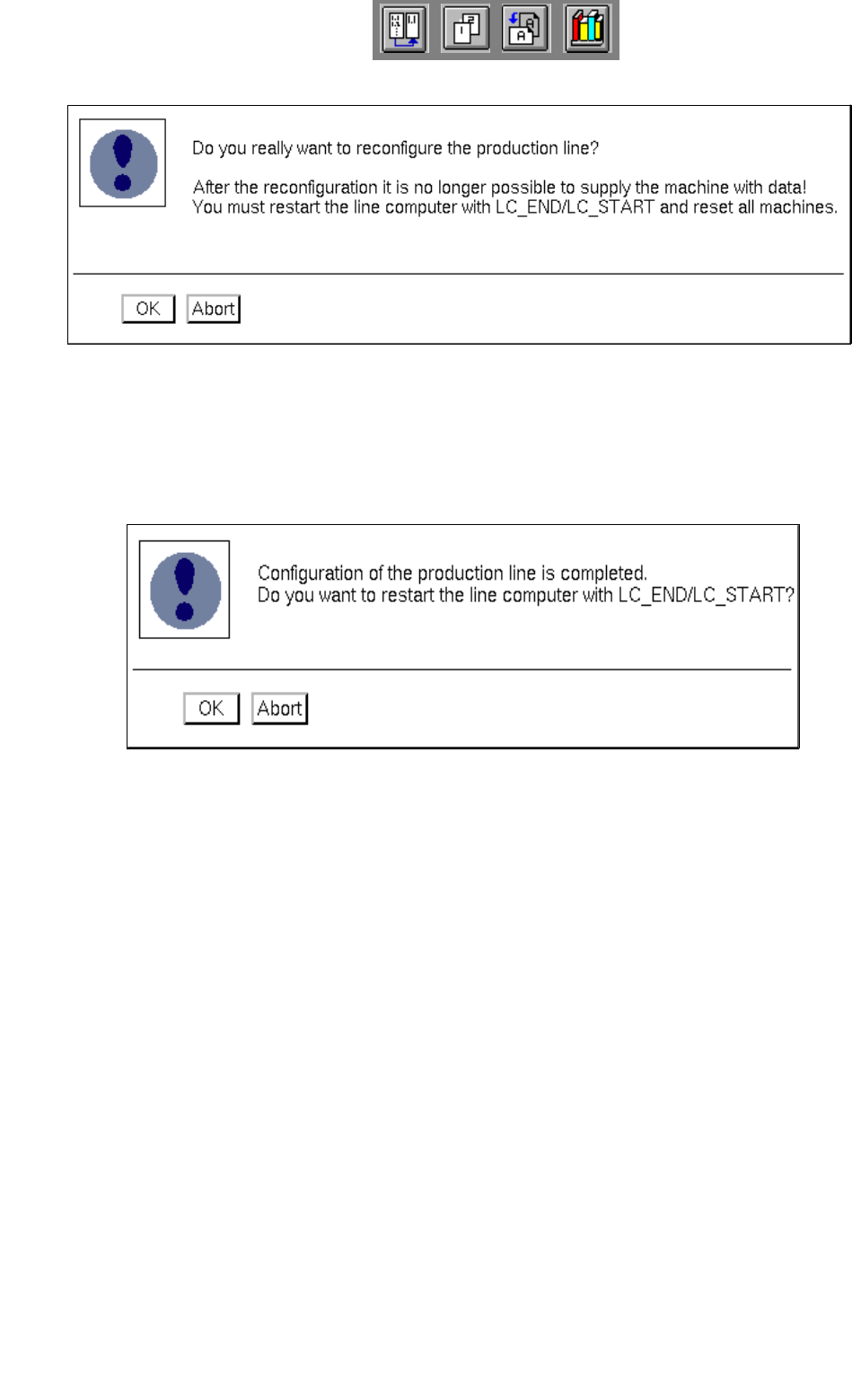
The FSB closes and the following dialog box opens:
12 Production Tools / Station and Line Configuration User Manual Line Computer UNIX
12.2 Line Editor Software Version 502.xx 10/2000 Issue
382
I
t I I
● Read the verification queries in the dialog box and confirm the new configuration of the produc-
tion line by selecting OK. The selected line is now configured as the production line.
Subsequently, the following dialog box is displayed:
● Turn off all stations.
● Confirm the dialog box with OK.
The line computer session is automatically terminated and a new session is started with the
selected line as the production line.
● Turn the stations back on once the "desktop" is displayed on the screen.