SIPLACE Line Computer UNIX.pdf - 第291页
User Manual Line Computer UNIX 9 Production Tools / Feeders Software Version 502.xx 10/2000 Issue 9. 1 Feeder Editor 289 I t I I 9.1.3.4 Comm and Area The c ommands are symbol ized by m eans of i cons. They determin e th…
9 Production Tools / Feeders User Manual Line Computer UNIX
9.1 Feeder Editor Software Version 502.xx 10/2000 Issue
288
I
t I I
9.1.3.3 Setting Area
The setting area contains buttons for the settings "Left side", "Line" and "Right side".
By clicking on the appropriate button it is possible to assign a given feeder, which is subsequently to be selected
from the selection field "Placeable feeders", either to a specific side, or without any restrictions.
NOTE
If the "Line" button is activated, this means that any subsequently defined allocations of feeders apply to the
feeder parts on both sides of the line on which they can be set up.
If a particular machine type or a feeder part of a particular machine type is selected, all buttons in the
setting area are deactivated so that the allocation only applies to the selected machine type or the
selected feeder part of the machine type.
Caution! When allocating package forms to waffle pack trays, "Line" must be selected as the location.
Procedure for the allocation of a feeder to a package form on the left or right side:
● Select the package form (see section 9.1.3.2).
● Activate icon in the command area (see section 9.1.3.4).
● Click on the Left side or Right side button.
All feeder parts on the left side or right side of the line are highlighted in green.
● Click on feeder in the selection field "Placeable feeders".
The name of the selected feeder is displayed in the selection field "Feeder" followed by the letter
"L" or "R". This means that the current package form can be supplied by means of this feeder,
either from the left or right side.
Procedure for the allocation of a feeder to a package form on the machine type "SIPLACE80F", right
side of the machine:
● Select the package form (see section 9.1.3.2).
● Activate icon in the command area.
● Click on feeder part on the right side of the machine type "SIPLACE80F" (see Fig. 9.1.2).
The feeder part is highlighted in green.
● Click on feeder in the selection field "Placeable feeders".
This means that the feeder entered may be set up on the right feeder part of the machine type
"SIPLACE80F" only.
The name of the allocated feeder, the machine type and the machine side on which the feeder
can be set up are displayed in the selection field "Feeder".
Example: FD~S_G_8_EL S_SIP_80_F R
User Manual Line Computer UNIX 9 Production Tools / Feeders
Software Version 502.xx 10/2000 Issue 9.1 Feeder Editor
289
I
t I I
9.1.3.4 Command Area
The commands are symbolized by means of icons. They determine the mode (selection mode, allocation mode
or deletion mode) in which the Feeder Editor is to operate.
NOTE
Upon opening, the Feeder Editor is initially in the selection mode.
- (Select)
When this icon is active (displayed in reverse video, with arrow pointing from the lower left to the upper
right), the editor is in the selection mode. It is possible to select machine types or individual elements
from the display area, and feeding units from the selection fields, by clicking the left mouse button.
● Click on icon in the command area.
(The arrow in the icon now points to the upper right).
● Click on machine element (feeder part) in the display area (see Fig. 9.1.2).
The selected element is highlighted in green.
In the selection field "Placeable feeders" all feeders or waffle pack trays are displayed that can be
set up on the selected element.
NOTE
Double-clicking on an entry in the selection field "Placeable feeders" causes the window for
editing the feeder or waffle pack tray data to be opened (see section 9.1.4).
- (Allocate)
When this icon is active, the editor is in the allocation mode.
● Click on icon in the command area.
● Click on, for example, the Line button in the setting area to allocate the subsequently selected
feeding unit without any restrictions (see
section 9.1.3.3). All machine types are now highlighted
in green.
● Select the feeder or waffle pack tray from the selection field "Placeable feeders" .
The selected unit is displayed in the "Feeder" selection field.
NOTE
Further allocation possibilities are described in section 9.1.4.
Double-clicking on an entry in the selection field "Placeable feeders" causes the window for
editing the feeder of waffle pack tray data to be opened (see section 9.1.4).
9 Production Tools / Feeders User Manual Line Computer UNIX
9.1 Feeder Editor Software Version 502.xx 10/2000 Issue
290
I
t I I
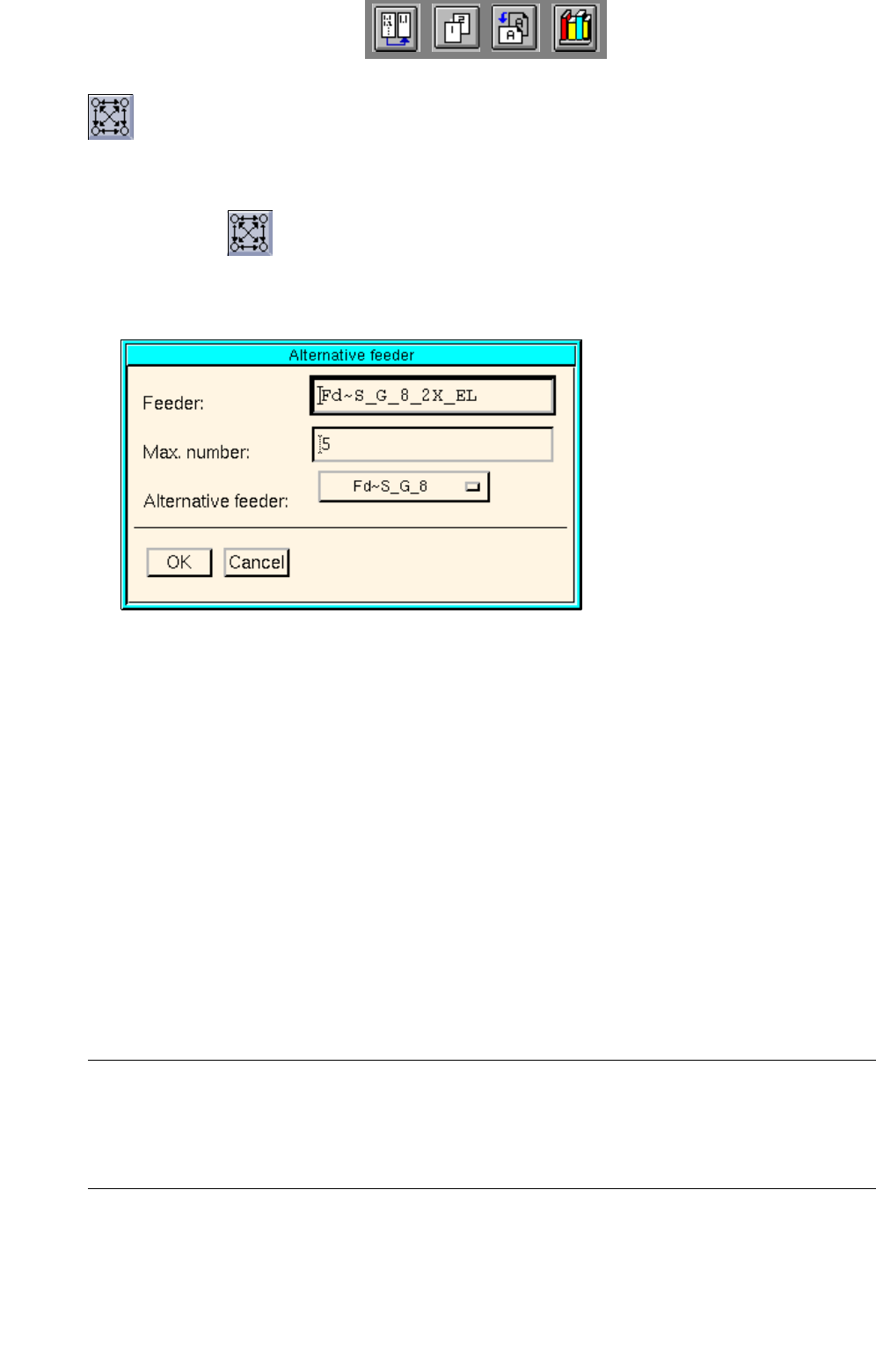
- (Maximum number of feeders)
When this icon is active, the maximum number of feeders of the selected feeder type and an alterna-
tive feeder may be specified.
● Click on icon in the command area.
● Select feeders in the selection box "placeable feeders".
The window below opens.
Meaning of the boxes
- Feeder:
Name of the default feeder
- Max. number:
Maximum number of the feeders of the selected feeder type
- Alternative feeder:
Name of the alternative feeder
● Enter the maximum number in the "Max. number:" editing box.
● Click on the button in the "Alternative feeder:" box.
A list of feeders of the same category as the default feeder opens.
NOTE
An alternative feeder may also be selected for a feeder that itself was already designated as an alter-
native feeder, but the feeder for which it served as an alternative cannot be selected. This feeder is
therefore not included on the selection list of alternative feeders.