SIPLACE Line Computer UNIX.pdf - 第152页
4 Data Management Us er Manual Line Computer UNIX 4.5 File Display Use r Interface Software Version 5 02.xx 10 /2000 Issue 150 I t I I Procedures to be follo wed for the searching and replaci ng of character strings ● In…
User Manual Line Computer UNIX 4 Data Management
Software Version 502.xx 10/2000 Issue 4.5 File Display User Interface
149
I
t I I
4.5.2.2 SERVICES menu
- Search/Replace
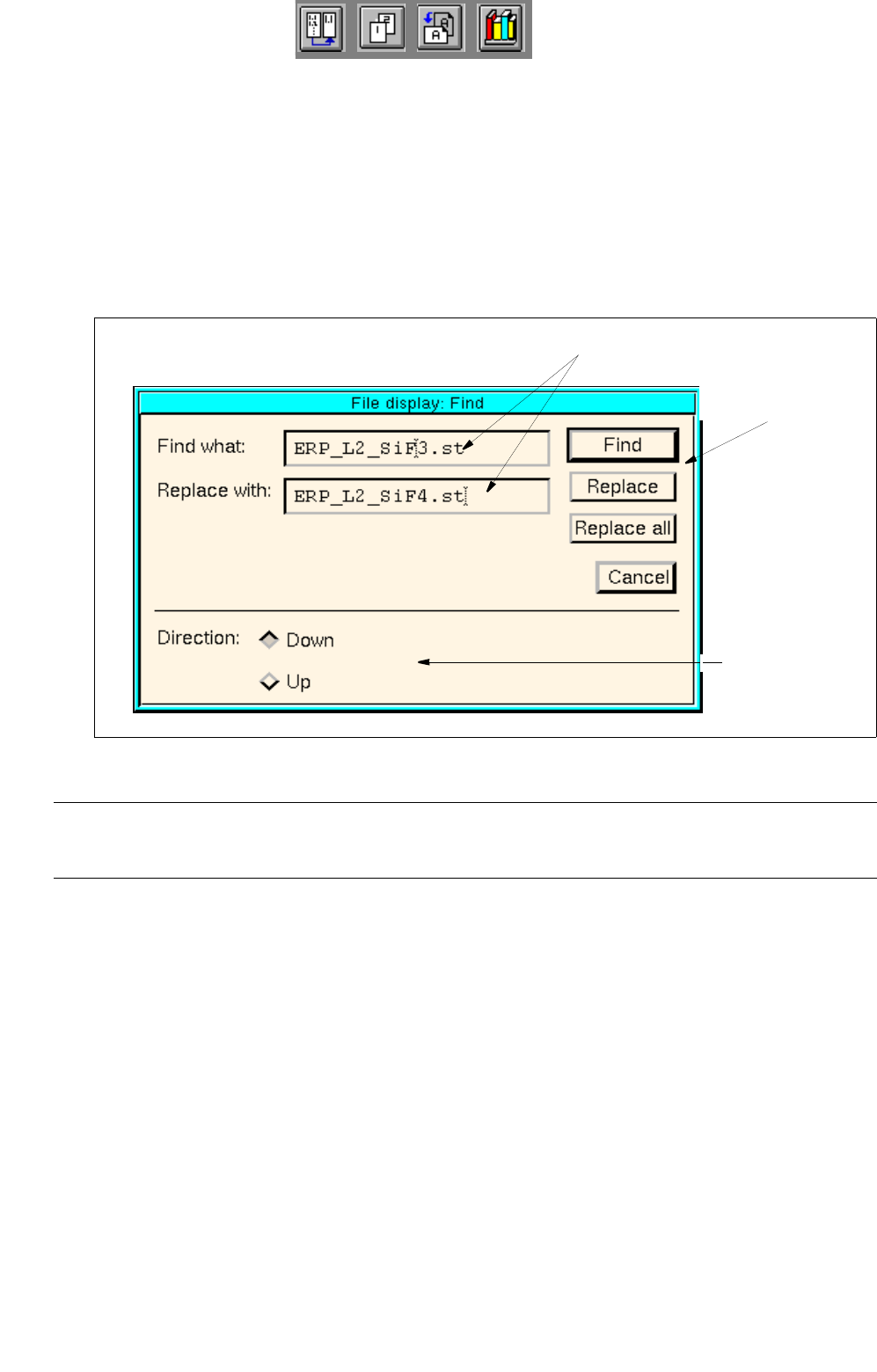
This button serves to open the window for the entry of search or replacement texts. In the editing fields
of this window any character strings desired can be entered which will subsequently be searched for
or replaced, respectively.
● Select SERVICES --> Search/Replace.
The search window for the entry of a search or replacement text is opened.
Fig. 4.5.3 Search Window "File Display"
NOTE
If the currently displayed file is write-protected, the buttons Replace and Replace all are inactive.
Setting area
The conditions for the find/replace procedure are defined in the setting area with the help of the respective
buttons.
Setting possibilities for the search/replace area:
- Down Find/replace action to be started from the cursor
position in the currently displayed file in downward
direction
- Up Find/replace action to be started from the cursor
position in the currently displayed file in upward
direction
editing fields
command
area
setting area
4 Data Management User Manual Line Computer UNIX
4.5 File Display User Interface Software Version 502.xx 10/2000 Issue
150
I
t I I
Procedures to be followed for the searching and replacing of character strings
● In the setting area, activate the button with the desired search direction by clicking on it (see Fig.
4.5.3
).
● Enter the character string to be searched for in the "Find what:" editing field.
● Enter new character string in the "Replace with:" editing field if the character string entered in the
"Find what:" editing field is to be replaced.
● Click on the Search button in the command area.
The first occurrence of the character strings searched for appears darkened in the search area.
Clicking on the button again, causes the subsequent occurrence of the character string within the
given search area to be highlighted.
● Click on the Replace button in the command area.
The highlighted character string is replaced with the character string entered in the "Replace
with:" editing field and subsequently the next character string found in the search area is automa-
tically highlighted.
Or else:
● Click on the Replace all button in the command area.
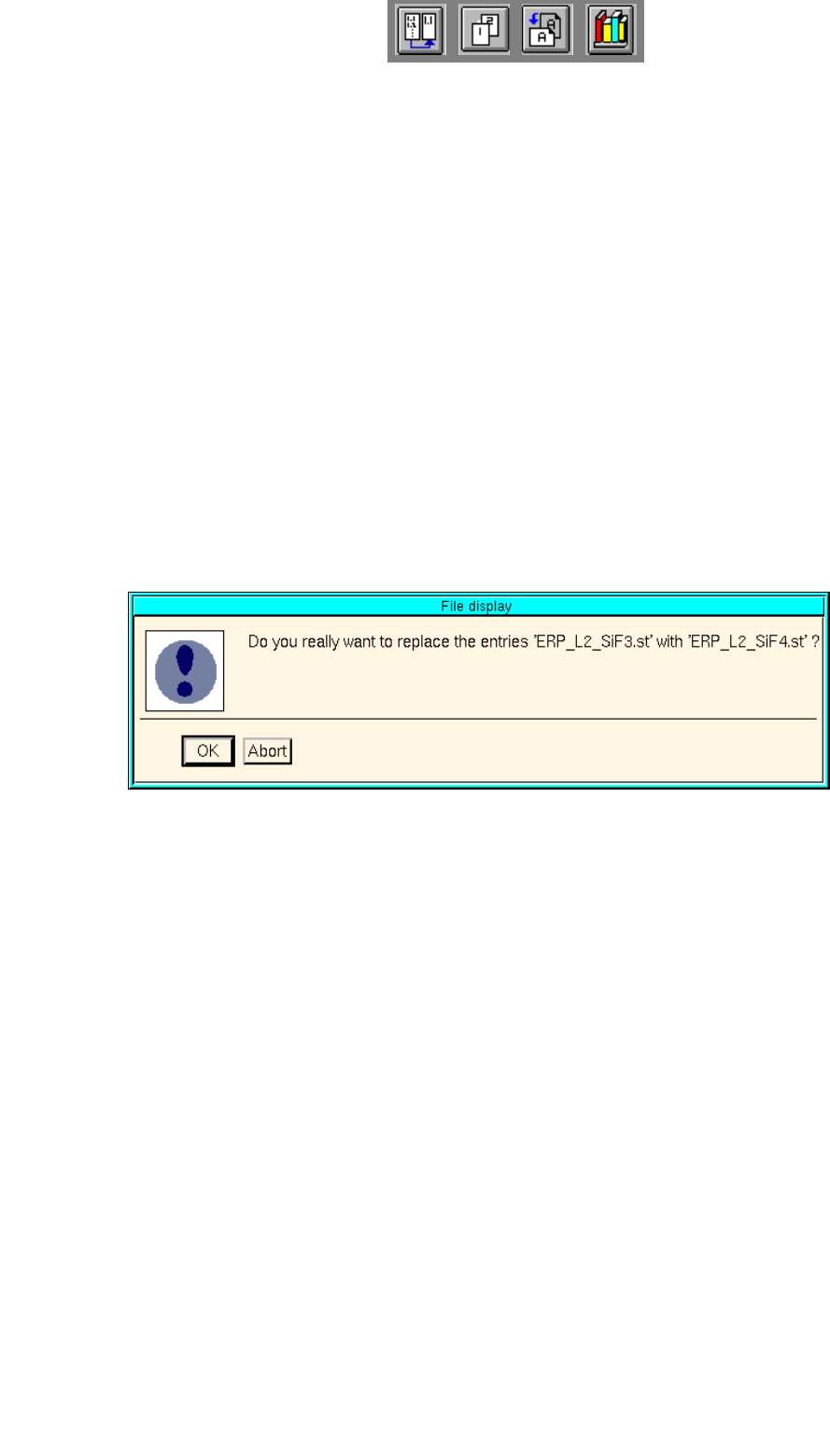
The dialog box below is displayed.
● Click on OK.
All identical character strings occurring in the search area are replaced with the character string
entered in the "Replace with:" editing field. Subsequently, an information box is displayed infor-
ming you that the end of the file has been reached.
● If necessary, activate the button for the opposite search direction to carry out additional replace-
ments.
● When the searching/replacing operation is completed, click on Abort to terminate the search
window. The search window is closed.
User Manual Line Computer UNIX 4 Data Management
Software Version 502.xx 10/2000 Issue 4.5 File Display User Interface
151
I
t I I
Apart from "Find/replace", the following menu items are also contained in the "SERVICES" menu by means of
which the respective editors may be started. With the exception of the "Feeder Editor" menu item, the other
items are only active if a particular character string is hightlighted in the display area.
- Component Editor
- Package Form Editor
- PCB Editor
- Setup Modification Generator
- Adhesive Pattern Editor
- Feeder Editor
Example: Starting the PCB Editor
● In the display area highlight a character string with the cursor and then select SERVICES --> PCB
Editor. The PCB Editor opens. The highlighted character string is entered in the editor as the
name of the PCB.
NOTE
If the name of an already existing PCB is highlighted (with or without suffix), the data of the selected
PCB are displayed in the PCB Editor; in all other cases a new PCB is created whose name corre-
sponds to the name of the highlighted character string. The suffix ".la" is added automatically.
NOTE
The procedure described above also applies to the Component Editor, Package Form Editor and Setup
Modification Generator. To start the Setup Modification Generator, the complete character string needs to
be highlighted for the path in which the setup file (e.g. Anlagen/Linie.ak/Teil.va/rüstung1.ar) is located.