SIPLACE Line Computer UNIX.pdf - 第433页
User Manual Line Computer UNIX 14 Control / Control Modules Software Version 502.xx 10/2000 Issue 14.2 Job Control 431 I t I I 14.2.3.3 Ed iting Barcode T ype Allocati on List When us ing PCB b arcodes , the appro priate…

14 Control / Control Modules User Manual Line Computer UNIX
14.2 Job Control Software Version 502.xx 10/2000 Issue
430
I
t I I
- Results...
The "Results..." menu option can only be selected if a job was previously selected from the job list.
The results of the producibility check can be displayed for the selected job.
● Deactivate all buttons in the command area.
● Select the desired job from the job list.
● Select SERVICES --> Results...
The window containing the results of the producibility check is opened (see
chapt. 11, Fig. 11.4.5).
The window displays the cycle time, the number of placement positions, the number of cycles and
the performance of the individual placement heads, the individual stations and the entire line.
- Error messages...
All error messages and warnings that occurred during a producibility check are stored in the "all.error"
file. The contents of the "all.error" file can be displayed by following the procedures described below.
● Deactivate all icons in the command area.
● Select faulty job by double-clicking.
(A faulty job is identified by an "F" preceding its name).
The main window of File Display is opened (see
chapt. 4). It contains all error messages and
warnings that occurred during the producibility check.
Or:
● Select faulty job by clicking on it once.
● Click on SERVICES --> Error messages...
The main window of File Display containing the contents of "all.error" file is opened.
User Manual Line Computer UNIX 14 Control / Control Modules
Software Version 502.xx 10/2000 Issue 14.2 Job Control
431
I
t I I
14.2.3.3 Editing Barcode Type Allocation List
When using PCB barcodes, the appropriate barcodes must be allocated to the PCBs. This is accomplished by
means of the "Barcode type allocation list..." menu option.
● Click on SERVICES --> Barcode type allocation list... (with the job list loaded).
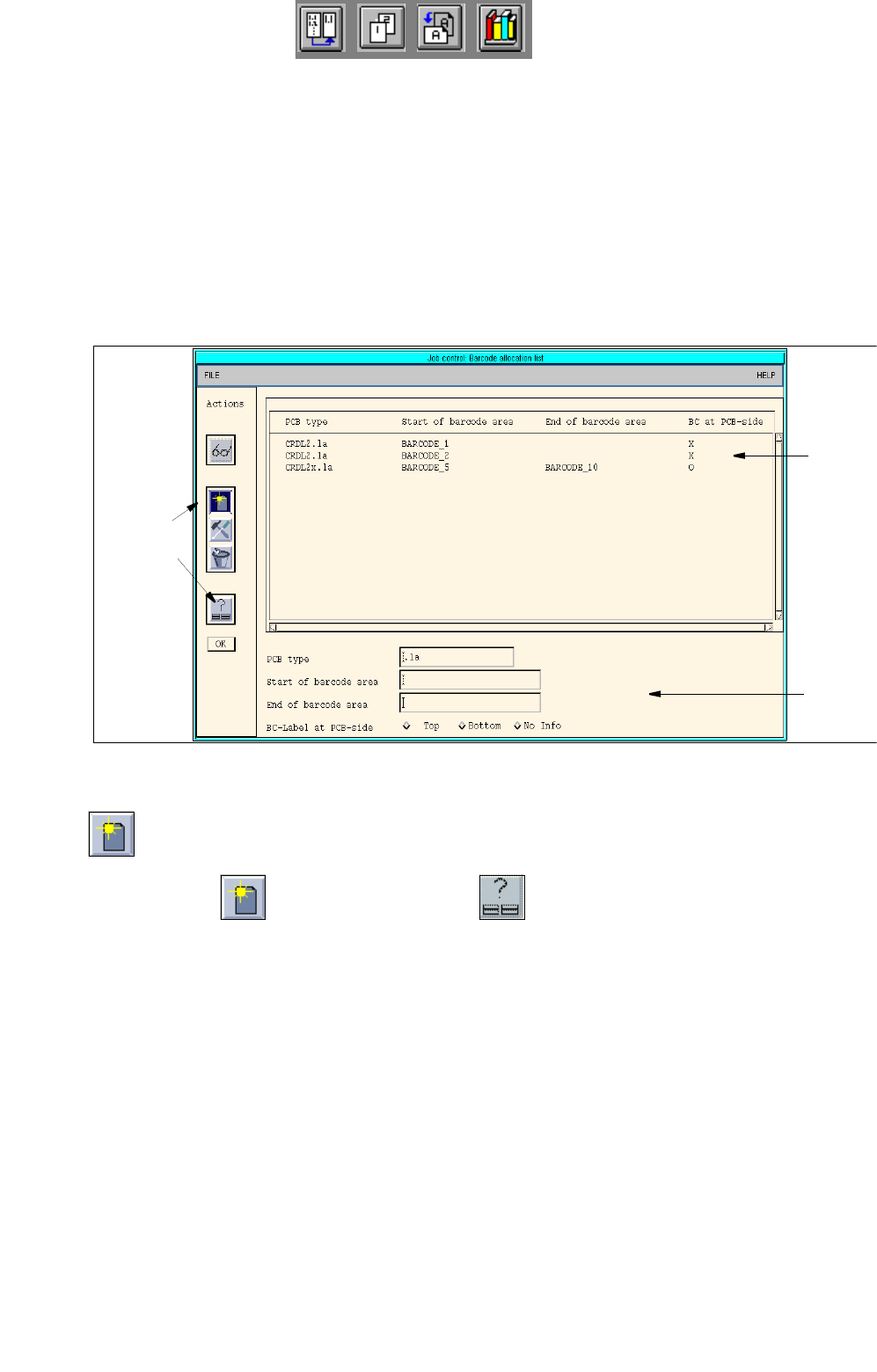
The window containing the barcode type allocation list opens (see
Fig. 14.2.3).
Here, given barcode ranges (Start barcode --> End barcode) can be allocated to the PCB types,
or existing allocations can be edited. An additional setting allows the side of the PCB to be speci-
fied from which the barcode is to be read in (depending on the installation position of the barcode
reader at the station).
Fig. 14.2.3 "Barcode Type Allocation List" Window
- Editing of barcode allocations and setting of the PCB side for the position of the barcode
● Click on the icon and subsequently the icon.
The FSB containing the file selection of all already-defined PCB types opens.
● Select the PCB type to which a barcode is to be allocated by double-clicking.
The FSB closes and the name of the selected PCB type is displayed in the "PCB type" editing
field.
● Click on the "Start of barcode range" editing field and enter the start barcode (e.g. 35588).
● Click on the "End of barcode range" editing field and enter the end barcode (e.g. 35598).
● In the box "BC label at the side of a PCB:" activate the button indicating the PCB side from which
the barcode is read. An allocation must be specified as otherwise the edited data are not transfer-
red to the list.
Selection
area
Command
area
Editing
area
14 Control / Control Modules User Manual Line Computer UNIX
14.2 Job Control Software Version 502.xx 10/2000 Issue
432
I
t I I
The following options can be selected from:
Top: The barcode is read from the top of the PCB (identifier "O").
Bottom: The barcode is read from the bottom of the PCB (identifier "U").
No info: The PCB side from which the barcode is read is unknown (identifier "X").
No information about the position of the barcode is transmitted from the station.
NOTE
The identifier "X" does not mean that it is unimportant from which side the barcode is read, but rather
is it necessary to specify a correct allocation on the line computer. If no such allocation exists, the
PCB will be handled according to the preset UFO strategy.
The information transmitted from the station to the line computer about the position of the read-in bar-
code for the relevant PCB type may be viewed in the error messaging system (icon "Messages") (see
chapt. 15).
● Click on OK in the command area.
The new allocation is inserted into the list.
Or:
● Select an entry from the allocation list as preset value using the right mouse button.
The data are transferred to the editing fields.
● Edit the data as required and add them to the list by selecting OK.
- Changing barcode allocations
● Click on the icon.
● In the list, click on the allocation that is to be changed using the right mouse button.
The data are transferred to the editing fields.
● Change the data as required and add them to the list by selecting OK.