KE-2030使用说明书.pdf - 第120页
4 – 21 4.2.8 Exit This comm and exits fr om the Pr ogram Editing utility . If a progr am is edited and not saved, t he following dialog box appears on the screen. Y es: Saves a program. Bef ore saving, the m achine check…
4 – 20
When you open the Program Editing utility with “Yes” selected in the “Prompt to”
column, the basic setup screen opens when you select the [Create new] command
to create a new file. When you are to edit the saved new file, this file is
automatically read into the machine at start up of the Program Editing utility, then the
“Dimension” window opens.
The settings made on the “Environment setting” dialog box are automatically saved
regardless of the “Prompt to” setting.
Division
This menu items sets the display order of the divided Placement data.
Prompt to optimization on exit
• When you select “Yes”: the system displays the message that asks you to
optimize data if you have not optimized it.
• When you select “No”: the system performs the normal quit process.
Database file
This menu item specifies the file name of a Component database file to be used,
and specifies whether to use the specified Component database file when a
production program is edited.
As a Component database file name, specify the full path name including a drive
name. The extension of the file name is fixed to “.MDB”. Even though you specify
another extension, it is replaced with “.MDB”.
To specify whether to use the specified Component database file to edit a production
program, check or uncheck the check box “Used”. When checked, it invokes the
specified Component database file when a program is created. As the default
setting, the check box is not checked. To use the Component database file to edit
a production program, check this check box. When you click the <Refer to> button,
the dialog box appears on the screen.
Default nozzle selection
When creating Component data on the No. 500 nozzle, the system prompts you to
select which No. nozzle is to be set, No. 500 or No. 502/503 as the default nozzle.
Notification of database entry completion (HLC Ver. 5.2)
Specify whether to have HLC notify you of completion of data registration on the
database or not.
“No” is selected by default.
4 – 21
4.2.8 Exit
This command exits from the Program Editing utility.
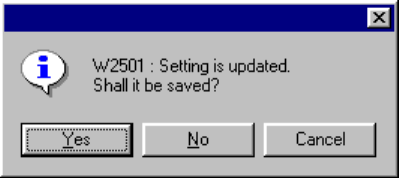
If a program is edited and not saved, the following dialog box appears on the
screen.
Yes: Saves a program. Before saving, the machine checks the consistency of
the program. If no error is detected, the machine saves the program, then
exits from the Program Editing utility.
No: Exits from the Program Editing utility without saving a program.
Cancel: Terminates the Exit process.
4 – 22
4.3 Editing
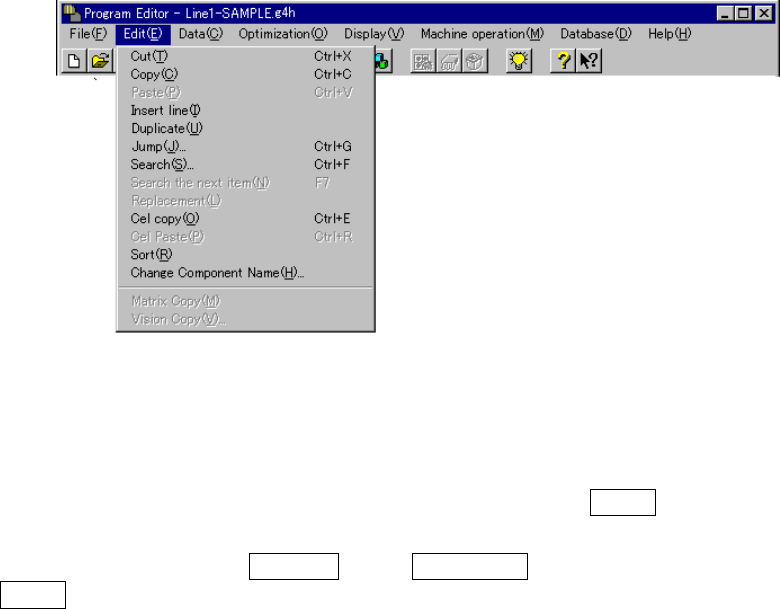
When you select the [Edit] command on the menu bar, the following commands menu
appears on the screen.
Selecting the range of data
To cut or copy data, select the data range to be copied or cut in advance.
When you drag the trackball, the lines to be selected are highlighted.
When you press the up or down arrow key while holding the SHIFT key of a keyboard,
the lines to be selected are highlighted.
Every time you press the Page UP key or Page Down key while holding down the
SHIFT key, a page (lines displayed on the screen) is selected one by one
sequentially.
4.3.1 Cut
This command deletes the line(s) which is (are) selected and highlighted. The
deleted data cannot be used with the [Paste] command.
After deletion, data preceded by the deleted data is moved up to the deleted line(s).
If you do not specify the data range to be cut, this command is disabled.
4.3.2 Copy
This command loads the data which is selected and highlighted into the memory
buffer. To paste it in another data, execute the [Paste] command.