KE-2030使用说明书.pdf - 第459页
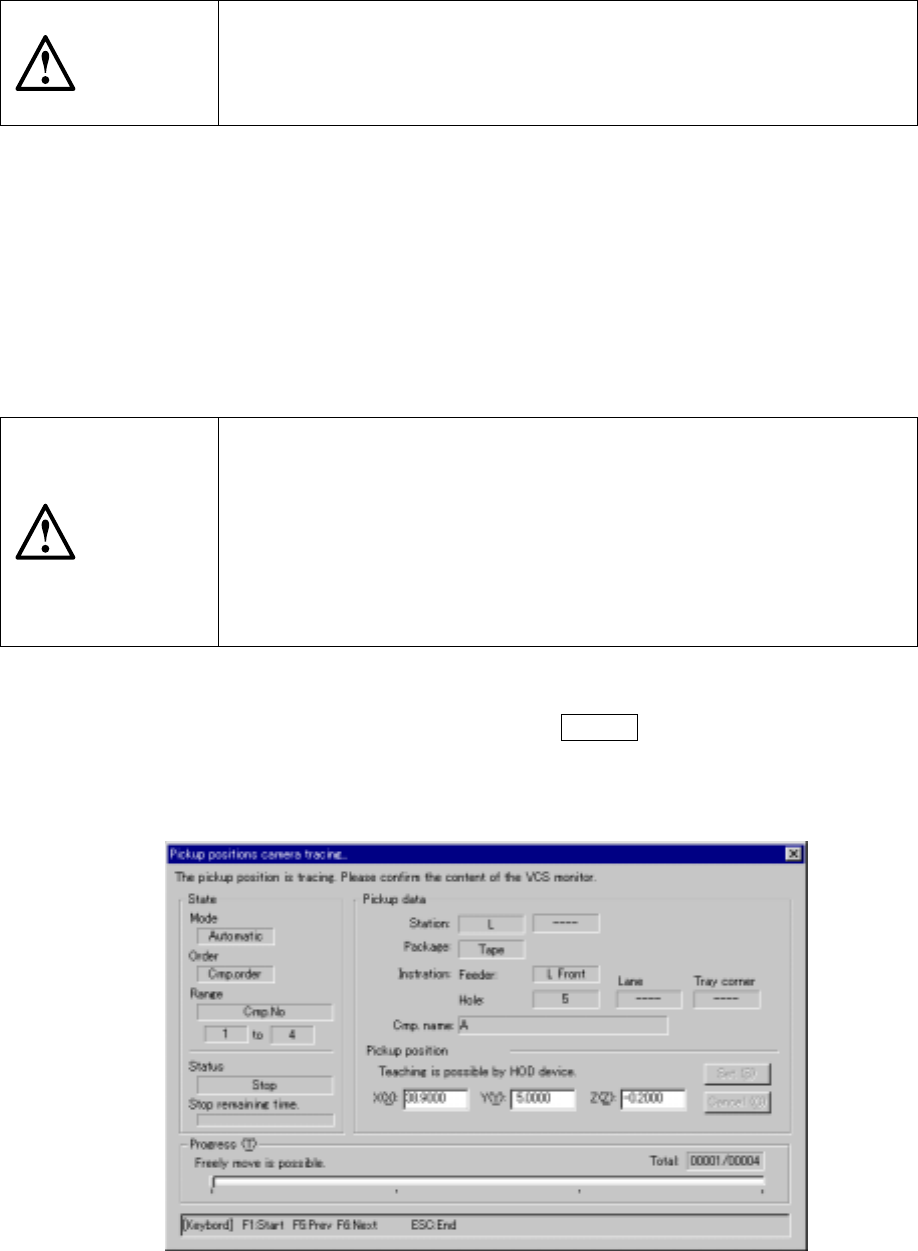
6 − 1 13 Figure 6.5.4. 1 Pick camera tracking dialog box
6 − 112
(2) Manual run
When "Manual" is selected in the "Place tracking" field, the monitoring camera
moves over the first point of placement after trial run, shoots the component
placed circuit, outputs it to the monitor screen, and pauses there.
CAUTION
After trial run has been completed, the camera continues to move to the
first point of trial placement. To avoid a risk of injury, do not place your
hand in the machine, nor move your face or head close to the machine
during operation of the machine.
6.5.4 Pickup tracking
(1) Automatic run
When "Automatic" is selected in the "Pick tracking" field, the pickup monitor
camera moves over a pickup point after trial run, shoots the picked-up component,
and outputs the result to the monitor screen.
The camera stops over the point for a time period set by the item "Automatic
interval", then automatically goes to the next pickup point.
CAUTION
If the feeder bank is never recognized (since the machine is zeroed, or
the bank moves down then up), it may be recognized automatically
before the machine moves to the pick position. Since the head moves
across the feeder while the feeder bank is being recognized, do not
place your hand in the machine, nor move your face or head close to
the machine. Especially, take care when the feeder bank is
recognized not from the menu but during teaching or tracking a pick
position.
①
To stop the camera temporarily
To temporarily stop the camera, press the PAUSE key (on the HOD). The
camera pauses at the next pickup point when the camera is moving, or at the
current position when the camera rests there.
Figure 6.5.4.1 shows the Pick camera tracking dialog box.
6 − 113
Figure 6.5.4.1 Pick camera tracking dialog box
6 − 114
To cancel the pause status, press the <START> or <STOP> switch. When
the <START> switch is pressed, monitoring by camera restarts immediately.
When the STOP switch is pressed, monitoring by camera terminals and a
dialog box for confirmation appears.
②
Changing a pickup point
When the machine is in the stop status, the pickup point can be taught by the
CAMERA key of the HOD.
It is also possible to change the pickup point directly by numeric keys on the
ten-key pad.
- The value to be entered manually is the value displayed on the screen
±
3
mm.
The head starts moving when you enter the coordinates and press the
<SET> button.
③
Returning to the previous pickup point
When the machine is in the pause status, you can return to the previous
pickup point by pressing the PREVIOUS key of the HOD.
The pause status is still held even after the camera returns to the previous
pickup point.
④
Going to the next pickup point
In the pause status, you can go to the next pickup point by pressing the
NEXT key of the HOD.
The pause status is held even after the camera goes to the next pickup point.
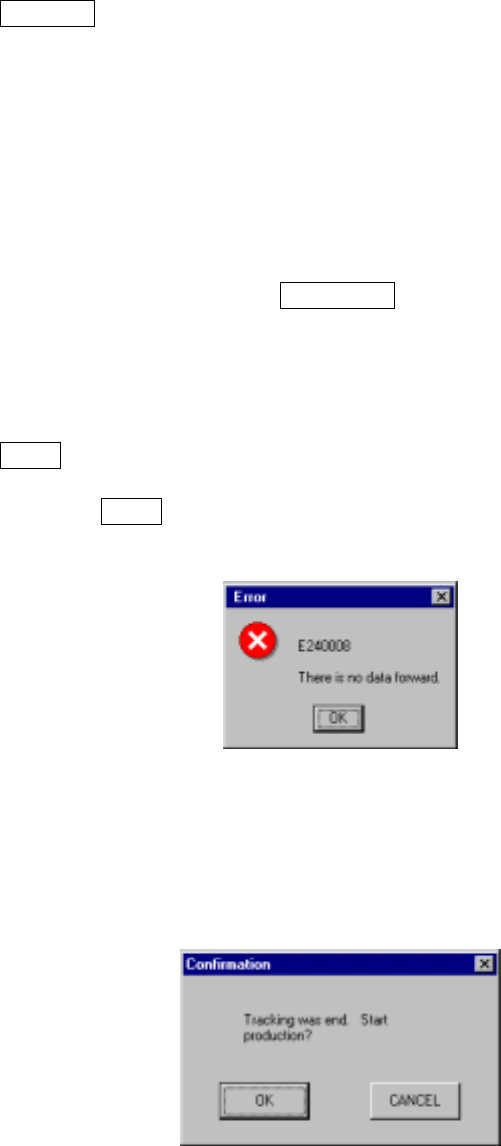
When the NEXT key is pressed again at the last pick point, the following
message box appears to tell the operator that that is the last tracking point.
Figure 6.5.4.2 Last tracking position message box
When the <START> switch is pressed at the last pick point, the following
dialog box (Figure 6.5.4.3) appears and the operator is asked whether to
enter Production mode.
Figure 6.5.4.3 "Tracking was end." dialog box