KE-2030使用说明书.pdf - 第503页
7 − 9 7.2.1.3 Exi t Select [File] on t he menu bar , then [Exiting Applicat ion], or click the close but ton (X ) at the upper r ight cor ner of the dialog box. T he system quit s the Machine Setup menu. 7.2.1.3. 1 Savin…
7 − 8
Select the desired file, then click the <Open> button.
You have registered additional nozzle information to the system at this point.
When you click the <Cancel> button, any data is not registered.
You can check the added nozzle number with the “Registered nzl. no table” menu
command, which is described under Section 7.2.1.1.
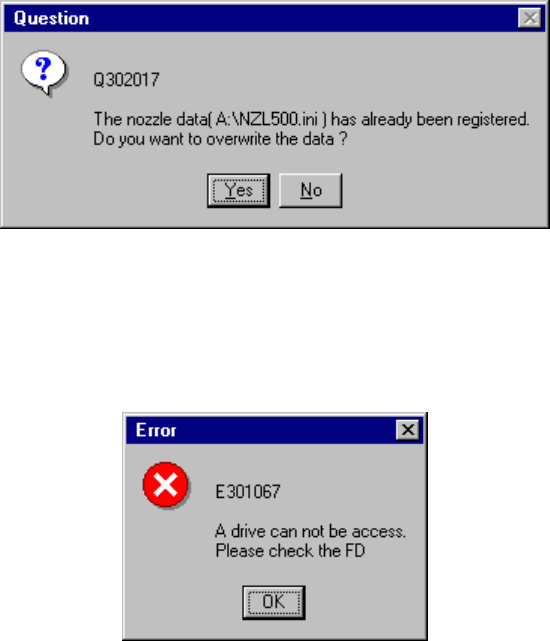
If the specified nozzle information is already registered, the dialog box that asks you
whether to overwrite the existing nozzle information (see Figure 7.2.1.2.3). When
you select “Yes”, the system updates the existing data with the specified nozzle
information that is stored on a floppy disk.
Figure 7.2.1.2.3 Nozzle information update confirmation dialog box
If no floppy disk is inserted into the drive or if any data is not read due to a failure of
the inserted floppy disk, the system displays the error dialog box (see Figure
7.2.1.2.4) on the screen. Check the floppy disk drive or contents of the floppy disk.
Figure 7.2.1.2.4 Floppy disk access error dialog box
7 − 9
7.2.1.3 Exit
Select [File] on the menu bar, then [Exiting Application], or click the close button (X)
at the upper right corner of the dialog box. The system quits the Machine Setup
menu.
7.2.1.3.1 Saving the settings
Although push buttons <OK>, and <Cancel> and <Apply> are available with each
setup group dialog box, pressing the <OK> or <Apply> button will not save the
data onto the hard disk.
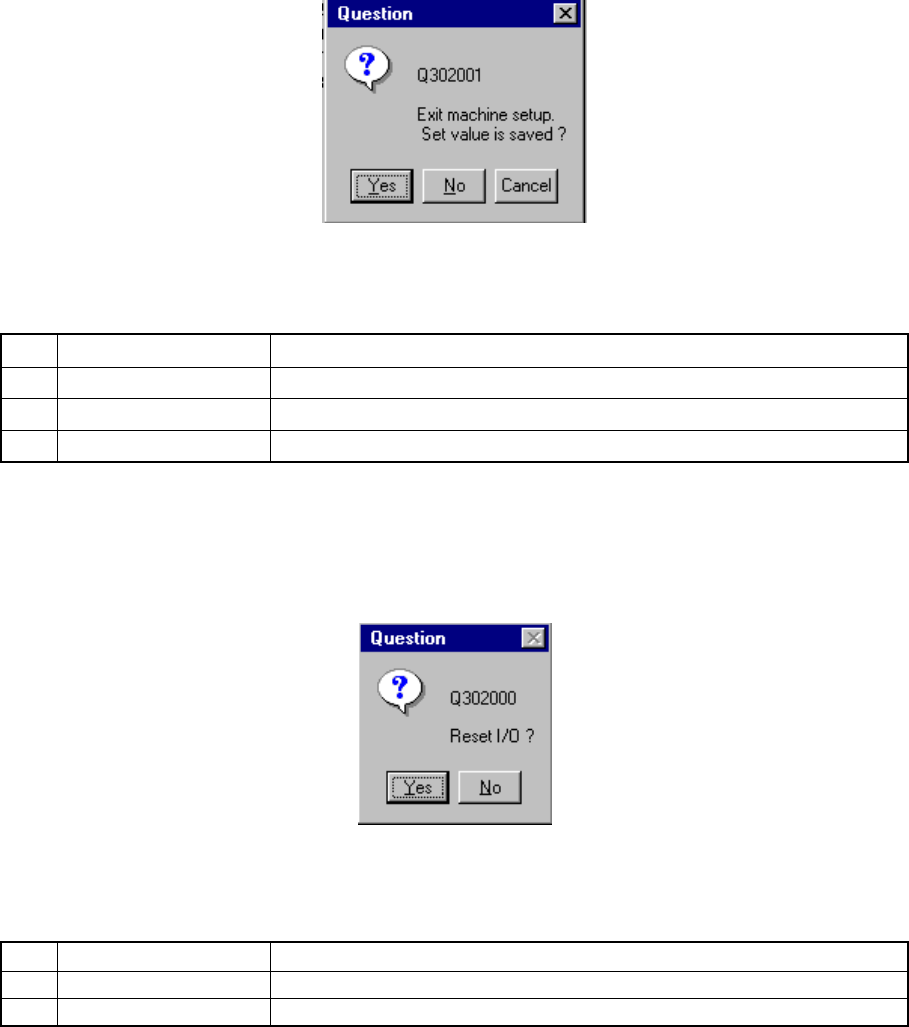
When you change the setting(s) on each Setup group dialog box, a dialog box
appears asking you whether to save the setting(s) or not (see Figure 7.2.1.3.1.5).
When you click the <Yes> button, the setting(s) is (are) saved onto the hard disk.
Figure 7.2.1.3.1.5 Save confirmation screen
Table 7.2.1.3.1.1 Save confirmation buttons
No. Button Action
1 Yes Saves the setting data onto the hard disk.
2 No Cancels the setting data.
3 Cancel Cancels the Exiting Application command.
7.2.1.3.2 Setting the safe direction of each I/O
After you select the [Exiting Application] command, the dialog box shown in Figure
7.2.1.3.2.1 appears on the screen.
Figure 7.2.1.3.2.1 “Reset I/O” dialog box
Table 7.2.1.3.2.1 Buttons for setting the safe direction of each I/O
No. Button Action
1 Yes Sets each I/O safe direction, then quits the Machine Setup menu.
2 No Quits the Machine Setup menu without setting each I/O safe direction.
7 − 10
7.2.2 Setup group commands
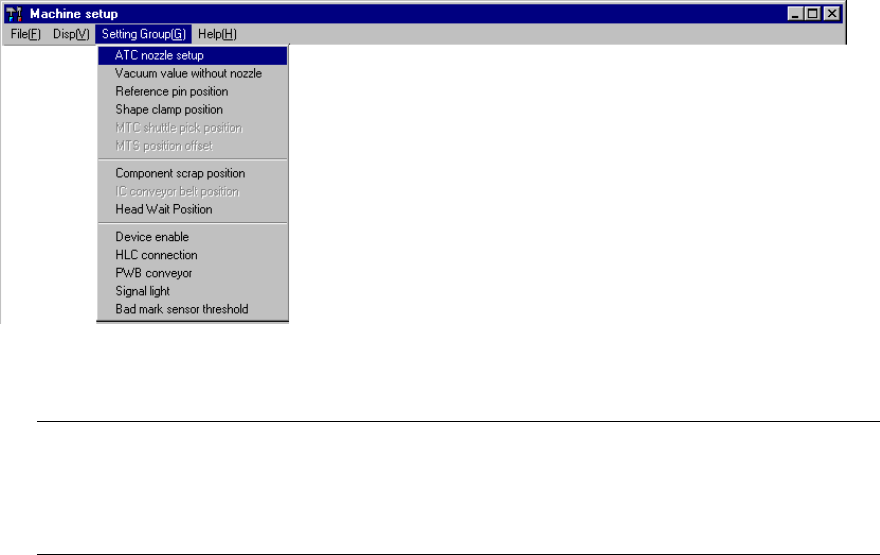
When you select the [Setting Group] command on the menu bar, the commands
shown in Figure 7.2.2.1 appears on the screen.
Figure 7.2.2.1 Setting Group command items
Note: 1) You cannot select any dimmed menu item. (The displayed available
depending on the model you use
2) If you have to drive any mechanical part at setup, see Section 7.3
"Mechanical Setup" to drive it.