KE-2030使用说明书.pdf - 第622页
9 − 29 9.5.2 Event View buttons The f ollowing screen appears if you open the safet y cover, if you press the Emerg ency Stop button, or if t he machine detect s an alarm of each axis servo driver. ◇ The messag e “I f Se…

9 − 28
(Referene)
A Trouble that occurs if you do not clean the stained laser alignment
sensor window
① Inappropriate placement precision (A recognition error occurs if stains are
located over the shadow of a component. Therefore, the machine may
not realize the regulated placement precision randomly.)
② Incensement of the number of discarded components (due to a
tombstone error, component dimension error and component orientation
error as well as laser error)
③ Lowered cycle time (because a laser recognition retry operation should
be performed)
④ Nozzle replacement error (because a nozzle is recognized with laser)
B Reason why the laser alignment sensor window is stained
The laser alignment sensor window may be stained due to dust, oil (oil of the
compressor and grease applied to the head are scattered), or dried-up
dust-like solder paste.
◇ Oil of the compressor:
See Section 13.2.1 “Air pressure” of Chapter 13 “MAINTENANCE”.
If oil or water is stored in the drain, remove it.
◇ Cleaning a nozzle:
See Section 13.3.4 “Nozzle” of Chapter 13 “MAINTENANCE” for how to
clean a nozzle.
<
<<
<Checkpoint>
>>
>
① Check to see if the Z-slide shaft section is greased too much.
② Check to see if any solder paste is stuck to a tip of a nozzle. If you judge
that a nozzle is not in contact with any solder paste on a board, solder
paste sprayed with air may piles at the tip of a nozzle little by little.
In such a case, check to see if:
• The pitch of a feeder is shifted, or
• The used nozzle is too large for a component.
9 − 29
9.5.2 Event View buttons
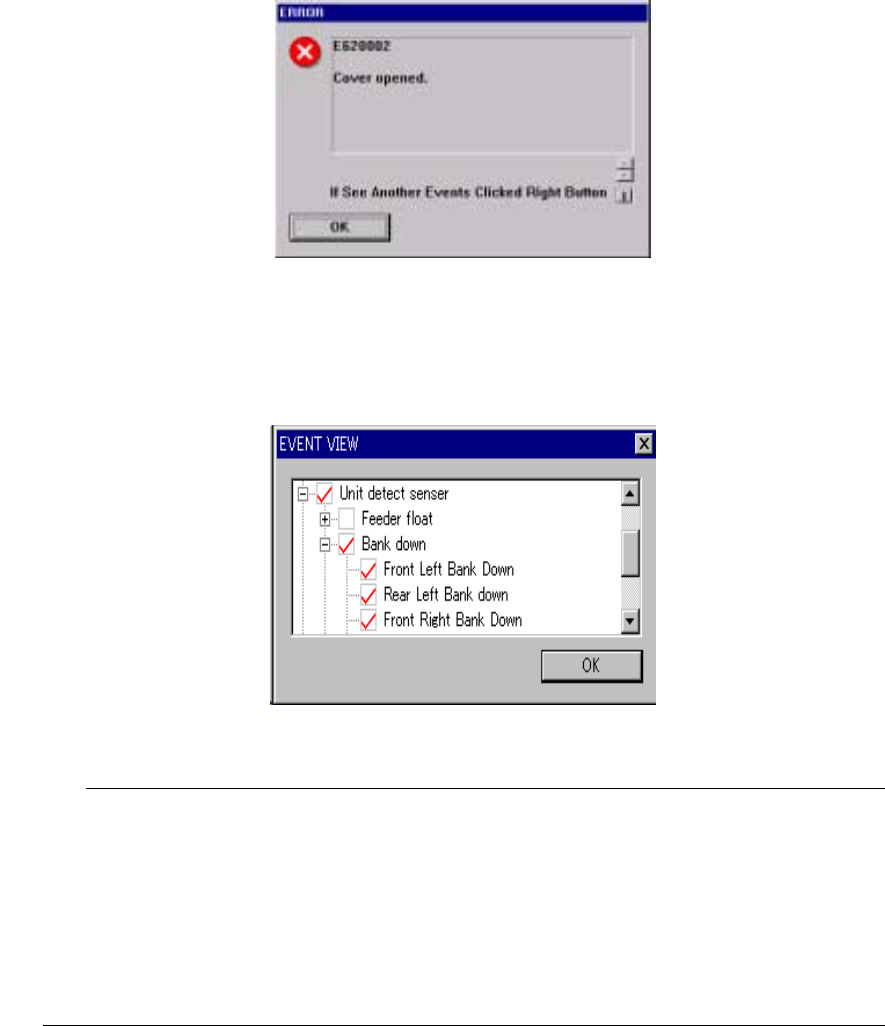
The following screen appears if you open the safety cover, if you press the
Emergency Stop button, or if the machine detects an alarm of each axis servo driver.
◇ The message “If See Another Events Click Right Button” may appears on the
screen. This message appears if two or more events occur at the same time,
and the machine can display the event whose priority is higher only on the screen.
Figure 9.5.2.1 “ERROR” screen
When you click the <OK> button, events are displayed in the hierarchical view.
A check mark is displayed next to the events that actually occurred.
Figure 9.5.2.2 Hierarchical display of events
You do not have to check the events on the hierarchical display above normally.
However, if a driver error occurs and you judges the machine malfunctions, check this
display.
If a driver alarm error appears on the screen, check to see if an event that turns off
the servo power supply (such as Emergency Stop, area sensor activation, feeder float
and so on) occurs. If an event that turns off the servo power supply occurs even
though a driver alarm error appears on the screen, a driver may not malfunction in
many cases.
10 − 1
CHAPTER 10 SELF CALIBRATION
10.1 Overview
The items set for self-calibration are shown in Table below:
Note that a person who can set the following items is restricted as described under
Section 11.2 "User Group Setting".
Before you register the user group, be sure to contact our Technical Service
department.
Table 10.1.1 Self-calibration Items
No. Self-calibration group Description
1 Correct coefficient of XY axis Correction parameter for the XY axes stop accuracy
2 Laser sensor height Height of the laser sensor viewed from the top of a board
3 Rotation center of noz. Center of the nozzle rotation detected with the laser sensor
4 Head offset Assembling position of each head relative to the OCC
Assembling angle of the laser alignment unit relative to the main
unit
5 VCS offset VCS camera assembling position
6 VCS binary-coded threshold
level
Binary-coded threshold when recognized by the VCS (threshold
level)
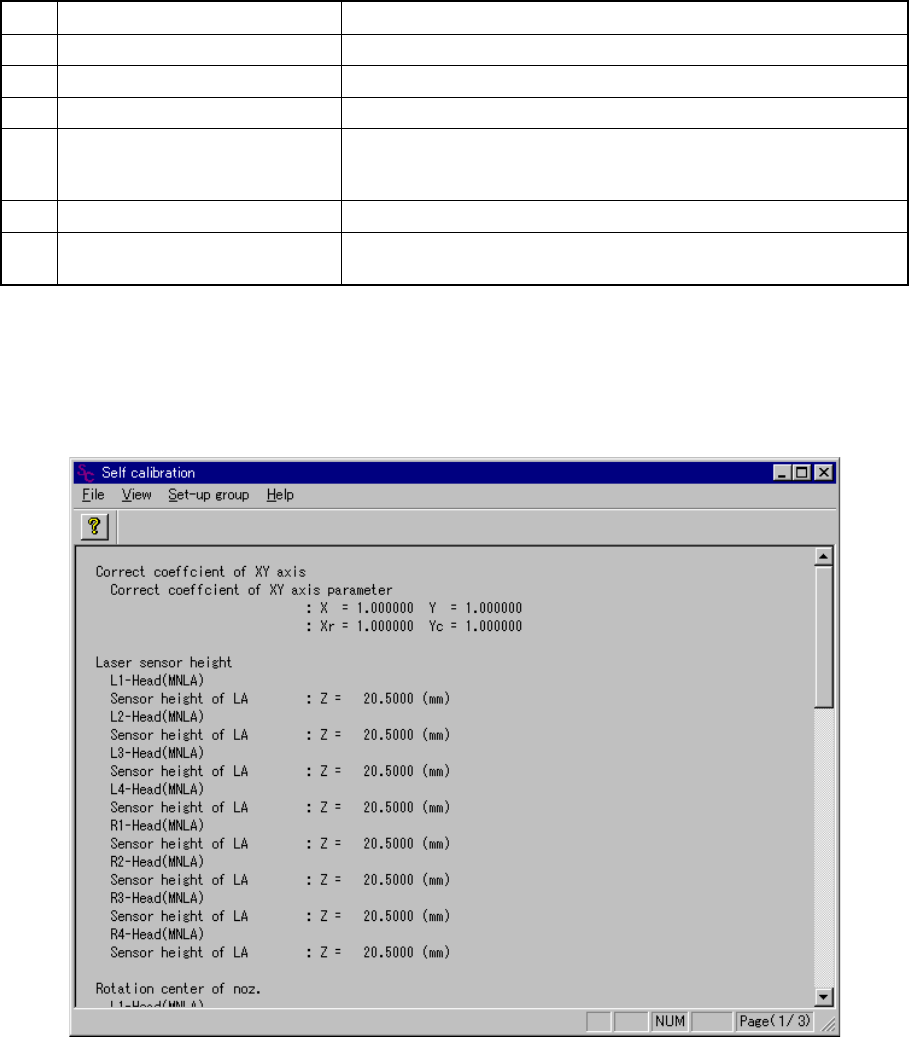
(1) Screen displayed immediately after start-up
When you select the [Self-calibration] command on the [Setup] menu, the
following ”Self calibration” initial screen appears.
Figure 10.1.1 Self calibration initial screen
(Screen example when a KE-2030 is used)