KE-2030使用说明书.pdf - 第464页
6 − 1 18 blank run by the camer a, and also the t ypes of track ing.
6 − 117
(2) Operation
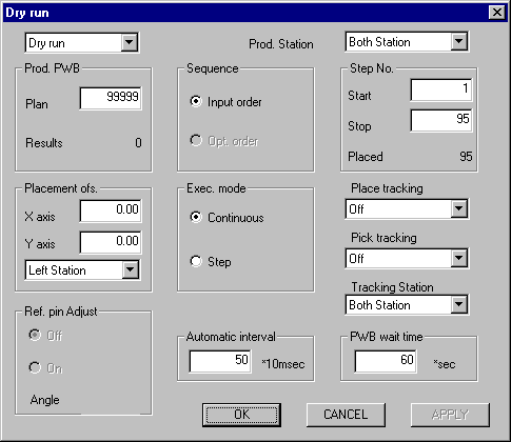
Figure 6.6.1 shows the Initial dry run conditions menu box.
Figure 6.6.1 Initial Dry run conditions menu box
① Setting items selection
Switches the dialog box to be displayed among: Production conditions
dialog box, Trial Run conditions dialog box, and Dry Run conditions dialog
box.
② Prod. PWB
Enter the predetermined number of PWBs to be produced. The number of
"Result" field is displayed according to setting for the number of produced
boards specified on the Operation Options menu.
③ Sequence
Using the corresponding radio button, select the placement sequence: either
input order or optimized order.
④ Exec. mode
Select either "Continuous" or "Step" execution mode with the corresponding
radio button.
⑤ Placement ofs.
In case a certain production lot has a specific offset (in printing process or in
reference holing process), enter the X and Y offsets in this field. The entered
offset is applied to the entered placement position.
⑥ Step No.
Enter the start line number and end line number to specify the range of
placement. The number of placement points on a board is displayed in the
"Placed" field, and the initial value is displayed in each field. When "Opt.
order" is selected as the "Sequence", you cannot change these initial values.
⑦ Place tracking
Using the radio button, set whether or not to perform placement tracking after
6 − 118
blank run by the camera, and also the types of tracking.
6 − 119
⑧ Pick tracking
Using the radio button, set whether or not to perform pickup tracking before
blank run by the camera, and also the types of tracking.
⑨ Tracking Station
Select on which station the placement tracking or pick up tracking is to be
performed.
⑩ Automatic interval
Enter the interval of automatic run.
⑪ PWB wait time
Set the time-out duration which starts production if the IN sensor does not
detect the board transported by the IN station after it is clamped with the OUT
station.
⑫ Prod. station (Production station)
Specify a station that is to be used for producing PWBs. When you select
“Let” or “Right” station, the system uses a station only at one side to produce
PWBs. Even though you need a station at only one side to produce PWBs,
create Pick data for both stations in a production program.
6.6.1 Starting the blank run
To start the blank run, press the <START> switch on the operation panel after setting
the desired blank-run conditions.
CAUTION
The head starts to move immediately after the <START> switch is
pressed, and then "Blank run" starts.
To avoid a risk of injury, do not place your hand in the machine, nor
move your face or head close to the machine during operation of the
machine.
Before pressing the <START> switch, check that there is no one who is
working in the machine.
Before pressing the <START> switch, check that there is no one who
can be injured when the head starts to move.
Before pressing the <START> switch, check that there are no obstacles
(tools and jigs) attached or left in the machine.
The green signal lamp lights to indicate that the blank run operation is in progress.
CAUTION
If the feeder bank is never recognized (since the machine is zeroed, or
the bank moves down then up), it may be recognized automatically
before the machine moves to the pick position. Since the head moves
across the feeder while the feeder bank is being recognized, do not
place your hand in the machine, nor move your face or head close to
the machine. Especially, take care when the feeder bank is
recognized not from the menu but during teaching or tracking a pick
position.