KE-2030使用说明书.pdf - 第378页
6 − 32 6.2.3.1 Basic operation to di splay production management informati on ① Total To display the pr oduction manag ement inf ormat ion, select t he [W indow] command f rom t he menu bar, t he [Management I nfo. ] com…
6 − 31
②
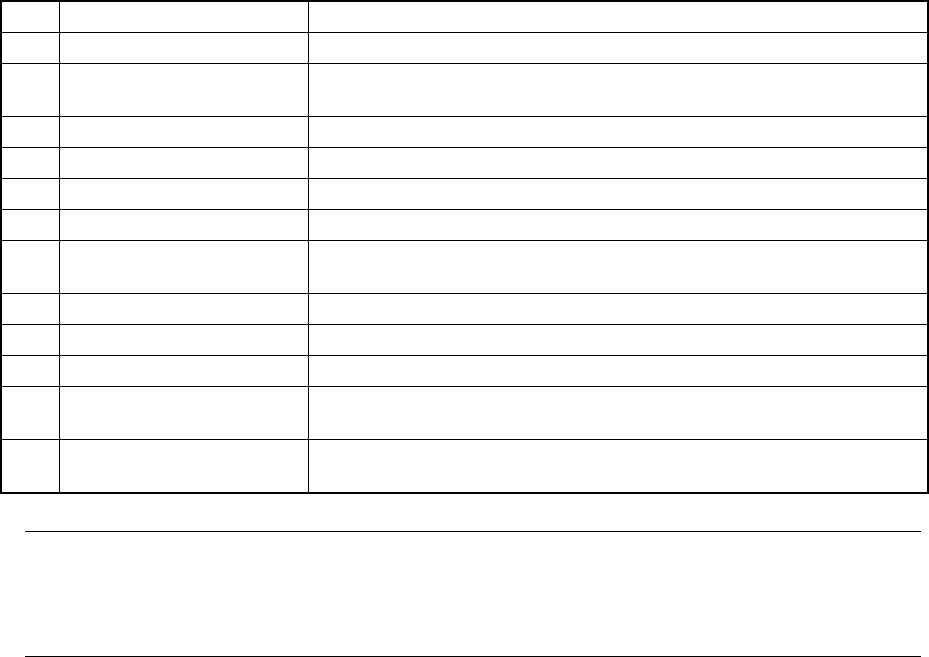
Management information per feeder
No. Item Description
1 Picked The number of components successfully picked from the feeder.
2 Placed The number of components successfully picked , then placed from the
feeder.
3 Pick Err. The number of pickup errors occurred at the feeder.
4 Empty Comp. How many times the stocked components run out at the feeder.
5 Retry The number of retry over errors occurred at the feeder.
6 LA Recog The number of laser recognition retry over errors occurred at the feeder.
7 Vrecog The number of VCS recognition errors which occurred at the feeder
(available with a KE-2020/2040 only.)
8 Lead The number of components whose bent lead(s) was (were) detected.
9 Dimension The number of components whose dimensions were incorrect.
10 Vrfy The number of components which causes a verify errors.
11 Chip The number of components that are picked from the feeder and cause a
chip rise error.
12 Cpla The number of components whose floating lead(s) was (were) detected
with the coplanarity check.
Note: For a component fed by a feeder, the retry error means that the stocked
components run out. For a component fed by a tray, when the number of
remaining components reaches zero, it is regarded as “Empty Comp.” error, and the
retry over error is detected according to the number of retries already performed.
6 − 32
6.2.3.1 Basic operation to display production management information
①
Total
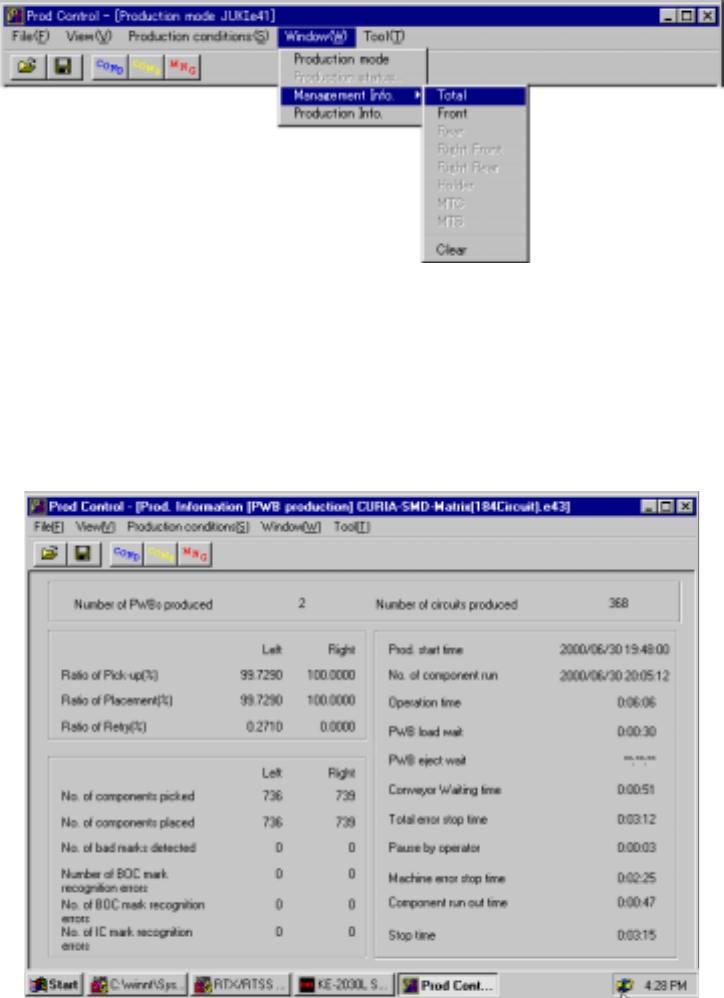
To display the production management information, select the [Window]
command from the menu bar, the [Management Info.] command on the displayed
menu after you select the [Window] command, then the [Total] command. The
screen shown in Figure 6.2.3.1.1 appears.
Figure 6.2.3.1.1 Prod. Information (Total)
6 − 33
②
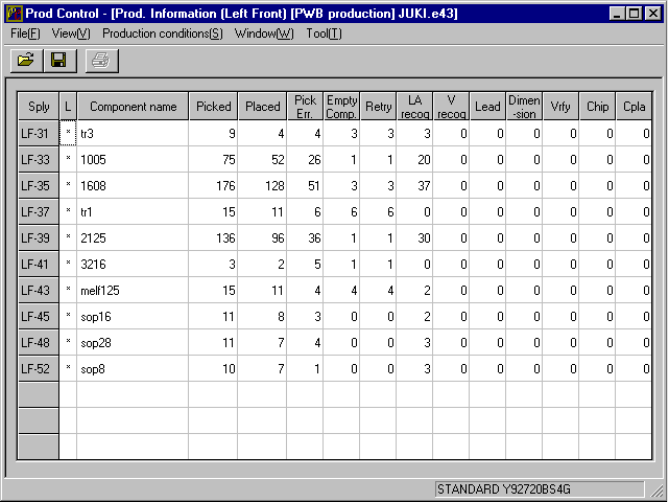
Left Front
When you select the [Window] command from the menu bar, the [Management
Info.] command on the displayed menu, then the [Left Front] command, the
screen shown in Figure 6.2.3.1.2 appears.
Figure 6.2.3.1.2 Prod. Information (Front)
To clear the production management information displayed on the screen, select the
[Window] command from the menu bar, the [Management info.] command on the
displayed menu, then the [Clear] command.
6.2.3.2 Storing the production management data
When you perform the "Save" command for a file after production, you can save the
production management information as a file separately.