00196351-04_UM_ACT_de_en.pdf - 第140页
ACT - Accurac y Check T ool / User Manual 07/2014 Edit ion 66 4.2.5.3 S aving the Repor t under Station Software 703.xx and Higher ► Click the S ave re sults butt on ( see Figure 4- 44 ). The repor t will be s aved i n P…
ACT - Accuracy Check Tool / User Manual 07/2014 Edition
65
4.2.5.2 Correcting the Measured Offsets
► Click the Manual correction button (
see Figure 4-44).
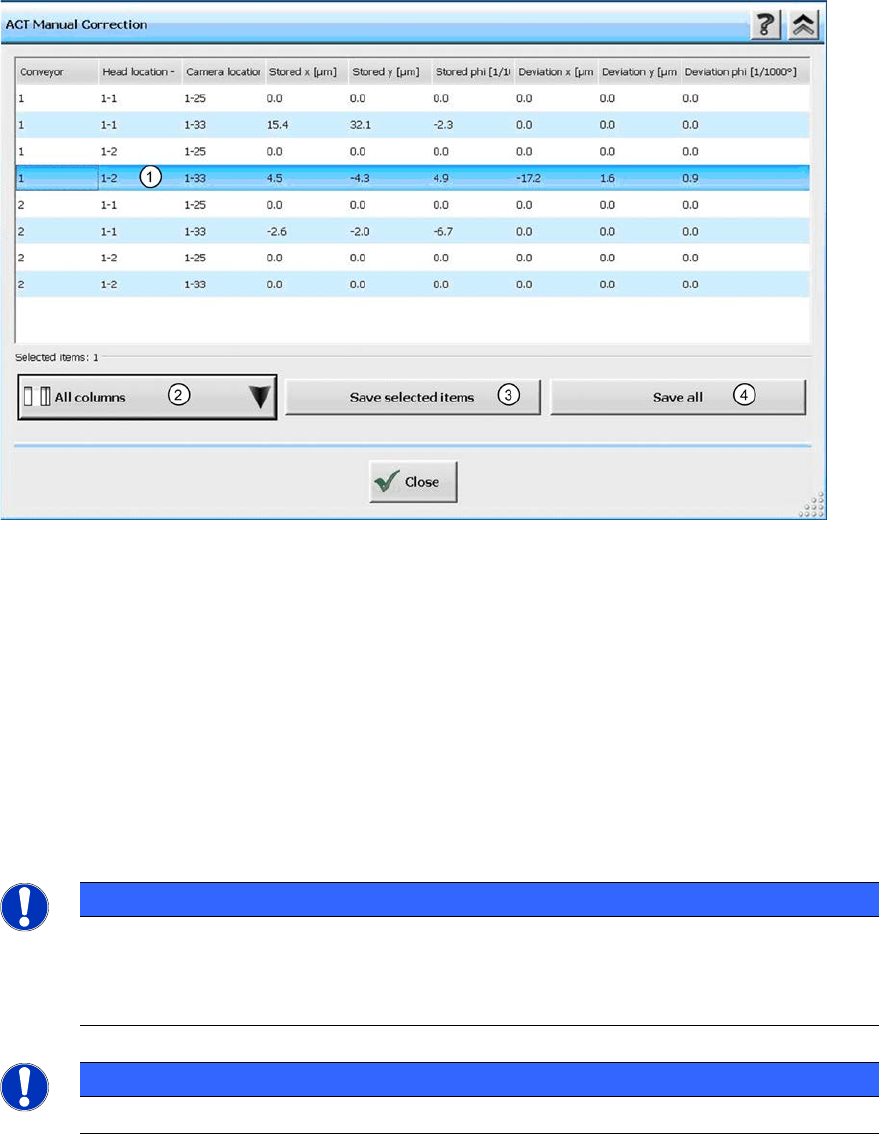
The following dialog box is opened:
Figure 4-45: Correction of the measured offset values (median)
Key:
(1) Clicking on a line highlights it in blue. Clicking on the same line again cancels the
highlighting. To select multiple lines, click them while holding down the (Ctrl) key.
(2) This allows you to customize the view.
(3) Transfers all selected offset values to the machine data.
(4) This transfers all offset values to the machine data whether they are selected or not.
The corrected values are active immediately after having been stored.
► Terminate the current measurement and assemble and measure the plate again.
NOTICE
If you are using a dual conveyor and want to run the ACT with the next conveyor lane, all
you need to do is insert the glass plate into the input conveyor of the current lane once
the components have been removed. This triggers the ACT. You do not need to select a
new mode for the measurement.
NOTICE
The transparent foil, with adhesive on both sides, can be used multiple times.
ACT - Accuracy Check Tool / User Manual 07/2014 Edition
66
4.2.5.3 Saving the Report under Station Software 703.xx and Higher
► Click the Save results button (
see Figure 4-44).
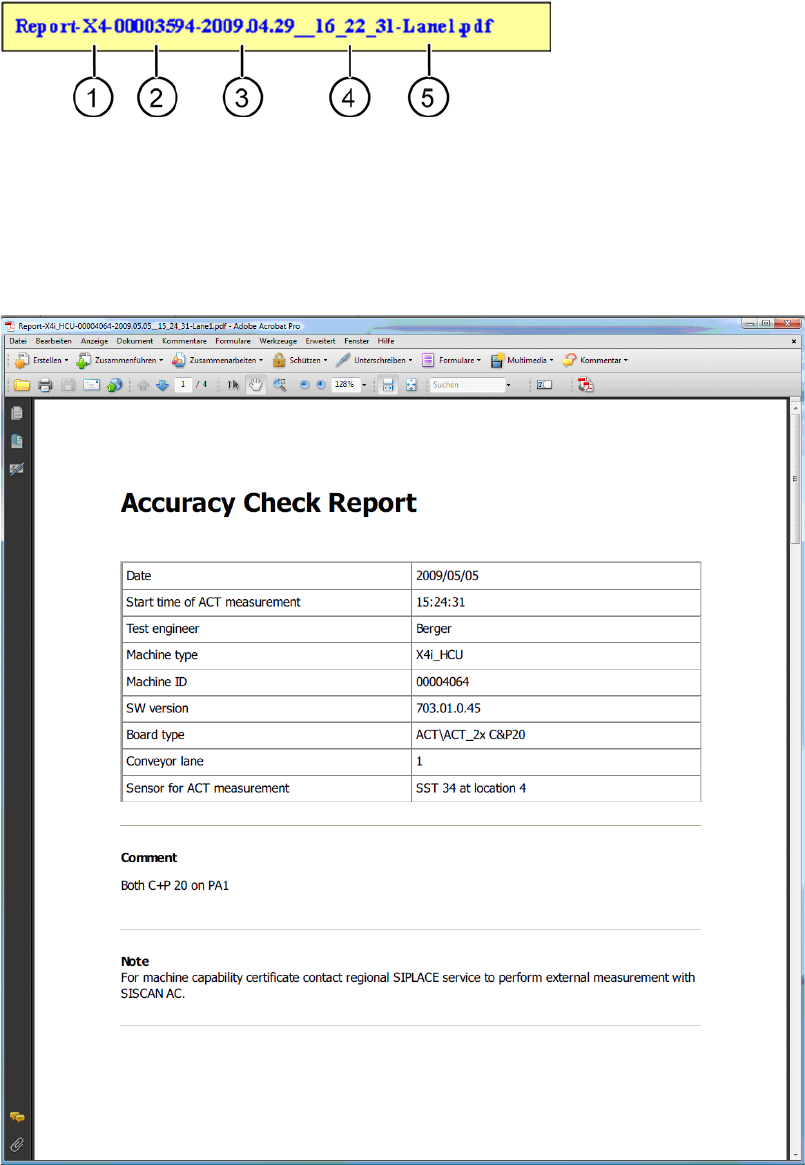
The report will be saved in PDF format.
The file name for the report is made up as follows:
Key:
(1) Machine type (4) Time
(2) MID (5) Measured lane
(3) Date
Figure 4-46: Accuracy Check Report
ACT - Accuracy Check Tool / User Manual 07/2014 Edition
67
4.2.6 Finishing the ACT – Returning to Production
4.2.6.1 Finishing (e.g. under Station Software 70x)
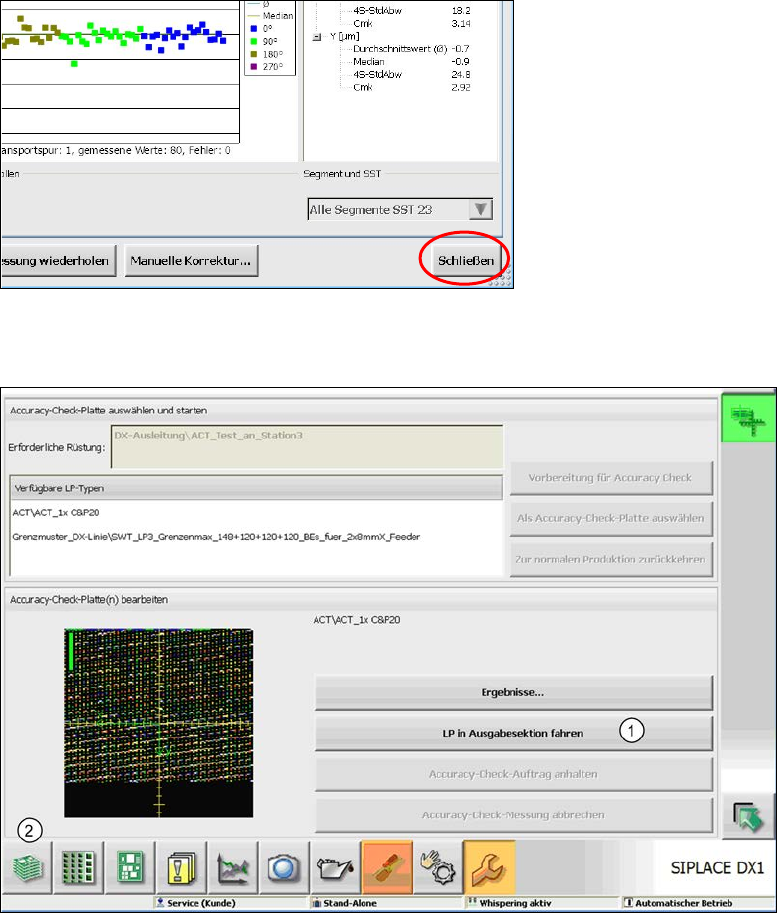
► Click the Schließen (Close) button in the measurement results view to close it.
Figure 4-47: Closing measurement results view
► Load the board into the output section (1).
Figure 4-48: Loading board into the output section
► Click on the button to the left at the bottom (2) to return to the main view of the GUI.