00196351-04_UM_ACT_de_en.pdf - 第98页
ACT - Accurac y Check T ool / User Manual 07/2014 Edit ion 24 3.2.5 Importing Table s The "T able import " proces s is analo gous to t hat for importing b oards ( see previo us sec tion). ► At first, pr oceed a…
ACT - Accuracy Check Tool / User Manual 07/2014 Edition
24
3.2.5 Importing Tables
The "Table import" process is analogous to that for importing boards (see previous section).
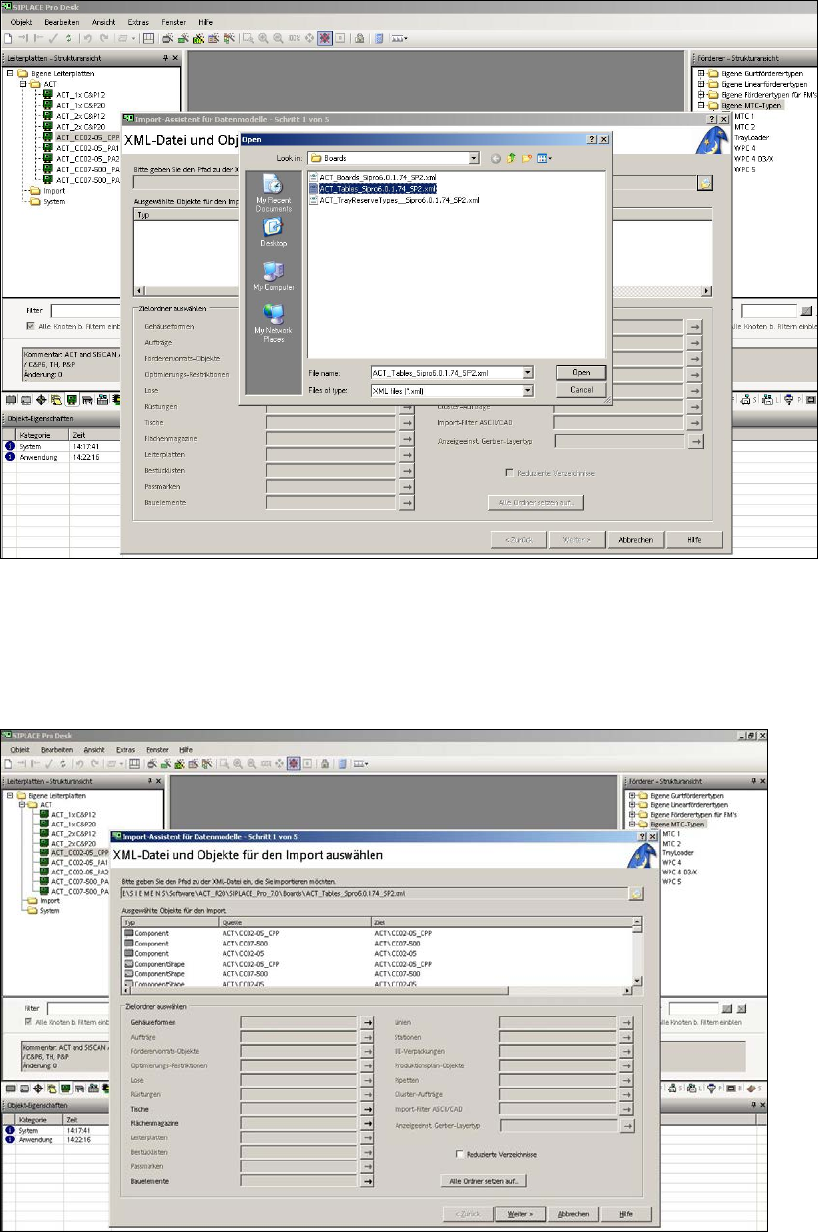
► At first, proceed as described in Figure 3-20 and Figure 3-21.
Figure 3-20: XML file on the ACT CD for import of tables to SIPLACE Pro
► Select the XML file for the tables from the ACT CD.
► Click Open.
The following screen is displayed:
Figure 3-21: Import of XML file for tables in SIPLACE Pro
ACT - Accuracy Check Tool / User Manual 07/2014 Edition
25
NOTICE
Import of data
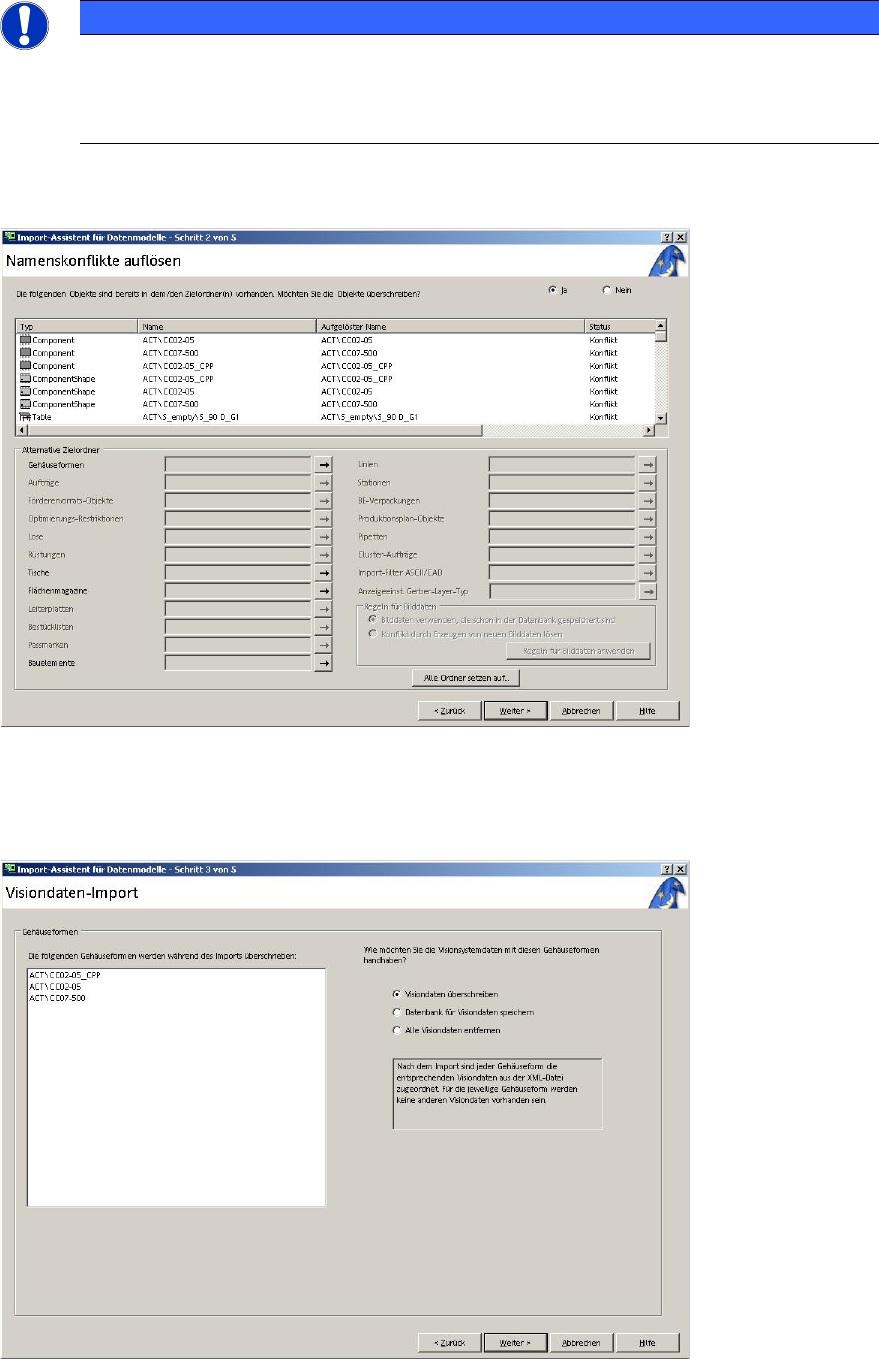
► Please do not change the destination folder.
► Do not select the Reduzierte Verzeichnisse (reduced folders) check box.
► Click Weiter (Next).
Figure 3-22: Import of XML files for tables on SIPLACE Pro computer
► Click Weiter (Next) again.
The following screen is displayed:
Figure 3-23: Vision data import