00196351-04_UM_ACT_de_en.pdf - 第94页
ACT - Accurac y Check T ool / User Manual 07/2014 Edit ion 20 NOT ICE Import of data ► Please d o not cha nge the destina tion fold er. ► Do not sel ect the Reduzie rte Ve rzeichnis se (re duced f olders) c heck box. If …
ACT - Accuracy Check Tool / User Manual 07/2014 Edition
19
3.2.4 Importing Boards in SIPLACE Pro
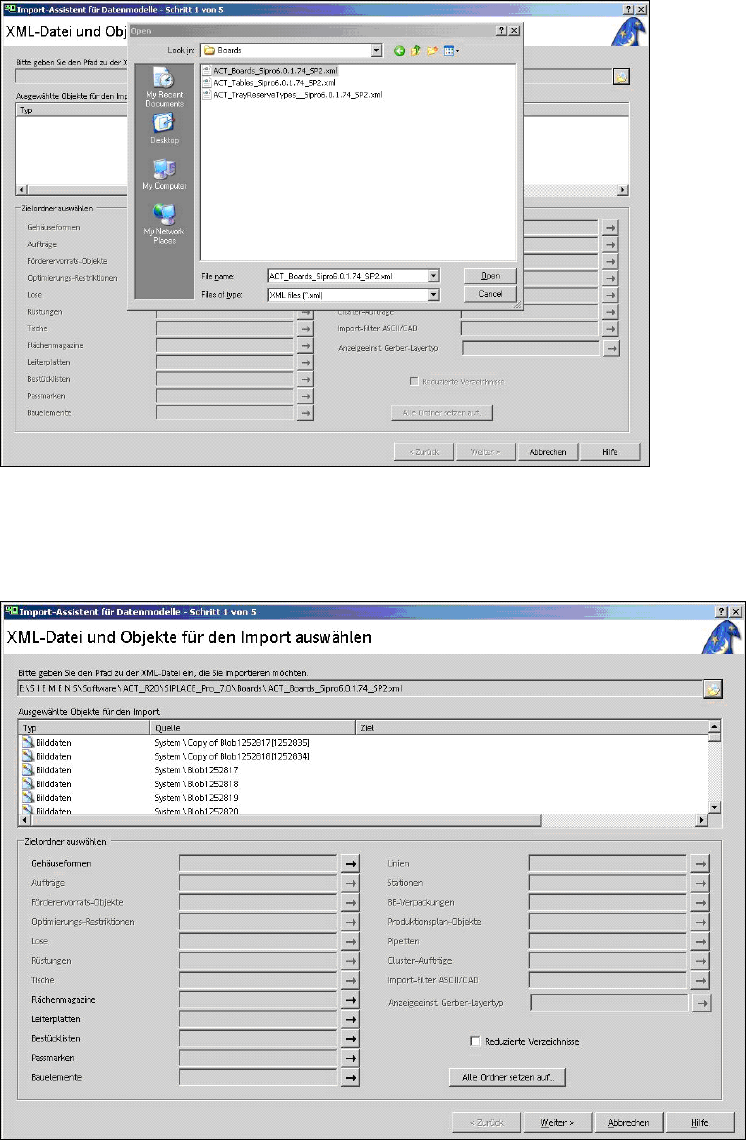
► Select the appropriate folder to your software.
► Click on the file with the board programs on the ACT CD (Figure 3-11).
Figure 3-11: ACT board import screen
► Click Open (Figure 3-11).
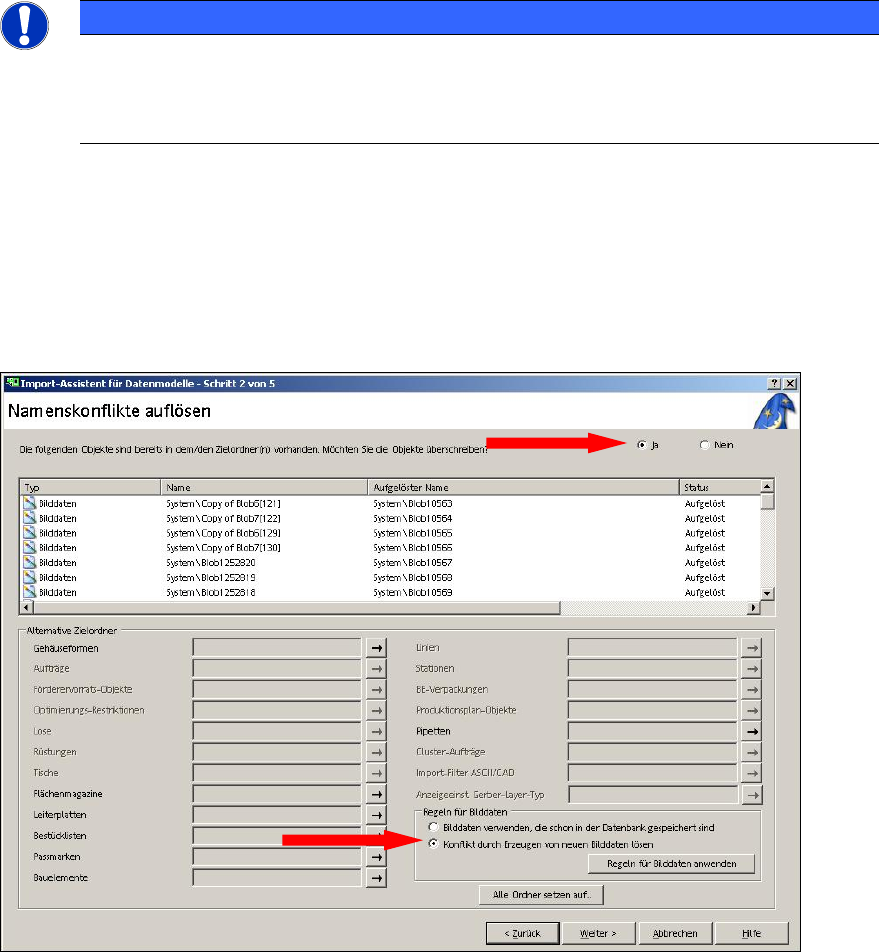
► Click Weiter (Next) (Figure 3-12).
Figure 3-12: XML file import screen
ACT - Accuracy Check Tool / User Manual 07/2014 Edition
20
NOTICE
Import of data
► Please do not change the destination folder.
► Do not select the Reduzierte Verzeichnisse (reduced folders) check box.
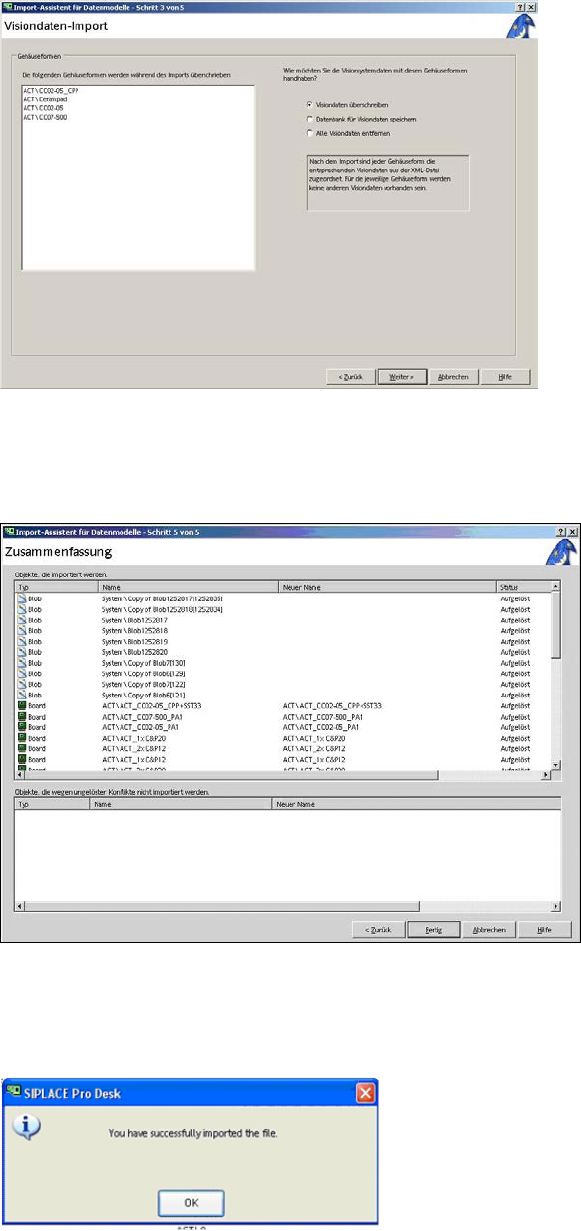
If ACT data has already been imported, the following screen will be displayed (Figure 3-13).
► To overwrite the objects, set the option Die folgenden Objekte sind bereits in dem/den
Zielordner(n) vorhanden. Möchten Sie die Objekte überschreiben? (The following object(s)
exist in the destination folder(s). Would you like to overwrite them?) to Ja (Yes).
► Enable the option Konflikt durch Erzeugen von neuen Bilddaten lösen (Resolve conflict by
creating new image data).
► Click Weiter (Next).
Figure 3-13: Information screen: Resolve conflict by creating new image data
ACT - Accuracy Check Tool / User Manual 07/2014 Edition
21
The following screen is displayed:
Figure 3-14: Vision data import
► Activate the Visiondaten überschreiben (Overwrite Vision data) option.
► Click Weiter (Next).
Figure 3-15: Screen for finishing the import of files for ACT
► Click Fertig (Finish).
The following message is displayed on the screen:
Figure 3-16: Maske mit Information Erfolgreicher Daten-Import
► Click OK.