00196351-04_UM_ACT_de_en.pdf - 第147页
ACT - Accurac y Check T ool / User Manual 07/2014 Edit ion 73 Figure 5-6 : Installation program with prompt t o enter language ► Enter the re quired langu age (Ger man or English). The instal lation is prepare d. Figure …
ACT - Accuracy Check Tool / User Manual 07/2014 Edition
72
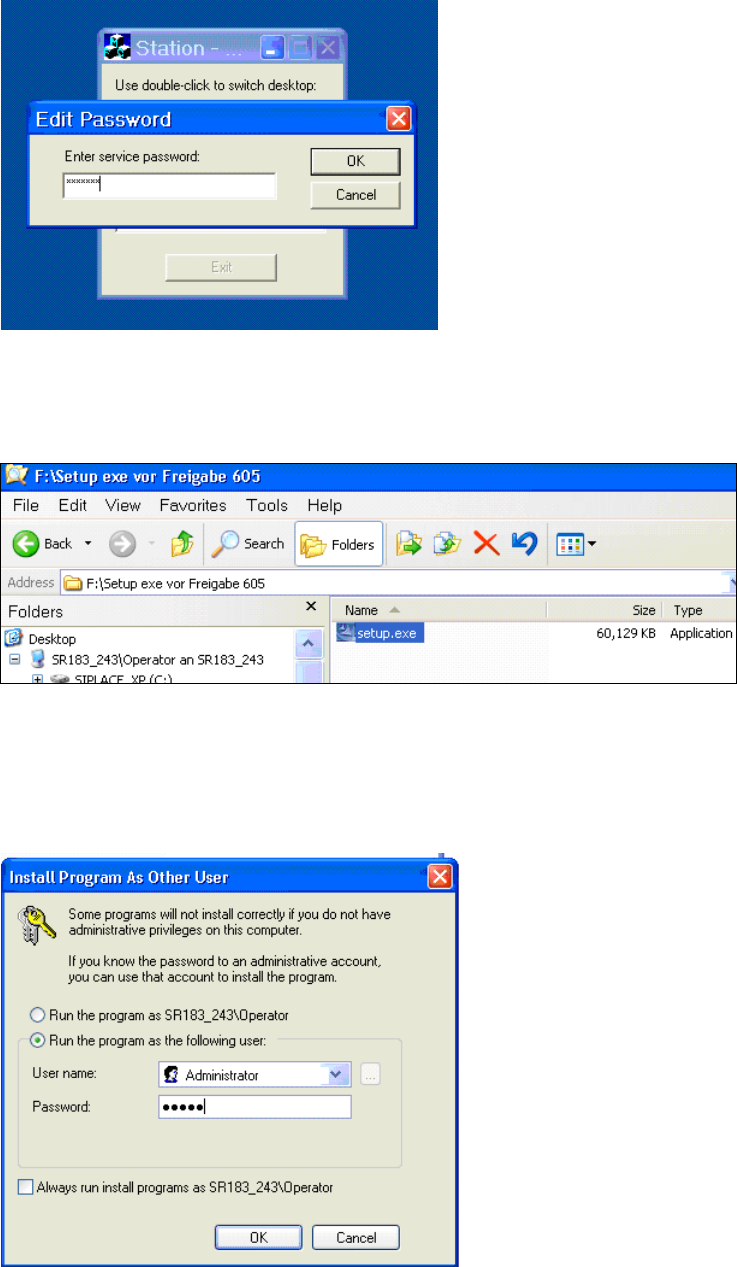
The following screen is displayed:
Figure 5-3: Default screen, password entry
► Enter "Service" as password.
► Click OK.
Figure 5-4: Double-clicking the setup.exe file on the CD
► Double click the setup.exe file on the CD.
A password is requested before installation of the ACT (Figure 5-5).
Figure 5-5: Entering the password after double-clicking setup.exe (before installing the ACT program)
► Enter the administrator password.
ACT - Accuracy Check Tool / User Manual 07/2014 Edition
73
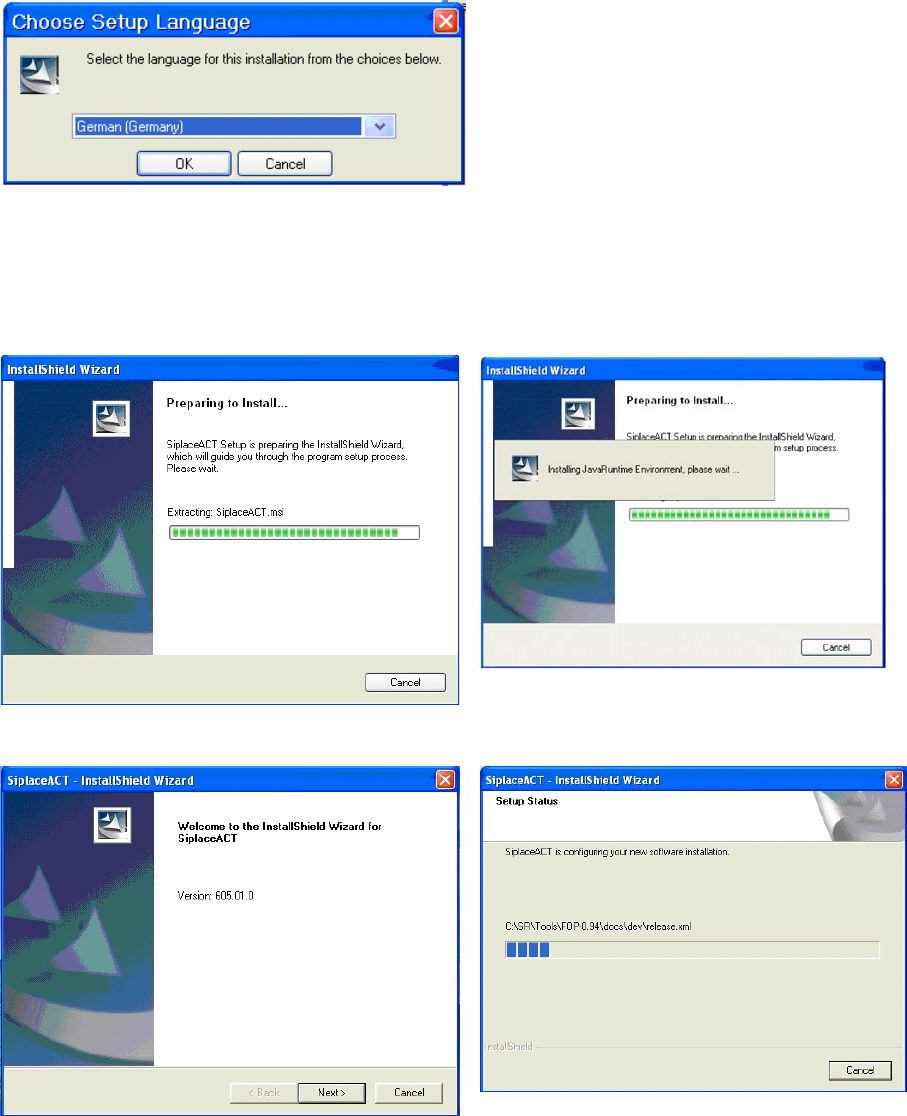
Figure 5-6: Installation program with prompt to enter language
► Enter the required language (German or English).
The installation is prepared.
Figure 5-7: Vorbereitung zur Installation des ACT
Figure 5-8: Installation: Clicking Next
► Click Next.
ACT - Accuracy Check Tool / User Manual 07/2014 Edition
74
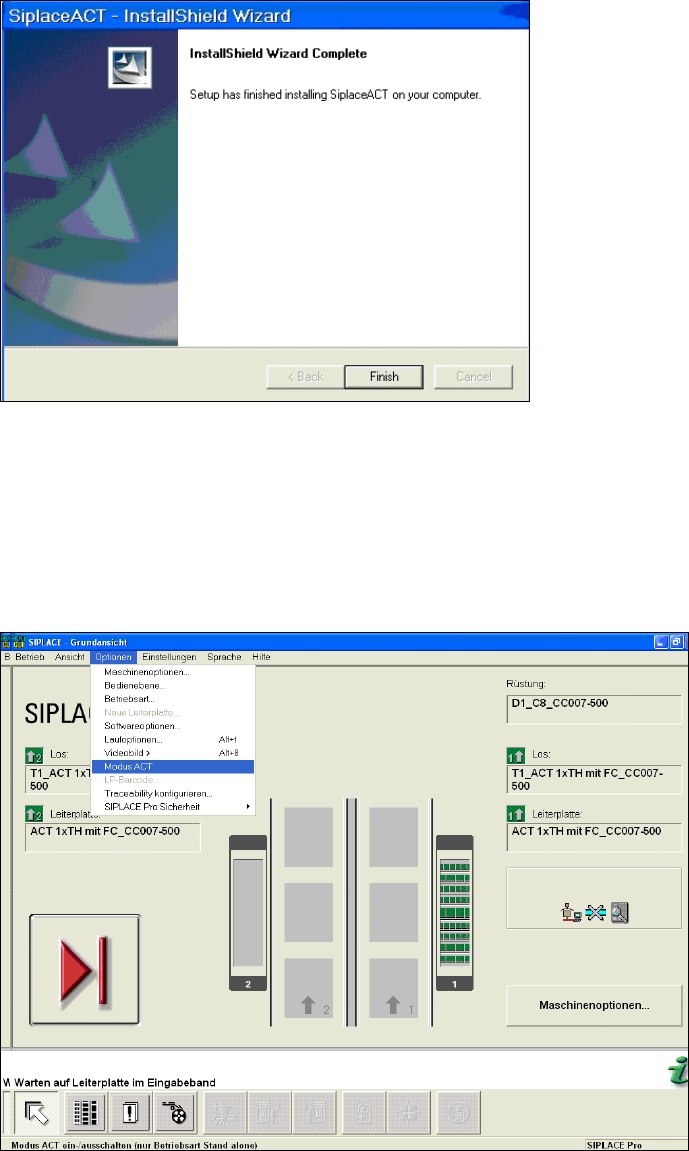
Figure 5-9: Completing the ACT installation
► Click Finish to complete the installation of the ACT.
► Reboot the machine.
The station computer GUI displays the ACT mode grayed out (inactive) under Options
(Figure 5-10).
Figure 5-10: GUI with Options / ACT mode