00193891-0702_AI_LP_Barcode_DE+EN.pdf - 第222页
2 PCB barcode scanner assembly instructions SIPLACE 2.11 PCB barcode scanner configuration 10/2009 Edition 222 2.1 1.5 Overview of the PCB ba rcode scanner configuration Use the software (CL V 4.1) and operating instru c…
SIPLACE 2 PCB barcode scanner assembly instructions
10/2009 Edition 2.11 PCB barcode scanner configuration
221
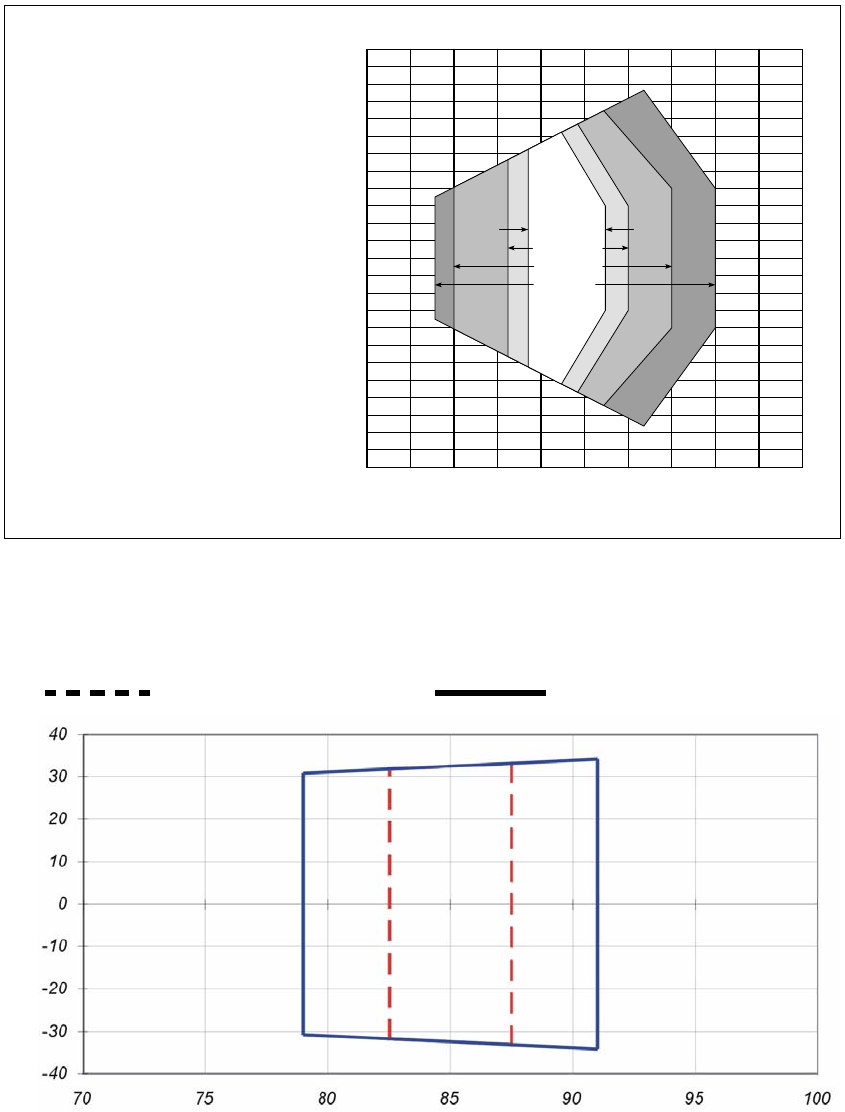
2.11.4 Scanning field diagram
0
20
-20
-40
-60
-80
-100
-120
40
60
80
100
120
0
150 200 250100
50
0.15 mm
0.20 mm
0.35 mm
0.5 mm
Leseabstand [mm]
L
ese
f
e
ldhöh
e
[
mm
]
Rasterscanner:
Rasterhöhe 15 mm bei
200 mm Leseabstand
Lesebedingungen:
siehe Tab. 10-1, Seite 10-1
Kennlinienfeld Scanfrequenz/
Leseabstand:
siehe Abb. 10-4, Seite 10-3
Linien-/Rasterscanner mit
Winkelvorsatz 105°:
das gesamte Lesefeld verschiebt
sich um 15 mm zum Lesefenster hin
CLV
422
-
0010
CLV 422-1010
Scanning field height [mm]
Grid scanner:
Grid height 15 mm for
200 mm scanning distance
Line/grid scanner with
105° angle attachment:
the entire scanning field moves by
15 mm towards the template win-
dow
Scanning distance [mm]
2
Fig. 2.11 - 5 Scanning area (DOF) for line/grid scanners (CLV 422)
Scanning diagram ICR850-1920S04
Scanning distance / mm
Scanning height
Specification 0.20 mm
Specification 0.35 mm
2
Fig. 2.11 - 6 Scanning area (DOF) for line/grid scanners (ICR 850-1920S04)
2 PCB barcode scanner assembly instructions SIPLACE
2.11 PCB barcode scanner configuration 10/2009 Edition
222
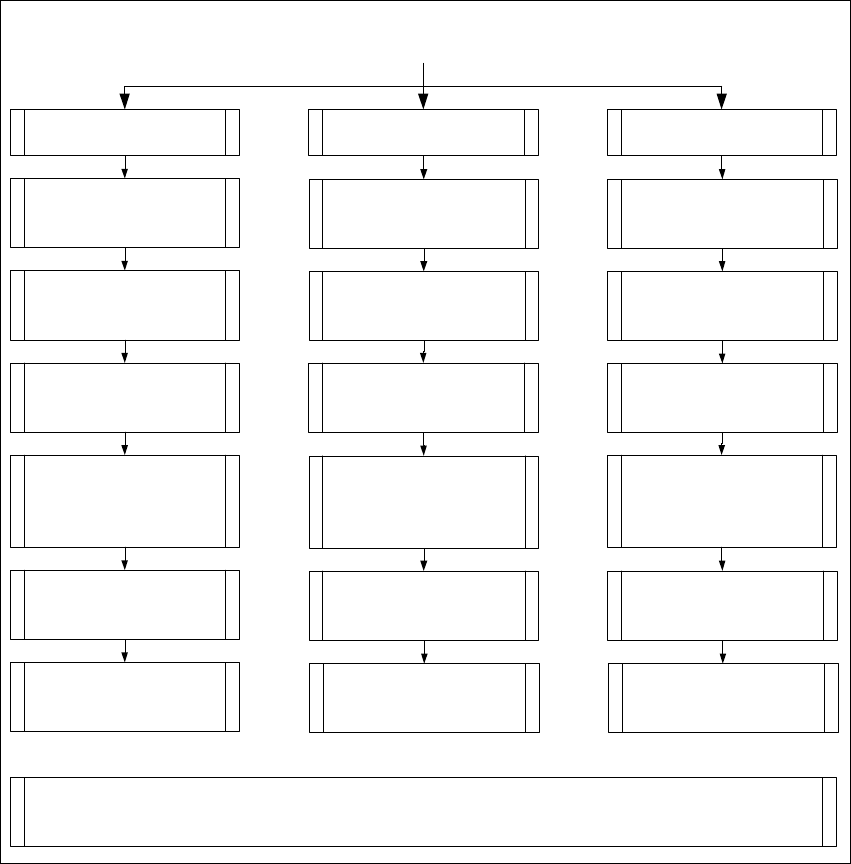
2.11.5 Overview of the PCB barcode scanner configuration
Use the software (CLV 4.1) and operating instructions from SICK to configure the 1D or 2D bar-
code scanner. The instructions are attached to this training
folder and the software can be down-
loaded from the Service Competence Center.
Installation 1D- and 2D- PCB Bar code reader
1D Bar code reader
CLV 41x
1. Mounting Bar code reader
corresponding the retrofitting kit
for the respective Machine type.
2D Bar code reader
ICR 850
1D Bar code reader
CLV 42x
3.
Offline - Configuration of the PCB
Bar code reader together with the
CLV Software.
Note: No adjustment for the option traceability on the programming system necessary.
2.
Installation of the CLV Software
(Version 4.1) on a computer with
printer.
4. Print the bar code label which
configure the bar code reader
PCB Barcodereader 1 = 4 bar code
PCB Barcodereader 2-4 = 5 bar
code
4.
Download the configure parameter
to the 2D Bar code reader.
5.
Configure the PCB Bar code
reader on the Station.
6. Configure the PCB Bar code
reader on the programming system
LRU/LRL or Siplace Pro.
1. Mounting Bar code reader
corresponding the retrofitting kit
for the respective Machine type.
1. Mounting Bar code reader
corresponding the retrofitting kit
for the respective Machine type.
2.
Installation of the CLV Software
(Version 4.1) on a computer with
printer.
2.
Installation of the CLV Software
(Version 4.1) on a computer.
3.
Offline - Configuration of the PCB
Bar code reader together with the
CLV Software.
3.
Online - Configuration of the PCB
Bar code reader together with the
CLV Software.
4. Print the bar code label which
configure the bar code reader
PCB Barcodereader 1 = 7 bar code
PCB Barcodereader 2-4 = 8 bar
code
5.
Configure the PCB Bar code
reader on the Station.
5.
Configure the PCB Bar code
reader on the Station.
6. Configure the PCB Bar code
reader on the programming system
LRU/LRL or Siplace Pro.
6. Configure the PCB Bar code
reader on the programming system
LRU/LRL or Siplace Pro.
Fig. 2.11 - 7 Overview of the configuration of the various PCB barcode scanners
SIPLACE 2 PCB barcode scanner assembly instructions
10/2009 Edition 2.11 PCB barcode scanner configuration
223
2.11.6 Settings on the 1D barcode scanner
The 1D barcode scanner CLV41x or CLV42x is configured using several barcodes that are printed
on a sheet of paper. No online connection to the 1D barcode scanner is required.
The barcode is configured with the CLV software (version 4.1) from SICK.
NOTE:
The CLV software can be downloaded from the download center or from the Internet at
www.sick.de.
2.11.6.1 Configuring the barcodes for the 1D barcode scanner
: Install the CLV software by running CLVsetup.exe.
: The installation is dialog-driven
. Remember to select the unit " Inch or metric".
: Start the CLV program using Start--> Programs--> CLV Setup --> CL
V Setup V4.1 .
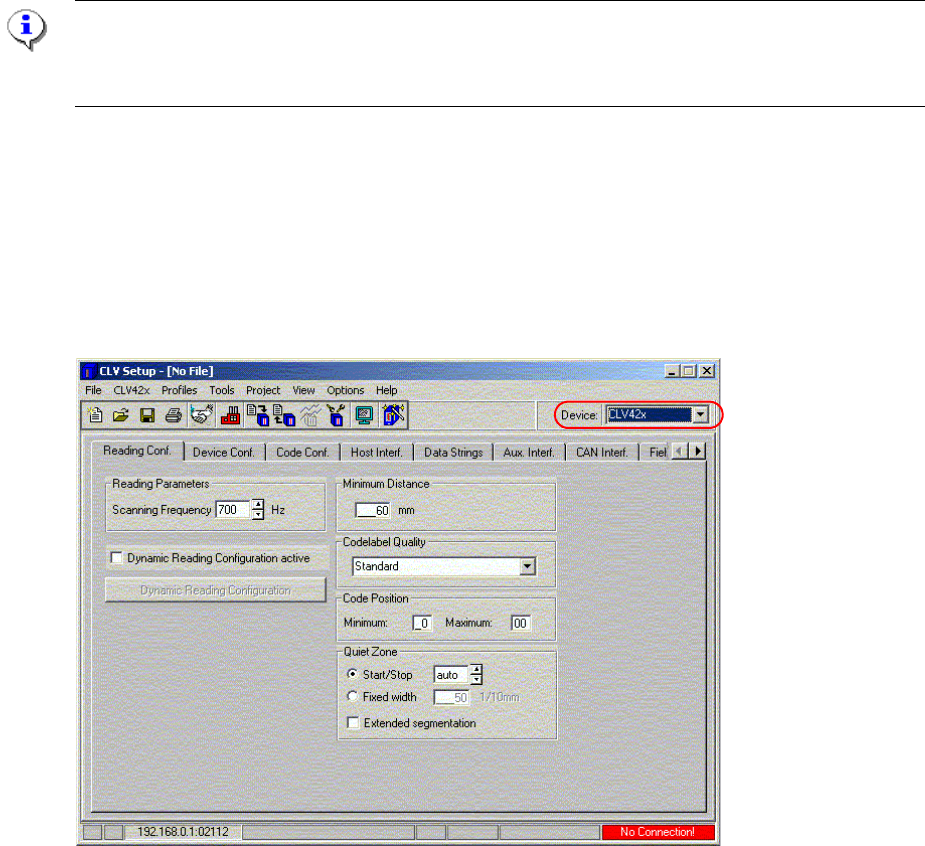
Fig. 2.11 - 8 Select the device type
: Select the barcode scanner type under Device.
: Leave all the settings in the ’Reading con
figuration’ window unchanged.
: Enter 1, 2, 3 or 4 in the 'Device no.' box in the
’Device configuration' window.