00193891-0702_AI_LP_Barcode_DE+EN.pdf - 第227页
SIPLACE 2 PCB barcode scanner assembly instructions 10/2009 Edition 2.11 PCB barcode scanner configuration 227 : In the 'Barcode Printing Options' wind ow , click on the 'Barcode dimensions' box. Fig.…
2 PCB barcode scanner assembly instructions SIPLACE
2.11 PCB barcode scanner configuration 10/2009 Edition
226
: Make sure that, under "Destination of result data strings" the 'Asynch. Host Interface' option is
selected so that the data will be analyzed and displayed by the station.
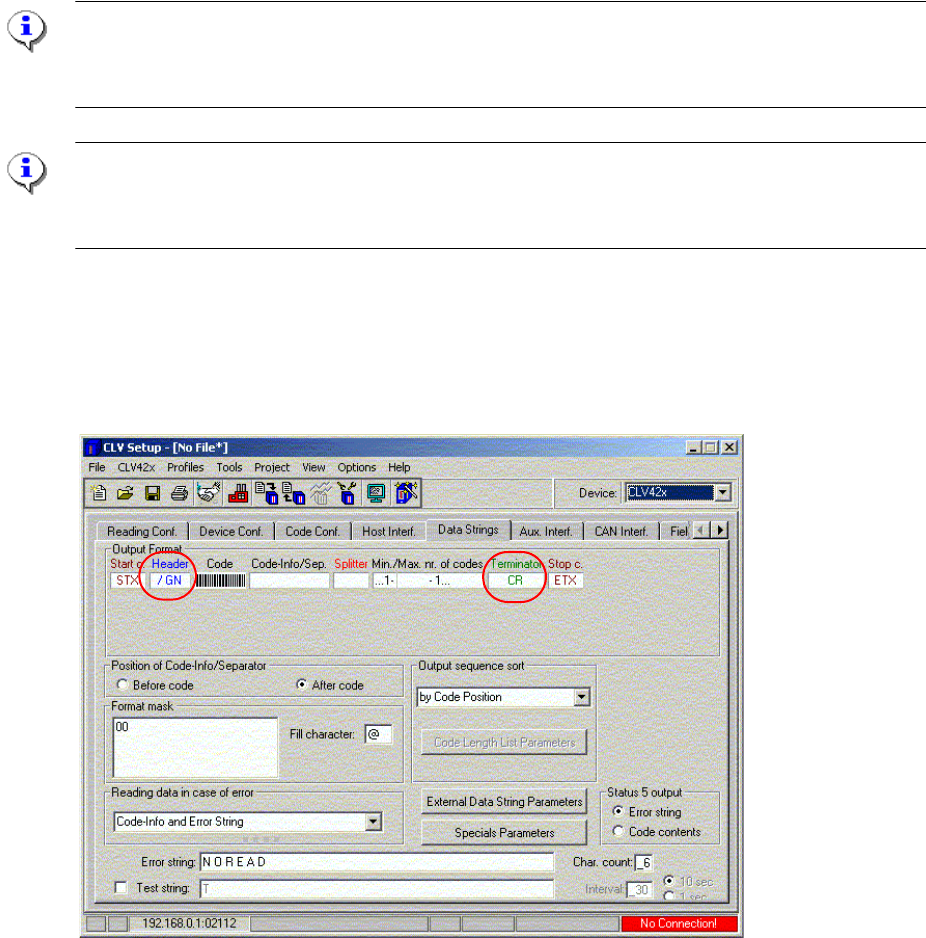
: Select the ’Data Strings’ window and enter the following values
-
in the ’Header’ box: /GN
- in the ’Terminator’ box: CR
Please note:
If the 1D or 2D barcode scanner is used on Siplace machines with p
latform 1 software, then a "CR"
must be entered for "Terminator".
NOTE:
Do not enter these values using the keyboard; simply click on
the ’Header’ box and the table will
appear.
: Enter the character / on the input line using the keyboard and click on GN.
: Click on O
K.
: Click on the ’Terminator’ box and accept the value CR from the table.
Fig. 2.11 - 13 Data string setting
: In the menu, click on the 'Profiles' pulldown menu.
: Select the 'Printer option' menu
SIPLACE 2 PCB barcode scanner assembly instructions
10/2009 Edition 2.11 PCB barcode scanner configuration
227
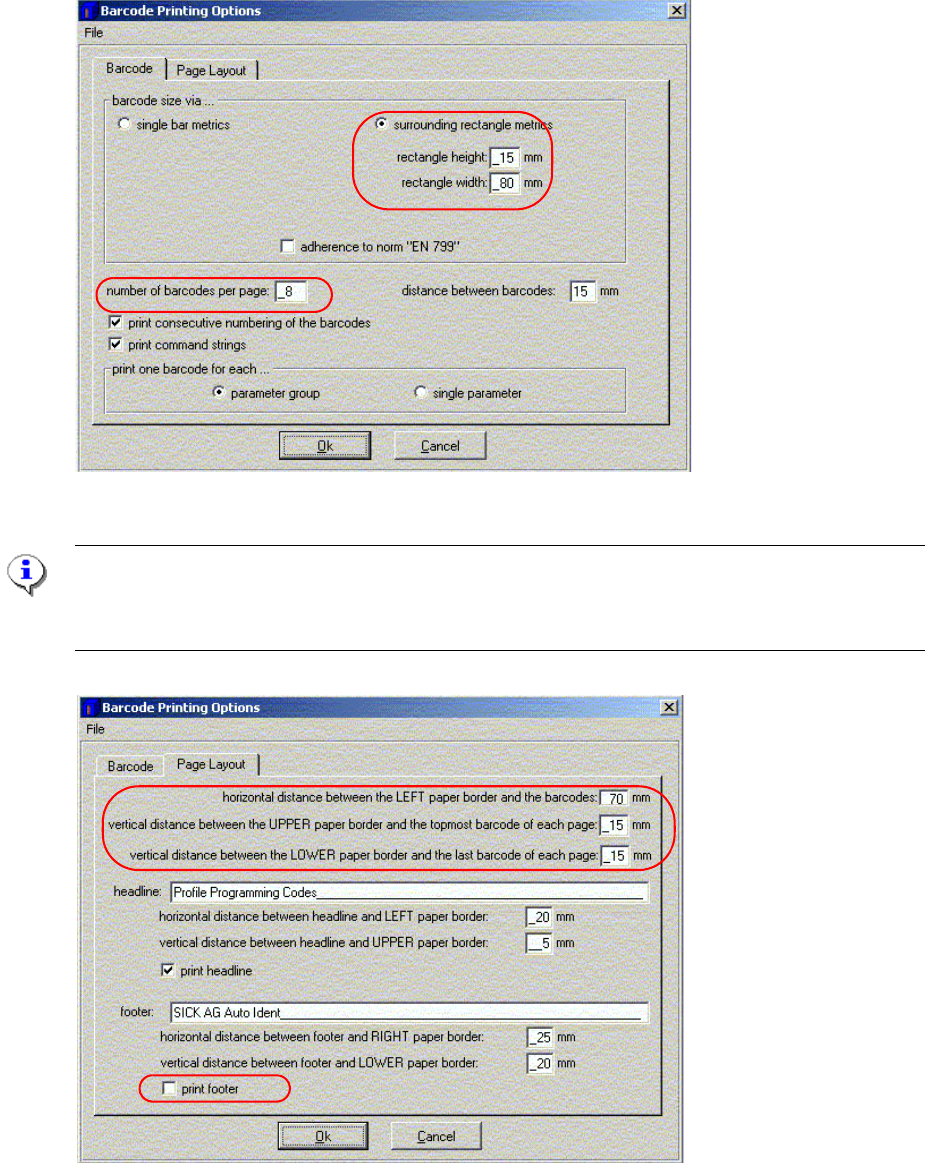
: In the 'Barcode Printing Options' window, click on the 'Barcode dimensions' box.
Fig. 2.11 - 14 Printer settings
NOTE:
For the CLV 41x barcode scanner, the number of barcodes per page is 5.
For the CLV 42x barcode scanner, the number of barcodes per page is 8.
Fig. 2.11 - 15 Layout settings
2 PCB barcode scanner assembly instructions SIPLACE
2.11 PCB barcode scanner configuration 10/2009 Edition
228
For the CLV42x barcode scanner, cancel printing of the footer so that you can print all 8 barcodes
on a single page.
: Click on OK to accept and save the current values.
: Click on the 'Profiles' pulldown menu on the CLV Setup title bar.
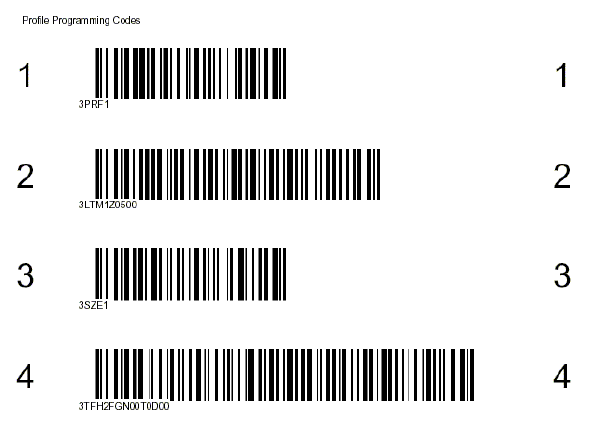
: Click on the ’Print profiles' menu and select the barcode labels.
: Enter 2, 3 or 4 in the 'Device no.' box in the ’Device configu
ration' window for any additional
barcode scanners installed.
Examples for CLV41x: 2
Fig. 2.11 - 16 1D barcode configuration for device 1 CLV41x (conveyor track 1 above)