00193891-0702_AI_LP_Barcode_DE+EN.pdf - 第229页
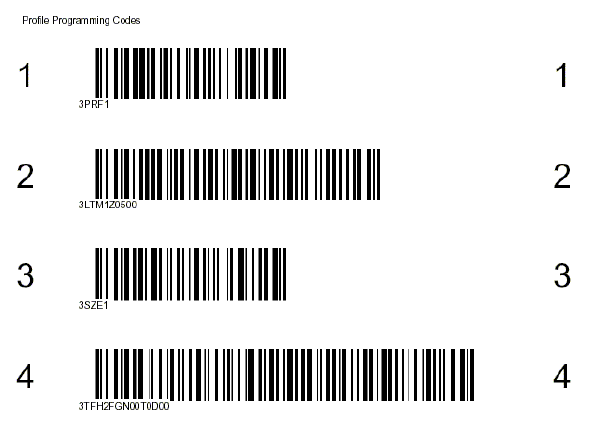
SIPLACE 2 PCB barcode scanner assembly instructions 10/2009 Edition 2.11 PCB barcode scanner configuration 229 Fig. 2.1 1 - 17 1D barcode configuration fo r device 3 CL V41x (conveyor track 2 above) Examples for CL V42x:…
2 PCB barcode scanner assembly instructions SIPLACE
2.11 PCB barcode scanner configuration 10/2009 Edition
228
For the CLV42x barcode scanner, cancel printing of the footer so that you can print all 8 barcodes
on a single page.
: Click on OK to accept and save the current values.
: Click on the 'Profiles' pulldown menu on the CLV Setup title bar.
: Click on the ’Print profiles' menu and select the barcode labels.
: Enter 2, 3 or 4 in the 'Device no.' box in the ’Device configu
ration' window for any additional
barcode scanners installed.
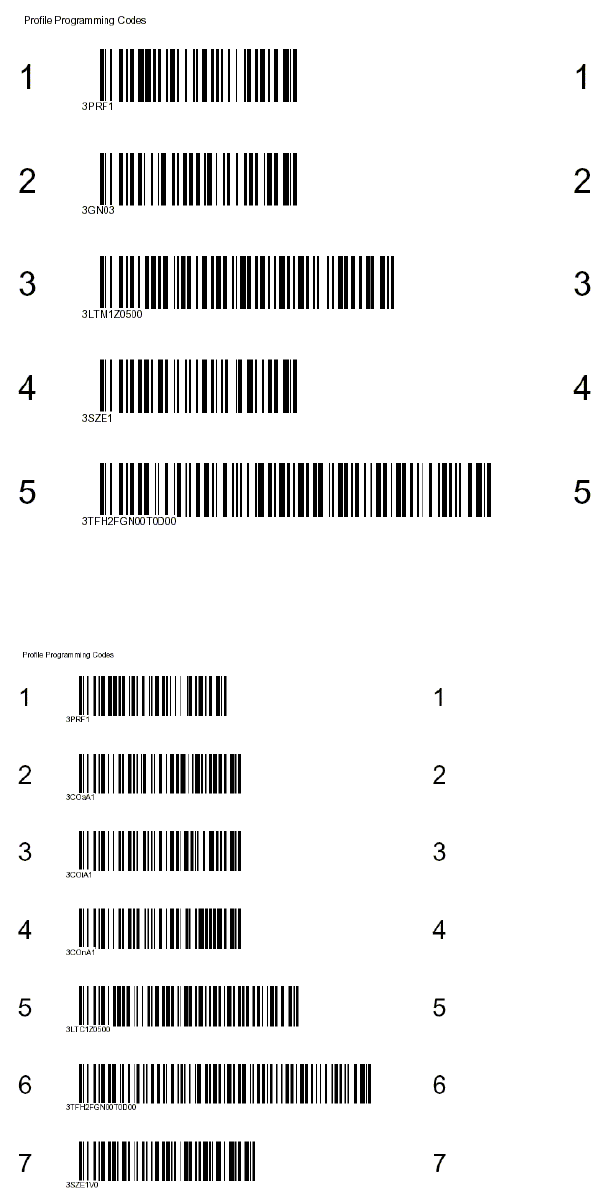
Examples for CLV41x: 2
Fig. 2.11 - 16 1D barcode configuration for device 1 CLV41x (conveyor track 1 above)
SIPLACE 2 PCB barcode scanner assembly instructions
10/2009 Edition 2.11 PCB barcode scanner configuration
229
Fig. 2.11 - 17 1D barcode configuration for device 3 CLV41x (conveyor track 2 above)
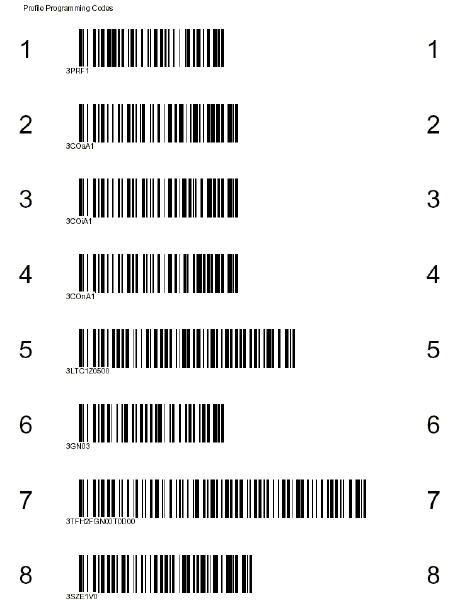
Examples for CLV42x: 2
Fig. 2.11 - 18 1D barcode configuration for device 1 CLV42x (conveyor track 1 above)
2 PCB barcode scanner assembly instructions SIPLACE
2.11 PCB barcode scanner configuration 10/2009 Edition
230
Fig. 2.11 - 19 1D barcode configuration for device 3 CLV42x (conveyor track 2 above)
2
: Stick the printed labels on the master plate in the retrofit kit.
: Configure the PCB barcode scanner for the st
ation in Sitest machine configuration.
: Boot up the station. Approx. five seconds after you
switch on the station, switch on the PCB
barcode scanner.
: Push PCB barcode label no. 1 over the first PCB barcode scanner. If the PCB barcode scanner
reads
it, it will beep twice to confirm.
: Shut down the operating system and switch the station off and on again.
: Push the next PCB barcode label over the second PCB barcode scanner.
: Repeat this procedure until all the PCB barcode scanners have been programmed in this way.
: Test that the PCB barcode scanner is working correctly under Conveyor in Sitest and select
Re
ad barcode with conveyor.
: If the barcode is not read, you
will have to reconfigure the barcode scanner.