TR7500_Series_Software_ch-v5-0-0.pdf - 第522页
510 TR7600 User Guide – Software 1) 按下字型教導框按鈕 。 2) Adjust the size of font training frame. The standard of size: D. Train all characters with same hei ght. For example, the heights of the characters on image a bo…
Test Research Inc.
TRI7500SeriesUserGuide–Software 509
1) 字串圍繞框 - 框選欲辨識的字串,進入 Manual Train 時,系統將自動啟
動此功能,框選時請以「緊密圍繞」的方式框住字串,以利字串自動切割及辨
識。
2) 字型種類選取 - 利用字型種類管理或字型下拉式功能表來指定字型種類、或
選擇「All」以自動判定所屬之字型種類。可利用字型種類管理按鍵來顯示已教導
之字型種類,當按下 OK後可選定字型類。
3) 字串自動切割及辨識 - 可自動偵測字串方向、角度、自動計算出字元與
字型間之縮放比例,以取得辨識字元影像的寬度(W)及高度(H)。
4) 字串確認鍵 - 當上述步驟完成後,所辨識出來的字串將自動回填至編輯框
內,如辨識錯誤時,使用者可修改成欲辨識的實際字串內容,並按下確認鍵連同
所計算出來的字元資料一起存入 CheckSum 文法比對條件機制內。
當辨識錯誤時,有可能為字型庫內沒有所屬之字型字元,此時需進入[Font Library
Manager]做個別字元之教導,以建立字型庫;或者是影像對比及字串影像週遭變異
大,超過OCR模組可自動取得字串的能力。
5.2 Run Time Test 即時測試
當字串Training完成確認後,可經由本功能來實際測試檢測時之狀態及結果。
可分成二步驟來進行:
1) Run Time 檢測框
-辨識字串前請先利用字串圍繞框來框選欲辨識的字串,
記得框選的範圍需大於字串的最小圍繞範圍。
2) Run Time Inspect 測試按鈕
-依 Training所計算的字元高度、寬高、及
所屬字型做即時檢測,以反應出實際在檢測之狀況。
5.3 Tools 工具切換
本功能可做[Font Library Manager]及[CheckSum Manager]之互相切換。
5.3.1 Font Library Manager 字型庫管理
在所有OCR檢測框執行Date-Code檢測前,需先建立字型庫或用已存在的字型庫來做
字串辨識。本系統可辨識的字型角度現在共支援0°、90°、180°、270°等四個角度,但
只需教導某一角度之字型即可。主要包括-教導、新增、刪除、修改、字型檔存取及
管理。
教導單一字型(Teach Single Font)
510 TR7600UserGuide–Software
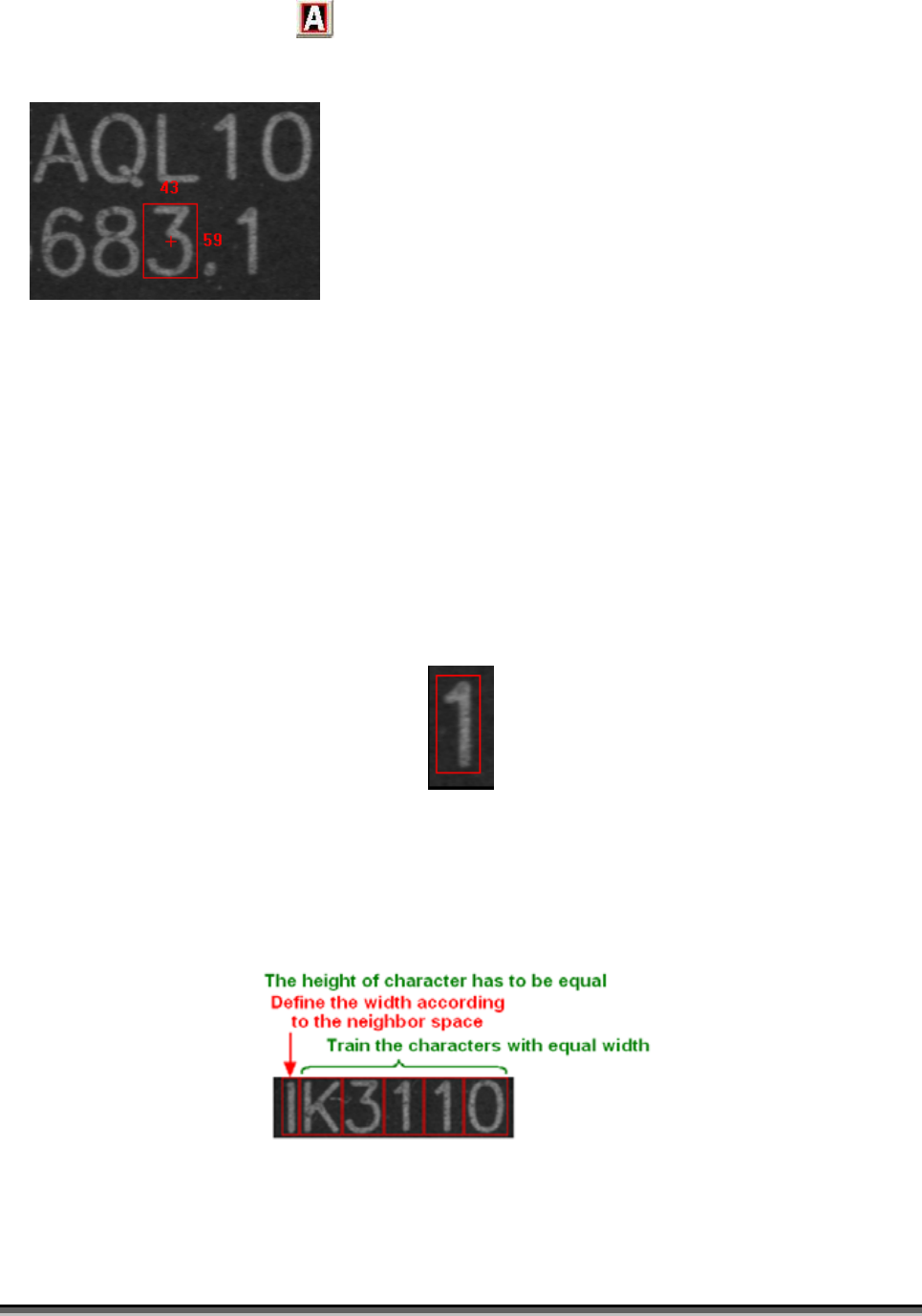
1) 按下字型教導框按鈕 。
2) Adjust the size of font training frame.
The standard of size:
D. Train all characters with same height. For example, the heights of the
characters on image above are all 59.
E. Train the characters which have same angle in same size, such as the
characters above are W=43, H=59.
F. Reserve the space on both left and right sides for thin characters.
G. The numbers, “023456789” are normal width otherwise “1” belong to thin
character. So it’s better to reserve the space and have the same size with
other characters for “1” image. The following picture shows the situation.
H. The English characters, except the characters with normal width, “Q” and
“W” belong to the wilder characters, it needs to be enlarged the width when
training; “I” and the other small letters are like the thin characters. But it
also has to divide the characters according the real situation.
Test Research Inc.
TRI7500SeriesUserGuide–Software 511
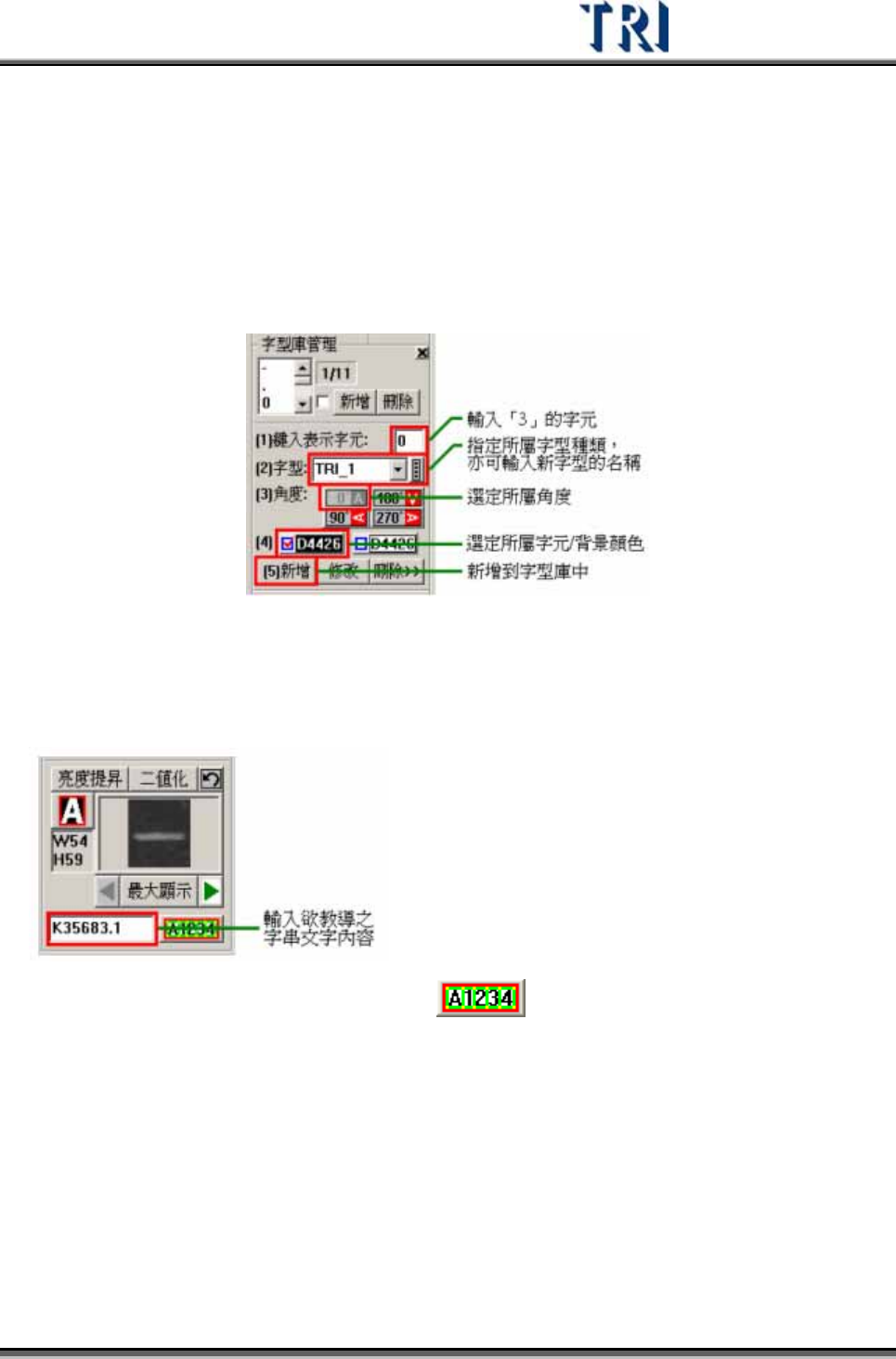
3) Input the character definition
4) Input font type
5) Input angle
6) Select the character and background color. (Black ground white string or
reversed)
7) Press [Add] to add a new font.
Teach Multi Font
8) Input the string that has to be taught font.
9) Press the multi font teaching button
.
10) Locate the teaching box individually.
11) Input the font.
12) Input the angle.
13) Select the character and background color. (Black ground white string or
reversed)
14) Press [Add] to add a new font.