WinMCS_Manual(ENG) rev1.0.pdf - 第10页
10 WinMCS_Manua l(ENG) rev 1.0 Koh Y oung T echnology Inc. 3.2. Axis Mo v e It is able to check a nd control manually the X, Y , Z moti on and Servo motor On/O ff . When you check the Z Axis, checkbox Z has to be checked…
9
Service Manual
Koh Young Technology Inc.
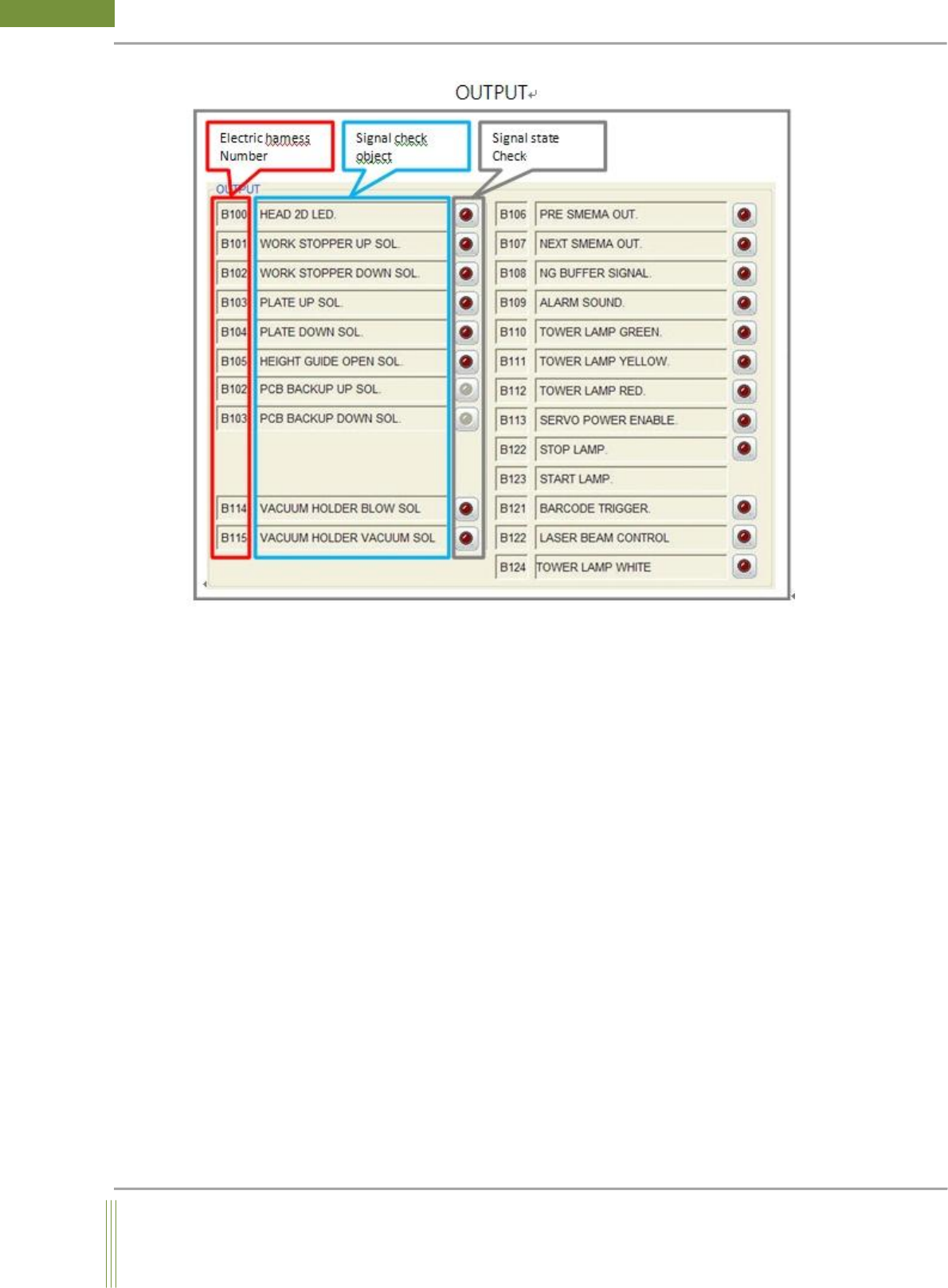
4. Electric harness Number
It is matched with sensor label of harness wire to find a desired sensor easily with the
matched electric harness number
5. Signal check object
It is the name of sensor for output signal
6. Signal state check
It is to visually recognize that the signal is coming.
(If the shape of circle LED indicates bright red color, it means the signal is ON.)
10
WinMCS_Manual(ENG) rev1.0
Koh Young Technology Inc.
3.2. Axis Move
It is able to check and control manually the X, Y, Z motion and Servo motor On/Off.
When you check the Z Axis, checkbox Z has to be checked
(Location: Menu Manual Motion Axis Move)
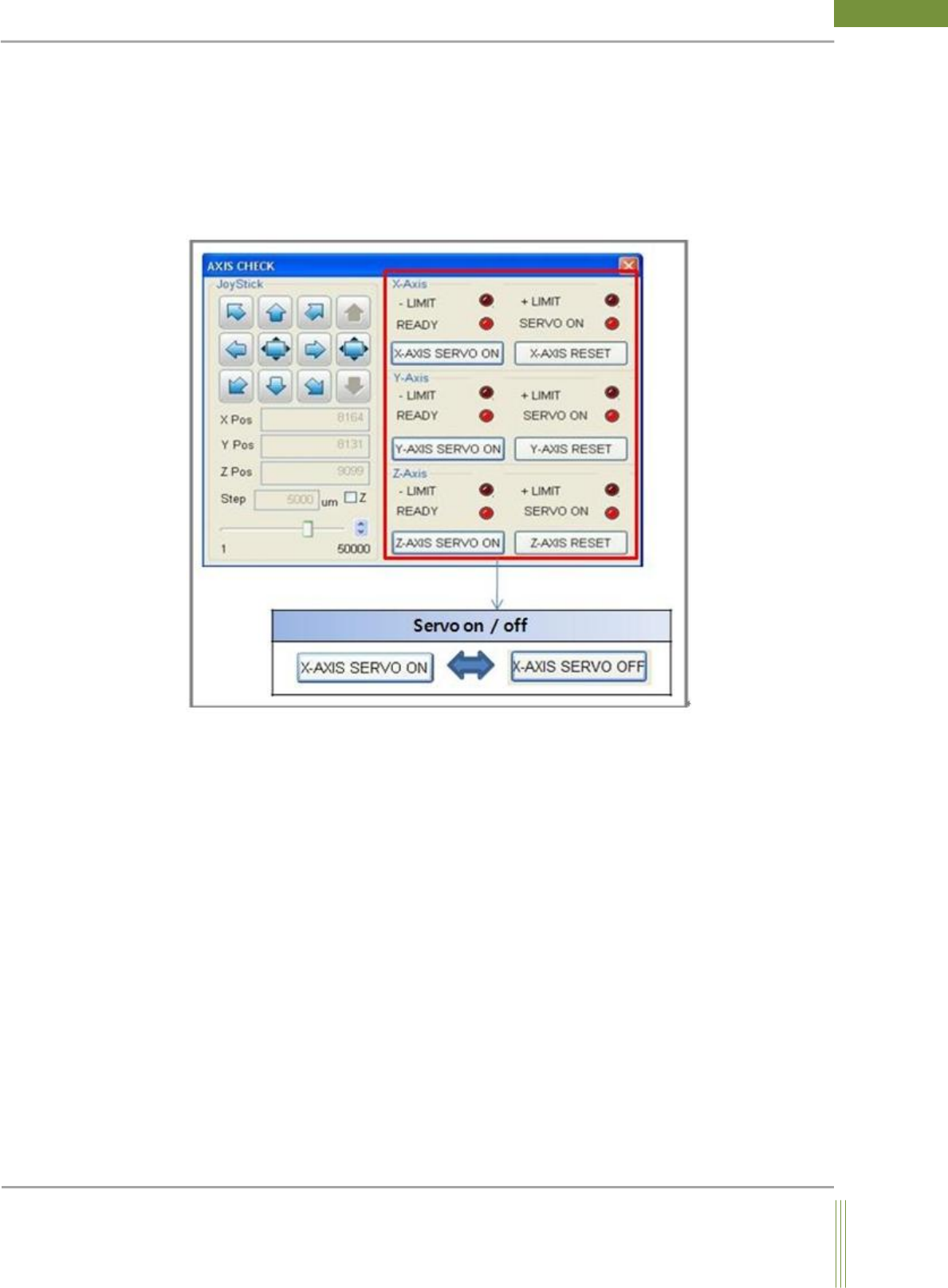
3.2.1. Axis Move Dialog
1. X-Axis & Y-Axis & Z-Axis
It is able to check the current state of -+Limit sensors and Servo On/Off. If X/Y/Z–AXIS
SERVO ON button is pressed, the button is turned into X/Y/Z–AXIS SERVO OFF button
and if the OFF button is pressed again, it is turned into ON reversely.
(The red color LED indicator in Axis Check also shows whether it is currently ON or OFF)
11
Service Manual
Koh Young Technology Inc.
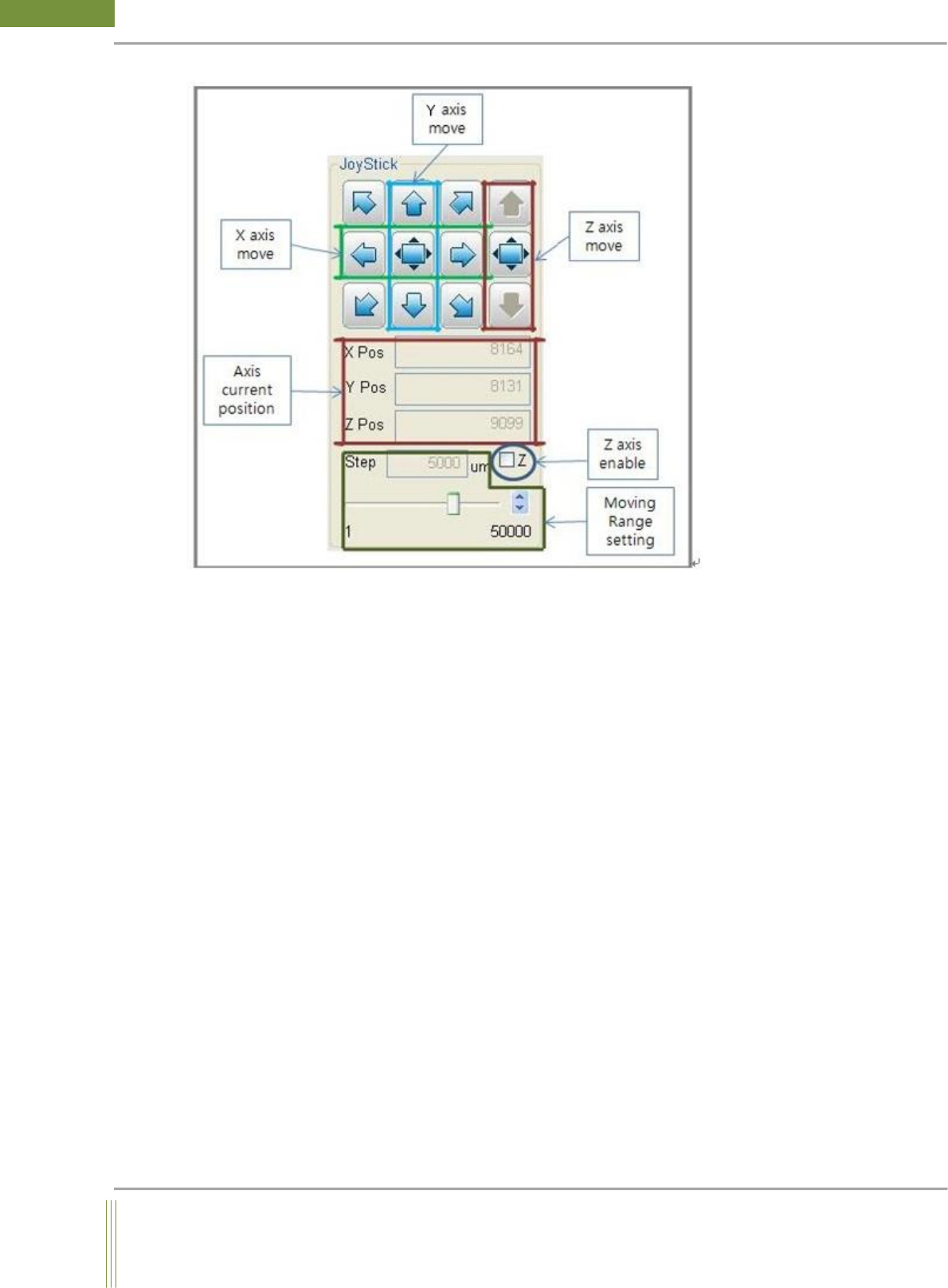
1. Axis Move JoyStick
By using JoyStick, the probe can move manually to the certain position on axis as set in the
moving range setting value. To activate Z axis control bar, the check button of Z should be
enabled.
2. Axis Position
It displays the current absolute position value in um unit on all X, Y, and Z axis.
3. Z-Axis Enable
When this button is checked, manual Z axis movement is possible. (Only applicable for
machine with Z axis motor attached)
4. Moving range setting
Input the relative distance for moving to the desired position.