00193370-0202.pdf - 第60页
Handbuch für das Achsprüfgerät / Axis T ester Manual SIPLACE Axis T e ster 8 Using the menus Ausgabe 08/2003 Edition 60 8.2 Ma in menu Press t his membrane bu tton from the s tart-up window (see Fi g. 8 - 2 ) to displa y…
SIPLACE Axis Tester Handbuch für das Achsprüfgerät / Axis Tester Manual
Ausgabe 08/2003 Edition 8 Using the menus
59
8 Using the menus
8.1 Starting the axis tester and selecting the user level
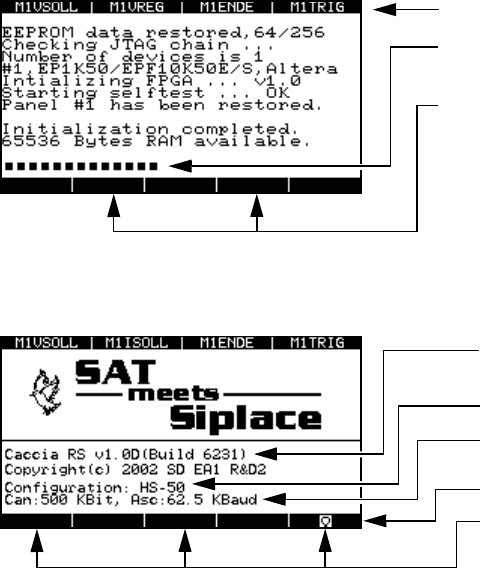
When you connect the axis tester to the axis controller in the control unit or after a reset, the CPU
restarts the axis tester. This loads the program and runs a number of self tests. The progress of
these tests is indicated by the dotted line at the bottom of the display.
Fig. 8 - 1 Display after booting
Once all the tests have been completed successfully, the start-up page appears on the display.
Fig. 8 - 2 Start-up window, rebooting the axis tester
Assignment of the BNC sockets
Self test progress indicator
Activate “Expert” mode:
To do this, press both keys simultaneously
during start-up. This displays a window to
confirm that “Expert mode” has been acti-
vated.
The current software version
Last saved configuration
Transmission speed for CAN bus or V24
port
Button for calling up the main menu
Press these three buttons simultaneously
to reset and reboot the axis tester.
Handbuch für das Achsprüfgerät / Axis Tester Manual SIPLACE Axis Tester
8 Using the menus Ausgabe 08/2003 Edition
60
8.2 Main menu
Press this membrane button from the start-up window (see Fig. 8 - 2) to display the main
menu.
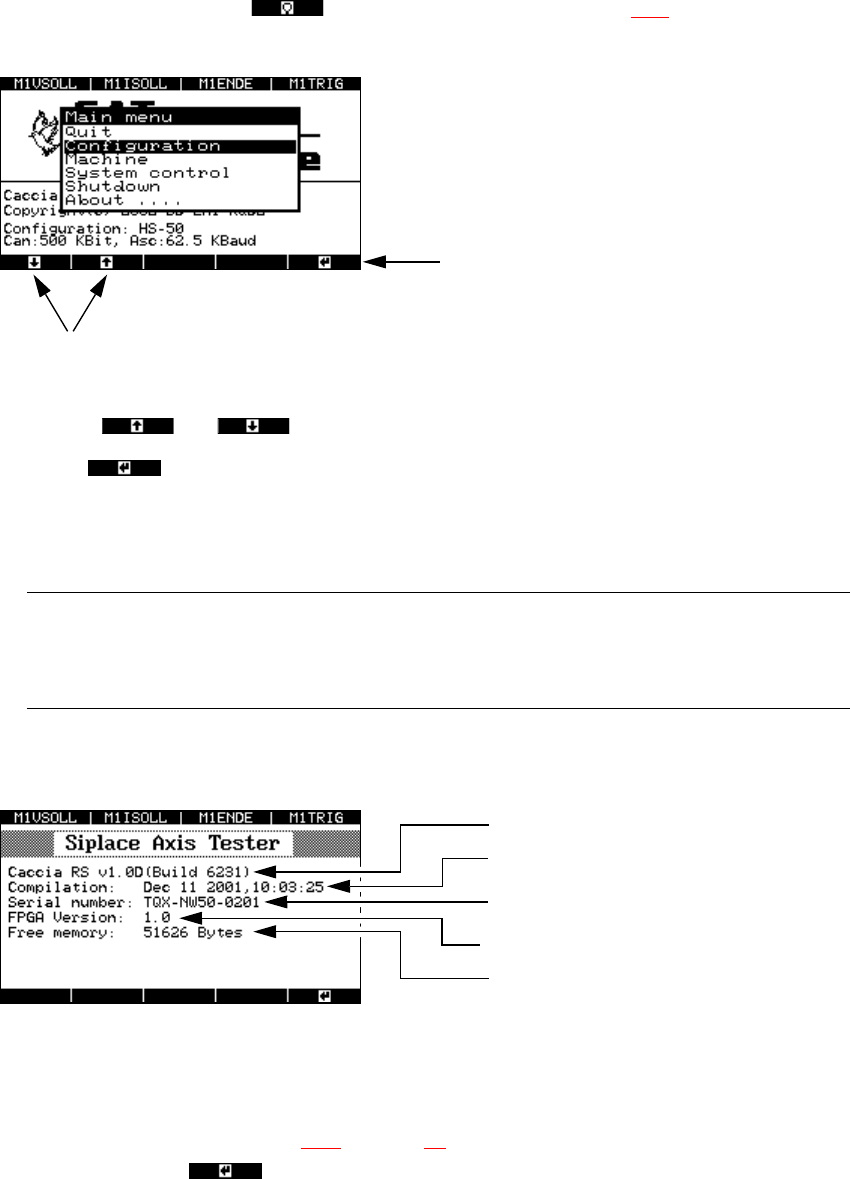
Fig. 8 - 3 Main menu of the user interface
Æ Use the and cursor keys to select individual menu options.
Æ Select to open a menu.
Æ Select “Quit” to close the main menu.
Æ Select “Shutdown” to save all your changes and shut down the axis tester.
PLEASE NOTE: 8
All your settings and values will be lost if you unplug the ribbon cable from the axis controller
before saving your settings. 8
Æ The “About…” menu option contains device-specific information, such as the software version,
serial number, etc.
Fig. 8 - 4 “About ...” menu option
8.3 “Configuration” menu
Æ From the main menu (see Fig. 8 - 3 on page 60) select the “Configuration” menu and press
membrane button .
The ‘Configuration’ menu appears.
Up and Down cursor keys
RETURN
Software version
Indicates when the software was compiled
Serial number of the axis tester
FPGA: Field Programmable Gate Array
Free memory
SIPLACE Axis Tester Handbuch für das Achsprüfgerät / Axis Tester Manual
Ausgabe 08/2003 Edition 8 Using the menus
61
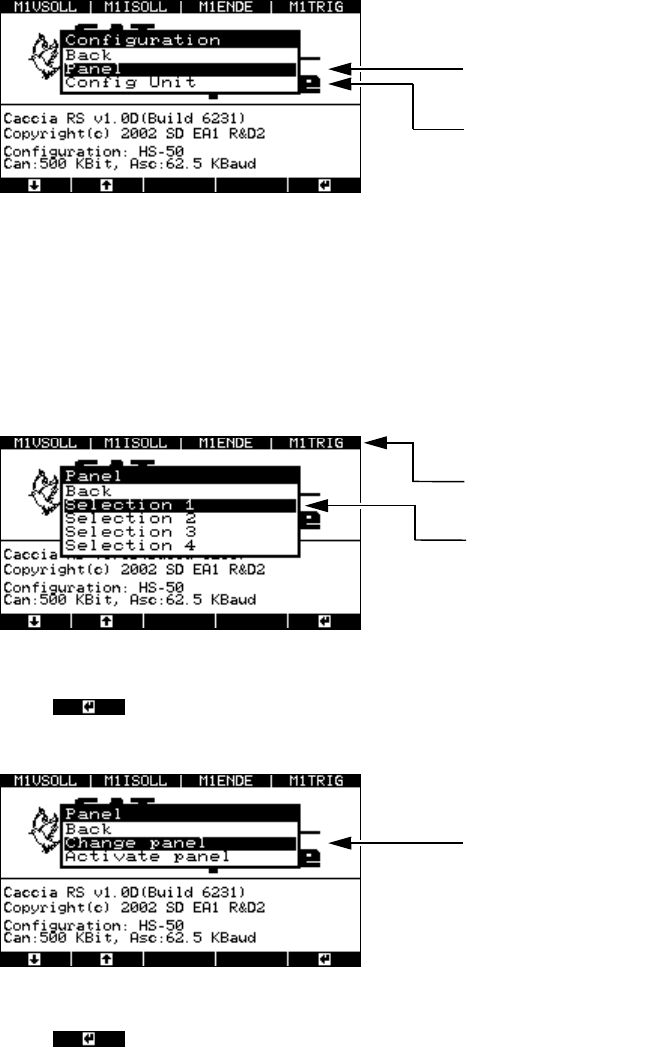
Fig. 8 - 5 “Configuration” menu
8.3.1 “Panel” menu
This menu is used to configure the four BNC output panels. Each is configured in a different win-
dow. You can assign 4 signals to each of the 4 BNC sockets from a choice of 30 available signals.
Fig. 8 - 6 “Panel” menu, selecting the panel assignment group
Æ Press to confirm the selected group, e.g. “Selection 1”. The next menu appears with
the “Change panel” and “Activate panel” options.
Fig. 8 - 7 “Panel” menu, “Change panel” option
Æ Press to confirm your choice of “Change panel”.
The menu for selecting the BNC socket appears.
Menu for assigning signals to
the BNC panels
Menu for configuring the signal sampling fo
r
the axis controllers
Assignment of the BNC sockets in the 1st
selection window
Selection window for the 1st panel assign-
ment group
To the “Change line 1 … 4” menu