00193370-0202.pdf - 第78页
Handbuch für das Achsprüfgerät / Axis T ester Manual SIPLACE Axis T e ster 8 Using the menus Ausgabe 08/2003 Edition 78 8.4.6 “ Adjust p anel” menu This menu is used to ad opt the settin gs for the c urrent axis for al l…
SIPLACE Axis Tester Handbuch für das Achsprüfgerät / Axis Tester Manual
Ausgabe 08/2003 Edition 8 Using the menus
77
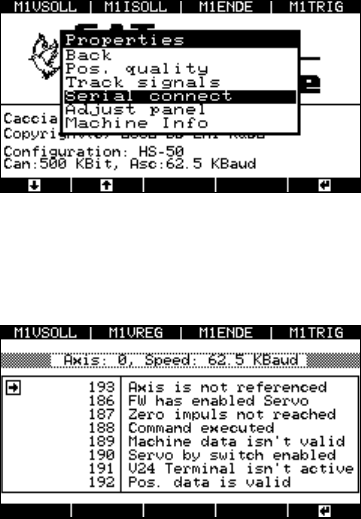
Fig. 8 - 43 Test results for the distance measurement
Up to eight statuses may be displayed.
Fig. 8 - 44 Status display for the axis controller
The axis tester reads the statuses from the axis
controller’s register, and outputs the controller’s
status to a window with the status numbers used
on the placement machine’s user interface.
Serial connection
Left-hand window: Position display
Right-hand window: Status display for the selecte
d
axis. The information differs for each axis.
Handbuch für das Achsprüfgerät / Axis Tester Manual SIPLACE Axis Tester
8 Using the menus Ausgabe 08/2003 Edition
78
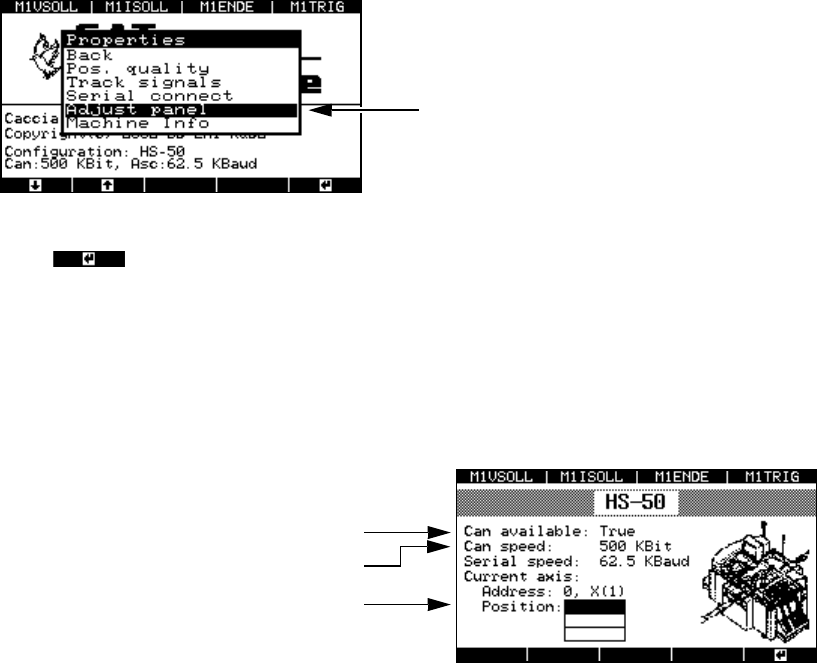
8.4.6 “Adjust panel” menu
This menu is used to adopt the settings for the current axis for all the other axes.
Æ Select the “Adjust panel” option from the “Properties” menu.
Fig. 8 - 45 “Adjust panel” menu
Press to confirm your settings.
8.4.7 “Machine info” menu
This menu indicates the currently selected axis controller.
Æ Select the “Machine info” option from the “Properties” menu.
Fig. 8 - 46 “Machine info” display
The settings for the current axis are adopted.
The CAN interface is ready
Transmission speed
Top axis controller in the 1st axis controller
board with address bus no. 0
SIPLACE Axis Tester Handbuch für das Achsprüfgerät / Axis Tester Manual
Ausgabe 08/2003 Edition 8 Using the menus
79
8.5 “System control” menu
You can use this menu to
– save and reload the settings for your axis tester,
– change the display language,
– configure the display and
– define the parameters for the CAN bus and serial ports.
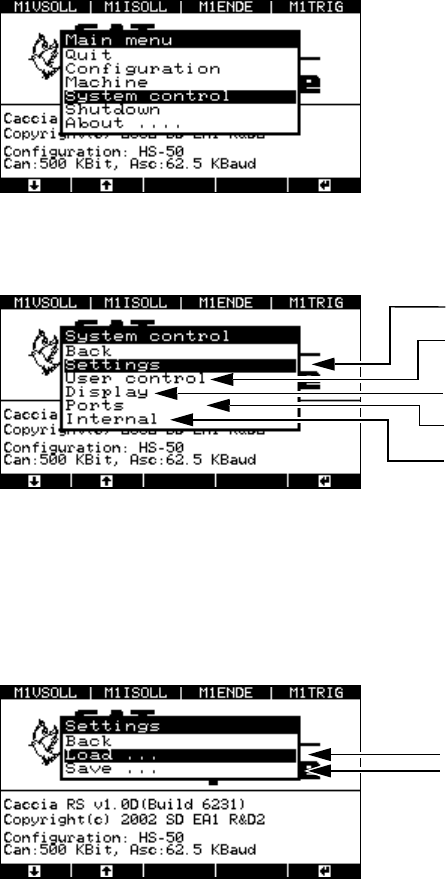
Æ To do this, select the “System control” option from the main menu.
Fig. 8 - 47 Main menu, selecting the “System control” menu
The ‘System control menu appears.
Fig. 8 - 48 “System control” menu
8.5.1 “Settings” menu
Æ Select the “Settings” menu. The window for loading and saving the axis tester configuration
appears.
Fig. 8 - 49 “Settings” menu, loading or saving settings
Æ Select the “Load …” menu option.
For saving and loading settings
User level and language
Display: contrast and screen saver
CAN bus and serial port
Reserved for servicing purposes
Menu option for loading settings
The settings are stored in the EEPROM of the
axis tester.