00193370-0202.pdf - 第70页
Handbuch für das Achsprüfgerät / Axis T ester Manual SIPLACE Axis T e ster 8 Using the menus Ausgabe 08/2003 Edition 70 Fig. 8 - 26 Graphical representation of t he positioning movement Use the a nd curs or keys to move …
SIPLACE Axis Tester Handbuch für das Achsprüfgerät / Axis Tester Manual
Ausgabe 08/2003 Edition 8 Using the menus
69
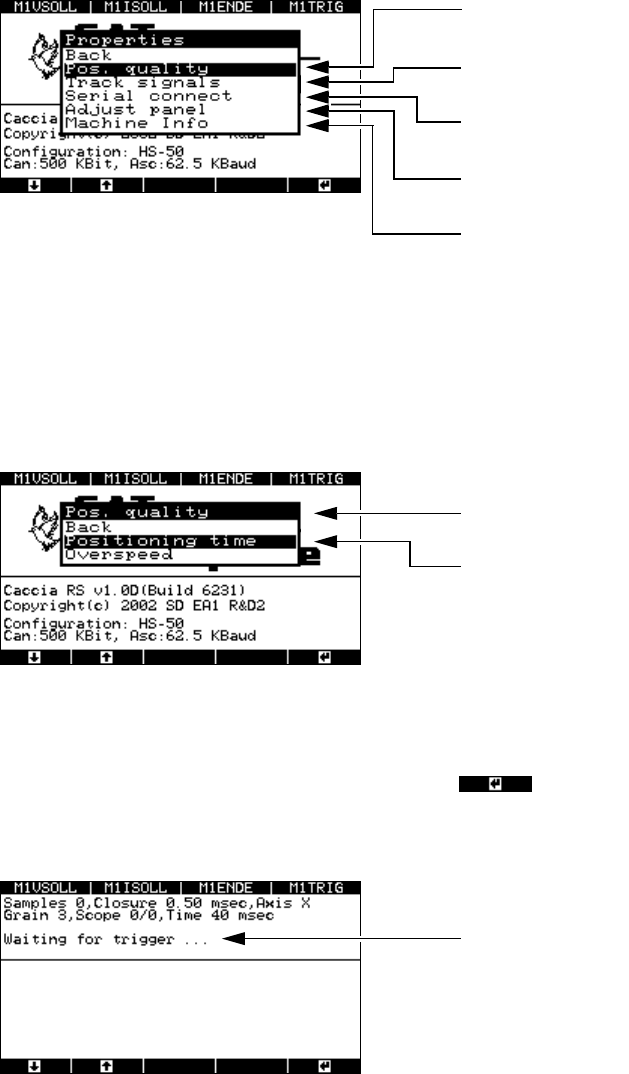
Fig. 8 - 23 “Properties” menu
8.4.3 Testing the axis positioning quality
Æ Select the “Pos. quality” menu from the “Properties” window.
The following window appears.
Fig. 8 - 24 Selecting the “Pos. quality” menu
8.4.3.1 “Positioning time” menu
Æ Select the “Positioning time” menu option and press .
The next window indicates that the axis tester is ready to receive the time and positioning
movement.
Fig. 8 - 25 “Waiting for trigger” menu
Æ Now use the SITEST program and the traversing path data from the setting instructions to start
the axis. The position data is recorded, and the positioning movement is displayed graphically
on screen.
This menu is used to analyze the position
-
ing quality and counting errors.
This menu is used to analyze the track
signals.
Use this menu to look up the axis controller
statuses.
Accepts the default parameters for the se-
lected axis.
This window contains information about the
axis currently being tested.
You can use this menu to test the axis
settings.
This menu helps you to analyze counting
errors.
The axis tester is ready to receive the
measured data.
Handbuch für das Achsprüfgerät / Axis Tester Manual SIPLACE Axis Tester
8 Using the menus Ausgabe 08/2003 Edition
70
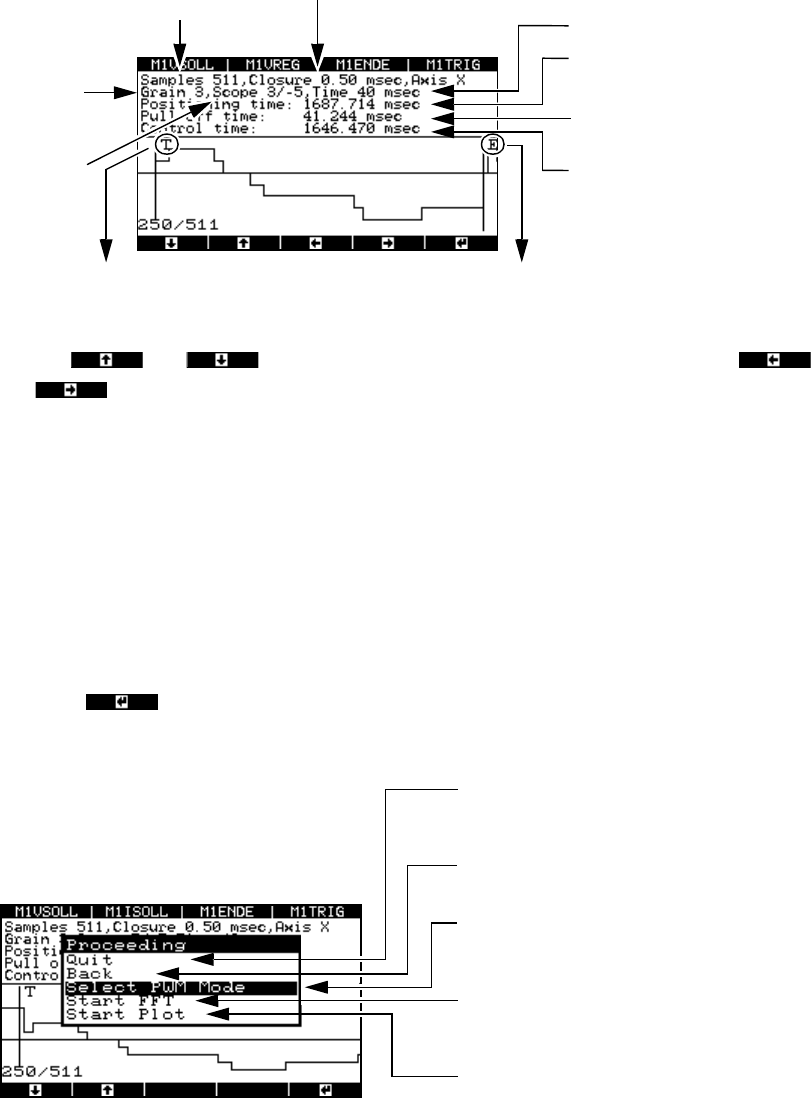
Fig. 8 - 26 Graphical representation of the positioning movement
Use the and cursor keys to move the zero line up or down and the
and cursor keys to move the display area to the left or right.
The pull-off time is calculated as the time difference between the falling edge of the trigger sig-
nal (when the desired position is reached for the first time) and the end signal.
8.4.3.2 Analyzing and documenting positioning movements
Once you have recorded the positioning movement, you can plot it or make the signals available
at the BNC outputs for an oscilloscope.
Æ Press the button.
The “Proceeding” window appears.
Fig. 8 - 27 “Proceeding” menu
*) The pulse width-modulated signal remains at the BNC socket until the menu window is closed by pressing
any button. During this time, a menu window is displayed to inform you that the signal is present at the
BNC socket.
T = falling edge of the trigger signal
Number of
samples
Time base
Display
resolution
in pixels
Amplitude
scaling
in digits
Width of the sampling windo
w
Positioning time
(End signal)
Pull-off time
Trigger signal time, i.e. the ti
me
from the start until the desire
d
position is reached for the fir
st
time
E = falling edge of the end signal
t
Po
t
T
t
E
–=
Select “Quit” to return to the “Positioning
time” menu, where you can start a new
measurement.
Click on “Back” to display the “Positioning
movement” image.
Outputs the pulse width-modulated signal to
an oscilloscope connected to the BNC
socket.
Fast Fourier Transform (spectral analysis o
f
the positioning movement – under prepara
-
tion)
Outputs the graph to the serial port with the
plotter or printer
SIPLACE Axis Tester Handbuch für das Achsprüfgerät / Axis Tester Manual
Ausgabe 08/2003 Edition 8 Using the menus
71
PLEASE NOTE: 8
You cannot access the “Select PWM mode”, “Start FFT” and “Start plot” menus until you have
recorded a positioning movement. 8
8.4.3.3 Sending the positioning movement to the oscilloscope (“Select PWM mode” menu)
You can send the positioning movement as a pulse width-modulated signal to an oscilloscope for
further analysis. The PW0 … PW3 outputs are permanently assigned to panels BNC1 ... BNC4,
i.e. if you wish to display the signal for the X1 axis (top axis controller in the module), the previous
assignment of BNC1 is overwritten with the assignment to the PWM0 signal. If you wish to retain
the old assignment, then you must reconfigure M1VSOLL (see section 6.2
“Configuration” menu
on page 54
).
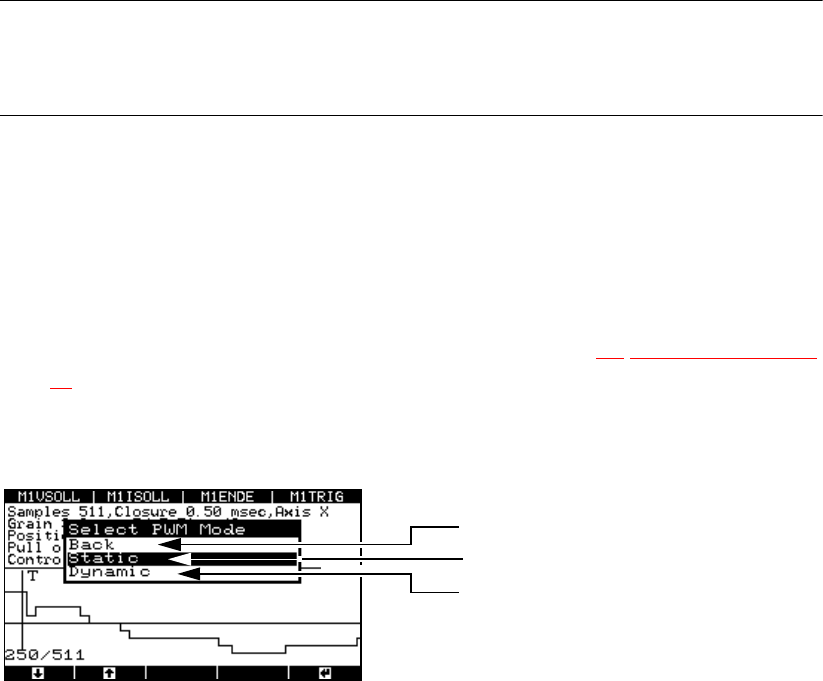
Æ Select the “Select PWM mode” option from the “Proceeding” menu. The “Select PWM mode”
menu appears.
Fig. 8 - 28 “Select PWM mode” menu
“Static” PWM mode
If you select this mode, the positioning movement is recorded once after the falling edge of the
trigger signal, and is then output. If there is no trigger signal, then the positioning movement is
output from the falling edge of the end signal.
“Dynamic” PWM mode
If you select this mode, the positioning movement is recorded and output to the oscilloscope
continuously from the falling edge of the trigger signal or end signal.
Returns to the “Proceeding” menu
PWM mode: Static
PWM mode: Dynamic