192277 - Micron Technical Reference Volume 3.pdf - 第276页
PNEUMATIC MODULE ADJUSTMENTS AND SETTINGS 35.10 Technical Reference Manual Chapter Issue 7, Aug 14 Board Clamp Regulator Setting The board clamp regulator is located under the front cover , secured to the front of the ri…
PNEUMATIC MODULE
ADJUSTMENTS AND SETTINGS
35.8 Technical Reference Manual Chapter Issue 7, Aug 14
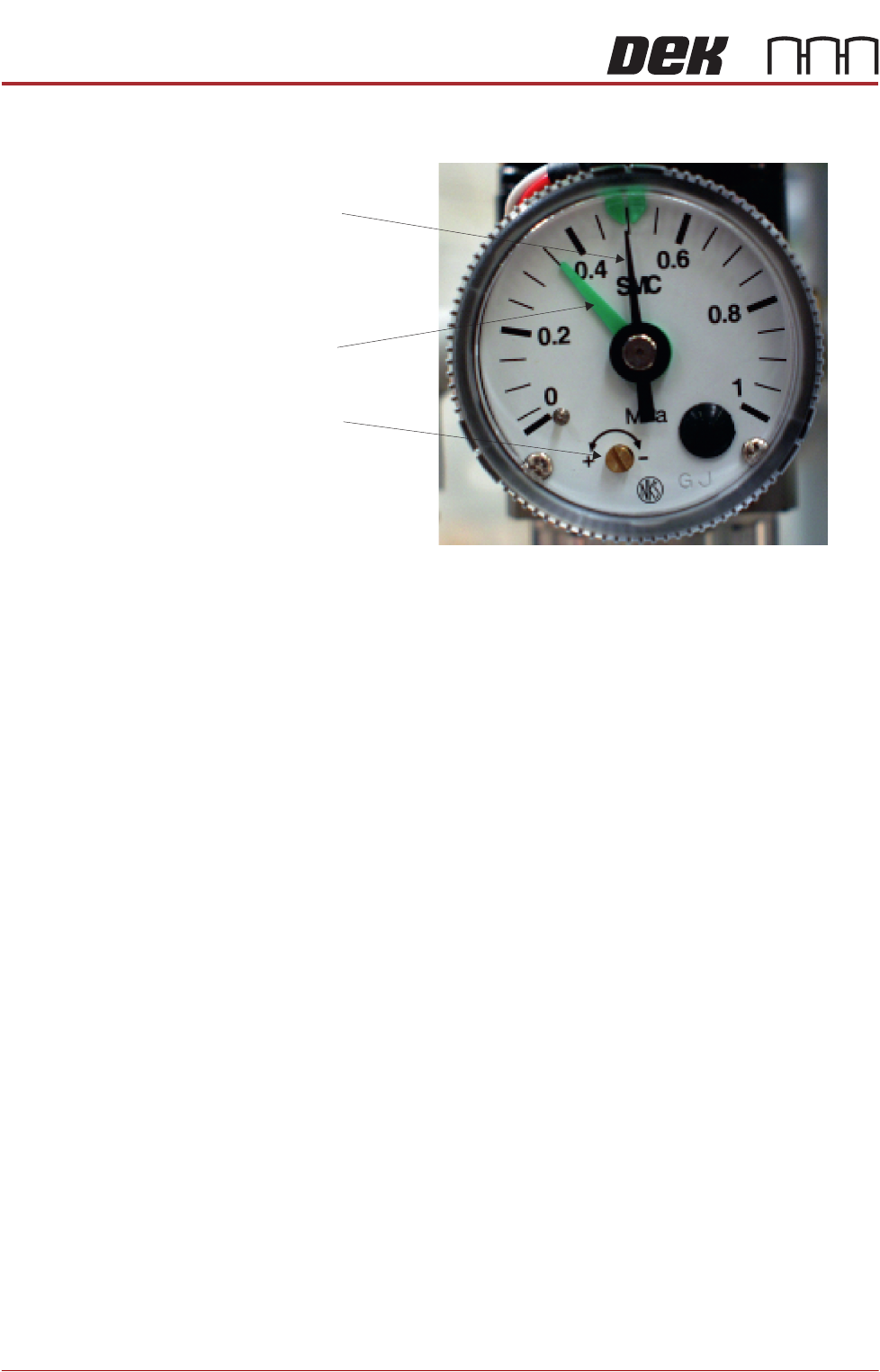
5. Reset the mains air regulator to 0.5MPa (5 bar).
Chase Clamp
Regulator Setting
The chase clamp regulator is located at the rear of the left hand print head,
overview diagram in the Screen Alignment Module refers.
There are two procedures for setting the chase clamp regulator depending on
whether a digital or spring balance type forcemeter is used. Select the appro-
priate procedure below:
Digital Forcemeter 1. Remove/open the rear printhead cover.
2. Open the front printhead cover.
3. Set the chase clamp regulator to 0.2MPa (2 bar) by turning the regulator
control valve, clockwise to increase the pressure and anti-clockwise to
decrease it.
4. From the rear of the printer, place the forcemeter up against the rear of the
chase.
5. Noting the reading, gradually push the forcemeter until the chase starts to
slip within the chase clamps. The reading should be between 12.2kg and
13.0kg.
6. Adjust the chase clamp regulator to achieve this value.
7. Refit/close the rear printhead cover.
Spring Balance
Forcemeter
1. Select Open Cover Commands.
2. Select Carriage To Rear.
3. Select Unload Screen.
4. Open the front printhead cover.
5. Remove the stencil from the printer.
6. Fit an empty stencil frame into the chase.
7. Attach a cable tie to the front of the empty stencil frame.
8. Close the front printhead cover.
9. Press the System button.
Pressure Sensor
Brass Set Screw
Pressure Sensor
Green Pointer
Mains Air Regulator
Black Pointer

PNEUMATIC MODULE
ADJUSTMENTS AND SETTINGS
Chapter Issue 7, Aug 14 Technical Reference Manual 35.9
10. Select Load Screen.
11. Open the front printhead cover.
12. Set the chase clamp regulator to 0.2MPa (2 bar) by turning the regulator
control valve, clockwise to increase the pressure and anti-clockwise to
decrease it.
13. Attach the forcemeter to the cable tie.
14. Noting the reading, gradually pull the forcemeter until the chase starts to slip
within the chase clamps. The reading should be between 12.2kg and
13.0kg.
15. Adjust the chase clamp regulator to achieve this value.
16. Remove the forcemeter from the cable tie.
17. Remove the cable tie from the stencil frame.
18. Select Unload Screen.
19. Open the front printhead cover.
20. Remove the empty stencil frame from the printer.
21. Fit the product stencil into the chase.
22. Close the front printhead cover.
23. Press the System button.
24. Select Load Screen.
25. Select Back.
PNEUMATIC MODULE
ADJUSTMENTS AND SETTINGS
35.10 Technical Reference Manual Chapter Issue 7, Aug 14
Board Clamp
Regulator Setting
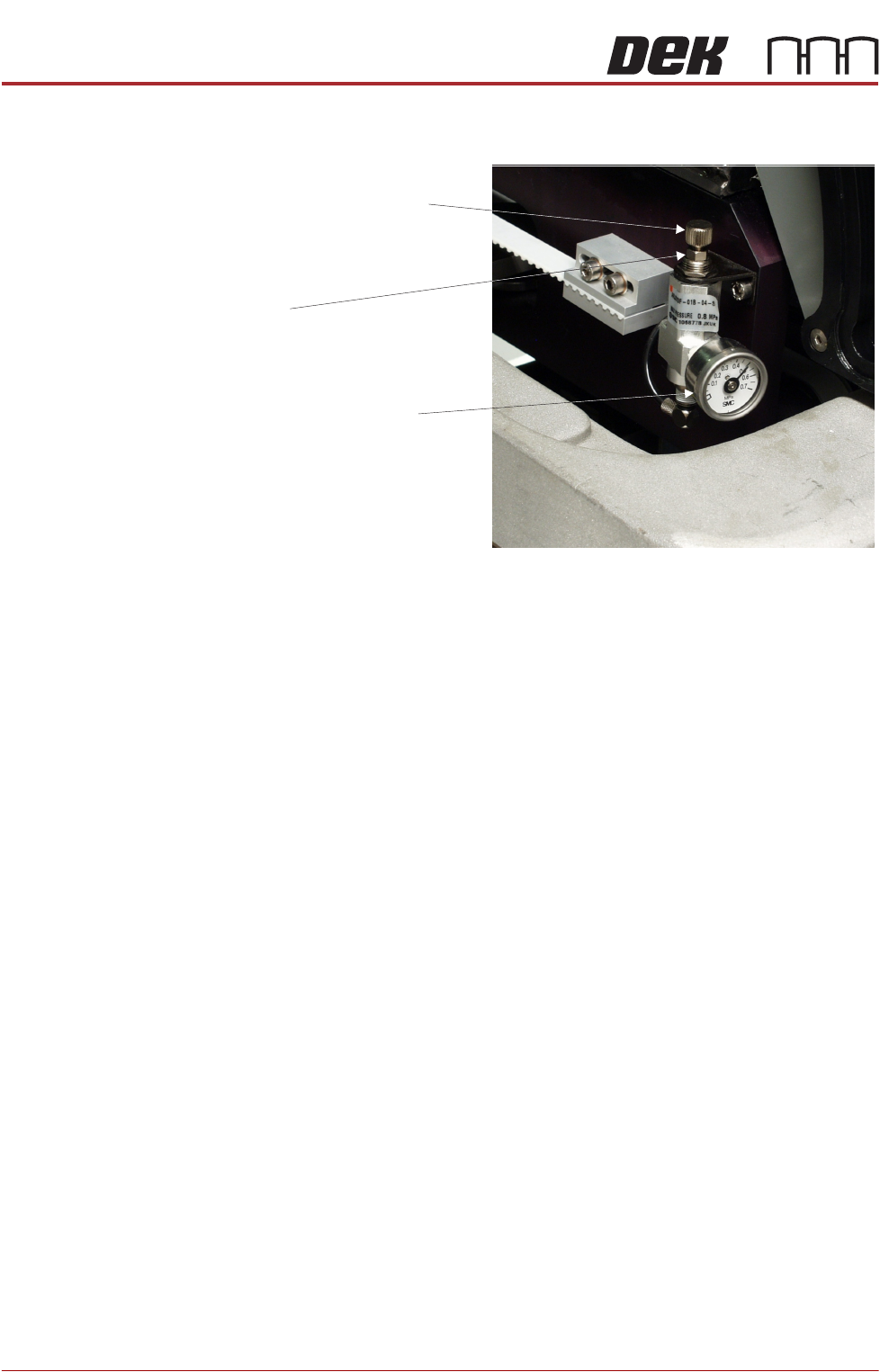
The board clamp regulator is located under the front cover, secured to the front
of the right hand printhead, as shown in the graphic below.
Setting the board clamps regulator is detailed in the following procedure:
1. Select Open Cover Commands.
2. Open the front printhead cover.
3. Select Toggle Board Clamps.
4. The board clamp regulator should read 0.5MPa (5 bar).
5. If the pressure regulator indicator gauge does not read 0.5MPa (5 bar) it
requires adjustment. To adjust the pressure regulator, loosen the locknut at
the base of the pressure adjustment screw and adjust the pressure to
0.5MPa (5 bar) by turning the adjustment screw clockwise to increase the
pressure or anti-clockwise to decrease it.
6. Select Toggle Board Clamps repeatedly and check for smooth operation
of the board clamps.
7. Ensure that the regulator maintains a reading of 0.5MPa (5 bar).
8. Lock the regulator adjustment screw in position by tightening the locknut.
9. Close the front printhead cover.
10. Press the System button.
Pressure Indicator Gauge
Locknut
Pressure Adjustment Screw