192277 - Micron Technical Reference Volume 3.pdf - 第59页
CAMERA SYSTE M MODULE ADJUSTMENTS AND SETTINGS Chapter Issue 9, Feb 18 Technical Reference Manual 23.17 on the m onito r . 13. If the reference position is correct , go to Step 18. 14. Using Move Camera X Axis Using Jog …

CAMERA SYSTEM MODULE
ADJUSTMENTS AND SETTINGS
23.16 Technical Reference Manual Chapter Issue 9, Feb 18
20. Using jog buttons drive the rising table to achieve a vision height of 78mm
-0.0mm / +0.2mm, (ie the height cannot be less than 78.0mm)(For MTR
systems 79.5mm).
NOTE
a. The rising table must not be jogged up higher than the specified dimen-
sion, camera damage may occur.
b. The right jog button drives the rising table up, the left jog button drives the
rising table down.
21. Use Next or Previous to highlight Set Reference Vision Height.
22. Select Run Diagnost. The message ‘This Will Alter The Printer Config-
uration File - Please Confirm’ is displayed.
23. Select Confirm.
24. Use Next or Previous to highlight Home Rising Table.
25. Select Run Diagnost.
26. Refit the left hand safety cover.
27. Select Exit.
28. Select Exit.
29. Remove the board from the rails.
30. Select Back.
31. If the vision height has been adjusted a vision calibration and an offset
calibration must be carried out.
Camera Focus The camera focus is factory set and sealed and should not need adjustment.
Camera Reference Position
1. Select Maintenance.
2. Select Diagnostics.
3. Use Next or Previous to highlight Camera Axes.
4. Select Select Module.
5. Use Next or Previous to highlight Home Camera X Axis.
6. Select Run Diagnost.
7. Use Next or Previous to highlight Home Camera Y Axis.
8. Select Run Diagnost.
9. Use Next or Previous to highlight Initialise Vision System
.
10. Select Run Diagnost.
11. Select Drive to Reference Position.
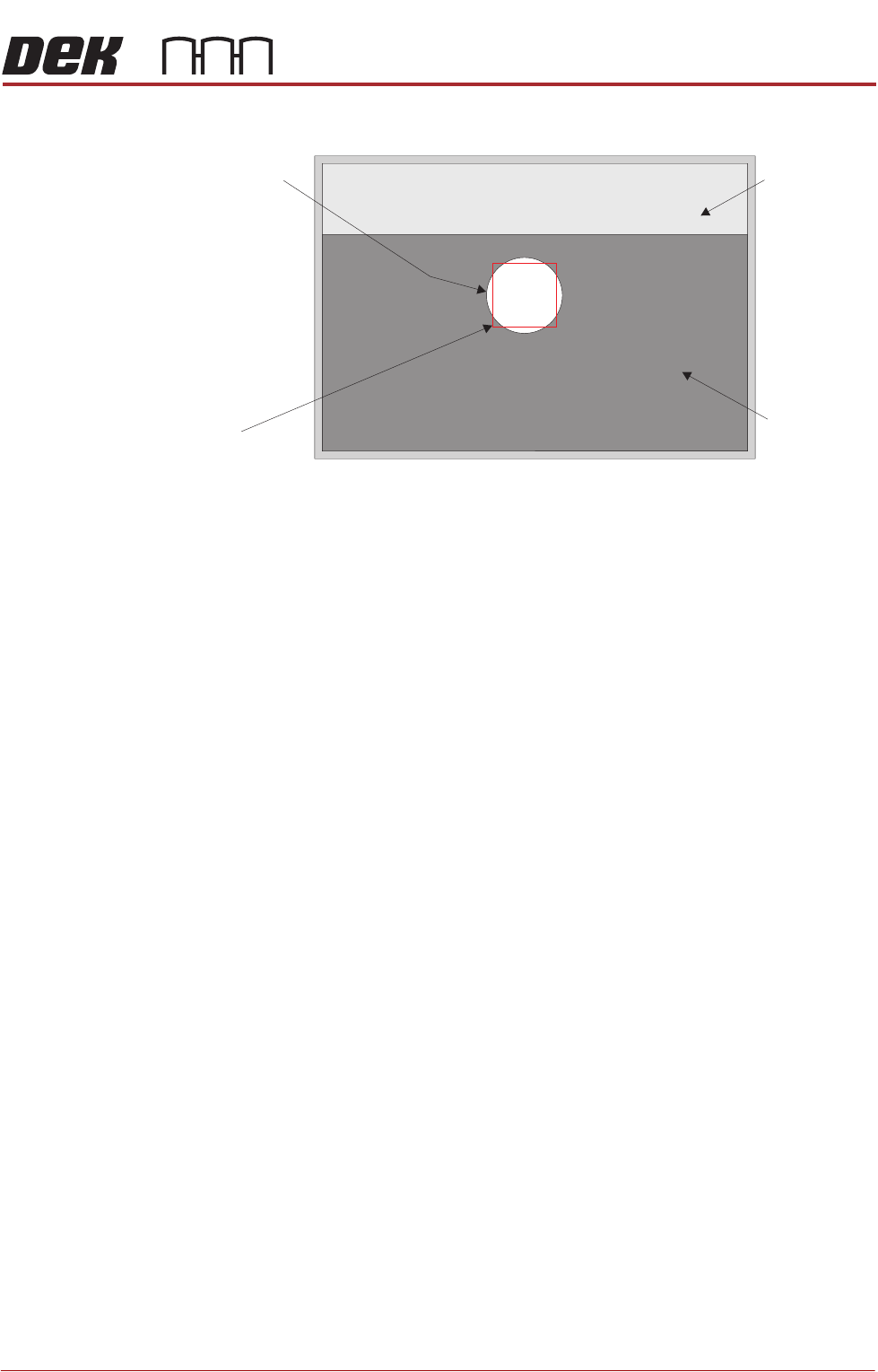
12. Select Run Diagnost, a box and the white dot on the board clamp are visible
CAMERA SYSTEM MODULE
ADJUSTMENTS AND SETTINGS
Chapter Issue 9, Feb 18 Technical Reference Manual 23.17
on the monitor.
13. If the reference position is correct, go to Step 18.
14. Using Move Camera X Axis Using Jog Buttons and Move Camera Y Axis
Using Jog Buttons, position the box centrally inside the white dot, as
shown in the graphic in Step 12.
15. Use Next or Previous to highlight Set Reference Position.
16. Select Run Diagnost. The message ‘This Will Alter The Printer Config-
uration File - Please Confirm’ is displayed.
17. Select Confirm.
18. Select Exit.
19. Select Exit.
20. Select Back.
Board Clamp
Foil
Board Clamp
Box
White Dot
CAMERA SYSTEM MODULE
REPLACEMENT PROCEDURES
23.18 Technical Reference Manual Chapter Issue 9, Feb 18
REPLACEMENT PROCEDURES
Camera
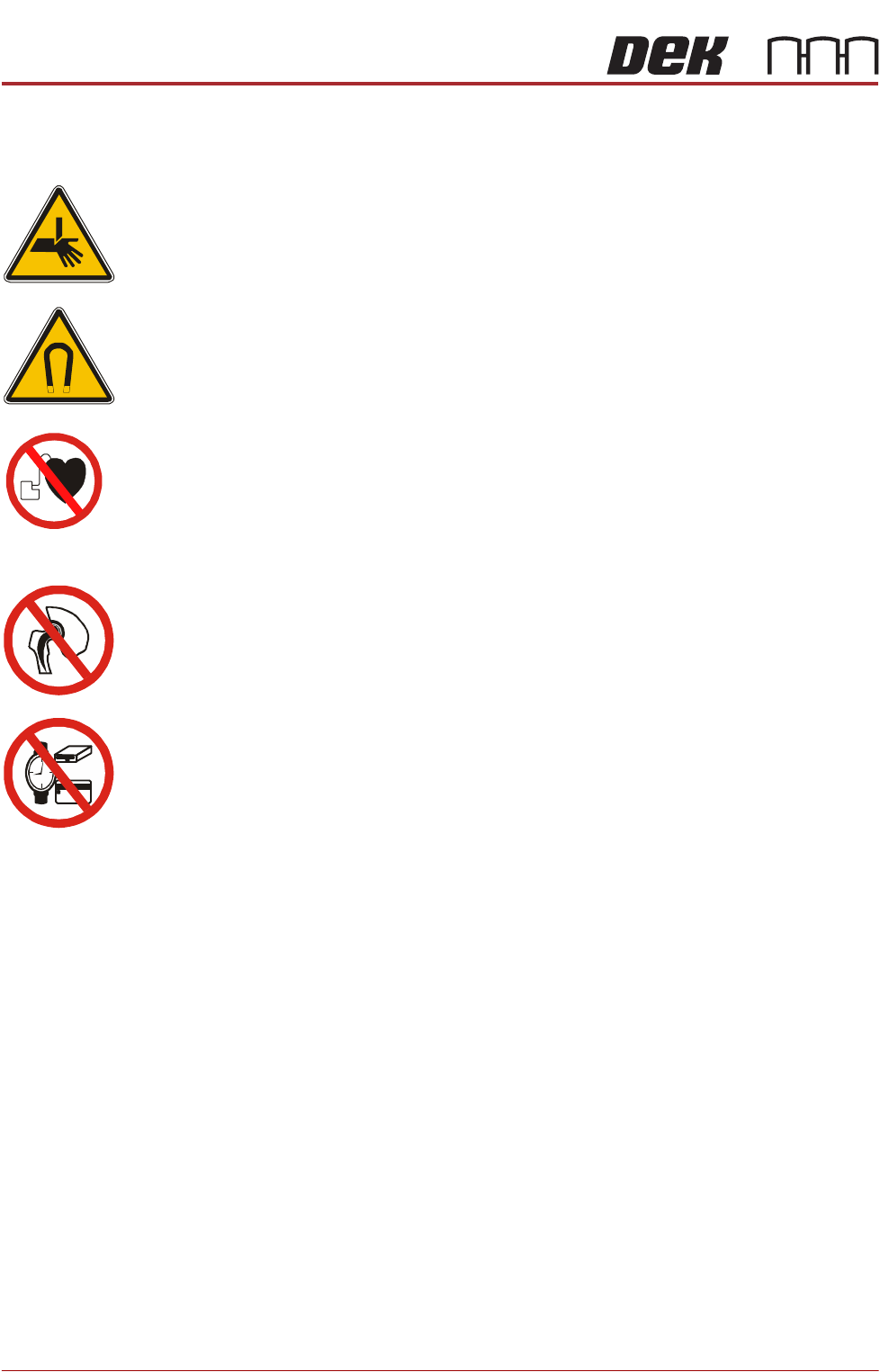
WARNING
BOARD CLAMPS. EXTREME CARE MUST BE EXERCISED WHEN WORKING IN
THE TOOLING AREA OF THE MACHINE TO AVOID INJURY. THE FOILS ON THE
FRONT AND REAR BOARD CLAMPS ARE VERY SHARP.
WARNING
STRONG MAGNET FIELD. A STRONG MAGNETIC FIELD EXISTS IN THE
VICINITY OF THIS LABEL. THIS MAY PRESENT A HAZARD TO PERSONNEL OR
EQUIPMENT.
))
((
PROHIBITION
ELECTROMAGNETIC FIELD. AN ELECTROMAGNETIC FIELD EXISTS WITHIN
THE MACHINE FROM THE LINEAR MOTORS. THESE MAY PRESENT A HAZARD
TO PEOPLE FITTED WITH AN IMPLANTED CARDIAC DEVICE. THE MOTOR
MANUFACTURER RECOMMENDS A SAFE DISTANCE OF AT LEAST 15MM.
PROHIBITION
ELECTROMAGNETIC FIELD. AN ELECTROMAGNETIC FIELD EXISTS WITHIN
THE MACHINE FROM THE LINEAR MOTORS. THESE MAY PRESENT A HAZARD
TO PEOPLE FITTED WITH AN IMPLANTED CARDIAC DEVICE. THE MOTOR
MANUFACTURER RECOMMENDS A SAFE DISTANCE OF AT LEAST 15MM.
PROHIBITION
STRONG MAGNETIC FIELD. A STRONG MAGNETIC FIELD EXISTS IN THE
VICINITY OF THE LINEAR MOTORS THAT REPRESENT A SERIOUS HAZARD TO
PEOPLE FITTED WITH METALLIC IMPLANTS.
PROHIBITION
STRONG MAGNETIC FIELD. A STRONG MAGNETIC FIELD EXISTS IN THE
VICINITY OF THE LINEAR MOTORS THAT MAY ACT UPON FERROUS OBJECTS
WHOSE MOVEMENTS COULD LEAD TO PERSONAL INJURY AND/OR DAMAGE
TO THE MACHINE.
The following procedure is valid for all cameras.
Removal 1. Select Open Cover Commands.
2. Select Carriage To Rear.
3. Select Back.
4. Select Shut Down.
5. Select Continue.
6. Switch the mains isolator to OFF.
7. Open the front printhead cover.
8. Remove the stencil.
9. To gain access to the camera for removal, move the camera forward and
central over the table by manually moving the camera carriage.
10. Remove the following connectors from the rear of the camera unit:
•10SK17
•10SK13