00191369-02.pdf - 第102页
3 Introduction and Basic Concepts User Manual HS-50 3.1 Machine Displays and Controls Software Version SR.501.xx 12/99 Issue U S 102 t I I t 3.1.7 Monitors The 13.8" mon itors (TFT -LCD fl at scree ns) with i ntegra…
User Manual HS-50 3 Introduction and Basic Concepts
Software Version SR.501.xx 12/99 Issue US 3.1 Machine Displays and Controls
101
t IIt
3.1.4 Barcode Reader
The barcode reader is available as an option. It is very helpful, particularly under production
conditions, since component barcodes on component reels and track barcodes can be read in
quickly and reliably from the barcode strip on the machine.
An acoustic signal sounds each time a data record is successfully read in.
NOTE
For a detailed description of the function, connection and operation of the bar code reader, refer
to chapter 11 "Station extensions / hardware". 3
3.1.5 Station Computer
The station computer is located in a midi tower housing and is equipped with a 3 ½" floppy disk
drive and CD-ROM drive. 3
NOTE
The SC software is installed under the NT 4.0 operating system. To prevent damage to the oper-
ating system in the event of a power failure, the station computer is connected to an uninterruptible
power supply (UPS, see Section 3.1.6). 3
3.1.6 Uninterruptible Power Supply UPS
The UPS is located directly next to the station computer. It is used to boost insufficient mains
power supplies and bridge over mains voltage failures. This guarantees that the connected de-
vices can continue to function even if the power supply fails and that a controlled power-down of
the station computer can be performed. 3
CAUTION
Before the UPS is used for the first time, it must be charged for approximately 24 hours (because
of charge loss due to storage) in order to guarantee secure computer system operation. 3
NOTE
A separate manual is supplied with the UPS.
Please refer to this manual for a description of the connections, displays and setting options. Pay
close attention to the safety instructions and warnings it contains. 3
3 Introduction and Basic Concepts User Manual HS-50
3.1 Machine Displays and Controls Software Version SR.501.xx 12/99 Issue US
102
t IIt
3.1.7 Monitors
The 13.8" monitors (TFT-LCD flat screens) with integrated touch screen which are installed on ei-
ther side of the machine act as the display and operating tool for the graphic user interface of the
SC software. You select functions using your finger which guides the mouse pointer over the
screen itself.
3
Actions can be executed by touching the corresponding object (e.g. button or icon) on the screen. 3
CAUTION
Protect the monitor from humidity and excessive heat (sunlight, room heating).
Never obstruct the ventilation slots.
Never try to remove the cover.
Make sure that no moisture is able to penetrate the inside of the monitor.
Make sure that the operating voltage is set correctly.
Make sure that the brightness and contrast of the screen display are set to medium values since
these greatly prolong the lifetime of the screen. 3
NOTE
Each monitor is supplied with a separate User Manual and you should follow the warnings and
safety instructions it contains.
Please refer to the Manual for a description of the connections and setting options. By default, the
resolution of the screen display is set to 1024 x 768 pixels. 3
3
3
User Manual HS-50 3 Introduction and Basic Concepts
Software Version SR.501.xx 12/99 Issue US 3.1 Machine Displays and Controls
103
t IIt
3.1.8 Keyboards
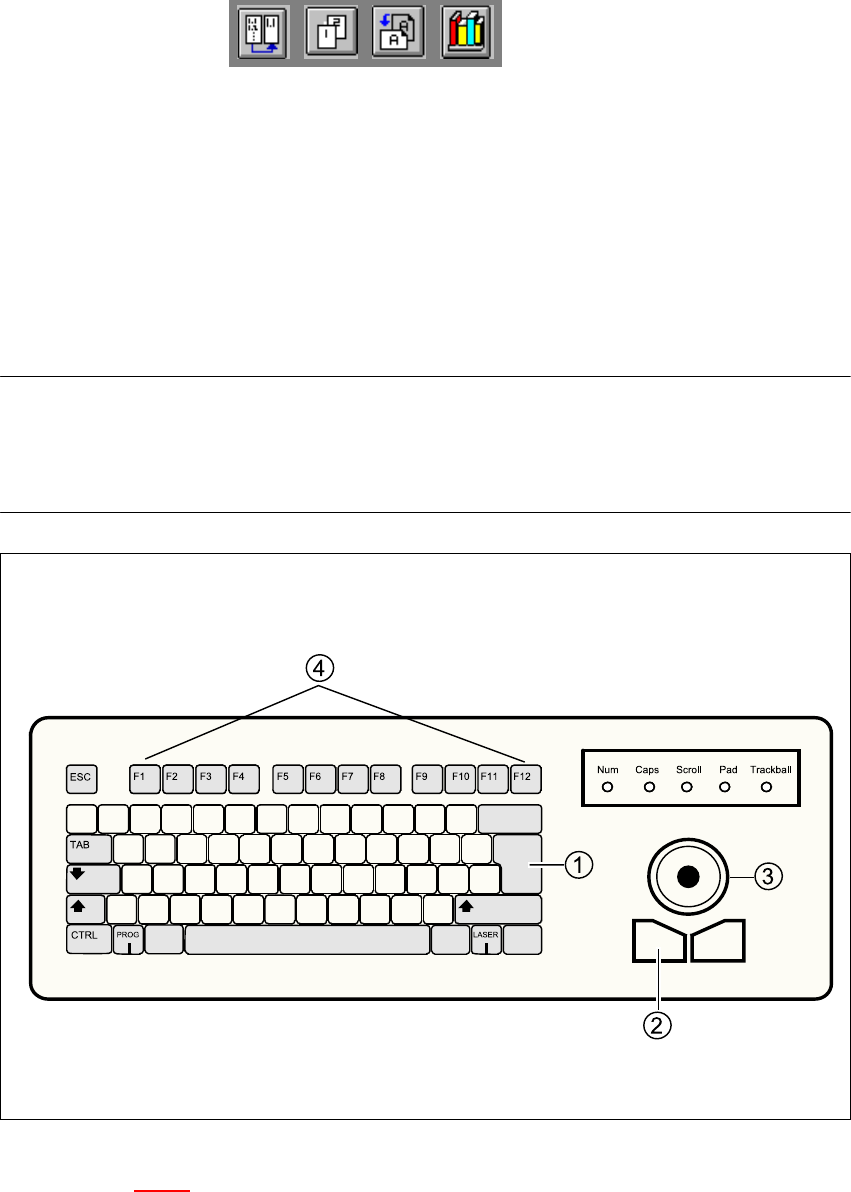
The sliding, ultra-flat keyboards installed on either side of the machine are IBM-compatible. They
are equipped with integrated trackball and mouse buttons.
3
The keyboard and trackball act as the standard operating tools for the graphic user interface of
the SC software. 3
NOTE
A separate User Manual is supplied for the keyboards. These contain a description of the keys,
indicators and setting options.
Please respect the warnings and safety instructions contained in this Manual. 3
3
Fig. 3.1 - 4 Keyboard
Key to Figure 3.1 - 4
(1) RETURN key
(2) Left mouse button
(3) Trackball
(4) Function keys F1 to F12