00191369-02.pdf - 第104页
3 Introduction and Basic Concepts User Manual HS-50 3.2 Principles of the Graphic User I nterface Software Version SR.501.xx 12/99 Issue US 104 t I I t 3.2 Princ iples of the Gr aphic User Interf ace This se ction de scr…
User Manual HS-50 3 Introduction and Basic Concepts
Software Version SR.501.xx 12/99 Issue US 3.1 Machine Displays and Controls
103
t IIt
3.1.8 Keyboards
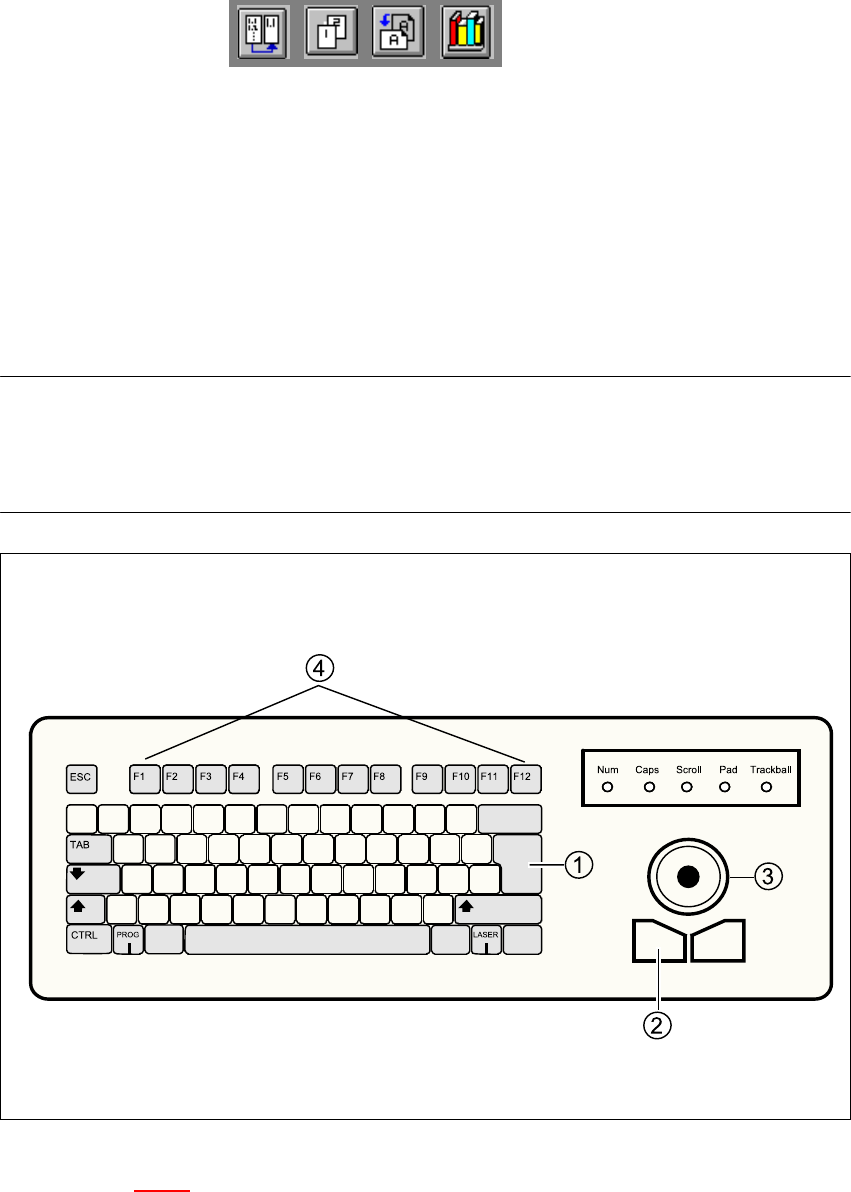
The sliding, ultra-flat keyboards installed on either side of the machine are IBM-compatible. They
are equipped with integrated trackball and mouse buttons.
3
The keyboard and trackball act as the standard operating tools for the graphic user interface of
the SC software. 3
NOTE
A separate User Manual is supplied for the keyboards. These contain a description of the keys,
indicators and setting options.
Please respect the warnings and safety instructions contained in this Manual. 3
3
Fig. 3.1 - 4 Keyboard
Key to Figure 3.1 - 4
(1) RETURN key
(2) Left mouse button
(3) Trackball
(4) Function keys F1 to F12
3 Introduction and Basic Concepts User Manual HS-50
3.2 Principles of the Graphic User Interface Software Version SR.501.xx 12/99 Issue US
104
t IIt
3.2 Principles of the Graphic User Interface
This section describes how you use the various operating tools such as the keyboard, trackball,
mouse buttons and touch screen as well as the functions of the individual components of the
graphic user interface. 3
3.2.1 Inputs and Controls
Keyboard 3
The keyboard with its integrated trackball and mouse buttons (see Figure 3.1 - 4) acts as the stan-
dard input tool for the graphic user interface of the SC software. 3
Trackball and mouse buttons 3
You use the trackball to move the mouse pointer across the user interface to the desired object.
You then use the left mouse button to select the object or execute the corresponding function. 3
Touch screen 3
The screen (touch screen) can also be used to operate the user interface. In this way, you can
directly select the actions described above, or trigger the corresponding functions, by touching the
corresponding object with your finger on screen. 3
NOTE
In this User’s Manual, the triggering of actions using the left mouse button or by touching the
screen with your finger is always referred to as "clicking". 3
3
User Manual HS-50 3 Introduction and Basic Concepts
Software Version SR.501.xx 12/99 Issue US 3.2 Principles of the Graphic User Interface
105
t IIt
3.2.2 Components of the User Interface
3
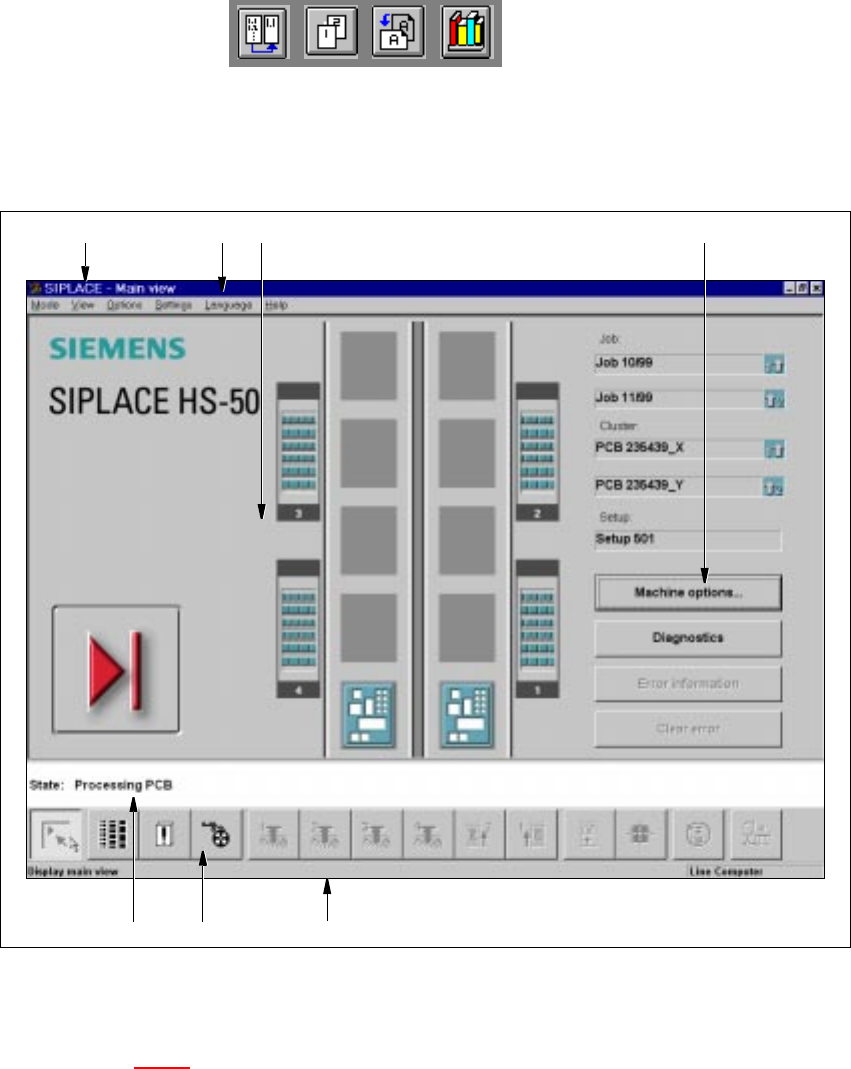
Fig. 3.2 - 1 Components of the user interface (example of main view)
3
Key to Figure 3.2 - 1
(1) Caption bar
(2) Menu bar
(3) Working area/display area
(4) Controls
(5) Status area
(6) Toolbar
(7) Info bar
3
1
6 75
2 3 4