00191369-02.pdf - 第179页
User Manual HS-50 5 Single Functions Software Version S R.501.xx 12/99 Issue US 5.3 Single functions, Transpo rt 179 t I I t 5.3.2 "PCB convey or wid th" screen 5 Å In th e "Transpor t fun ction s" s …
5 Single Functions User Manual HS-50
5.3 Single functions, Transport Software Version SR.501.xx 12/99 Issue US
178
t IIt
5
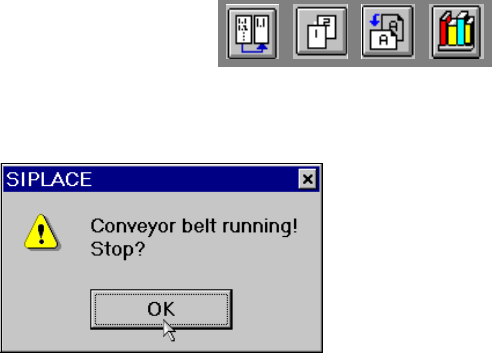
The conveyors are traveling at the set speed.
All functions are locked. 5
Å Click the OK button in this dialog box if the operation is to be stopped.
The conveyors will be stopped and the dialog box closed.
All functions are then released.
5
User Manual HS-50 5 Single Functions
Software Version SR.501.xx 12/99 Issue US 5.3 Single functions, Transport
179
t IIt
5.3.2 "PCB conveyor width" screen
5
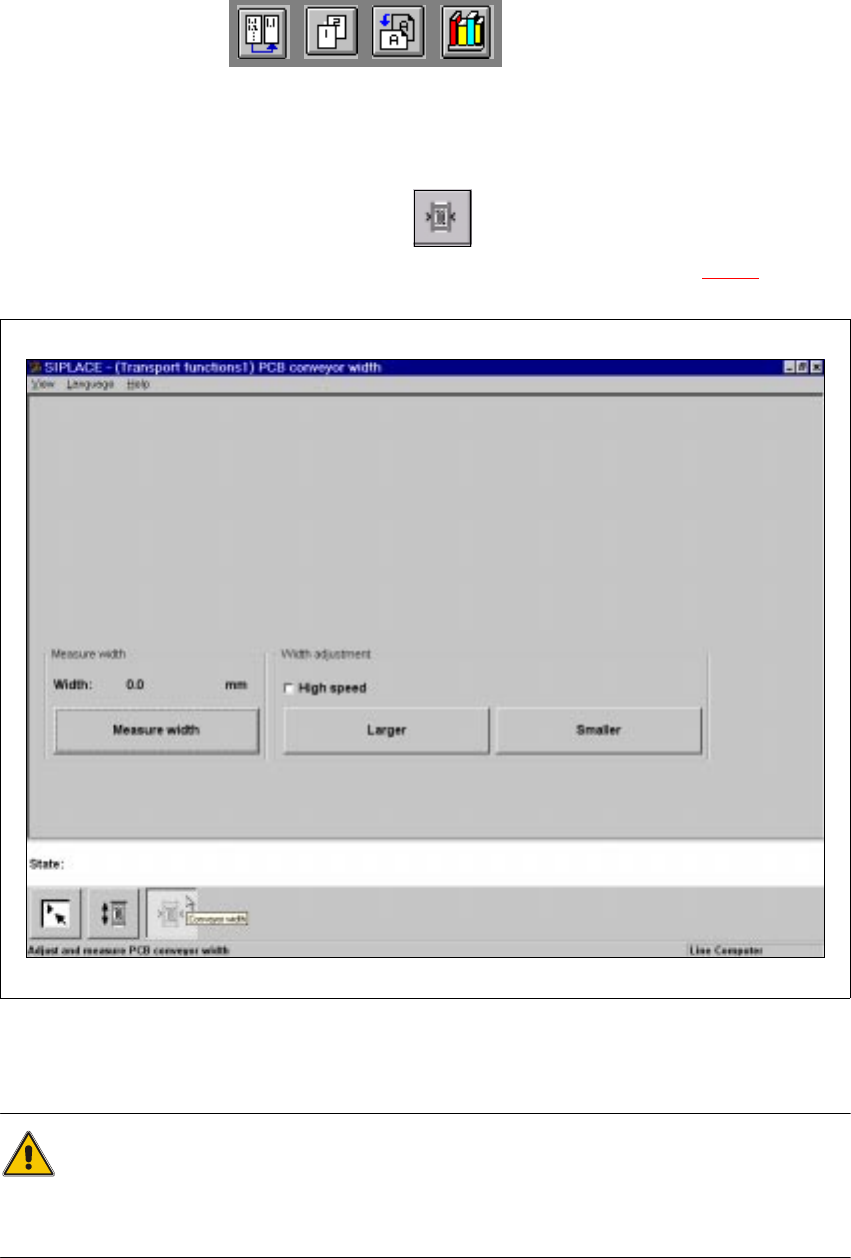
Å In the "Transport functions" screen, click the symbol.
The user interface is switched to the "PCB conveyor width" screen (see Fig. 5.3 - 2
).
5
Fig. 5.3 - 2 "PCB conveyor width" screen
5
CAUTION
Before adjusting the conveyor width, make sure there are no boards or other objects on the
machine’s conveyors. Failure to do so may result in damage to both machine and boards!
5
5 Single Functions User Manual HS-50
5.3 Single functions, Transport Software Version SR.501.xx 12/99 Issue US
180
t IIt
5.3.2.1 General comments
The "PCB conveyor width" screen makes available all functions necessary to adjust the width of
the conveyor.
It may be necessary to change the width of the conveyor, for example, for maintenance work or
when introducing a board with new dimensions. 5
The conveyor can be adjusted to suit the width of the board.
Incremental width adjustments are made by clicking the buttons "Larger" or "Smaller" (see section
5.3.2.2
).
Width adjustments can be made in large increments (increment size = 1 mm) or in smaller steps (in-
crement size = 0,1 mm). This can be controlled by activating or deactivating the "High speed" check
box in the "Width adjustment" area (see section 5.3.2.2
). 5
5
5.3.2.2 Functions
Measure width 5
This function can be used to measure the current width of the conveyor. The result is shown and
saved.
Å Click the Measure width button.
The measured width is displayed above the button.
5
Incremental adjustment
Å Activate the "High speed" check box to adjust the conveyor width in large increments.
Deactivate the check box if you want to adjust the conveyor width in smaller steps.
5
Conveyor width adjustment
Larger 5
Å Click the Larger button to increase the width of the conveyor.
Each time you click the button the width is increased by the increment size set using the
"High speed" check box.
Smaller 5
Å Click the Smaller button to reduce the width of the conveyor.
Each time you click the button the width is reduced by the increment size set using the
"High speed" check box.
5