00191369-02.pdf - 第147页
User Manual HS-50 4 Placement Functions Software Vers ion SR.501.xx 12/99 Issue US 4.3 Feeders 147 t I I t 4 Fig. 4.3 - 2 "Empty tracks" view when the "Component verification with barcode" option is a…
4 Placement Functions User Manual HS-50
4.3 Feeders Software Version SR.501.xx 12/99 Issue US
146
t IIt
4
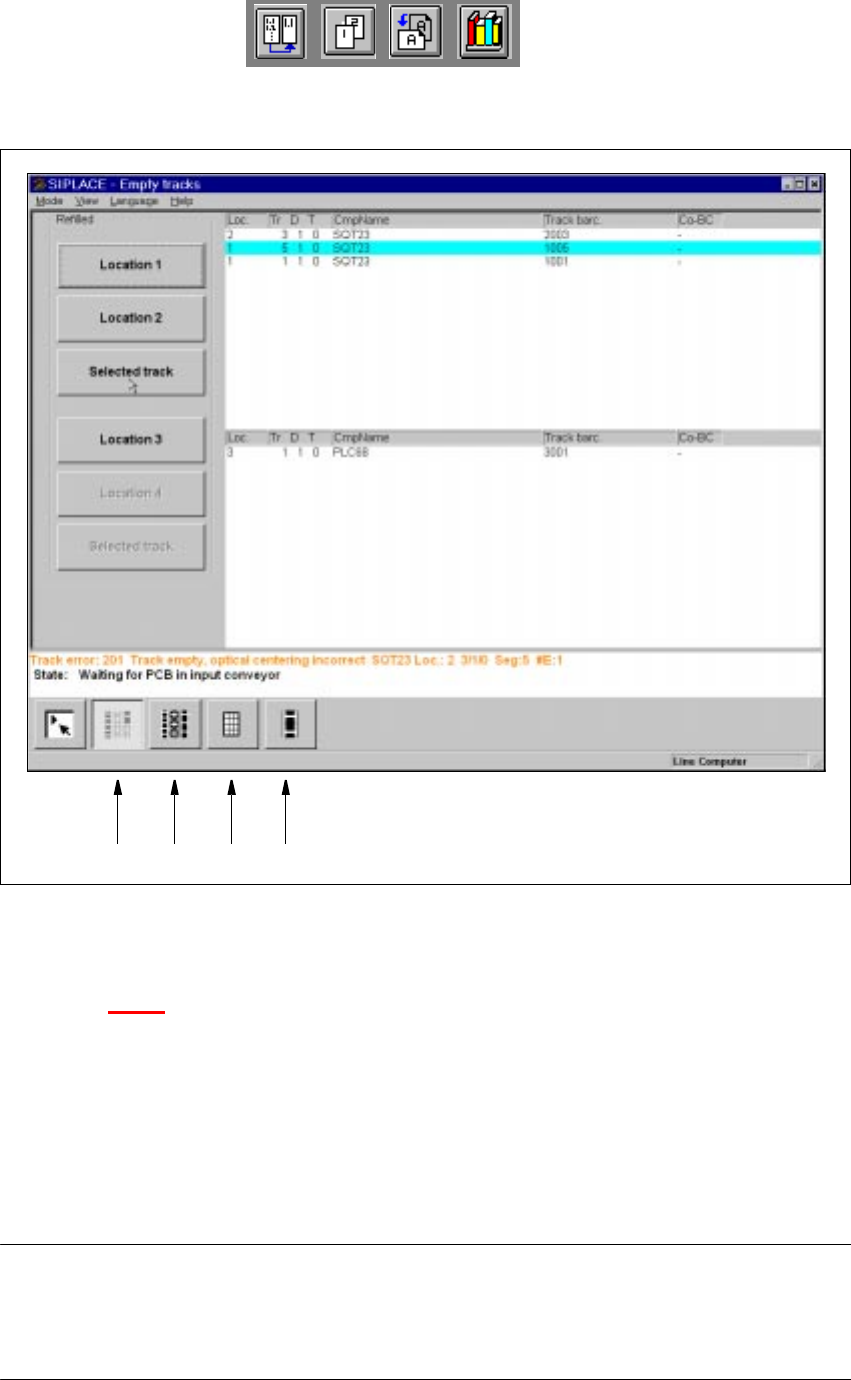
Fig. 4.3 - 1 "Empty tracks" view
Key to Fig. 4.3 - 1
(1) "Empty tracks" view
(2) "Omit components" view
(3) "Trays" view
(4) "Linear feeder" view
4
NOTE
The "Trays" view with the functions to display and change the inventory levels of
flatpack trays is currently irrelevant for model SIPLACE HS-50 machines and is therefore not de-
scribed in this operating manual. 4
1234
User Manual HS-50 4 Placement Functions
Software Version SR.501.xx 12/99 Issue US 4.3 Feeders
147
t IIt
4
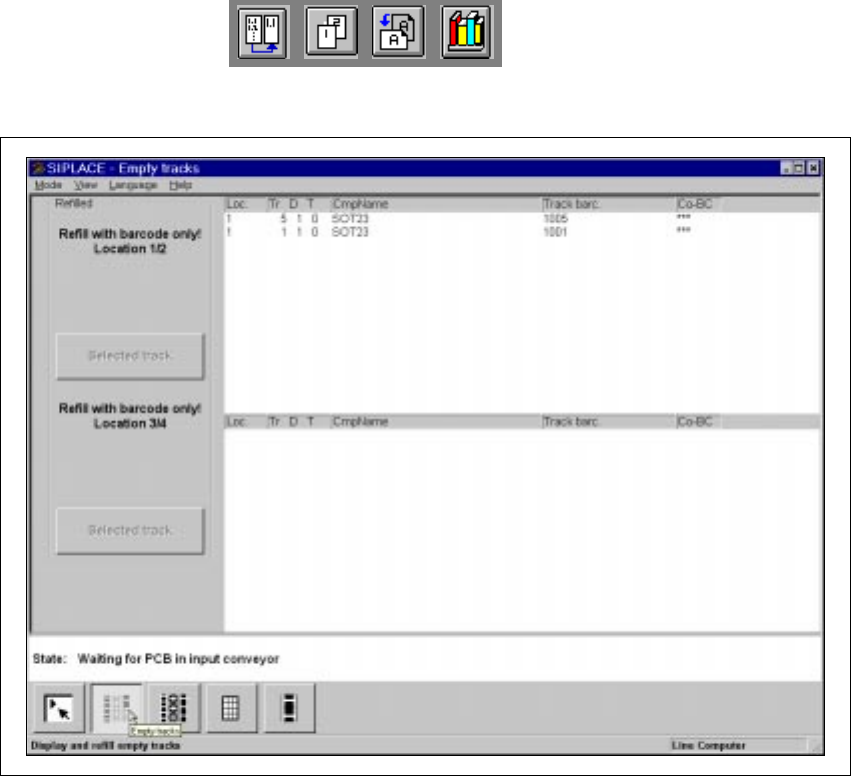
Fig. 4.3 - 2 "Empty tracks" view when the "Component verification with barcode" option is active
4
4.3.1.1 Meaning of the Entries in the Table "Empty tracks"
– Loc.
Number of the location whose track is "empty".
– Tr D T
Number of the "empty" track and of the feeder division for the corresponding component.
The entry for "T" is irrelevant for model SIPLACE HS-50 machines.
(Only valid for automatic machines with wafflepack changers).
– CmpName
Name of the corresponding component.
– Track barc.
The track barcode assigned to the corresponding track is entered in this column.
– CO-BC
This column displays whether or not a component barcode is specified for the corresponding
component in the setup using the "***" or "-" symbol.
4 Placement Functions User Manual HS-50
4.3 Feeders Software Version SR.501.xx 12/99 Issue US
148
t IIt
NOTE
If the "-" character is entered in this column, then this means that no barcode is specified for
the corresponding component. You can therefore manually refill the corresponding track us-
ing "Refill tracks" even if the "Component verification with barcode" option is active (see Sec-
tion 4.3.1.5). 4
4
4.3.1.2 Functions in the "Empty Tracks" View
4
Location 1 4
Confirms that all tracks for location 1 are full. 4
Location 2 4
Confirms that all tracks for location 2 are full. 4
Selected track 4
Confirms that the feeder on the selected track for location 1 or 2 is full. 4
Location 3 4
Confirms that all tracks for location 3 are full. 4
Location 4 4
Confirms that all tracks for location 4 are full. 4
Selected track 4
Confirms that the feeder on the selected track for location 3 or 4 is full. 4
4
4.3.1.3 "Refilling" Empty Tracks
Å Select the entry in the table or the track that is to be confirmed as being "refilled". The line se-
lected is highlighted in light blue in the table and the "Selected track" button is active.
Å Click on the Selected track button when the feeder in this track has been refilled with compo-
nents.
The track is then considered full and the entry is deleted from the list of empty tracks.
The "Selected track" button is not active thereafter.