00191369-02.pdf - 第144页
4 Placement Functions User Manual HS-50 4.2 Error Display Software Version SR.501.xx 12 /99 Issue US 144 t I I t – DEV Short de scription of the s ender of the er ror – #E Error c ounter (see al so Se ction 4.2.2.1 ). – …
User Manual HS-50 4 Placement Functions
Software Version SR.501.xx 12/99 Issue US 4.2 Error Display
143
t IIt
– #E
Error counter (see also Section 4.2.2.1
)
– Text
Description of the corresponding error
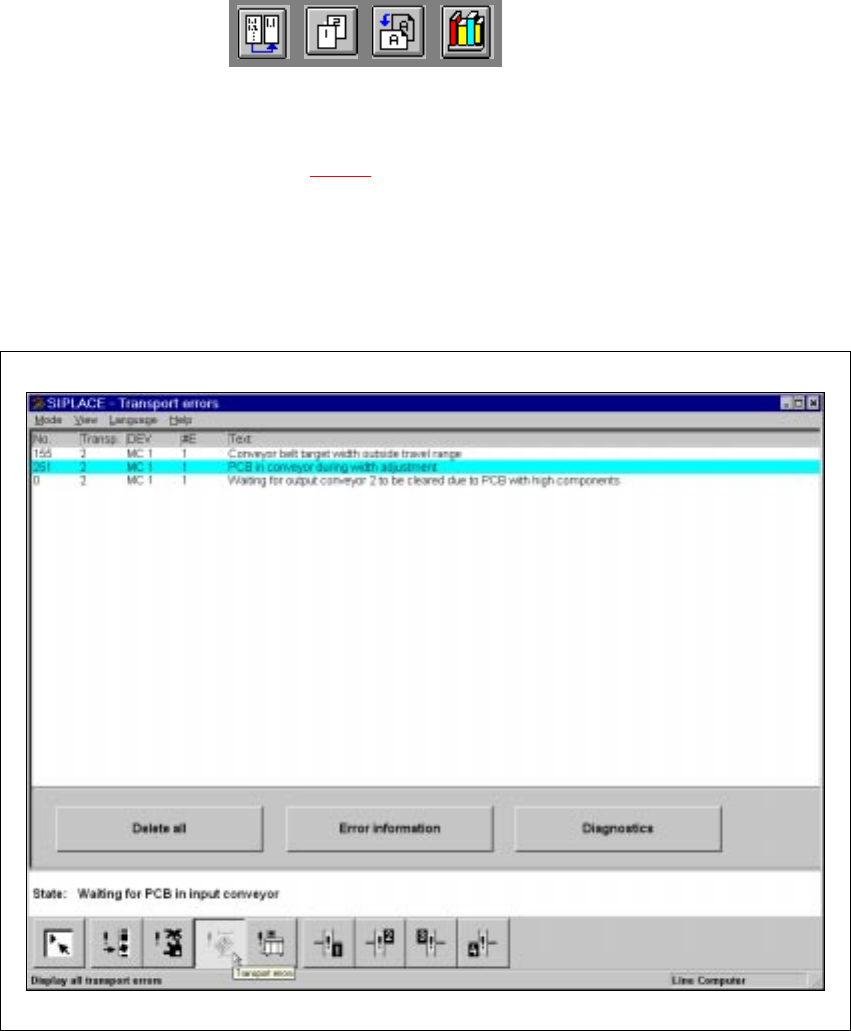
4.2.5 "Transport Errors" View
4
Fig. 4.2 - 4 "Transport errors" view
4.2.5.1 Meaning of the Entries in the Table for "Transport Errors"
– No
Error number of the corresponding error.
– Transp
The number of the transport in which the error has occurred is entered here.
1 = Transport 1 (Standard transport or right transport track for dual transports)
2 = Transport 2 (Left transport track for dual transports)
4 Placement Functions User Manual HS-50
4.2 Error Display Software Version SR.501.xx 12/99 Issue US
144
t IIt
– DEV
Short description of the sender of the error
– #E
Error counter (see also Section 4.2.2.1
).
– Text
Description of the corresponding error.
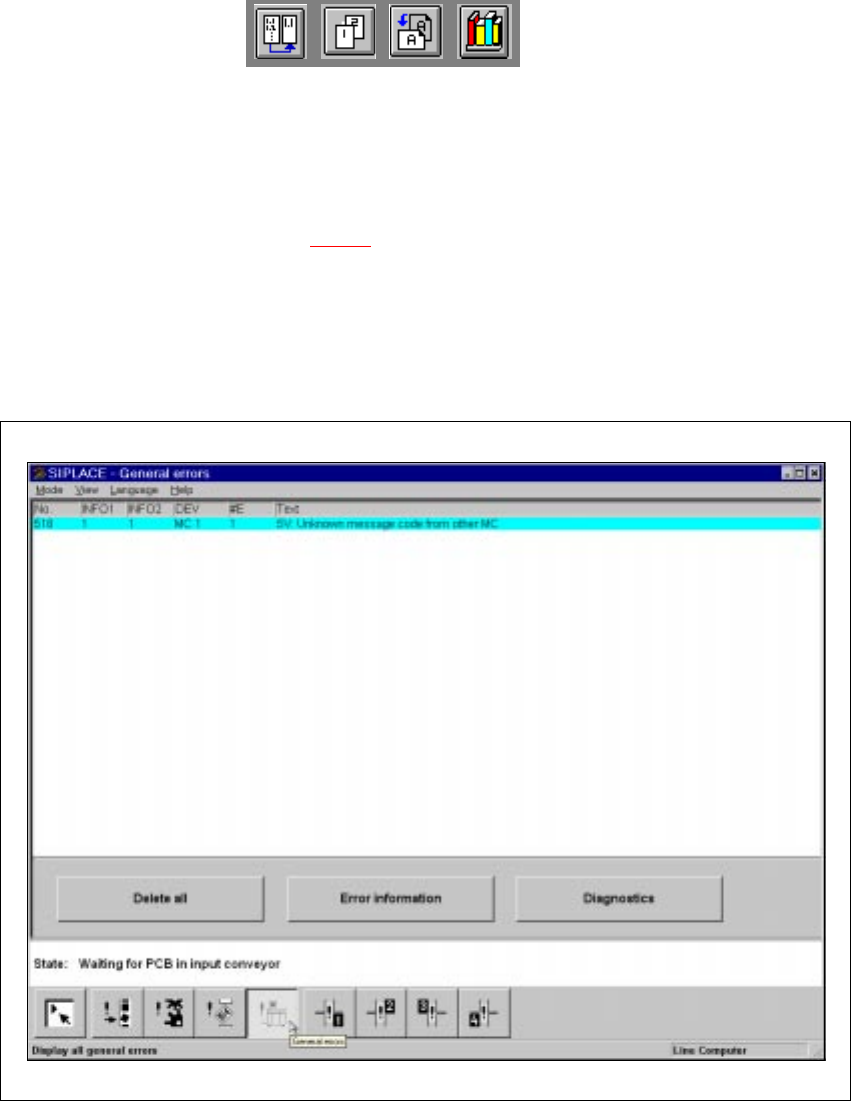
4.2.6 "General Errors" View
4
Fig. 4.2 - 5 "General errors" view
4.2.6.1 Meaning of the Entries in the Table for "General Errors"
– No
Error number of the corresponding error.
– Info1 / Info 2
These are only intended for internal use by Siemens.
– DEV
Short description of the sender of the error
User Manual HS-50 4 Placement Functions
Software Version SR.501.xx 12/99 Issue US 4.3 Feeders
145
t IIt
– #E
Error counter (see also Section 4.2.2.1
.
– Text
Description of the corresponding error.
4.3 Feeders
Å Click on the icon in the toolbar in the Main view.
The user interface switches to one of the views described in the following sections.
NOTE
When the "Feeders" menu function is called for the first time after starting the SC software, then
the "Empty tracks" view is displayed first (see Fig. 4.3 - 1). 4
4.3.1 "Empty Tracks" View
If the placement head cannot pick a component from a track after 3 attempts, then it will not use
this track again. This track is added to the "Empty tracks" list.
As soon as the feeders in the empty tracks are filled with components, this fact must be confirmed
so that the placement head can access these tracks again. This is done by refilling the empty
tracks using the "Refill track" function. You can refill individual tracks or all tracks of a location at
the same time when refilling empty tracks with "Refill track". 4
NOTE
The manual refilling of tracks that contain components with specified component barcodes is only
possible using "Refill track" when the "Component verification with barcode" option in the machine
options is not
active.
If the "Component verification with barcode" option is active, then a corresponding note is dis-
played instead of the buttons for locations 1 through 4 (see Fig. 4.3 - 2). 4
4
Å Click on the icon, if necessary.
The "Empty tracks" view is displayed (see Fig. 4.3 - 1
).
4
4