00191369-02.pdf - 第105页
User Manual HS-50 3 Introduction and Basic Concepts Software Version SR.501.xx 12/99 Issue US 3.2 Principles of t he Graphic User In terface 105 t I I t 3.2.2 Component s of the User Interface 3 Fig. 3.2 - 1 Components o…
3 Introduction and Basic Concepts User Manual HS-50
3.2 Principles of the Graphic User Interface Software Version SR.501.xx 12/99 Issue US
104
t IIt
3.2 Principles of the Graphic User Interface
This section describes how you use the various operating tools such as the keyboard, trackball,
mouse buttons and touch screen as well as the functions of the individual components of the
graphic user interface. 3
3.2.1 Inputs and Controls
Keyboard 3
The keyboard with its integrated trackball and mouse buttons (see Figure 3.1 - 4) acts as the stan-
dard input tool for the graphic user interface of the SC software. 3
Trackball and mouse buttons 3
You use the trackball to move the mouse pointer across the user interface to the desired object.
You then use the left mouse button to select the object or execute the corresponding function. 3
Touch screen 3
The screen (touch screen) can also be used to operate the user interface. In this way, you can
directly select the actions described above, or trigger the corresponding functions, by touching the
corresponding object with your finger on screen. 3
NOTE
In this User’s Manual, the triggering of actions using the left mouse button or by touching the
screen with your finger is always referred to as "clicking". 3
3
User Manual HS-50 3 Introduction and Basic Concepts
Software Version SR.501.xx 12/99 Issue US 3.2 Principles of the Graphic User Interface
105
t IIt
3.2.2 Components of the User Interface
3
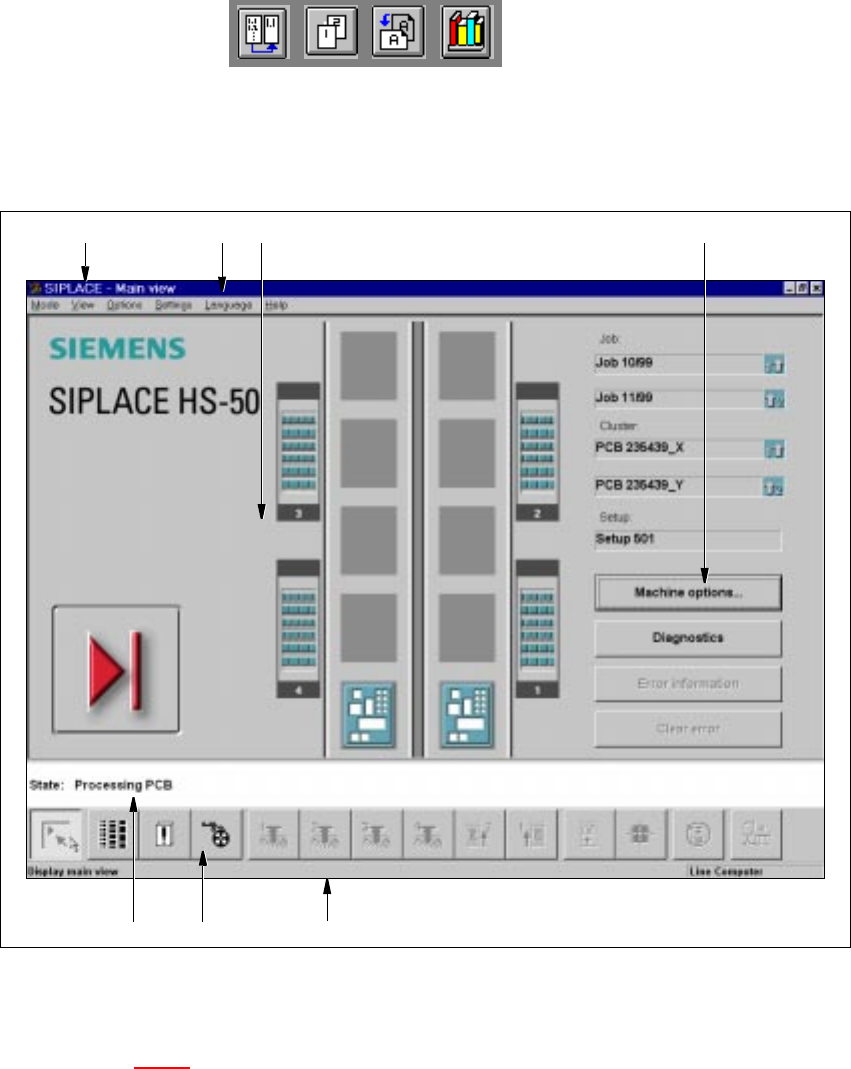
Fig. 3.2 - 1 Components of the user interface (example of main view)
3
Key to Figure 3.2 - 1
(1) Caption bar
(2) Menu bar
(3) Working area/display area
(4) Controls
(5) Status area
(6) Toolbar
(7) Info bar
3
1
6 75
2 3 4
3 Introduction and Basic Concepts User Manual HS-50
3.2 Principles of the Graphic User Interface Software Version SR.501.xx 12/99 Issue US
106
t IIt
Caption bar 3
The caption bar displays the name of the current view (e.g. main view). 3
Menu bar 3
The menu bar contains menus, the contents of which (functions and options available in the menu)
may change depending on the current view. 3
Working area/display area 3
This area displays the controls (buttons, icons) used to set/activate functions, the contents of ac-
tive menus and submenus, general messages, error messages and other comments. In addition,
in the main view, animated and/or different color objects are used to indicate certain processes or
statuses (e.g. processing, feeder location empty etc.). 3
Controls 3
You trigger actions, select options or make settings by clicking the corresponding controls with the
left mouse button.
If a control is displayed in inverse video (light gray), this means that the conditions for the execu-
tion of the corresponding functions are not satisfied. 3
Status area 3
The status area displays the current machine status, the last error to have occurred and the action
which is to be performed by the operator
If the "GEM Interface" option has been configured, the status of the connection to the host com-
puter is also displayed at the right-hand side of the area. 3
NOTE
The "GEM Interface" option is not implemented in the current software version. 3
Toolbar 3
This bar contains buttons which you use to switch the user interface to a different view where you
can perform the necessary operations. When you click a toolbar button, the user interface
switches to the view which corresponds to it. The button matching the active view then itself be-
comes inactive. 3
Info bar 3
This bar displays concise information about the menu item or icon/button over which the mouse
pointer is currently positioned. The current control mode is displayed next to this in a separate
area. 3