00191369-02.pdf - 第113页
User Manual HS-50 3 Introduction and Basic Concepts Software Version SR.501.xx 12/99 Issue US 3.2 Principles of t he Graphic User In terface 113 t I I t 3.2.2.3 St atus display f or the conveyor inte rface 3 Fig. 3.2 - 3…
3 Introduction and Basic Concepts User Manual HS-50
3.2 Principles of the Graphic User Interface Software Version SR.501.xx 12/99 Issue US
112
t IIt
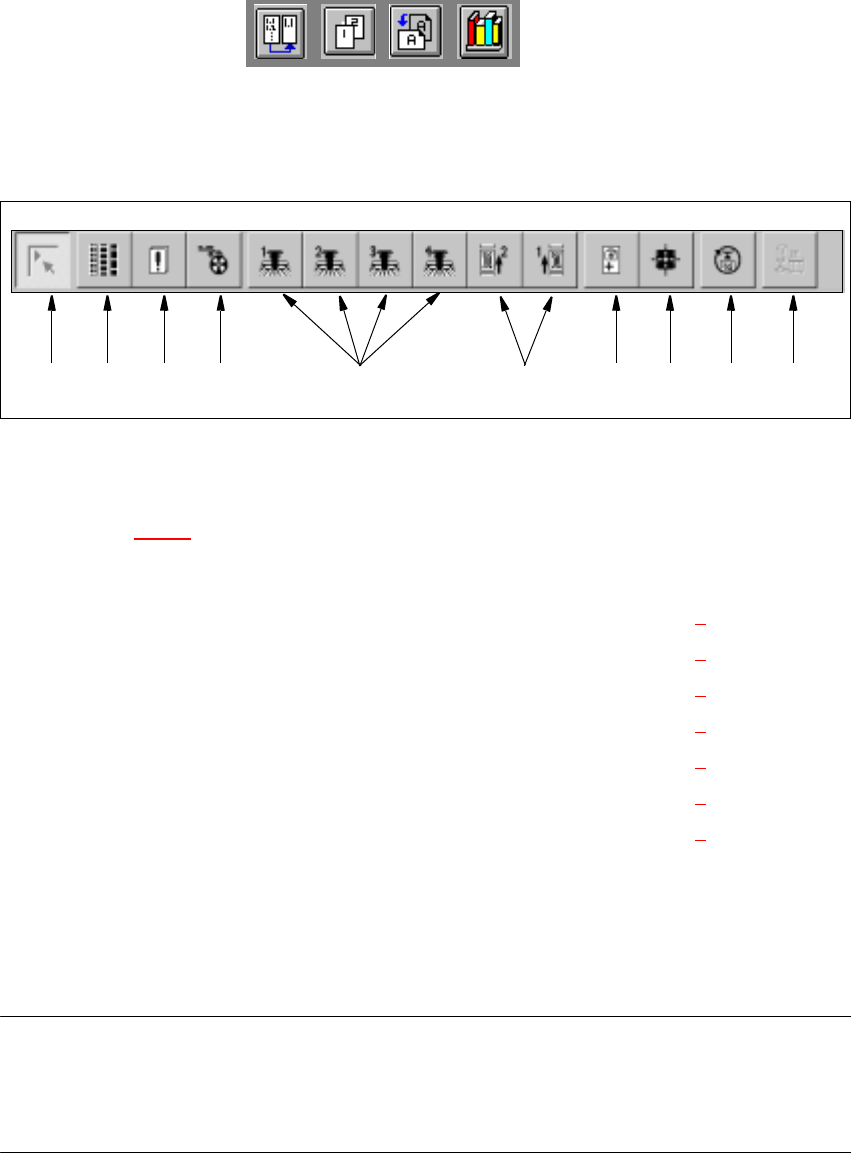
3.2.2.2 Toolbar in Main View
3
Fig. 3.2 - 2 Toolbar in main view
3
Key to Figure 3.2 - 2
(1) Main view
(2) Set-up, placement functions (for a description see Chapter 4
)
(3) Error, placement functions (for a description see Chapter 4
)
(4) Component feeder, placement functions (for a description see Chapter 4
)
(5) Gantry 1 to 4, single functions (for a description see Chapter 5
)
(6) Conveyor 1 and 2, single functions (for a description see Chapter 5
)
(7) Teach fiducials, vision functions (for a description see Chapter 6
)
(8) Test component, vision functions (for a description see Chapter 6
)
(9) Start SITEST test program (for a description see User’s Manual
"Test Program SITEST")
(10) GEM interface
3
NOTES to points 6 and 10
The single functions for Conveyor 2 can only be called if a twin conveyor has been configured.
The GEM interface functions cannot be called unless this has been configured.
The "GEM Interface" option cannot be configured in the current software version. 3
Å Click the required button in the toolbar.
The user interface is switched to the corresponding view.
The button corresponding to the view which is currently active itself becomes inactive.
3
1 8 9 10765432
User Manual HS-50 3 Introduction and Basic Concepts
Software Version SR.501.xx 12/99 Issue US 3.2 Principles of the Graphic User Interface
113
t IIt
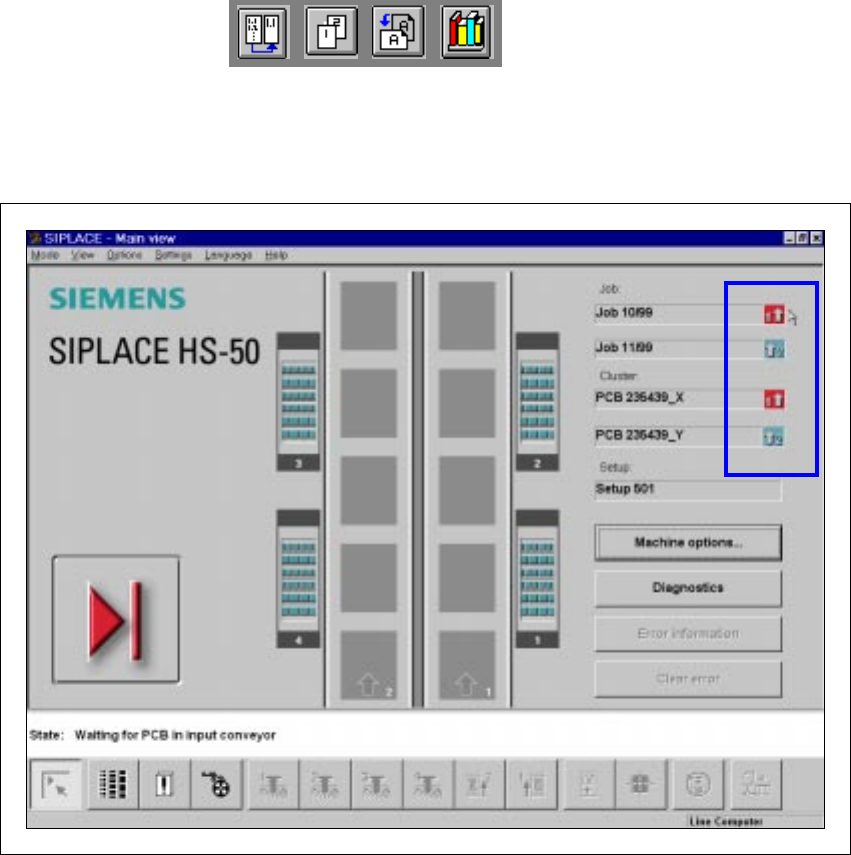
3.2.2.3 Status display for the conveyor interface
3
Fig. 3.2 - 3 Status display for the conveyor interface
The cluster and job name icons indicate the status of the conveyor interface. The icon is 3
– grayed out during the placement system start-up phase,
– green when the conveyor interface is enabled and
– red when the conveyor interface is blocked.
For example, the conveyor interface is disabled when a job is interrupted by the line computer,
processing is paused or a machine stoppage has occurred. 3
3
3 Introduction and Basic Concepts User Manual HS-50
3.3 User Interface - Views and Menus Software Version SR.501.xx 12/99 Issue US
114
t IIt
3.3 User Interface - Views and Menus
3.3.1 Views
To perform a particular operation at a particular moment via the user interface, you may need to
switch this to a different view. You can do this by clicking the appropriate toolbar button (see sec-
tion 3.2.2.2
) or by selecting the corresponding menu item in the "View" menu (see section 3.3.2.2). 3
NOTE
For a description of the functions available in the various views, refer to the chapters which explain
the procedures applicable to the operations to be performed (e.g. "Refilling an Empty Track With
"Refill track"", Chapter 4.1.2.3). 3
3.3.2 Menus
3.3.2.1 "Mode" Menu
The complete set of functions present in the "Mode" menu is only available in the main view.
In the views "Setup ...", "Errors..." and "Feeders" and their sub-views, only the menu items "Stop
processing PCB" and "Processing PCB" are available. In the other views, the "Mode" menu is not
displayed. 3
NOTE
For a detailed description of the menu items "Stop processing PCB", "Processing PCB" and "Con-
tinue processing", refer to section 3.2.2.1
since these functions are usually activated via the cor-
responding icons in the working area. 3
3
Processing PCB 3
Assembly of the PCBs is started or continued if previously interrupted. 3
Å Click the menu item Processing PCB (or the corresponding icon).
3
3
3
3
3