APC - 224650 Issue 1.pdf - 第35页
ALL PURPOSE CLAMPING (APC) ADJUSTMENTS AND SETTINGS Chapter Issue 1 Nov 16 All Purpose Clamping (APC) Manual 1.23 13. Select Board Wid th p arameter . 14. Enter a value of 40 .5mm (minimum board width), and select Accept…
ALL PURPOSE CLAMPING (APC)
ADJUSTMENTS AND SETTINGS
1.22 All Purpose Clamping (APC) Manual Chapter Issue 1 Nov 16
25. Use Next or Previous to highlight Set Reference Vision Height.
26. Select Run Diagnost. The message ‘This Will Alter The Printer Config-
uration File - Please Confirm’ is displayed.
27. Select Confirm.
28. Use Next or Previous to highlight Home Rising Table.
29. Select Run Diagnost.
30. Refit the left hand safety cover.
31. Select Exit.
32. Select Exit.
33. Remove the board from the rails.
34. Select Back.
35. If the vision height has been adjusted a vision calibration and an offset
calibration must be carried out.
Rail Lifted Sensors 1. Select Maintenance.
2. Select Diagnostics.
3. Select Confirm.
4. From the displayed table, select Rising Table.
5. Select Home Table.
6. Select Back.
7. From the displayed table, select Rail System.
8. Select Home Rails.
9. Remove the left and right hand side safety covers to gain access to the rear
rail.
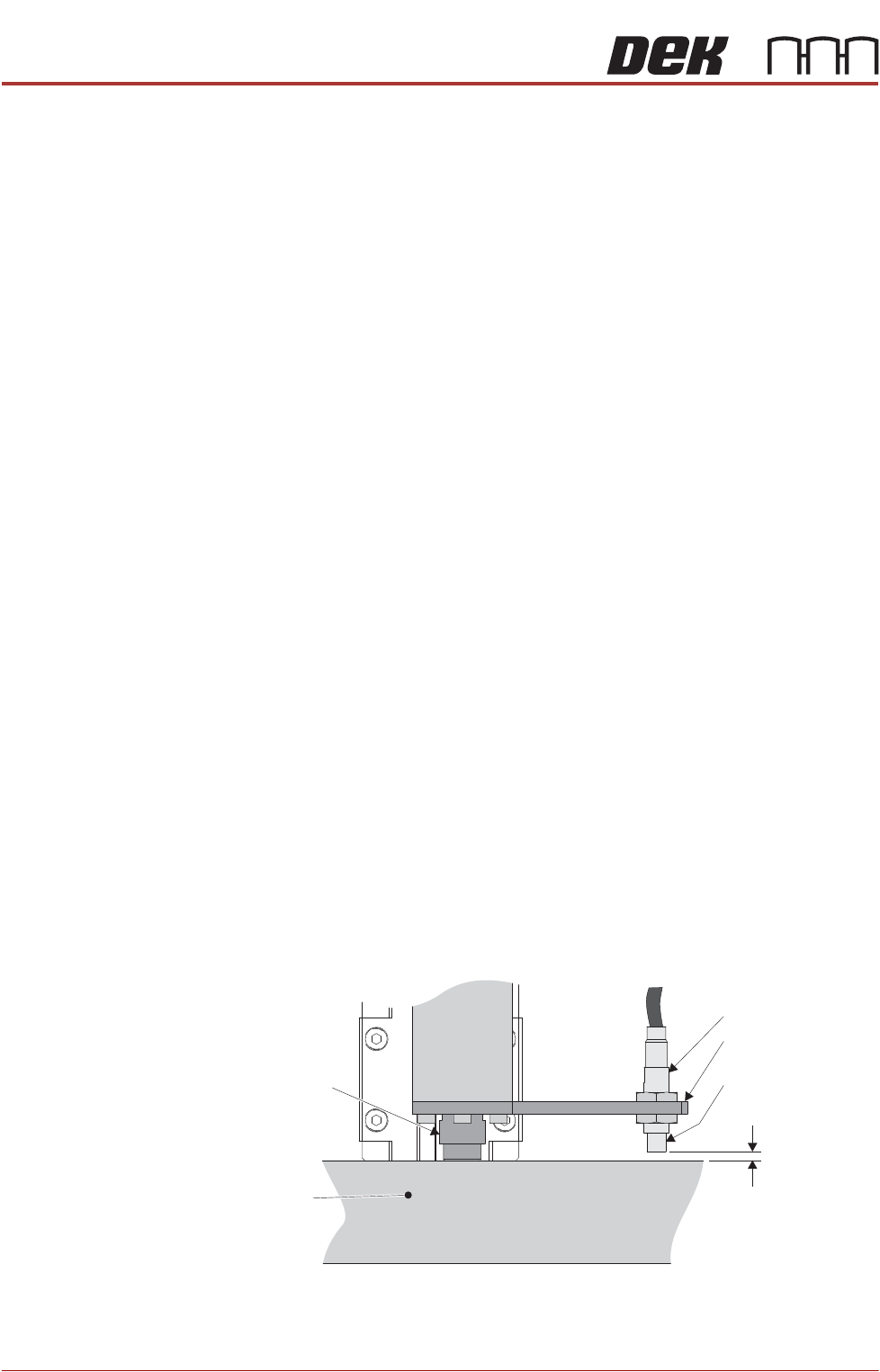
10. Identify the rear right rail transport leg and the rail stop bar (clatter bar)
11. Adjust the sensor position, so that a 3.5mm feeler gauge fits between the
sensor and the top face of the clatter bar and a 4mm feeler gauge does not
fit.
12. Repeat Step 11 for left hand end of the rear rail.
Rail Stop Bar
(Clatter Bar)
Sensor LED
Side View on Rear Right Rail Transport Leg
Sensor Support
Bracket
Sensor
3.5mm - GO
4mm - NO GO
Shock Absorber
ALL PURPOSE CLAMPING (APC)
ADJUSTMENTS AND SETTINGS
Chapter Issue 1 Nov 16 All Purpose Clamping (APC) Manual 1.23
13. Select Board Width parameter.
14. Enter a value of 40.5mm (minimum board width), and select Accept.
15. Select Rails To Board Width.
16. Repeat Steps 11 and 12.
17. Select Back.
18. Select Exit Diagnostics.
19. Select Confirm.
Board at Left/Right
Optos
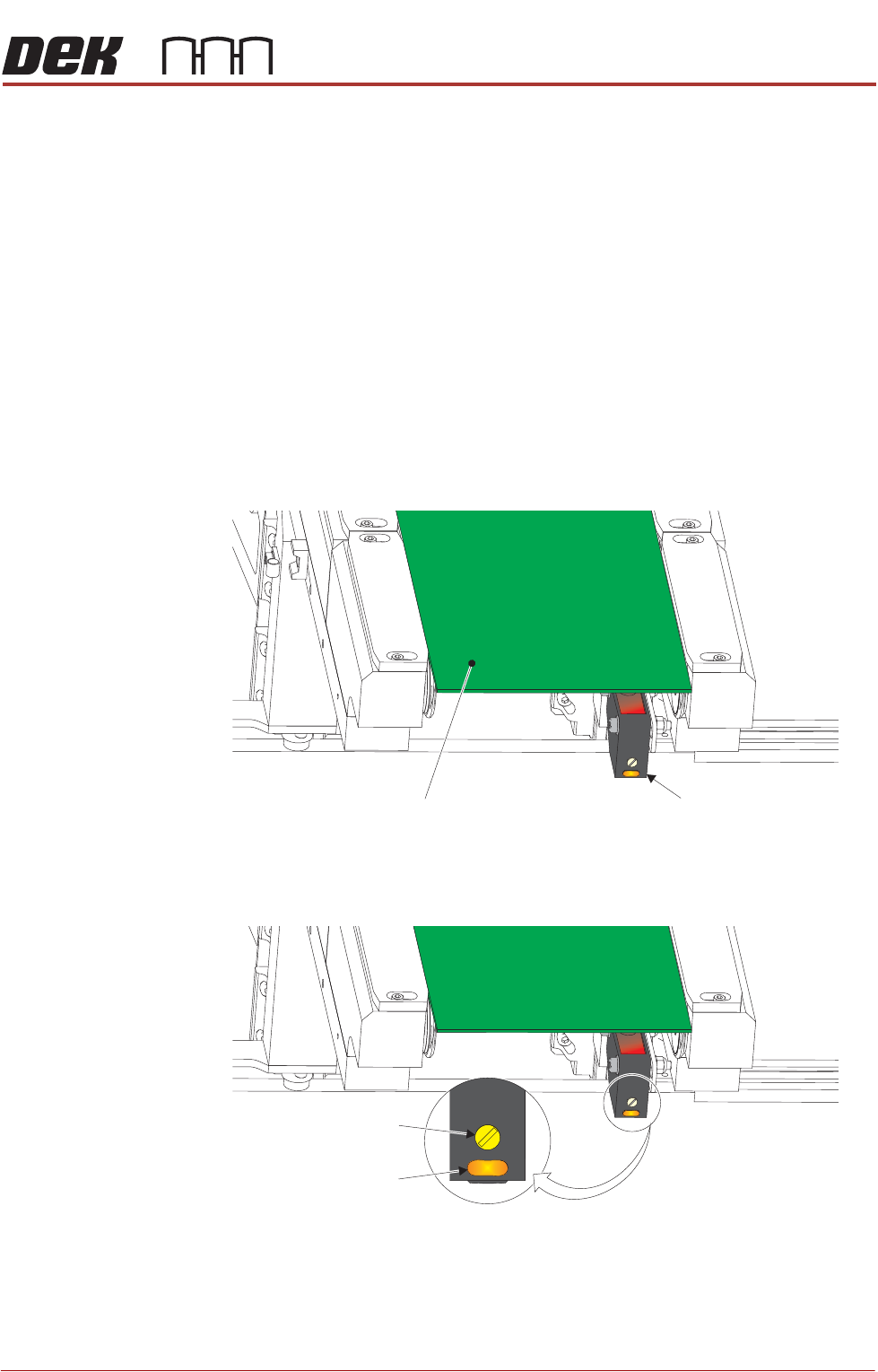
The board at left/right optos switching threshold can be adjusted by means of a
sensitivity control. This ensures that when a board is fed into the machine (via
the transport belts) the sensor output switches to ON.
To achieve an optimum setting carry out the following procedure:
1. Place a board on the rails covering the sensor.
2. Turn the sensitivity control fully anti-clockwise, ensure that the amber LED
is extinguished.
3. Re-adjust the sensitivity control clockwise until the amber LED illuminates.
NOTE
If the amber LED is flashing, this indicates a weak signal. Re-adjust the
sensitivity control.
View on Inroad Conveyor
Board at Left SensorBoard
Sensitivity Control
Test LED
ALL PURPOSE CLAMPING (APC)
ADJUSTMENTS AND SETTINGS
1.24 All Purpose Clamping (APC) Manual Chapter Issue 1 Nov 16
4. Remove the board from the rails and confirm the amber LED extinguishes.
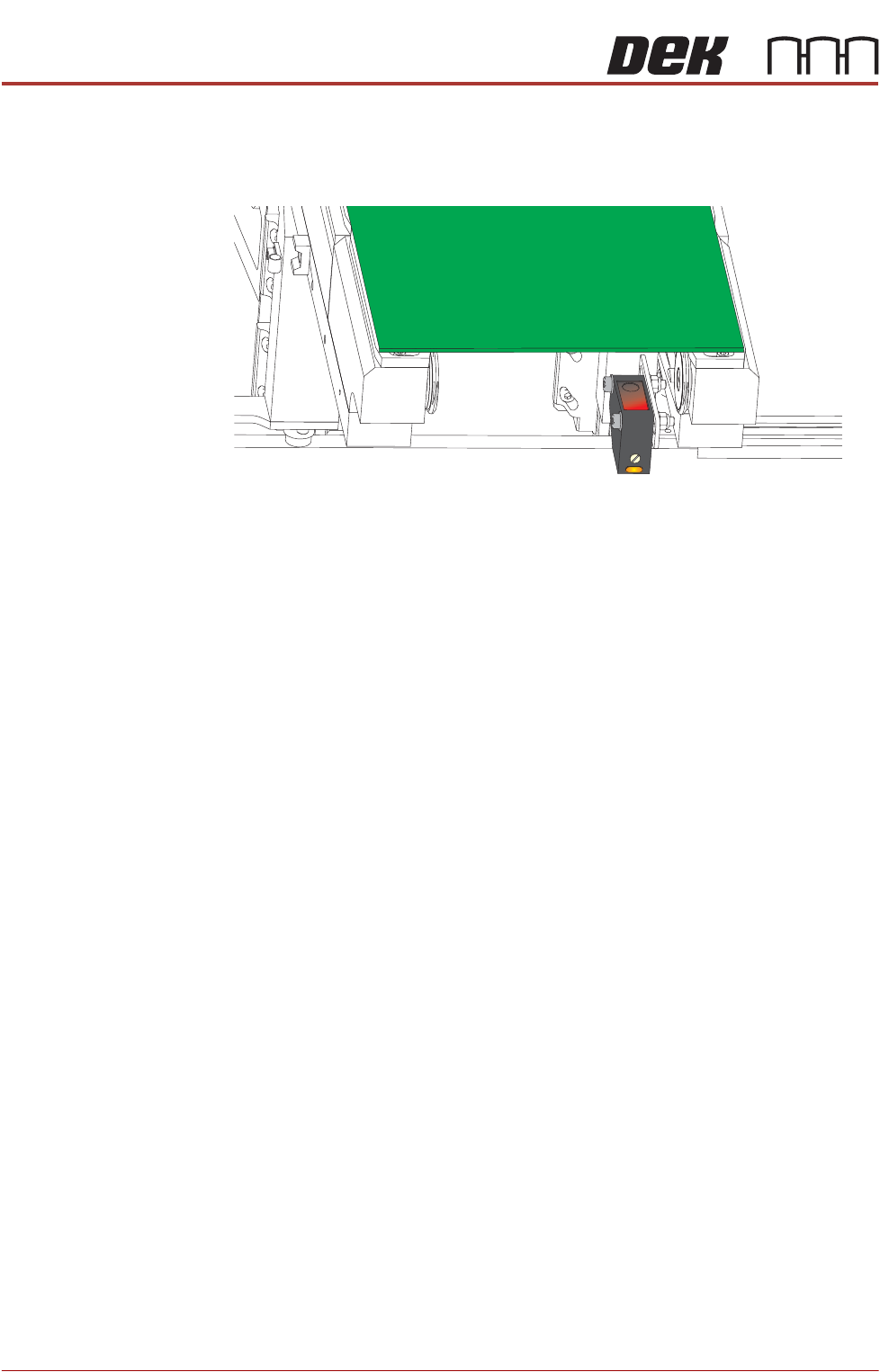
5. Turn the board 90° and position back onto the rail system (so that the board
lies on top of the rail system as shown in the graphic below).
6. Confirm that the amber LED is extinguished. If the amber LED illuminates,
turn the sensitivity control anti-clockwise until the amber LED extinguishes.
7. Remove the board.
8. Position the board back on the rail system, as in Step 1, and confirm that the
amber LED illuminates.
9. If the board has holes or cut-outs, go to Step 10.
Otherwise, go to Step 13.
10. Slide the board backward and forward across the sensor ensuring that the
LED is only triggered by the leading and trailing edges of the board.
11. If the LED flickers when encountering holes or cut-outs, turn the sensitivity
control clockwise a further quarter turn.
12. Repeat Steps 10 and 11 until the correct setting is achieved.
13. Remove the board from the rails and confirm that the amber LED extin-
guishes.
Front Rail
Parallelism
1. Select Open Cover Commands.
2. Select Carriage To Rear.
3. Select Unload Screen.
4. Open the front printhead cover.
5. Remove the screen from the machine.
6. Close the front printhead cover.
7. Press the System button.
8. Select Back.
9. Select Maintenance.
10. Select Diagnostics.
11. Use Next or Previous to highlight Rail System.
12. Select Select Module.