APC - 224650 Issue 1.pdf - 第51页
ALL PURPOSE CLAMPING (APC) ADJUSTMENTS AND SETTINGS Chapter Issue 1 Nov 16 All Purpose Clamping (APC) Manual 1.39 Mid Plate Down (Flow Controller 2A) T o set the mid plate down flow contro ller: 1. Locate flow con trolle…
ALL PURPOSE CLAMPING (APC)
ADJUSTMENTS AND SETTINGS
1.38 All Purpose Clamping (APC) Manual Chapter Issue 1 Nov 16
3. Select Diagnostics.
4. Use Next or Previous to highlight Rail System.
5. Select Select Module.
6. Use Next or Previous to highlight Cycle Mid Plate Up and Down.
7. Select Run Diagnost.
8. Focusing on the mid plate up movement, adjust the flow controller to achieve
a controlled upward movement (approximately 1.5 full turns anti-clockwise
from the closed position - should not exceed 2 full turns).
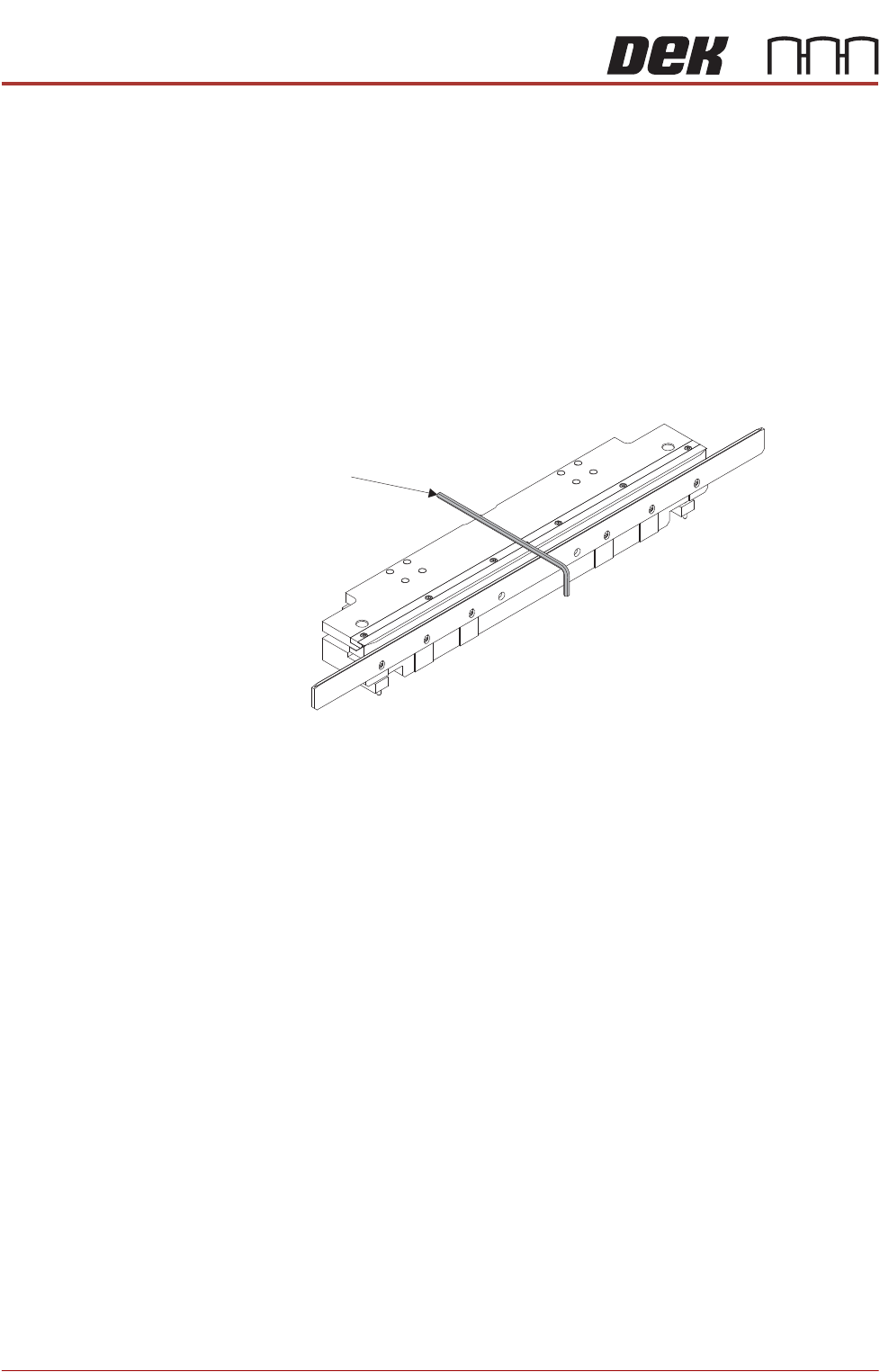
9. When the mid plate cycle has completed, place a 3mm Allen key over the
top of the unit
10. Use Next or Previous to highlight Toggle Board Clamps.
11. Repeatedly toggle board clamps ON, then OFF. Observe the operation of
the clamps as they rise, this should be a smooth movement. There should
be no rattling from the clamp assembly or the Allen key.
12. If the clamp upwards movement is not smooth and/or there is noticeable
rattling repeat Steps 6 to 11.
If the clamp upwards movement is smooth and there is no noticeable rattling
from either the clamp assembly or the Allen key, tighten the flow controller
locknut to prevent accidental adjustment.
Allen Key

ALL PURPOSE CLAMPING (APC)
ADJUSTMENTS AND SETTINGS
Chapter Issue 1 Nov 16 All Purpose Clamping (APC) Manual 1.39
Mid Plate Down
(Flow Controller 2A)
To set the mid plate down flow controller:
1. Locate flow controller 2A (blue pipe) on the pneumatic loom, found in the
right hand side of the machine where the front and rear pneumatics join
together.
2. In the machine software, select Maintenance.
3. Select Diagnostics.
4. Use Next or Previous to highlight Rail System.
5. Select Select Module.
6. Select Adjust.
7. Use Next or Previous to highlight Clamp Pressure.
8. Use Incr. or Decr. to set to 1.5 bar.
9. Select Exit.
10. Place a board in the print area. Adjust the flow controller so it is fully open
(fully anti-clockwise).
11. While toggling Toggle OTS Over Top Clamp ON and OFF as required:
a. Check that both clamps go all the way down and are flush with the board.
NOTE
It is important to check both clamps simultaneously as they do not always
react the same.
b. If the clamps do not go all the way down this means the balance pressure
was set too high. Reduce the Balance Pressure Regulator slightly
(1/8 turn anti-clockwise) and re-check the clamps go all the way down.
c. Repeat Step 11.b. until the clamps go all the way down.
d. Adjust the flow controller, reducing the air (clockwise), so that the clamps
do not go all the way down.
e. Adjust the flow controller, increasing the air (anti-clockwise), just to the
point where the clamps are down flat again.
f. Adjust the flow controller a further half turn (anti-clockwise). Tighten the
flow controller locknut to prevent accidental adjustment
12. Re-check Mid Plate Balance Pressure Regulator (as detailed earlier in this
Chapter), and verify the clamps still remain in a neutral position.
13. Select Adjust.
2A
Flow Controller
Adjust
Locknut

ALL PURPOSE CLAMPING (APC)
ADJUSTMENTS AND SETTINGS
1.40 All Purpose Clamping (APC) Manual Chapter Issue 1 Nov 16
14. Use Next or Previous to highlight Clamp Pressure.
15. Use Incr. or Decr. to reset to 3 bar.
16. Select Exit.
17. Use Next or Previous to highlight Toggle Board Clamp.
18. While toggling Toggle Board Clamp ON and OFF as required, ensure that
clamp movement is smooth and that both clamps go all the way down to flat.
19. Remove the board from the print area.