APC - 224650 Issue 1.pdf - 第45页
ALL PURPOSE CLAMPING (APC) ADJUSTMENTS AND SETTINGS Chapter Issue 1 Nov 16 All Purpose Clamping (APC) Manual 1.33 49. With the calibration b oard level with the input end rail board guides, push the board hard against th…
ALL PURPOSE CLAMPING (APC)
ADJUSTMENTS AND SETTINGS
1.32 All Purpose Clamping (APC) Manual Chapter Issue 1 Nov 16
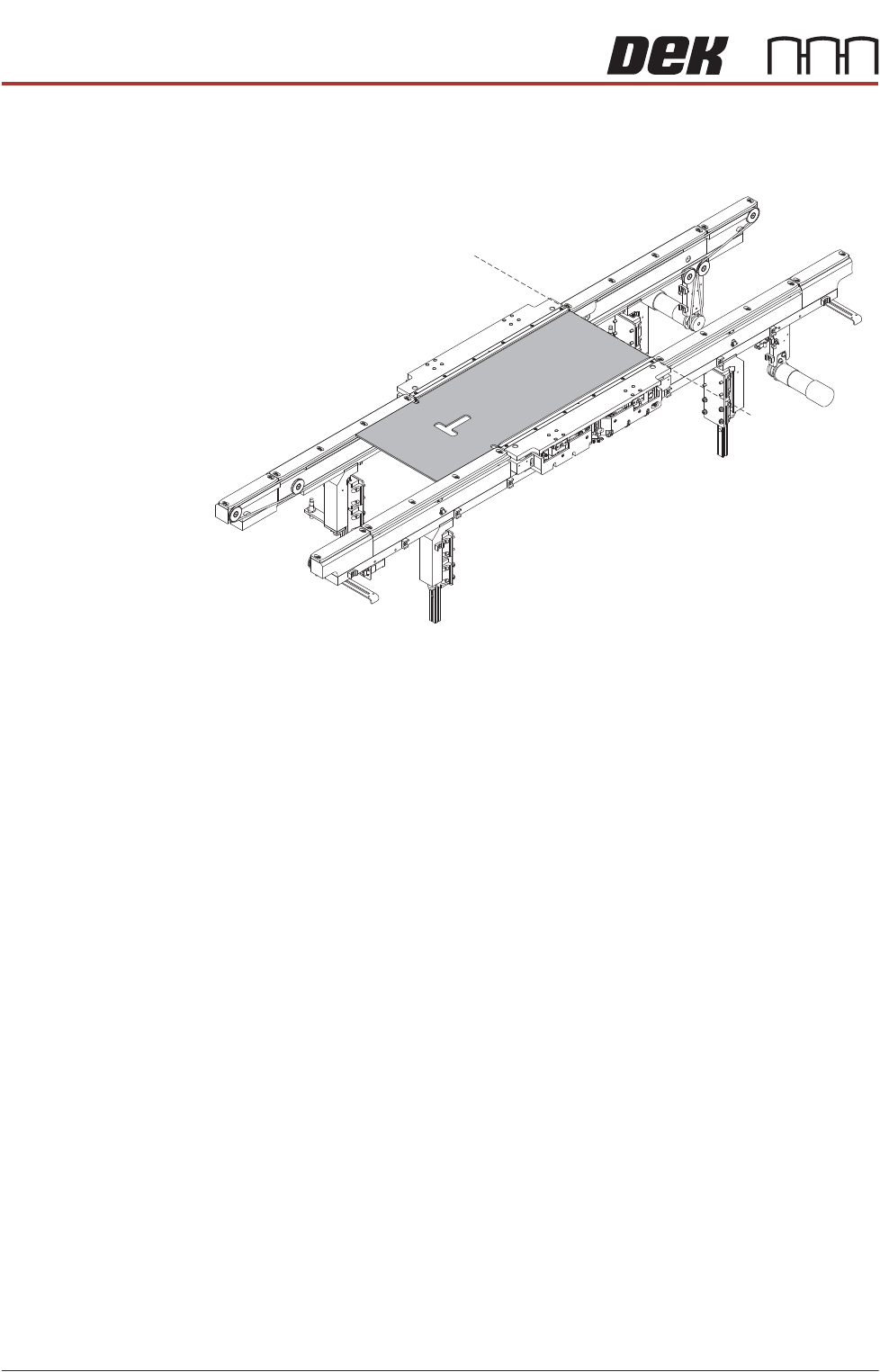
37. Remove the setting jig from the machine. Flip over and replace in the print
area. Align the right-hand edge of the jig with the right-hand end of the APC
modules.
38. Repeat Steps 34 to 36 for the input end rail board guides.
39. Remove the setting jig from the machine.
40. Close the front printhead cover, press the System button.
41. Use Next or Previous to highlight Home Rail Width is highlighted.
42. Select Run Diagnost.
43. Select Adjust and set the board width to 250mm.
44. Select Exit.
45. Use Next or Previous to highlight Drive Rail to Board Width.
46. Select Run Diagnost.
47. Open the front printhead cover.
48. Place the calibration board on the input transport rail belts.
Alignment
ALL PURPOSE CLAMPING (APC)
ADJUSTMENTS AND SETTINGS
Chapter Issue 1 Nov 16 All Purpose Clamping (APC) Manual 1.33
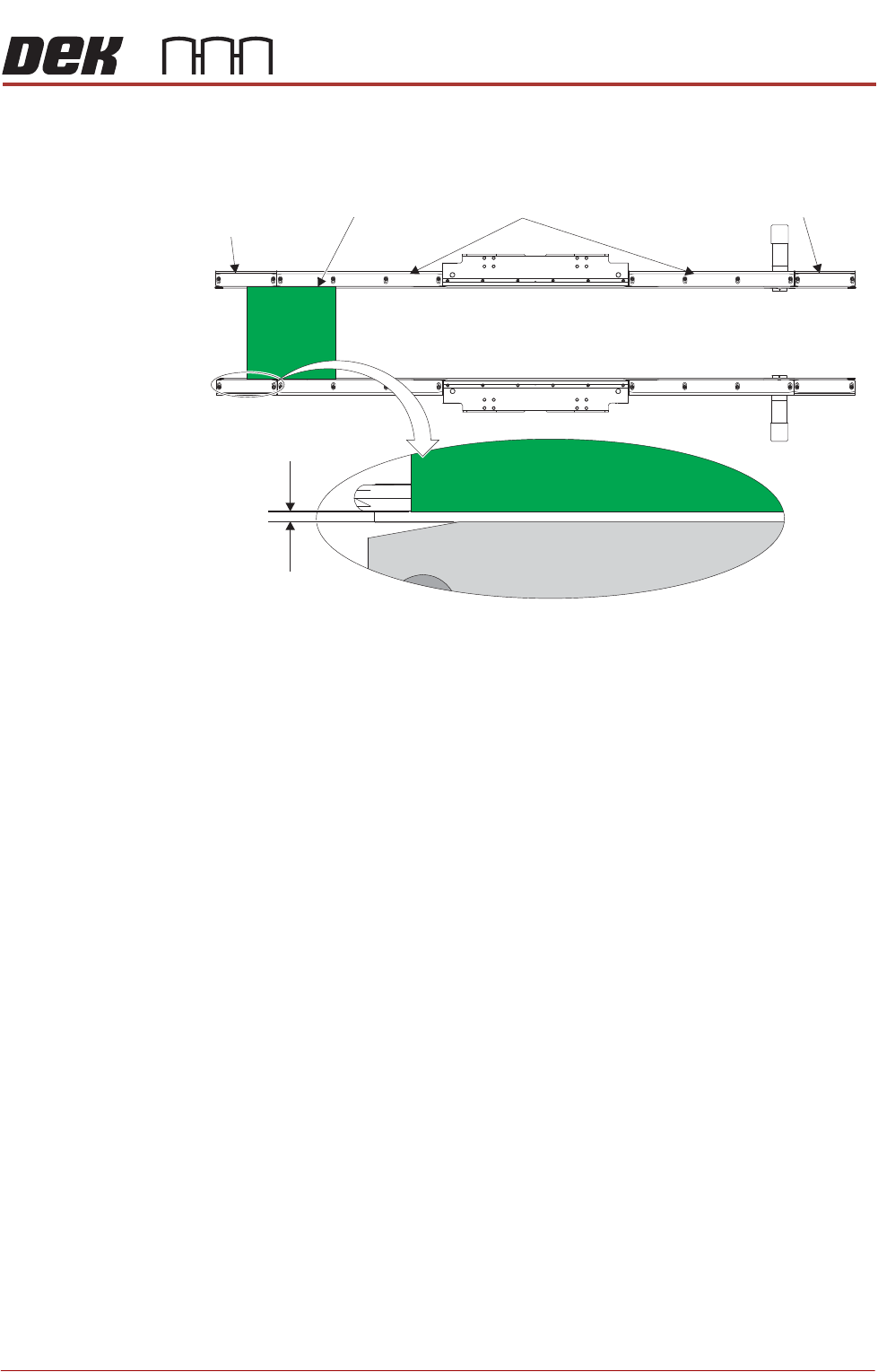
49. With the calibration board level with the input end rail board guides, push
the board hard against the rear rail end board guide. Ensure that the gap
between the board and the front rail end board guide is 1.0mm.
50. Repeat Step 49 for both sets of mid rail board guides and the output end rail
board guides.
51. If any of the gaps measured are larger/smaller than 1.0mm, then the board
guide positions require adjustment. Repeat Steps 9 to 50.
52. Once all gaps are measured correctly as 1.0mm, remove calibration board
from the rails.
53. Close the front printhead cover, press the System button.
54. Select Exit.
55. Select Exit.
56. Select Back.
57. Perform Board Transit Clearance check.
Board Transit
Clearance Check
These checks are performed to ensure that boards run freely when transported
on the rails.
Input Conveyor
Check
1. Select Setup Product.
2. Select Load Product. Ensure that the product name selected matches the
board to be used for this test procedure.
3. Select Tooling. Ensure that the desired APC clamping mode and other APC
parameters are correctly defined.
4. Select Setup Tooling.
5. Select Load Board.
6. Position the board to be loaded on the input rails.
7. Select Auto Board.
=1.0mm
Close Up View on Board Guide Gap
End Rail Board Guide
End Rail
Board Guide
Calibration Board
Mid Rail Board Guide

ALL PURPOSE CLAMPING (APC)
ADJUSTMENTS AND SETTINGS
1.34 All Purpose Clamping (APC) Manual Chapter Issue 1 Nov 16
8. Check that the board transits into the printing area successfully with the
minimum of noise (no excessive clicking or knocks).
If the board does not arrive into the printing area, or excessive noise
(clicking, knocking etc) is encountered then the Home Position Rail Width
and Board Guide Setting procedure should be completed.
9. Carry out the Output Conveyor Check as detailed below.
Output Conveyor
Check
1. Select Transport Height.
2. Select Unload Board.
3. Select Auto Board.
4. Check that the board exits the printing area successfully, and comes to a
stop on the output conveyor with the minimum of noise (no excessive
clicking or knocks).
If the board does not exit the printing area and arrive successfully at the
output conveyor, or excessive noise (clicking, knocking etc) is encountered
then the Home Position Rail Width and Board Guide Setting procedure
should be completed.
Rail to Table Height The rail to table height ensures that the board is supported correctly and evenly
during the print process.
NOTE
Rail to Table Height setting is factory set and no attempt should be made to
make adjustment. If the transport rails have been removed from the printer, a
coplanitary procedure must be carried out before commencing printing. Please
contact your local customer support office for more details.