SIPLACE D4-D4i 工程师手册_EN.pdf - 第205页
Settings 6.2.4 Checking the DIP Switches Gantry Service Manual SIPLACE D4/D4i 205 6.2.4 6 . 2 . 4 C h e c k in g t h e D I P S w it c h e s Checking the DIP Switches 6.2.4.1 6 . 2 . 4 . 1 D I P S w it c h o n G a n t r y…
Settings
Gantry 6.2.3 Description of the PCB boards on the Gantry
204 Service Manual SIPLACE D4/D4i
6.2.3.2
6.2.3.2 Vision Board (Digital)
Vision Board (Digital)
The Vision processor board is mounted on the gantry head distributor board. This PCB is used for all
four gantries.
See also
6.2.4.2 DIP Switch on Vision Board [ ➙ 205]
6.2.3.3
6.2.3.3 CAN 16 bit processor board (TQ module)
CAN 16 bit processor board (TQ module)
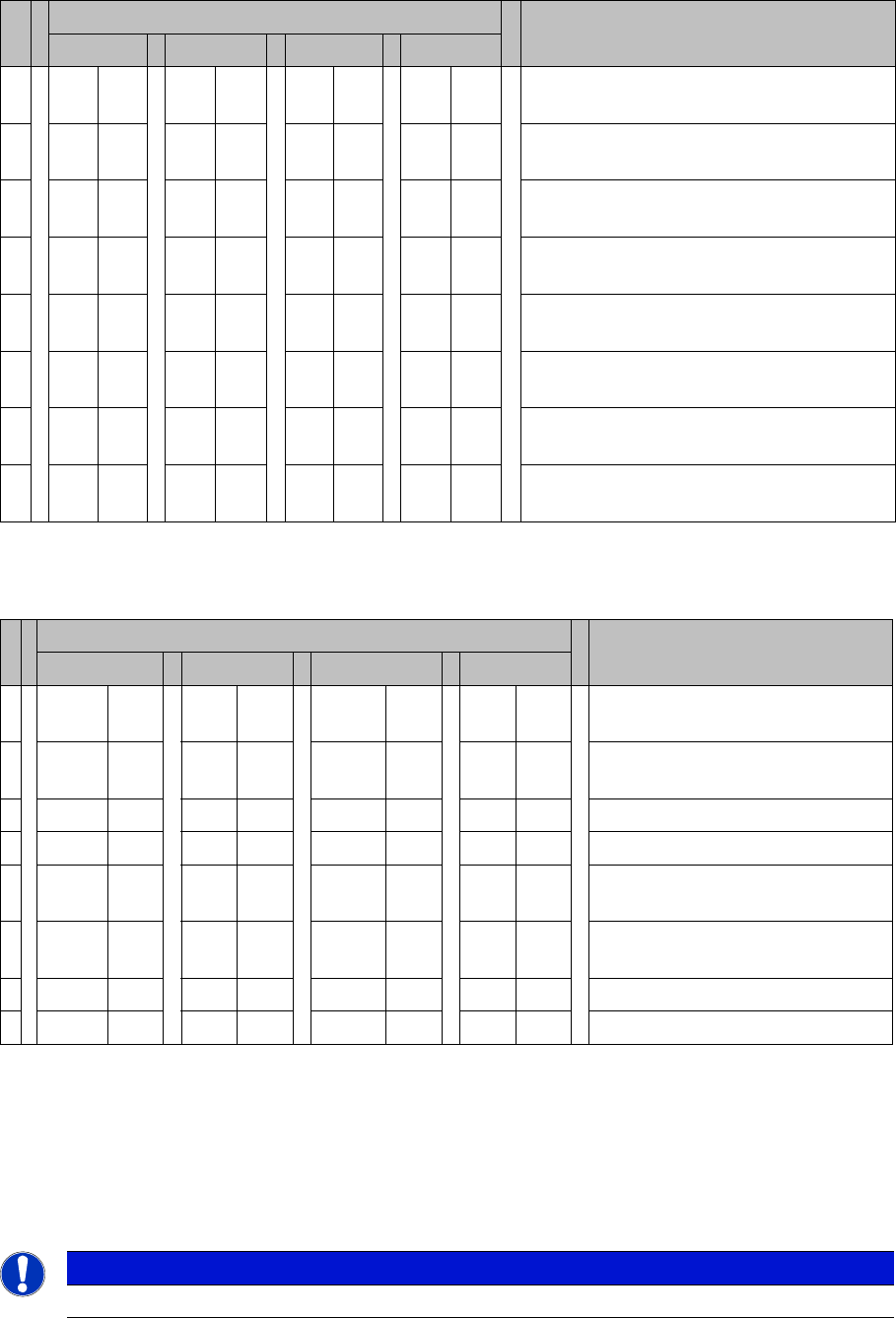
Description of 7-segment display (normal operation "." flashes):
▪ After switch ON the machine appears " 0 " on the display
▪ Display "b" --> BIOS was started.
▪ Display flashes alternatively between "b" and "." --> no application available or unable to start appli-
cation.
▪ Display " -I " and " I- " application was loaded.
▪ "." flashes on the display --> ready for operation.
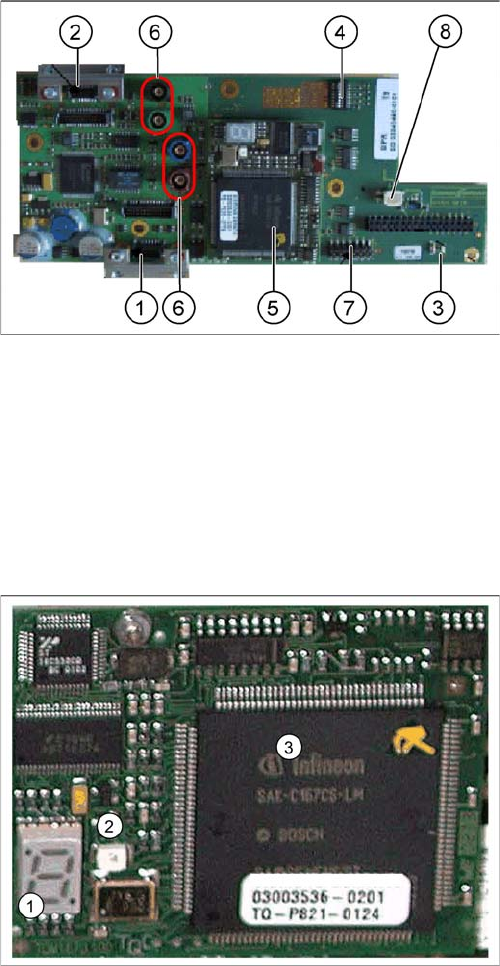
Vision board
Legend
1. X8 Connector illumination and video signals PCB
camera
2. X3 Connector illumination and video signals compo-
nent camera
3. LEDs P15V - 15Volt / Vcc - Power supply Vision
board
4. DIP switch
5. CAN processor 16 bit (TQM module)
6. Connector X22 - X25 - Connectors for the video cable
to the trailing cable
7. Connector X11 for download
8. Voltage supply 11 VDC, measurable
16 bit processor (TQ module)
Legend
1. 7 Segment display
2. LED for manual RESET of processor
3. 16 bit processor
The 16 BIT CAN processor is used for various different
functions in the following units:
(see chapter communication and control too)
▪ Visionboard, communication and control via the CAN
Bus to the Vision computer.
▪ Gantry head distributor, control of head processes
and vacuum
Settings
6.2.4 Checking the DIP Switches Gantry
Service Manual SIPLACE D4/D4i 205
6.2.4
6.2.4 Checking the DIP Switches
Checking the DIP Switches
6.2.4.1
6.2.4.1 DIP Switch on Gantry Head Distributor
DIP Switch on Gantry Head Distributor
* Not all gantries may be available, depending on the machine type.
6.2.4.2
6.2.4.2 DIP Switch on Vision Board
DIP Switch on Vision Board
* Not all gantries may be available, depending on the machine type.
6.2.5
6.2.5 Mechanical Adjustment of the Incremental Encoder
Mechanical Adjustment of the Incremental Encoder
The incremental encoders (read units) on the X and Y axis are adjusted exactly to the position of the
incremental scale. The two limit marks on the incremental encoder show where the top/bottom positions
of the scale should be. The encoder is also mechanically set to a distance of 0.4 mm +/- 0.1 mm to the
incremental scale.
S Setting for gantry* Comments
1 2 3 4
1OF
F
ON OF
F
ON P0 – gantry ID0 address switch 1 --> gan-
try
2OF
F
OF
F
ON ON P1 – gantry ID1 address switch 2 --> gan-
try
3OF
F
OF
F
OF
F
OF
F
S1 – switch for DLM head (delay switching
on LB down – Z-axis)
4OF
F
OF
F
OF
F
OF
F
BL – Enable boot loader for serial port
5OF
F
OF
F
OF
F
OF
F
Reset - CAN processor 16 Bit (TQM mod-
ule)
6OF
F
OF
F
OF
F
OF
F
C0 – no current function
7OF
F
OF
F
OF
F
OF
F
C1 – no current function
8OF
F
OF
F
OF
F
OF
F
S2 – switch for DLM head (no current
function)
S Setting for gantry* Comments
1 2 3 4
1 OFF OFF OFF OFF Boot mode - CAN processor 16
Bit via connector X11
2 OFF OFF OFF OFF Reset - CAN processor 16 Bit to
subboard
3OFF ON OFF ONP0 - Address switch 1 --> Gantry
4OFF OFF ON ONP1 - Gantry address switch 2
5 OFF OFF OFF OFF WPE - Write protect enable, cur-
rently OFF
6 OFF OFF OFF OFF CAN R - Switch terminator CAN
bus
7ONON ONONTest 1 - CAN 1 MBit/s --> ON
8ONON ONONTest 0 - CAN IDs --> ON
NOTICE
To set this distance, use one or more small plastic disks with a total thickness of 0.4 mm.
Settings
C&P12 6.3.1 Calibrating the C&P Head and Cameras
206 Service Manual SIPLACE D4/D4i
After this adjustment of the incremental encoder you have to check the zero pulse and track signals.
Correct installation should ensure correct count and zero pulse signals. For troubleshooting purposes
(error analysis and fixing), you will need to measures these signals with the oscilloscope. (See service
manual.)
6.3
6.3 C&P12
C&P12
6.3.1
6.3.1 Calibrating the C&P Head and Cameras
Calibrating the C&P Head and Cameras
Automatic calibration of all heads and cameras
6.3.2
6.3.2 Boards at C&P12
Boards at C&P12
All the settings described in this chapter are head-specific and apply here for the C&P12.
The menu may vary, according to the machine type and
configuration.
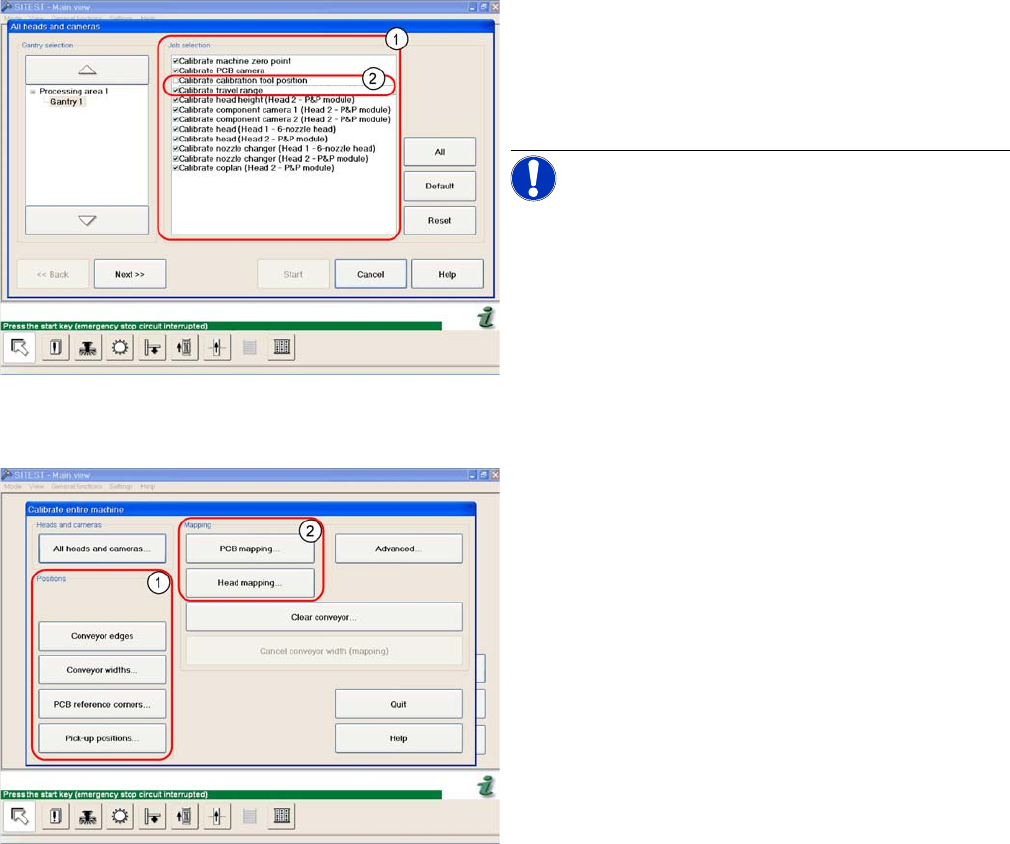
► In the SITEST menu, select Calibrate Entire Machine
--> All Heads and Cameras to open the adjacent
menu.
► In Job Selection (1) , select the components to be cal-
ibrated.
NOTICE! These two entries (2) are optional.
► To continue calibration with manual handling, select
the four consecutive menus in Section Positions (1)
and the two menu items in the Section Mapping (2).