00193688-06_Installation SIPLACE Explorer2.1_EN.pdf - 第109页
Installation and Configuration Guide SIPLACE Explorer 4 Configuration Edition 11/2006 EN 4.2 Configuring the Factor y Configuration Utility 109 4 Fig. 4 - 48 DB administrator login → Enter the access dat a here and confi…
4 Configuration Installation and Configuration Guide SIPLACE Explorer
4.2 Configuring the Factory Configuration Utility Edition 11/2006 EN
108
4.2.7 DB Maintenance
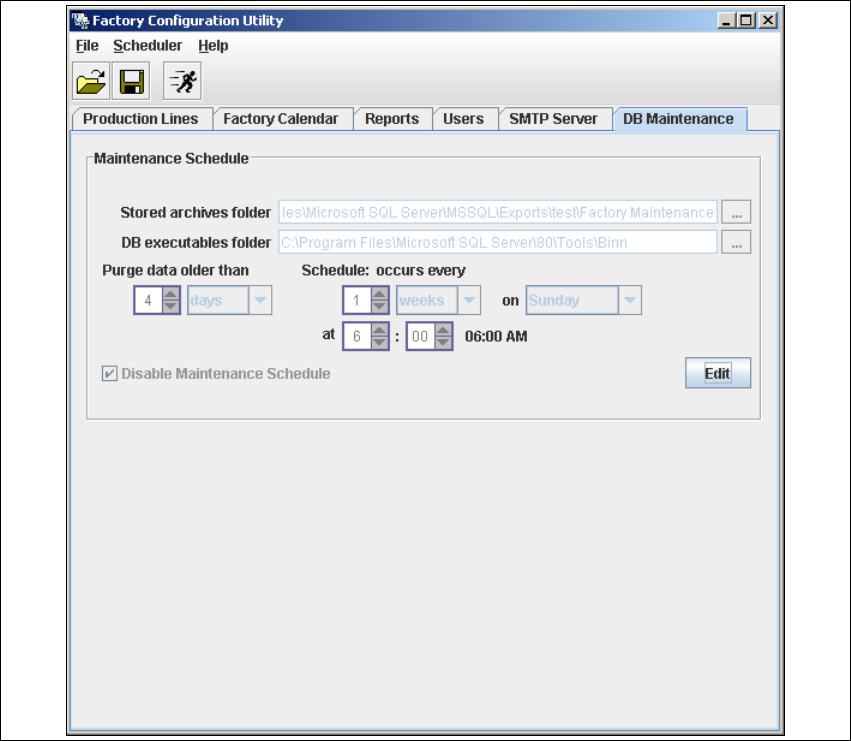
Define the maintenance schedule for the factory database, here. 4
→ Select the DB Maintenance tab.
4
Fig. 4 - 47 Factory Configuration Utility - DB maintenance
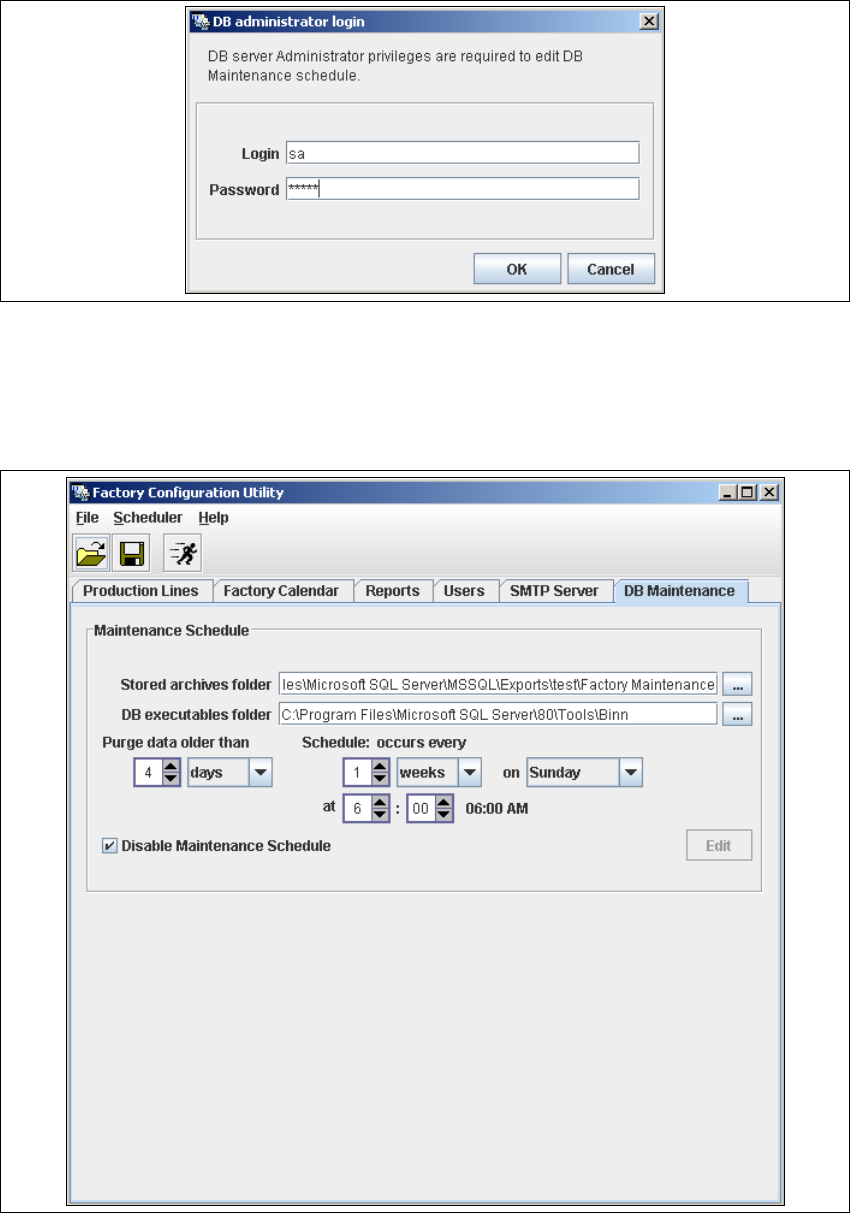
→ Before you can enter data you must log yourself in as database administrator. Click on the Edit
button to open the DB Administrator Login dialog box.
Installation and Configuration Guide SIPLACE Explorer 4 Configuration
Edition 11/2006 EN 4.2 Configuring the Factory Configuration Utility
109
4
Fig. 4 - 48 DB administrator login
→ Enter the access data here and confirm your entries with OK.
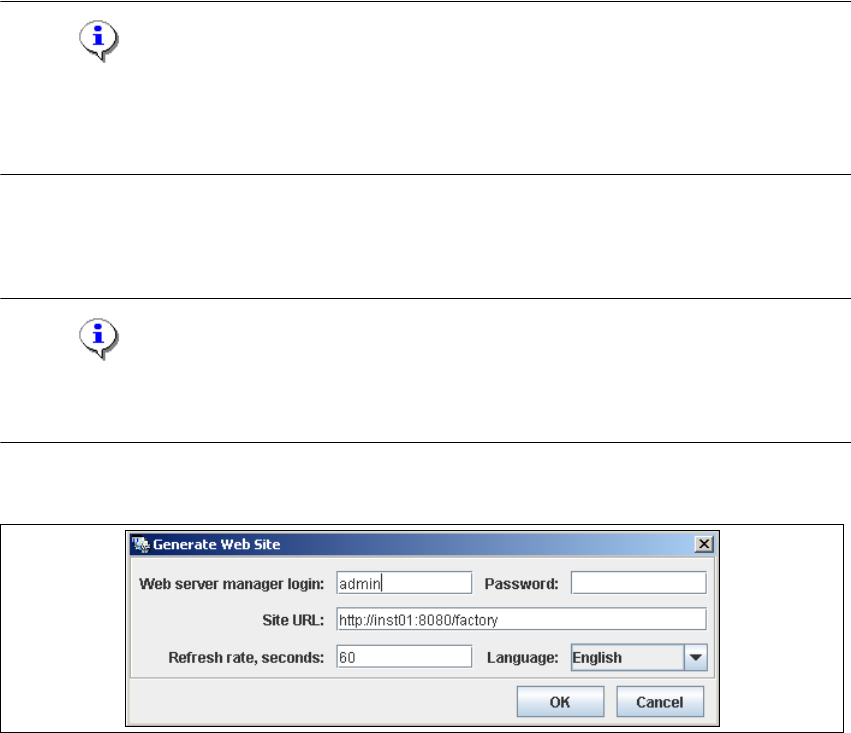
→ In the DB Maintenance dialog box, you can either create a new archiving schedule for the
factory database or edit the default maintenance schedule. The entry fields will be enabled.
4
Fig. 4 - 49 DB maintenance
4 Configuration Installation and Configuration Guide SIPLACE Explorer
4.2 Configuring the Factory Configuration Utility Edition 11/2006 EN
110
→ The following details can be defined:
– The file and path for the archived data
– A schedule specifying the intervals and times when data is to be removed from the line
system database and stored in the archive.
– When to execute the archiving schedule.
– The archiving schedule defined here will be stored in the database and can be called up
when required.
NOTE
Remember to regular perform a database backup for the factory database. This can be carried
out with the database tool on your computer e.g. with the Enterprise Manager for the MS SQL
server. 4
4.2.8 How to Generate a Website
NOTE
To generate a factory website, you require web server manager privileges (Tomcat administrator)
and the corresponding password. 4
→ Select the function Generate Web Site ... from the File menu.
4
Fig. 4 - 50 Factory Configuration Utility - generate website
→ Specify the access data for the Tomcat administrator. If you entered admin and an empty
password during Tomcat configuration, this data will be automatically used as a default login.
If this is not the case, use the data you specified during Tomcat configuration.