00193688-06_Installation SIPLACE Explorer2.1_EN.pdf - 第79页
Installation and Configuration Guide SIPLACE Explorer 4 Configuration Edition 11/2006 EN 4.1 Standard Monitoring Application (SMA) 79 4.1.1.6 Step 5 - Configure Sys tem Dat abase → Now you can configure the SIPLACE Explo…
4 Configuration Installation and Configuration Guide SIPLACE Explorer
4.1 Standard Monitoring Application (SMA) Edition 11/2006 EN
78
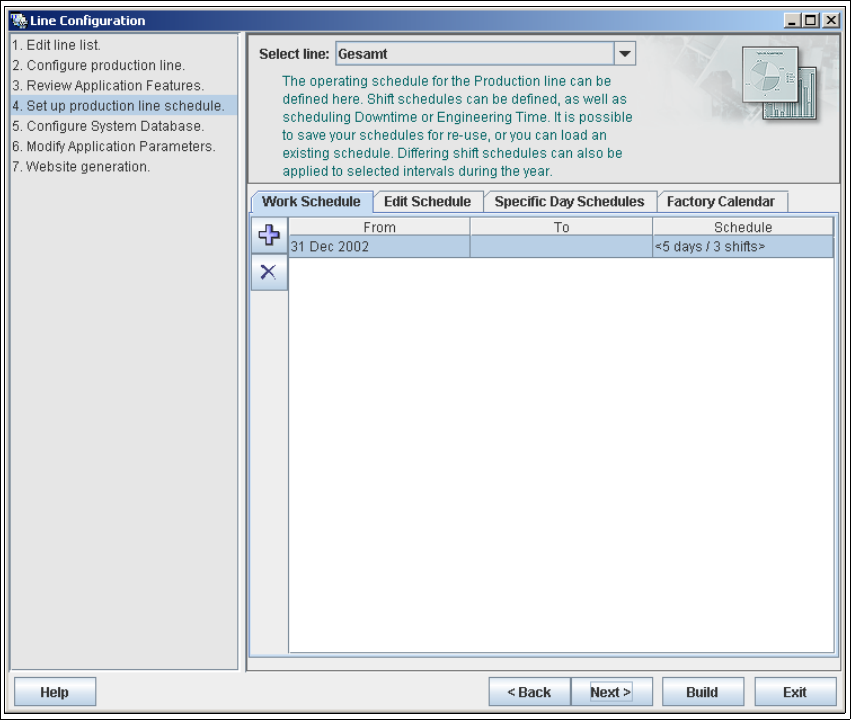
4.1.1.5 Step 4 - Set Up Production Line Schedule
The SIPLACE Explorer Calendar allows you to specify a production line schedule: 4
– Define a weekly shift schedule,
– Plan engineering and scheduled downtime for machines in the line and
– Apply the schedule to a time interval.
4
Fig. 4 - 8 Step 4: set up production line schedule
→ When the schedule for the production line as been defined, click on Next to continue with the
next step.

Installation and Configuration Guide SIPLACE Explorer 4 Configuration
Edition 11/2006 EN 4.1 Standard Monitoring Application (SMA)
79
4.1.1.6 Step 5 - Configure System Database
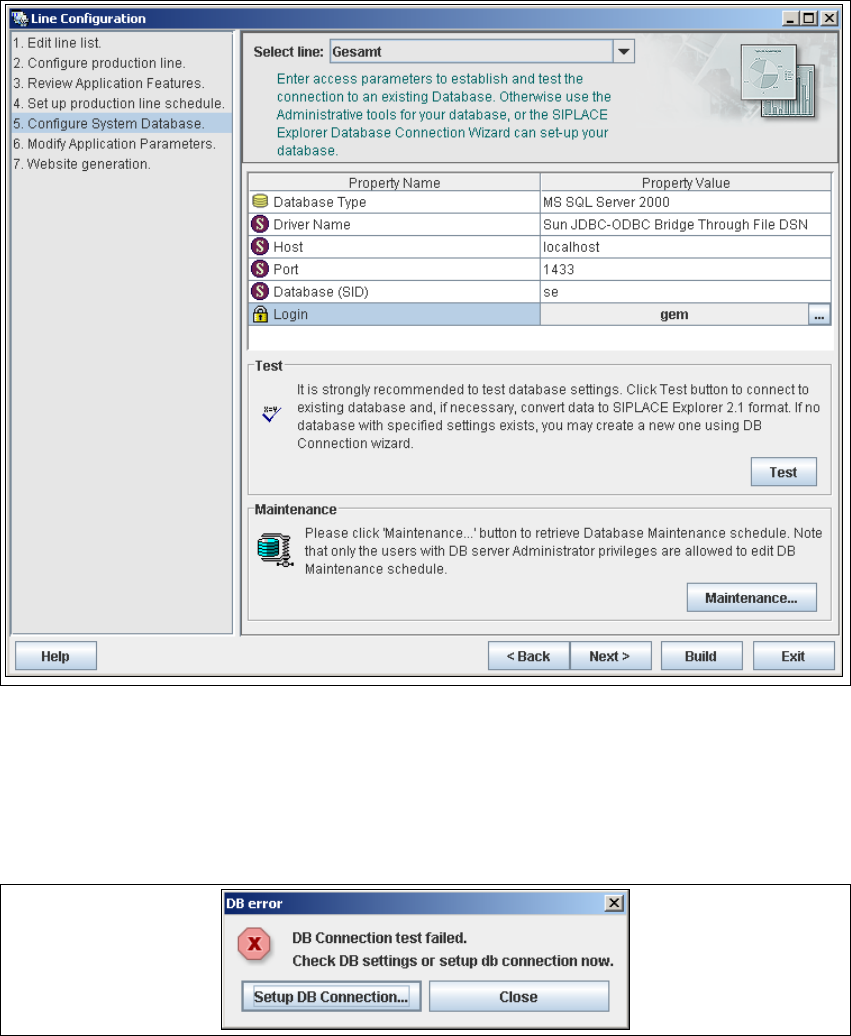
→ Now you can configure the SIPLACE Explorer System database settings:
– Database type;
– Driver name;
–Host;
–Port;
– Database name;
– Login (click on the corresponding cell button to call up a dialog box in which you can specify
login information, i.e. user name and password).
→ For MS SQL Server database the default port '1433' will be offered, which does not usually
need to changed.
NOTE
If you have installed MSDE 2000, you must now enter the port number shown during the
installation procedure. 4
4 Configuration Installation and Configuration Guide SIPLACE Explorer
4.1 Standard Monitoring Application (SMA) Edition 11/2006 EN
80
4
Fig. 4 - 9 Step 5: configure system database
→ After entering the database access parameters, we strongly recommend that you check the
connection to the database. Click Test to check whether the connection to the database can
be established.
→ If the connection does not function properly, you will see the following information box:
4
Fig. 4 - 10 DB error
→ Click on the Setup DB Connection button to start the DB Connection Wizard setup
sequence and configure the SIPLACE Explorer system database. Follow the instructions at