00193688-06_Installation SIPLACE Explorer2.1_EN.pdf - 第45页
Installation and Configuration Guide SIPLAC E Explorer 3 Installing SIPLACE Explorer Edition 11/2006 EN 3.1 Initial Installation of SIPLACE Explorer 2.1 45 3.1.3.2 Bundled W eb Server Inst allation - MS XML Core Services…
3 Installing SIPLACE Explorer Installation and Configuration Guide SIPLACE Explorer
3.1 Initial Installation of SIPLACE Explorer 2.1 Edition 11/2006 EN
44
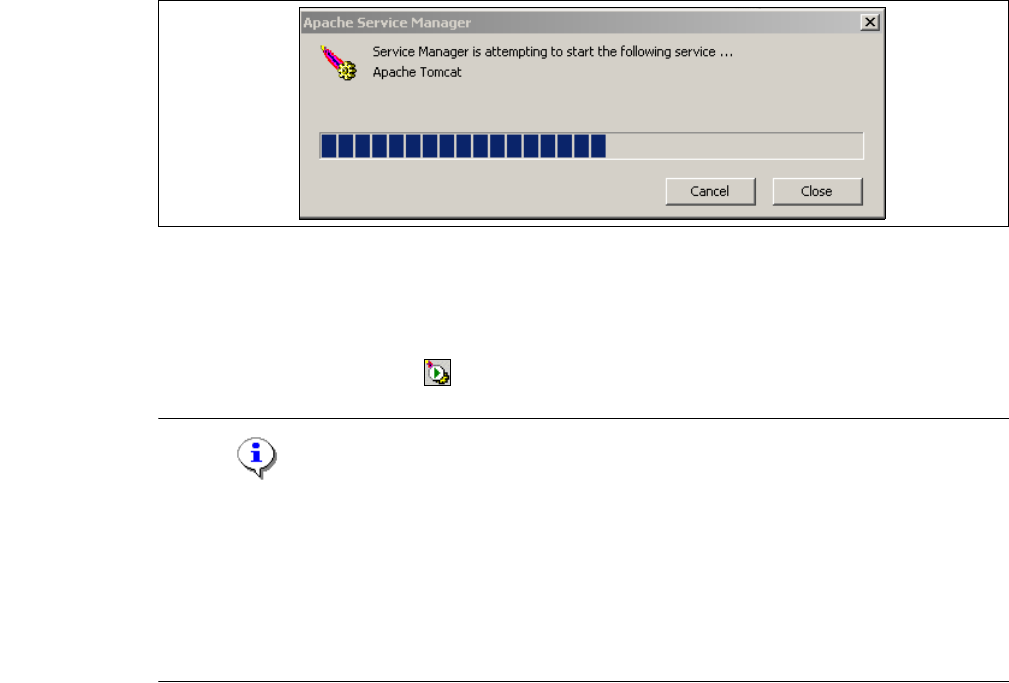
→ If you have enabled the option Run Apache Tomcat, the Windows service for Tomcat will be
started.
3
Fig. 3 - 33 Apache Service Manager
→ If this is not the case, reboot your computer to start Tomcat or start the Tomcat feature
manually.
→ Tomcat 5.5 runs as a Windows service and is automatically started whenever you reboot your
computer. You will see the icon in your console.
NOTE
Tomcat 5.5 needs to be manually reconfigured for working with SIPLACE Explorer in the following
cases:
- When using Windows XP Professional with SP2
- For port configuration, when changing the Tomcat port number
- When extending the memory capacity for Tomcat.
For a detailed description of these points, please see Section “Tomcat Configuration” on page 59.3
Installation and Configuration Guide SIPLACE Explorer 3 Installing SIPLACE Explorer
Edition 11/2006 EN 3.1 Initial Installation of SIPLACE Explorer 2.1
45
3.1.3.2 Bundled Web Server Installation - MS XML Core Services 4.0 SP2
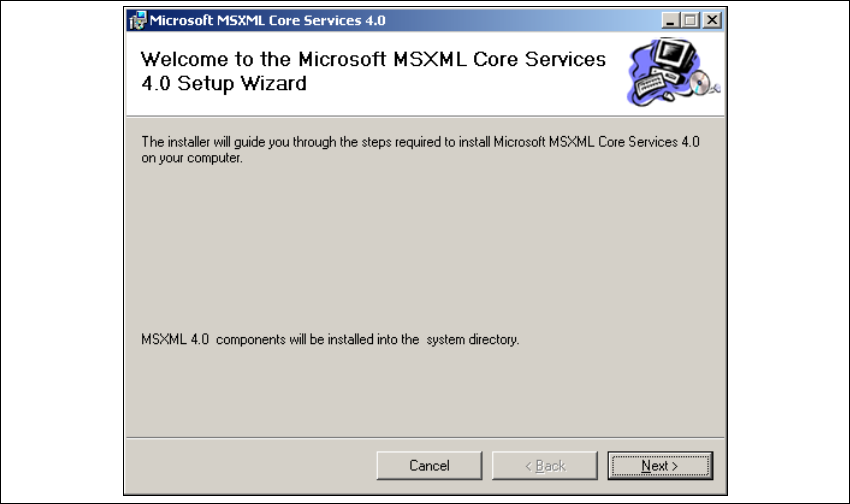
→ You will be guided through the MSXML installation procedure.
3
Fig. 3 - 34 MSXML 4.0 Setup - welcome to MSXML 4.0
→ Exit all other programs and then click on Next. The License Agreement dialog box will open.
3 Installing SIPLACE Explorer Installation and Configuration Guide SIPLACE Explorer
3.1 Initial Installation of SIPLACE Explorer 2.1 Edition 11/2006 EN
46
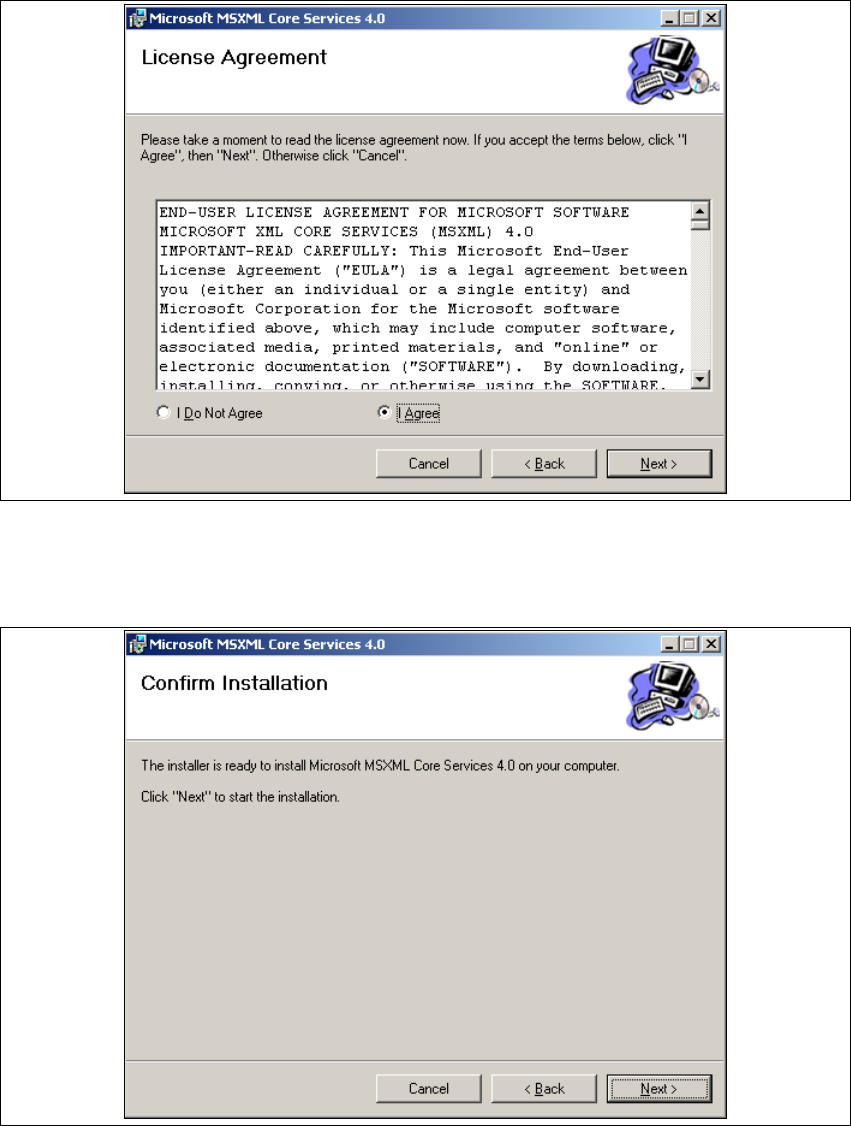
→ Read the license agreement. If you agree click I Agree, otherwise click I Do Not Agree. Click-
ing on I Do Not Agree terminates the installation.
3
Fig. 3 - 35 MSXML 4.0 setup - license agreement
→ Click on Next, to continue the installation procedure.
→ The Confirm Installation dialog box will open.
3
Fig. 3 - 36 MSXML 4.0 setup - user information
→ Click on Next to continue. The actual installation of MS XML 4.0 will start.