00193688-06_Installation SIPLACE Explorer2.1_EN.pdf - 第57页
Installation and Configuration Guide SIPLAC E Explorer 3 Installing SIPLACE Explorer Edition 11/2006 EN 3.3 Starting SIPLACE Explorer 57 – Factory Configuration Utility – Line Configuration – Modify-Uninstall – Performan…
3 Installing SIPLACE Explorer Installation and Configuration Guide SIPLACE Explorer
3.3 Starting SIPLACE Explorer Edition 11/2006 EN
56
3.3 Starting SIPLACE Explorer
→ SIPLACE Explorer can be started by selecting Programs → SIPLACE Explorer 2.1 from the
Windows menu and will be loaded to correspond with your selected installation options.
→ SIPLACE Explorer V.2.1 Runtime Environment:
"Runtime Environment" runs as a Windows service and is automatically started whenever you
reboot your computer. You will see the icon in your console. Right-click with the mouse to
open other applications and tools. The following options are available: 3
– SE Manager
– SE Security Manager
– Line Configuration
– Performance Analyzer
–Console
– Language
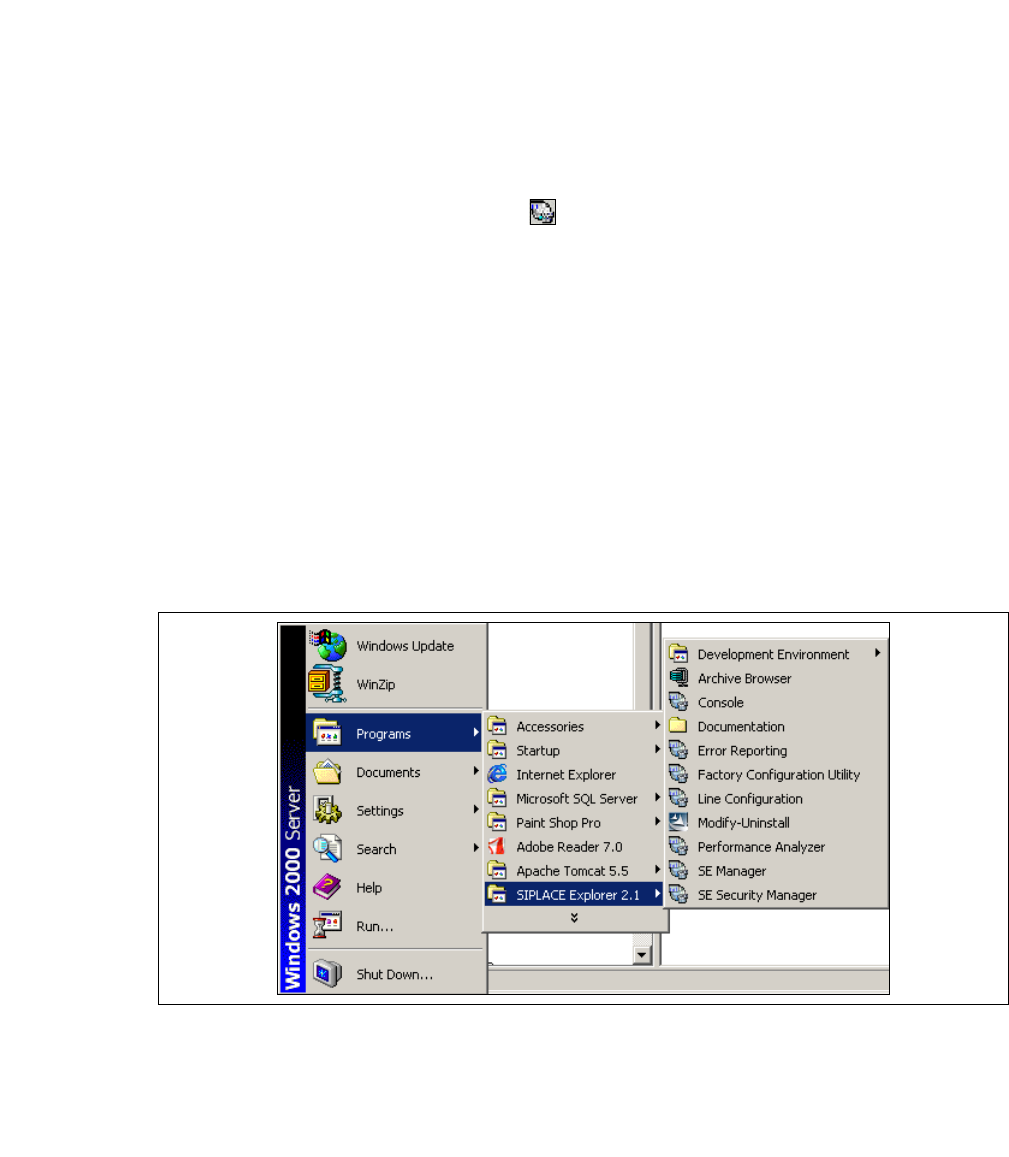
These additional applications and tools can also be started via the Programs → SIPLACE
Explorer 2.1 menu in Windows. 3
3
Fig. 3 - 47 RTE Windows Start menu
The following options are available: 3
– Archive Browser
–Console
– Documentation
–Error Reporting
Installation and Configuration Guide SIPLACE Explorer 3 Installing SIPLACE Explorer
Edition 11/2006 EN 3.3 Starting SIPLACE Explorer
57
– Factory Configuration Utility
– Line Configuration
– Modify-Uninstall
– Performance Analyzer
– SE Manager
– SE Security Manager
→ SIPLACE Explorer V.2.1 Development Environment
NOTE
You can only start Development Environment, when Runtime Environment is stopped. 3
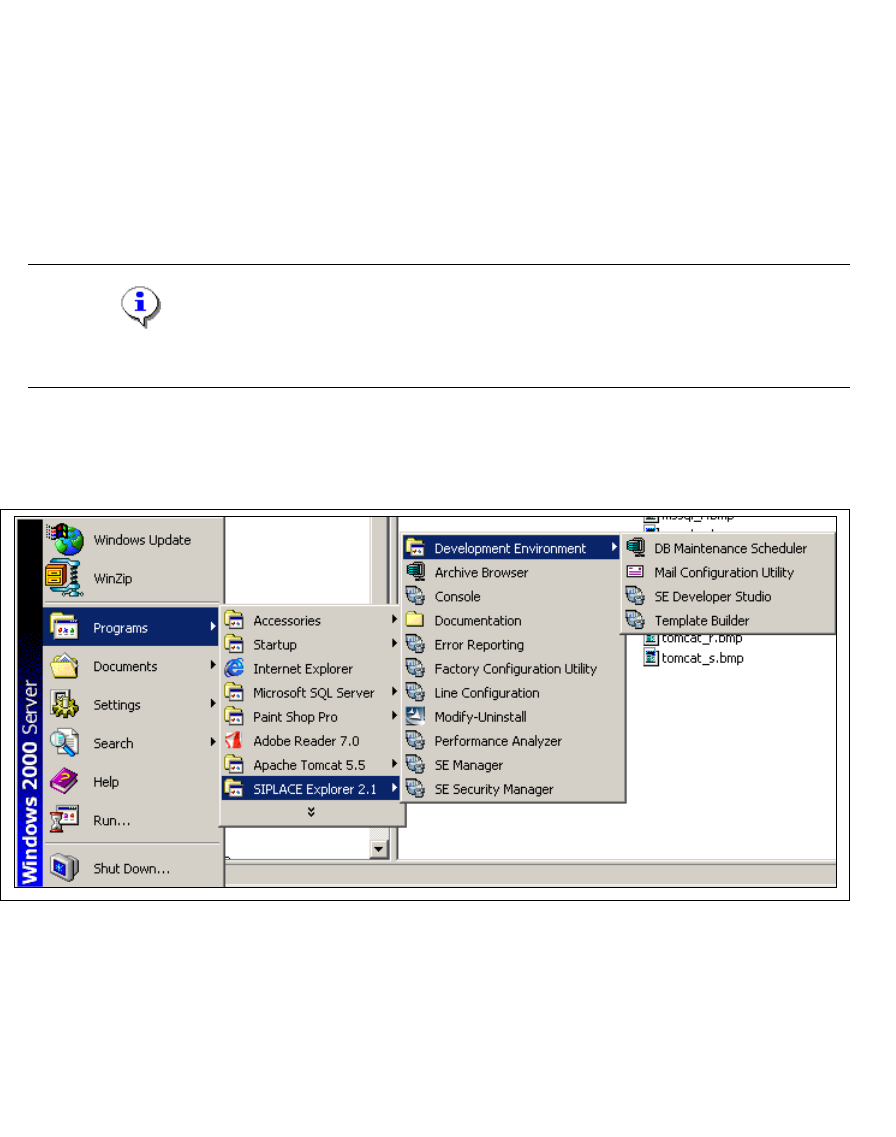
Start the Development Environment via the Programs → SIPLACE Explorer 2.1 →
Development Environment menu in Windows. 3
3
Fig. 3 - 48 DE Windows Start menu
The following applications and tools are available: 3
– DB Maintenance Scheduler
– Mail Configuration Utility
– SE Developer Studio
– Template Builder
3 Installing SIPLACE Explorer Installation and Configuration Guide SIPLACE Explorer
3.3 Starting SIPLACE Explorer Edition 11/2006 EN
58
→ SIPLACE Explorer V.2.1 Factory Configuration Utility
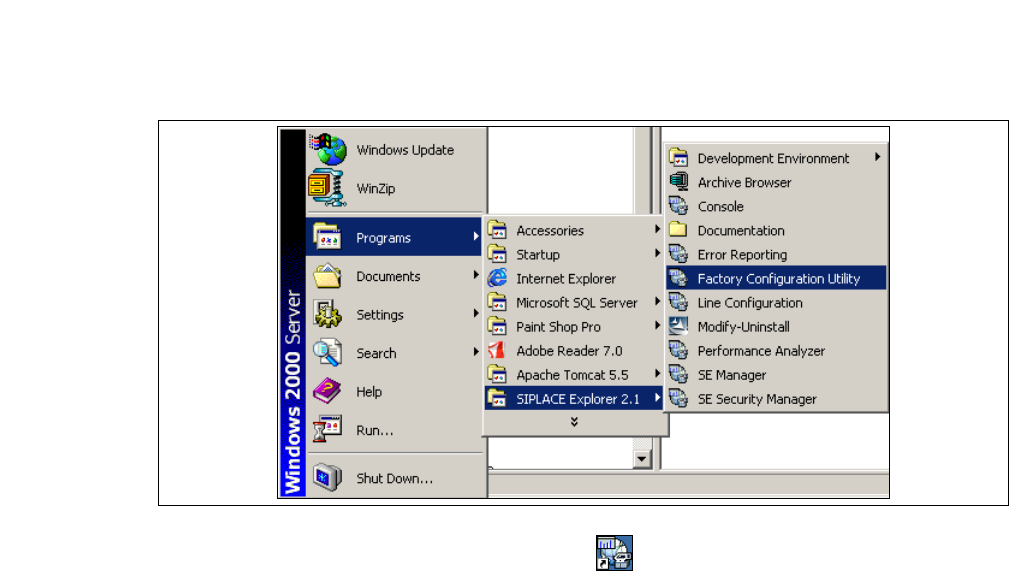
Start the Factory Configuration Utility via the Programs → SIPLACE Explorer 2.1 → Factory
Configuration Utility menu in Windows. 3
3
Fig. 3 - 49 Factory Configuration Utility Windows Start menu
→ Or click on the Factory Configuration Utility icon on your desktop.