00193688-06_Installation SIPLACE Explorer2.1_EN.pdf - 第83页
Installation and Configuration Guide SIPLACE Explorer 4 Configuration Edition 11/2006 EN 4.1 Standard Monitoring Application (SMA) 83 → After you have established the dat abase connec tion and converted the datab ase for…
4 Configuration Installation and Configuration Guide SIPLACE Explorer
4.1 Standard Monitoring Application (SMA) Edition 11/2006 EN
82
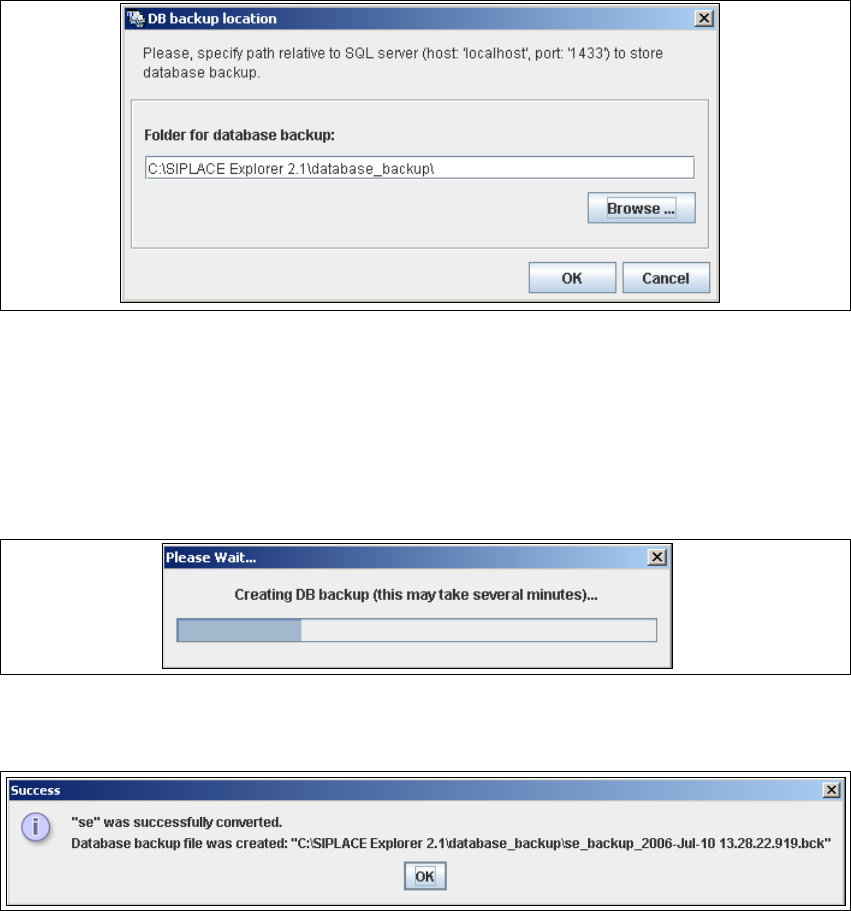
→ The DB backup location dialog box will open. This will only open during conversion of the
database from V2.0 to V2.1. When converting the database from V1.2 to V2.1, the database
backup will automatically be stored in the folder in which the V2.1 is stored.
4
Fig. 4 - 13 DB backup location
→ Before performing the conversion, the system creates a backup file of the database. Specify
the folder for this file in the Folder for database backup field. Click on the Browse ...
button to select an existing folder.
→ Confirm your choice with OK. The database will be converted. The conversion time
depends on the size of the database. It may take up to an hour.
4
Fig. 4 - 14 DB backup
→ After successful conversion of the database, the following information window will open:
4
Fig. 4 - 15 Success
→ Click OK. You can now continue with the line configuration process.
4
Installation and Configuration Guide SIPLACE Explorer 4 Configuration
Edition 11/2006 EN 4.1 Standard Monitoring Application (SMA)
83
→ After you have established the database connection and converted the database for SIPLACE
Explorer V2.1, you need to define the maintenance details for the system database, with the
Maintenance button.
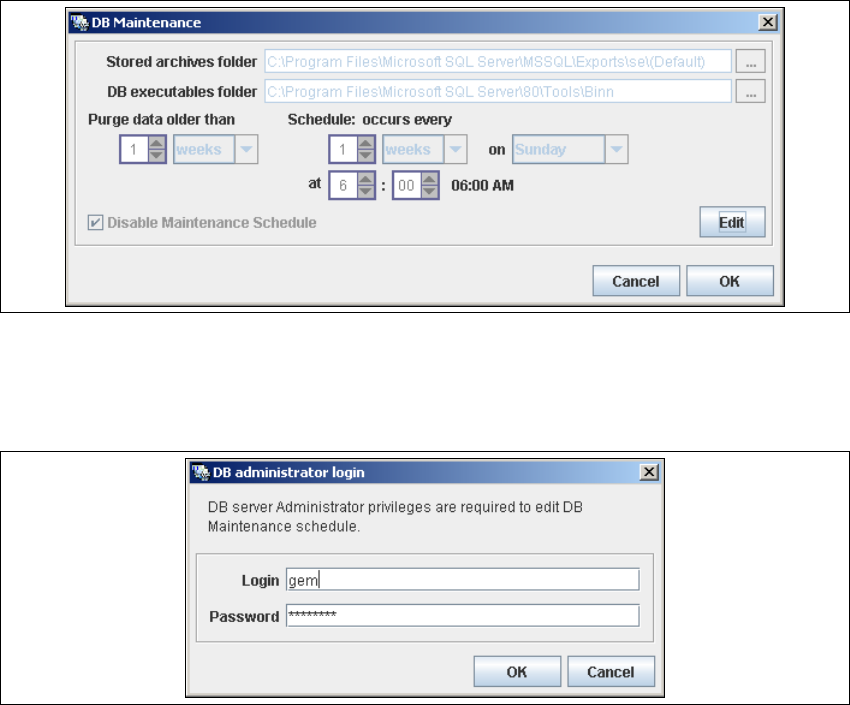
→ The DB Maintenance dialog box will open. This is where you can either create a new
archiving schedule for the database or edit the default maintenance schedule.
By archiving the database the data will be removed from the database and stored in a file,
the size of the database can be controled by this. 4
All input fields will be disabled. To start or edit a DB maintenance schedule, you must have
administrator privileges for the database and the database connection must already be
established. 4
4
Fig. 4 - 16 DB maintenance
→ Click on the Edit button
→ to open the DB Administrator Login dialog box.
4
Fig. 4 - 17 DB administrator login
→ Enter the access data here and confirm your entries with OK.
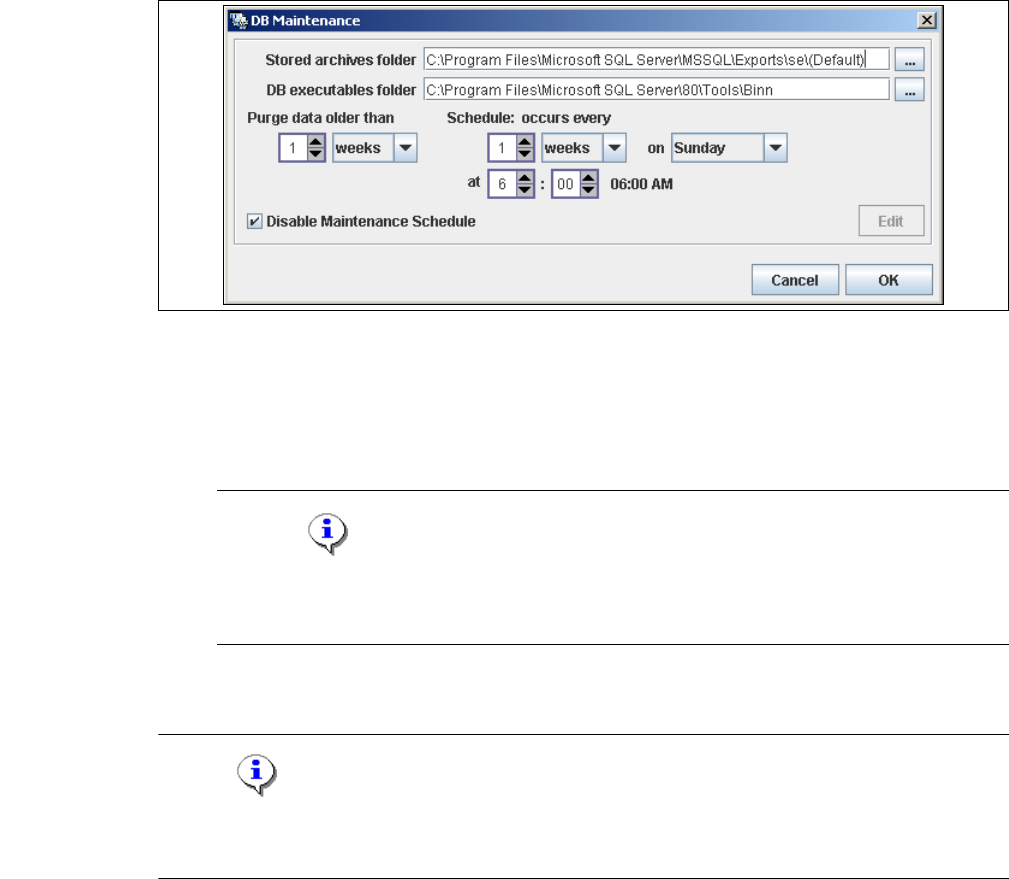
→ The input fields in the DB Maintenance dialog box will be enabled. The following details
can be defined:
– The file and path for the archived data
4 Configuration Installation and Configuration Guide SIPLACE Explorer
4.1 Standard Monitoring Application (SMA) Edition 11/2006 EN
84
– A schedule specifying the intervals and times when data is to be removed from the line
system database and stored in the archive.
– When to execute the maintenance schedule.
– The archiving schedule defined here will be stored in the database and can be called up
when required.
4
Fig. 4 - 18 DB maintenance
→ Check your entries and confirm with OK.
→ You must start the SQL server agent for the MSDE or MS SQL server installation, otherwise
the DB maintenance schedule can not be performed.
NOTE
Start the SQL server agent for the MS SQL server installation via the windows menu
Start → Programs → Microsoft SQL Server → Service Manager. 4
→ Once you have defined all settings in Step 5, click on Next to continue with the next step.
NOTE
Remember to regularly perform a database backup for the line database. This can be carried out
with the database tool on your computer e.g. with the Enterprise Manager for the MS SQL server.4