00193688-06_Installation SIPLACE Explorer2.1_EN.pdf - 第123页
Installation and Configuration Guide SIPLACE Explorer 5 Uninstallation Edition 08/2006 EN 5.4 Remove 123 5.4 Remove 5 Fig. 5 - 9 SIPLACE Explorer 2.1 - install shield wizard → Click on Remove and then on Next to continue…
5 Uninstallation Installation and Configuration Guide SIPLACE Explorer
5.3 Repair Edition 08/2006 EN
122
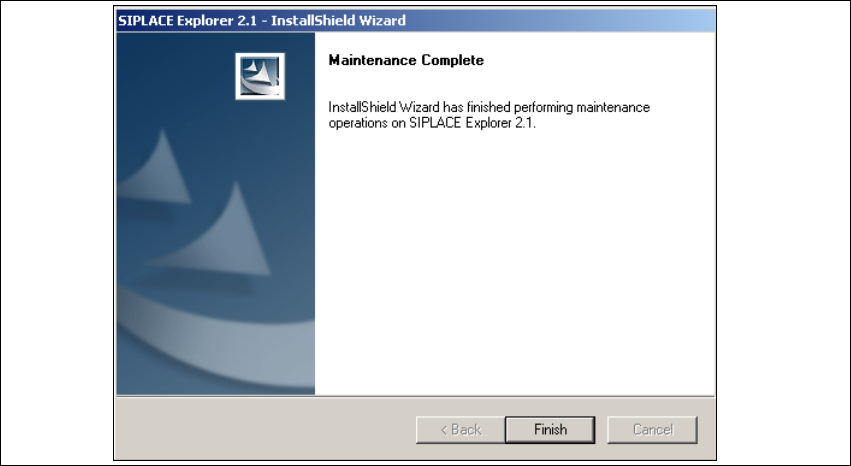
→ SIPLACE Explorer 2.1 recovery has been completed.
5
Fig. 5 - 8 Repair completed
→ Click on Finish to close the SIPLACE Explorer 2.1 - InstallShield Wizard.
Installation and Configuration Guide SIPLACE Explorer 5 Uninstallation
Edition 08/2006 EN 5.4 Remove
123
5.4 Remove
5
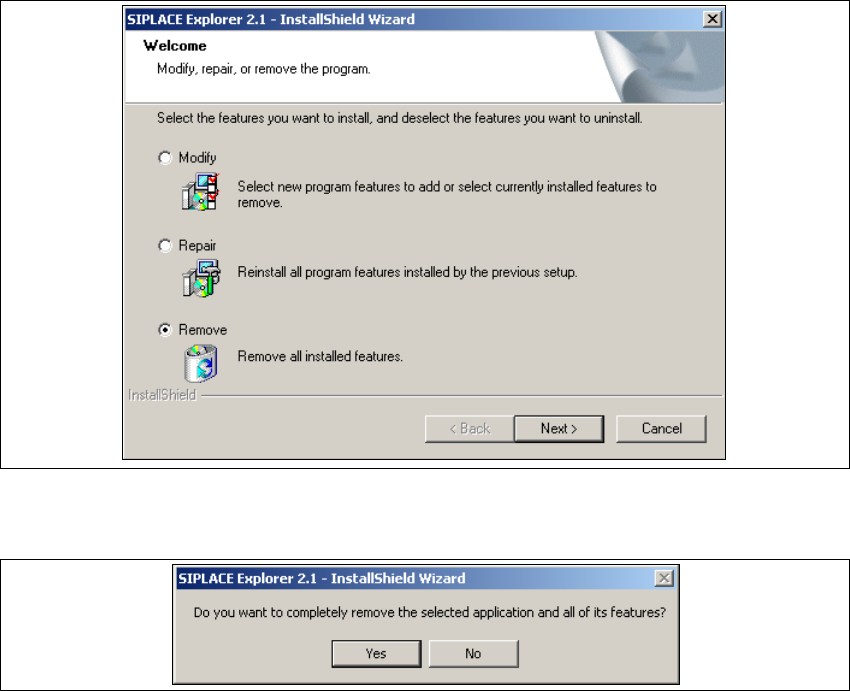
Fig. 5 - 9 SIPLACE Explorer 2.1 - install shield wizard
→ Click on Remove and then on Next to continue.
5
Fig. 5 - 10 Uninstallation query: confirm deletion of file
→ Confirm deletion with Yes.
5 Uninstallation Installation and Configuration Guide SIPLACE Explorer
5.4 Remove Edition 08/2006 EN
124
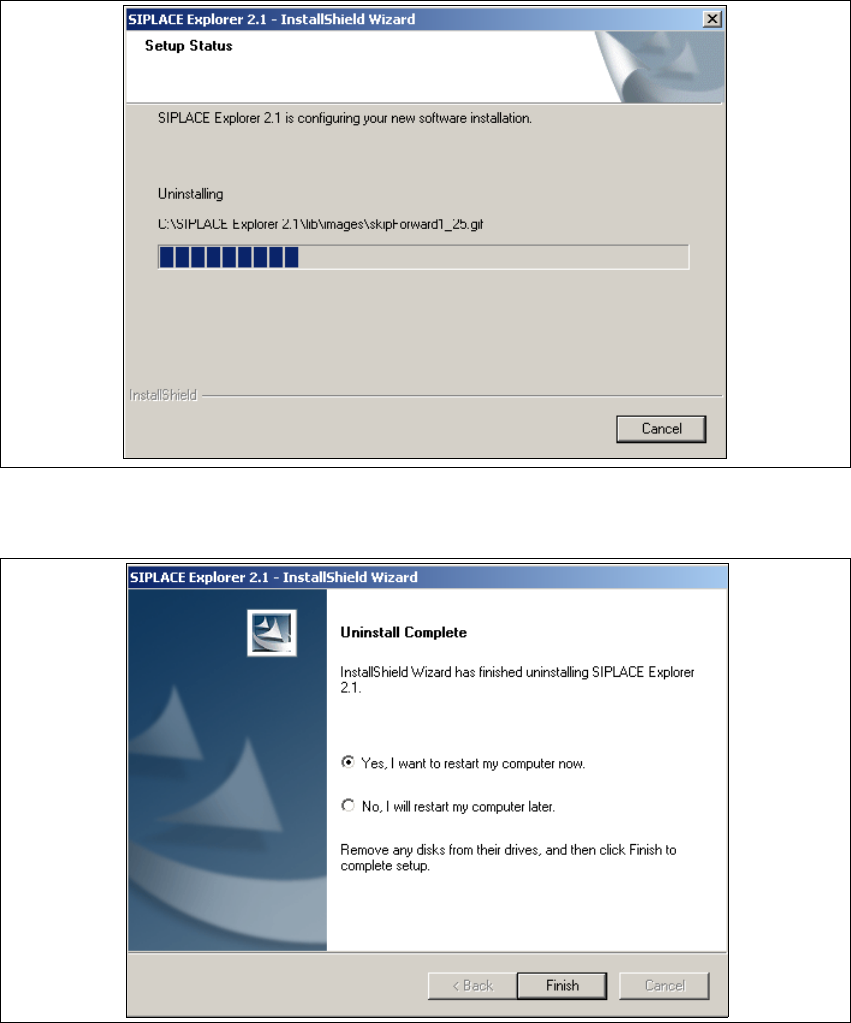
The uninstallation process will be performed. The Setup Status dialog box will show the
uninstallation status. 5
5
Fig. 5 - 11 Uninstallation process
→ SIPLACE Explorer V2.1 uninstallation has been completed.
5
Fig. 5 - 12 Uninstallation completed
→ Click on Finish to close the SIPLACE Explorer 2.1 - InstallShield Wizard.
→ After you have rebooted your computer, SIPLACE Explorer 2.1 will no longer be available.